

VeivoVerse: AI Video Generator
- 14.00
- 3.6
- Installs
- 10.00K
- Price
- Free

Screenshots
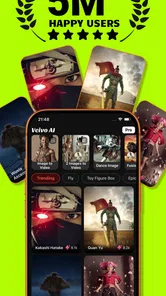
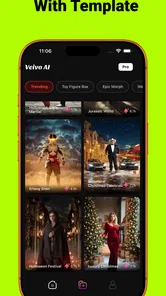
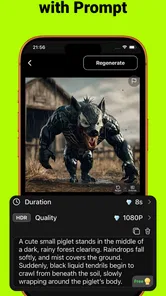
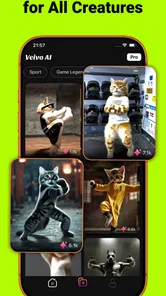
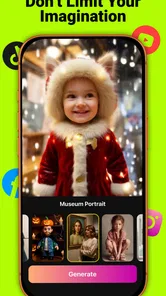
Analysis by Reviewed
VeivoVerse: AI Video Generator is a photography app from WeTone that I would describe as a creative effects tool rather than a full replacement for a professional video editor. Its purpose is simple: start with a photo and turn it into something more expressive. That makes it appealing when a normal image feels a little flat and you want to experiment without opening a complicated desktop program.
I approached it as a first-time user would, looking for a quick path from installation to a result worth saving or sharing. The experience is best understood as a small creative playground. You bring the visual idea, choose an effect-oriented direction, and judge whether the transformation fits the mood you had in mind. The app is free to install, although some individual purchases range from $2.49 to $199.99, so it is worth paying attention before confirming anything inside the app.
WeTone has positioned the app in the photography category, and that placement makes sense even though the name points toward video creation. The starting point is still your image and your taste. If you want to make a portrait more dramatic, give a travel photo a different atmosphere, or create a more unusual post from an otherwise ordinary picture, this is the kind of use I found most natural.
Getting from a photo to a result
I find the most useful way to approach this section is to treat the source photo as part of the creative decision, not just something to upload. A clean subject and uncluttered edges make it easier to tell whether an effect is adding character or merely obscuring detail. From there, the next section looks at how to set expectations before experimenting.
What to expect before you begin
The first thing I would tell a new user is not to expect the same workflow as a traditional editor with a timeline, layers, detailed color controls, and frame-by-frame adjustments. VeivoVerse is more useful when you want a fast visual experiment than when you need precise production control. That distinction saves time and prevents the wrong expectations.
Its store summary focuses on creating effects for photos, which is a better guide to the experience than treating it as a complete filmmaking suite. I would open it with a specific image in mind, but not with an overly rigid result. Effect-based tools often work best when you allow the source picture and the selected style to influence one another.
A good first image is clear, well lit, and easy to understand at a glance. A single subject usually gives you a better starting point than a crowded group scene. For example, a portrait with visible facial features or a street photo with one strong focal point gives the effect more visual information to work with. A dark, blurry image can still be interesting, but it makes it harder to tell whether the result is creative or simply unclear.
More From Our News Desk

 Gmail
GmailGmail in a Busy Inbox: Who Benefits Most?
From first account to crowded workday, Gmail earns its place through dependable search and flexible sorting—but its best fit depends on how much inbox maintenance you can tolerate.

 Prime Video
Switching to Prime Video: What Changes in Your Viewing Routine
Prime Video can make a compelling second home for streaming, but switching means learning a different catalog, rental layer, and route from browsing to playback.

 Universal TV Remote Control
Universal TV Remote Control Works Best as a Reliable Backup
A phone remote earns its place through quick setup and reliable habits. Here is how to get more from Universal TV Remote Control—and where its limits show.

 Weather - By Xiaomi
Weather by Xiaomi Review: Clear at a Glance, Less Clear Up Close
Xiaomi’s weather app makes everyday forecasts quick to scan, but its calm surface can leave useful details and recovery paths harder to find than they should be.

 X
XX Under Pressure: Can It Recover When Posting Goes Wrong?
A resilience-focused review of X, examining setup, mistaken posts, interruptions, weak connections, and the gaps that matter when recovery needs to be dependable.

 Clash of Clans
Clash of Clans Is Won Between the Battles
Its raids are quick; its community is a long-term project of coordination, teaching, rivalry, and shared responsibility—with all the friction that entails.
Latest News



I also recommend deciding what you want the image to do before opening the app. Are you trying to make a short social post, create a moving profile image, add atmosphere to a travel memory, or simply test something playful? That small decision helps you judge the result fairly. Without it, it is easy to keep trying effects without knowing what “better” means.
The first setup is deliberately simple
On Android, the app supports devices running version 7.0 or later, which keeps it accessible to many older phones as well as newer models. The app is free, and its content rating is Everyone, so it is presented as a broadly accessible creative tool rather than something aimed at a narrow age group.
After installing, I would keep the first session focused. Let the app reach its opening screen, look for the route that begins with an existing photo, and choose one image you already know well. Using a familiar picture is useful because you can immediately notice whether the effect preserves the important subject or distracts from it.
Do not begin by uploading your most valuable original. Make a copy first, or select an image that is already backed up elsewhere. This is a sensible habit with any editing app, but it matters especially when you are testing unfamiliar creative processing. Your original should remain untouched while you compare different outcomes.
The next practical step is to inspect the interface for any indication that a particular effect or export action requires payment. The app can be installed without an upfront purchase, but optional items can become expensive at the upper end, reaching $199.99 for one item. I would not tap through a purchase screen casually, especially if you are handing the phone to a child or letting someone else try the app.
That payment structure also changes how I would use the free experience. Treat the initial session as an evaluation: learn how the photo selection works, see how the preview feels, and decide whether the style matches your needs before spending anything. A free download is not the same thing as every creative option being free, so this check should happen early rather than after you have invested time in a project.
Your first meaningful success
For a reassuring first result, I would choose a portrait with one person, a clean background, and enough contrast between the subject and surroundings. Start with an effect that seems close to the mood you want instead of choosing the most dramatic-looking option immediately. Subtle movement or styling is often easier to evaluate than an extreme transformation.
Once the image is loaded, give the preview a moment and inspect the important areas. Look at the eyes, hair, hands, and edges of clothing if they are visible. These details tell you more than the overall novelty of the effect. If the face remains readable and the subject still feels like the same person, you have a useful result. If the effect changes the identity or makes the composition confusing, try a simpler source image before blaming the app.
My preferred workflow is to make one change at a time. I would save or note the first promising result, then test a second direction using the same photo. Keeping the source constant makes the comparison meaningful. If you change both the image and the effect, you cannot tell whether the improvement came from the style or from a better starting picture.
A realistic everyday example would be preparing a birthday message. I might take a well-framed photo of a friend, use a restrained effect to add motion or atmosphere, and create a more personal visual than a standard still image. I would then check the result on the phone screen at a small size. If the subject remains recognizable without sound or explanation, it is more likely to work well in a message or social post.
Another practical use is refreshing a collection of old travel photos. Rather than applying the same treatment to everything, I would select only a few images with strong subjects and use the app to create highlights. This avoids turning a whole album into a repetitive sequence. The strongest results are likely to come from selective use, not from processing every photo you own.
How to judge an effect instead of being distracted by it
Creative effects can look impressive for a few seconds simply because they are new. I try to judge them using three questions. Does the result keep the main subject clear? Does the motion or visual treatment support the original mood? Would I still want to share it after the surprise wears off?
Those questions are especially useful with portraits. A dramatic effect may hide facial details, while a calmer treatment can make the image feel more intentional. With landscapes, the opposite may be true: a stronger atmosphere can help a plain view feel more memorable, but excessive movement can make the scene look artificial.
I also look at the background. Effects that appear attractive around the subject can become messy at the edges, particularly when the image contains thin objects such as branches, wires, hair, or lettering. If the background becomes distracting, crop the source before processing or select a picture with clearer separation. That is a more reliable adjustment than repeatedly trying random styles.
For social sharing, I would preview the result in the same orientation in which it will be viewed. A vertical portrait and a wide landscape communicate differently, and an effect that works in a large preview may feel cramped when displayed in a narrow feed. This is not a reason to reject the app; it is a reminder that the source composition still matters.
Where first-time users may get confused
The biggest possible misunderstanding is the difference between an effect generator and a conventional editor. If you are looking for exact trimming, detailed sound mixing, captions, transitions, or manual keyframes, I would choose a dedicated video-editing app instead. VeivoVerse makes more sense at the creative starting point, where the goal is to transform a photo rather than assemble a complete production.
The name may also lead people to expect that every result will look like a polished video. I would keep expectations grounded. A generated effect can be useful, amusing, or visually striking without being suitable for a professional campaign. If you need repeatable brand colors, exact timing, consistent output across many images, or detailed control over every movement, a more specialized tool will give you a steadier workflow.
Another point of confusion is judging the app from one disappointing image. A weak source photo can make an effect appear broken even when the same style works better with a clear subject. Before abandoning the app, test a portrait, a simple object, and a landscape separately. This small three-image check helps reveal whether your problem is the chosen effect, the source material, or the type of image itself.
Payment prompts deserve their own attention. Because the app is free to install but includes optional purchases, I would read each screen carefully and avoid assuming that a preview automatically means the final action is free. If you are only exploring, stop at the preview stage until you understand what is included. This is also where the wide purchase range matters: a low-cost option and a very expensive item should not be treated as interchangeable.
Performance can vary with the phone, the image, and the complexity of the chosen treatment. I would avoid judging the app while switching rapidly between many source files. Give each attempt time to finish, keep the first test image reasonably sized, and close unrelated apps if the device is older. These are practical ways to make the first session less frustrating without pretending that every phone will behave identically.
Three workflows that make the app more useful
The first workflow is a before-and-after selection test. Choose one image, create a result, and compare it with the original at thumbnail size. If the effect disappears when the image is small, it may not be worth using for a feed or gallery. If the subject still reads clearly and the transformation adds a recognizable mood, you have found a stronger candidate.
The second is a limited-series approach. Pick three photos from the same occasion, but process only the one with the clearest composition first. If it works, apply a related visual direction to the other two rather than forcing exactly the same treatment. This creates a set with some unity while allowing each image to keep its own character.
The third is to use the app as a concept tool before doing final editing elsewhere. I might create an effect in VeivoVerse to discover the mood I want, then use a conventional editor for cropping, text, sound, or final arrangement. This division of labor is more realistic than expecting one photography app to handle every stage equally well. It also lets the app contribute what it does best without making it responsible for tasks outside its natural focus.
A fourth useful habit is to keep a small “successful sources” folder. When an image produces a convincing result, save a copy of the original and remember what made it suitable: clear subject, simple background, strong contrast, or an expressive pose. Over time, this becomes a personal guide to the kinds of photos that work well for your creative experiments. It is more valuable than blindly collecting effects.
Who should try it, and who should skip it
I think the app is a good fit for casual photographers, social-media users, and anyone who enjoys turning a still picture into something less ordinary. It is also approachable for a first experiment because you can begin with a photo you already have instead of learning a complex editing timeline. Families may appreciate it for playful greetings, while travelers can use it to give selected memories a different feel.
It is less suitable for photographers who want careful retouching, manual color grading, or a predictable professional finish. I would also skip it if your main goal is to edit long videos, synchronize music, add multiple text layers, or build a detailed sequence from many clips. In those situations, a full video editor is the better choice, even if it takes longer to learn.
People who dislike trial-and-error tools may find the experience less satisfying. The creative value comes partly from testing a source image against different treatments, and not every attempt will deserve to be saved. If you want a single button that always produces a polished result, this category of app may feel inconsistent. I prefer to see that variability as part of experimentation, but it is still a real trade-off.
What the current app profile tells me
VeivoVerse is currently at version 2.4 and has passed 10K installs. Its average rating is 3.6 from around 160 ratings, with 14 written reviews. I read that as a sign to approach it with curiosity rather than assuming it will satisfy everyone. The audience is large enough to show that people are trying it, while the middling average suggests that expectations and results may differ from user to user.
The developer is WeTone, and the app was released on March 8, 2026. Since it is a relatively recent photography tool, I would keep my expectations flexible and pay attention to how well its current workflow matches my needs rather than relying on the novelty of the concept. Version numbers can change, but the important question for a new user is whether the present experience helps create something they actually want to keep.
The age rating of Everyone makes it approachable for a broad audience, but that does not remove the need for adult supervision around optional purchases. I would be especially careful when a child is exploring the effects. The creative side may be harmless fun, yet purchase confirmation screens still deserve the same attention as they would in any free-to-install app.
My next-step recommendation
If you are installing it for the first time, start with one backed-up portrait and one simple landscape. Try a restrained effect first, inspect the subject and edges, and compare the result with the original at the size where you plan to share it. Do not buy anything during that first test. This gives you a clear answer about the app’s creative style before money becomes part of the decision.
If the results feel promising, build a small workflow around it: select strong source images, process only the best candidates, and use another editor afterward for finishing tasks. That approach makes the app a focused part of your creative process instead of forcing it to replace every other tool on your phone.
My overall view is positive but specific. VeivoVerse is worth trying when your goal is to give a photo a fresh, effect-driven identity, not when you need complete editing control. The free entry point makes experimentation easy, while the optional purchase range means I would remain careful and selective. For a first-time user with a good image and a little patience, it can turn an ordinary picture into a more memorable visual; for a precision-focused editor, a conventional photography or video app will still be the smarter choice.
VeivoVerse: AI Video Generator Frequently Asked Questions
Who develops VeivoVerse: AI Video Generator, and what kind of app is it?
VeivoVerse: AI Video Generator is a photography app developed by WeTone. Its focus is creating effects for photos, while its name also points to AI-assisted video creation. If you are browsing for a tool to experiment with visual effects or make creative media, this is the kind of app to explore. Its age rating is Everyone.
Is VeivoVerse: AI Video Generator compatible with my phone?
VeivoVerse: AI Video Generator is listed for devices running Android 7.0 or later, so checking your phone’s Android version before downloading is a sensible first step. The app’s current version is 2.4. If you use an iPhone or iPad, confirm that the app is available for your particular device and operating system in its store before proceeding, since compatibility can differ between platforms.
What is VeivoVerse: AI Video Generator, and what can it create?
VeivoVerse: AI Video Generator is designed to help users produce short videos with the assistance of artificial intelligence. Depending on the available tools and subscription level, you may be able to generate clips from text prompts, transform images into animated scenes, apply visual styles, and create content suitable for social media. Results can vary according to the prompt, source material, processing time, and selected settings.
Is VeivoVerse: AI Video Generator free to use?
VeivoVerse is free to download, but in-app purchases are available, with listed purchase options ranging from $2.49 to $199.99 per item. The app may offer free access or a limited trial, but advanced generation features commonly require credits, in-app purchases, or a recurring subscription. Before creating multiple videos, check the current pricing page carefully, including renewal terms and any limits on resolution, duration, exports, or watermarks. Availability and prices can differ between Android and iOS and may change after installation.
Does VeivoVerse require an internet connection?
Yes, an active internet connection is generally necessary because AI video generation is processed through online servers rather than entirely on your phone. Uploading images, sending prompts, rendering videos, and downloading completed results can use significant mobile data, especially for longer or higher-resolution clips. A stable Wi-Fi connection is recommended to reduce failed generations and avoid unexpected data charges.
Pros
- Creates videos from text prompts with minimal editing experience.
- Offers AI-powered visual effects and creative styles for varied content.
- Useful for producing short social media clips and promotional videos.
- Can speed up brainstorming by turning ideas into visual drafts.
- Simple interface makes the main generation tools easy to access.
Cons
- AI results may not always match the prompt accurately.
- High-quality video generation can require considerable processing time.
- Some features or export options may be limited to paid plans.
- Generated clips may contain visual glitches or inconsistent details.
- An internet connection is generally required for AI processing and downloads.










