TV Cast & Mirroring: All TV
- 37.00
- 3.6
- Installs
- 1.00M
- Price
- Free

Screenshots
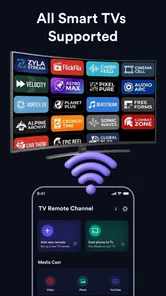
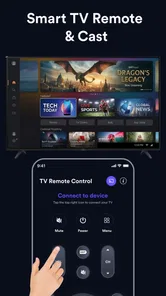
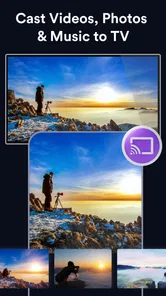
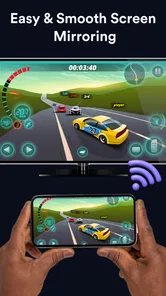
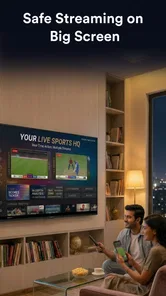
Analysis by Reviewed
I tend to reach for a TV-casting app when a phone screen feels too small for the thing I want to share: a family photo, a short clip, or a demonstration I’m showing someone across the room. TV Cast & Mirroring: All TV is built for that practical handoff, with casting and screen mirroring as its central purpose and a remote-control element alongside them. It is a free app from Jakka Apps in the video player and editor category, and its appeal is straightforward: get personal media or the phone display onto a Smart TV without making the television itself the starting point.
From a small screen to a shared one
I find the most useful way to think about this app is as a viewing and presentation tool, not a video-editing workspace. It does not turn a phone clip into a finished production; instead, it helps move what is already on the phone to a larger screen. That distinction matters if you are choosing an app for creative work. It can make reviewing or sharing material more comfortable, but the actual trimming, polishing, and publishing still belong elsewhere.
The app is aimed at people who want to cast videos and photos or mirror their screen to a Smart TV. That covers several everyday situations: looking through holiday pictures with relatives, showing a reference image while planning a room, or playing a clip for a group without passing a phone around. A remote-control function also makes the app more than a one-way display button, though I would treat it as a convenience for basic viewing rather than a replacement for every function of a television’s own remote.
Its broad audience is reflected in an Everyone age rating. It has reached over one million installs and has a 3.6 average from around 2,700 ratings, so it is clearly being tried by a substantial number of people, while the middling score suggests that the experience may not be equally smooth for every setup. I would go in with realistic expectations: casting depends on the phone, television, and network working well together, not just on the app.
Choose the right kind of sharing
Before starting, I recommend deciding whether you want to send one item to the television or show the phone’s whole display. Casting an individual photo or video is usually the more focused choice: it keeps the TV on the media you selected and avoids exposing unrelated phone activity. Mirroring is better when the material is not just a standalone file, such as when you need to move between several images or show a screen that cannot be sent as a single video.
That distinction is a small but useful workflow choice. If I am sharing a batch of photos, mirroring can make it easier to move through them in the order I want. If I am settling in to watch one clip, casting that clip is the more sensible route because I do not need the television to reproduce every tap or notification on my phone. For a presentation, I would also prepare the screen beforehand and silence interruptions; mirroring shows the phone’s display, so anything that appears there can become part of the viewing experience.
There is a practical compatibility question users often have: will it work with their particular television? The app is intended for Smart TV casting, but the word “Smart TV” covers many different systems. I would check that the phone and television are on the same local network, open the app, and see whether the TV is discoverable before planning a group viewing around it. If it is not found, checking the network connection and the TV’s casting settings is a better first move than repeatedly tapping through the app.
More From Our News Desk
 Instagram
Instagram’s Power Comes From Its Place in Your Phone
A close look at how Instagram turns Meta’s reach, recommendation systems and everyday camera habits into durable platform power—and what that costs users.

 Gmail
GmailGmail in a Busy Inbox: Who Benefits Most?
From first account to crowded workday, Gmail earns its place through dependable search and flexible sorting—but its best fit depends on how much inbox maintenance you can tolerate.

 Prime Video
Switching to Prime Video: What Changes in Your Viewing Routine
Prime Video can make a compelling second home for streaming, but switching means learning a different catalog, rental layer, and route from browsing to playback.

 Universal TV Remote Control
Universal TV Remote Control Works Best as a Reliable Backup
A phone remote earns its place through quick setup and reliable habits. Here is how to get more from Universal TV Remote Control—and where its limits show.

 Weather - By Xiaomi
Weather by Xiaomi Review: Clear at a Glance, Less Clear Up Close
Xiaomi’s weather app makes everyday forecasts quick to scan, but its calm surface can leave useful details and recovery paths harder to find than they should be.

 X
XX Under Pressure: Can It Recover When Posting Goes Wrong?
A resilience-focused review of X, examining setup, mistaken posts, interruptions, weak connections, and the gaps that matter when recovery needs to be dependable.
Latest News



Making a viewing session easier
For a low-friction session, I would connect the television before gathering everyone around it. Network discovery can be the part that slows things down, and solving that while people are waiting is frustrating. Once the TV is available, choose the media or mirroring approach that fits the task, then keep the phone nearby as the controller. This is especially helpful when the content is a personal collection rather than something already arranged as a playlist.
A realistic example is reviewing a set of photos after a weekend trip. I would use the larger display to let everyone comment together, keep the phone in my hand to move between shots, and avoid sending each person a separate copy just to make the images visible. For a short video, the same setup turns a private phone-sized clip into something the whole room can watch. These are modest tasks, but they are exactly where a casting utility can save time and make the content feel more social.
The remote-control aspect is useful when I want to stay seated instead of walking back to the television for every small adjustment. Still, I would not assume it offers every control available on the TV’s physical remote. If a viewing session depends on detailed television settings or controls specific to a particular brand, the original remote remains the dependable fallback. I see the in-app remote as a handy extra, not the main reason to choose the app.
Reviewing and changing course
Casting is not only for showing finished material. A large TV can be a useful second look at a clip before sharing it: details that are easy to miss on a phone become more obvious when the image fills a room. I would use this as a simple review step, especially for checking whether a shot is framed well or whether a photo looks good when viewed by several people. It is not a substitute for a proper editing monitor, but it can catch obvious issues before a casual handoff.
For comparing alternatives or versions, a deliberate sequence works better than switching randomly. I would note the order of the clips or images I want to review, cast or mirror them in that order, and ask viewers to focus on one difference at a time. This turns the TV into a shared review surface rather than merely a bigger screen. It is a useful approach for a family slideshow, a simple visual presentation, or deciding which take to send to someone.
The main trade-off is that mirroring makes the phone part of the performance. Incoming alerts, accidental gestures, and battery use can all become more noticeable during a longer session. If I only need to display a single file, I prefer the more targeted casting route when available. If I need to demonstrate a sequence of actions, mirroring earns its place despite the extra care it requires. That choice is more important than treating both modes as interchangeable.
Another sensible expectation is that a wireless setup can be affected by the home network. If playback stutters or the connection drops, I would first look at distance from the router, congestion, or whether the devices have drifted onto different networks. The app cannot make a weak connection behave like a wired display connection. For a critical presentation where interruptions would be costly, a direct cable or the TV maker’s own casting method may be the safer option.
Handing the screen over
When the goal is simply to share something with another person, the handoff should be as clear as possible. I would open the exact photo or video first, connect the TV, and then start the session rather than asking viewers to watch me browse through unrelated files. For screen mirroring, I would close private apps and prepare the page or image I intend to show. Those small steps make a casual cast feel considered and reduce the chance of an awkward interruption.
For creative work, the app sits near the end of the process. I might edit a video in a dedicated editor, save the version I want to show, and then use casting to review it with a friend or family member on a television. After feedback, I would return to the editor to make changes and use the TV again for a final check. It is a simple loop—prepare, display, discuss, revise—rather than an all-in-one creation pipeline.
That boundary is important for anyone expecting export tools. The app’s role is to put media or a phone screen on a TV, not to provide a full set of editing and publishing controls. If you need precise trimming, titles, transitions, color adjustments, or a finished file for social media, choose a dedicated editor. If the finished file is already on your phone and the next step is showing it to people, this app is much closer to the job.
Where it fits among casting options
Compared with a television manufacturer’s companion app, a general casting app can be attractive when you want one place to try for photos, videos, mirroring, and remote-style control. The trade-off is that a manufacturer’s app may fit its own TV more closely, particularly for settings or brand-specific functions. I would try this app for a straightforward cross-device viewing task, but keep the TV maker’s option in mind if discovery or control proves unreliable.
Compared with built-in screen sharing on a phone, the app’s value depends on whether it makes the particular connection easier for you. Built-in tools can be the simplest choice when they already recognize the television and handle the content you want. A separate app is worth trying when you want a dedicated casting workflow that also brings photos, videos, screen sharing, and remote control together. I would not install it merely to duplicate a connection method that already works consistently.
The app is free, currently at version 1.1, and supports Android 8.0 or later. Those details make it easy to consider as a low-commitment trial on a compatible Android phone. Its average rating is 3.6, with 37 written reviews, which gives me reason to test the actual TV connection early rather than assume that the experience will be identical across devices. A quick trial with a nonessential photo or short clip is a better first test than relying on it for an important event.
My verdict for everyday sharing
I would recommend TV Cast & Mirroring: All TV to someone who regularly wants to put phone media on a larger screen and is comfortable checking that their television and phone can see each other on the network. It makes sense for family photos, casual video viewing, and informal demonstrations, especially when the phone is already where the content lives. The remote function is a welcome convenience, and having both individual media casting and screen mirroring gives the app more than one useful way to share.
I would skip it if my main goal were to edit and publish video, if I needed guaranteed low-latency mirroring for a demanding presentation, or if my TV’s built-in casting already works perfectly. It is also not my first choice for a polished production workflow: it helps with showing and reviewing output, not making the output itself. For a dependable one-off presentation, I would test the connection before the day and keep the television’s own remote or another display method available.
Overall, I see this as a practical bridge between phone content and a shared TV screen rather than a creative suite. Its strongest use is making something already on your phone easier for other people to see, while its weakest point is that the experience inevitably relies on a compatible, cooperative network setup. If that matches what you need, a quick real-world test will tell you more than a long feature checklist, and the app may become a handy tool for turning private phone viewing into a group moment.
TV Cast & Mirroring: All TV Frequently Asked Questions
What does TV Cast & Mirroring: All TV do?
TV Cast & Mirroring: All TV is designed to help you send supported media from a mobile device to a compatible television or streaming device, and may also offer screen mirroring. The exact features depend on the app version, your phone, and the receiving device. Check the app listing and in-app instructions to confirm which casting options are available before downloading.
Which TVs and devices can I use with TV Cast & Mirroring: All TV?
Compatibility can vary: a television may need built-in casting support, or you may need a compatible streaming device connected to it. In general, the phone and receiving device should be on the same Wi-Fi network, and the TV’s casting or screen-mirroring feature may need to be enabled. Review the app’s current compatibility information, since support can differ by device model and operating system.
Do I need Wi-Fi or an internet connection to cast or mirror?
A Wi-Fi connection is typically needed for a phone to discover and communicate with a compatible TV or streaming device. For online videos, the phone or TV will also need internet access to load the content. Some local media or mirroring features may behave differently depending on the devices and network setup. A stable connection can help reduce delays, buffering, and interruptions.
Can I cast any app or video, and will screen mirroring include sound?
Not necessarily. Some services restrict casting or screen capture, and certain videos may not play through a third-party casting app. Screen mirroring can also behave differently from sending a video directly to a TV; audio support may depend on your phone, app, and receiver. Check the app’s feature details and test with content you are permitted to share before relying on it.
Is TV Cast & Mirroring: All TV free, and what should I check before installing?
The price and available features may depend on the app version, platform, and region. The listing may include ads, optional purchases, or subscription terms, so review those details before starting a trial or paying. Also check the requested permissions, privacy information, recent reviews, and developer support details. Download it only from an official app store and confirm that it is compatible with your device.
Pros
- Supports screen mirroring to compatible TVs for sharing content on a larger display.
- Can cast photos and videos from your phone to a TV.
- Useful for showing presentations or personal media to a group.
- Combines casting and mirroring tools in one app.
- May work with multiple TV brands
- depending on device compatibility.
Cons
- Your TV and phone may need to be connected to the same Wi-Fi network.
- Some features may require a paid upgrade or subscription.
- Mirroring can introduce lag
- especially with games or fast-moving video.
- Casting support varies by TV model and streaming service.
- The app may request permissions that feel unnecessary for basic casting.