TeamLive
- 665.00
- 4.7
- Installs
- 100.00K
- Price
- Free

Screenshots
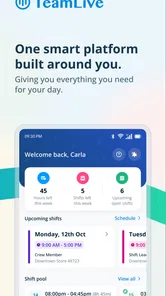
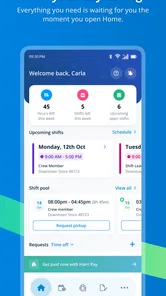
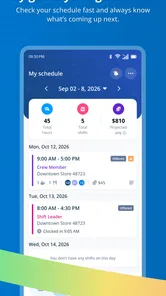


Analysis by Reviewed
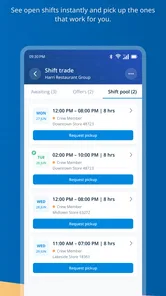
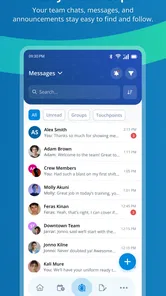
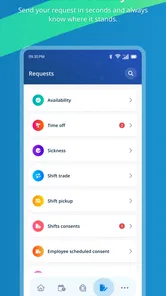
TeamLive is the kind of business app that looks simple until you depend on it for a busy shift. I found its main value in bringing scheduling and workplace communication into one place instead of scattering updates across paper notices, group chats, and last-minute calls. That sounds straightforward, but the real test is what happens when a schedule changes, a message is missed, or someone cannot get into the app at the moment they need it.
Developed by Harri, TeamLive is free and aimed at everyone from an age-rating perspective. It belongs to the business category, and its focus is clearly practical rather than decorative: helping teams stay aligned around work. The app has built a strong reception, with a 4.7 average from around 6.6 thousand ratings and more than 100 thousand installs. Those figures suggest that it is already familiar to many working teams, although popularity alone does not guarantee a smooth experience for every workplace.
Getting past the first points of friction
The first thing I would tell a new user is not to judge TeamLive during the first few minutes. A staff scheduling app depends heavily on how the employer has configured it and whether the employee’s account details match the workplace records. If the schedule looks empty, a team is missing, or a login does not work, the issue may be setup rather than the app itself.
Before trying repeated passwords or reinstalling, I would check the basics in a calm order. Make sure the app is installed on a compatible device, confirm that the correct workplace or team is being used, and check whether the invitation or account information came from the right manager. A small mismatch in an email address, phone number, or workplace selection can make a perfectly valid account appear unavailable.
TeamLive runs on Android from version 7.0 onward, which covers a broad range of devices. Even so, an older phone can make any work app feel unreliable if storage is nearly full, the operating system is unstable, or background activity is restricted. I would first close other apps, restart the phone, and try again on a dependable connection. These are ordinary checks, but they matter more when the app is being used during a rushed handover.
One useful habit is to complete the initial setup before the first urgent shift. Open the app when you have time, look through the available schedule and communication areas, and make sure you understand where a roster update appears. Waiting until you are standing outside work and trying to confirm a changed start time is the worst moment to discover that your account needs attention.
The most important setup check is knowing which information your workplace expects you to use. TeamLive is not a personal calendar that you can populate independently. Its usefulness depends on the schedules and messages made available by the organization. If a manager has not published a shift, changing settings on your phone will not create one. That distinction prevents a lot of wasted troubleshooting.
More From Our News Desk

Weather by Xiaomi Review: Clear at a Glance, Less Clear Up Close

X Under Pressure: Can It Recover When Posting Goes Wrong?

Clash of Clans Is Won Between the Battles

Android Auto Makes the Case for Quieter Car Software

MobiOffice: Transforming Mobile Productivity with Seamless Integration

EA SPORTS FC™ Mobile Soccer: Redefining Mobile Sports Gaming
How I would prepare it for everyday work
After signing in, I would spend a few minutes learning the rhythm of the app rather than exploring every screen at once. Find the current schedule, identify where team communication appears, and note how changes are presented. The goal is to create a simple routine: check the schedule at a predictable time, review new communication, and return to the schedule whenever a manager announces a change.
For employees with variable hours, this routine is more useful than treating TeamLive as something opened only when a notification arrives. A notification can be overlooked, delayed, or hidden among personal alerts. Checking the actual schedule gives you a better chance of spotting a change that affects the next shift, especially when your workplace communicates several updates close together.
Managers should approach setup differently. Before asking an entire team to rely on the app, they should make sure staff know where the official schedule lives and what channel should be used for urgent changes. If some employees continue receiving information on paper or through separate chats, confusion can remain even when TeamLive itself is working correctly.
This is one of the app’s less obvious trade-offs. Putting scheduling and communication together can reduce fragmentation, but only if the workplace actually uses it as a shared source of truth. A half-adopted system can create two versions of reality: one in the app and another in informal messages. In that situation, the problem is not solved by adding more notifications.
Recovering when a schedule or message seems wrong
When something appears missing, I would avoid immediately assuming that the data has disappeared. First, leave the affected screen and open it again. Then check the connection, restart the app, and sign back in only if the problem looks like an account session issue. If the schedule still does not appear, compare what you see with the latest information from a manager or supervisor.
This comparison is important because there are two very different problems: the app may not be displaying a published update, or the workplace may not have published the update yet. From an employee’s point of view they look identical. Asking a clear question such as “Is the new schedule visible in TeamLive for everyone?” is more useful than sending a vague complaint that the app is broken.
If a message refers to a shift, save yourself from relying on memory. Read the date, time, and location carefully, then check the schedule itself. Communication can explain a change, while the schedule may remain the place where the actual assignment is shown. Treating every message as a replacement for the schedule can lead to mistakes when a conversation contains context but not the complete roster.
Another practical recovery step is to record what happened before contacting support or a manager. Note the device, the screen you opened, whether other parts of TeamLive loaded, and whether colleagues saw the same issue. This does not require technical knowledge. It simply gives the person responsible for the workplace account enough detail to distinguish a local phone problem from a broader publishing or account problem.
Reinstalling can be tempting, but I would keep it as a later step rather than the first response. If the underlying issue is an incorrect account assignment or an unpublished schedule, reinstalling changes very little. It may also force you to repeat the sign-in process at an inconvenient time. Basic recovery should begin with connection, app restart, account details, and confirmation from the workplace.
When TeamLive is working but the situation still feels confusing
Not every disagreement about a shift is a software failure. A workplace can publish information correctly and still create confusion through late changes, unclear wording, or separate instructions from different people. TeamLive can centralize communication, but it cannot decide which manager’s verbal instruction should override a published schedule.
For that reason, I would use the app as a record of the information your workplace has placed there, while following the organization’s process for resolving conflicts. If a manager tells you one thing and the schedule shows another, ask for the correction to be made in the shared system or obtain a clear confirmation from the responsible person. This creates less ambiguity for you and for the colleague who may take the next shift.
Connectivity is another common false alarm. A weak signal, an unreliable workplace network, or aggressive battery restrictions can interrupt loading without meaning that TeamLive has lost your schedule. Trying the app on another trusted connection can help separate a phone or network issue from an account issue. If other apps also struggle, the wider connection deserves attention first.
Device maintenance matters as well. An operating system that has been neglected, very low storage, or a phone overloaded with background tasks can affect sign-in and loading behavior. I would not assume that a work app is at fault until the phone has been restarted and basic system conditions have been checked. This is especially relevant for people using older devices that still meet the minimum operating-system requirement but no longer perform smoothly.
There is also a human factor. Employees may expect a new shift to appear instantly after a conversation, while the manager may still be editing or approving the schedule. TeamLive cannot show an update that has not been made available through the workplace workflow. A short confirmation with the manager is often the fastest solution, particularly when the shift begins soon.
Where the app fits better than ordinary alternatives
Compared with a paper rota, TeamLive has the obvious advantage of giving employees a place to check information away from the staff room. That matters for people who travel directly to work or whose hours change often. A paper notice can be clear, but it cannot follow you home or provide the same central point for schedule-related communication.
Compared with a general group-chat app, TeamLive is more focused on the relationship between work communication and scheduled shifts. A chat may be quick for conversation, but important details can disappear beneath unrelated replies. TeamLive makes more sense when the team needs to connect communication with the working week rather than simply exchange messages.
It is also more suitable than a personal calendar when the employer is responsible for publishing the roster. A calendar is excellent for recording information you already know, but it can become outdated when the workplace changes an assignment. TeamLive’s strength is that it keeps the employee connected to the organization’s scheduling process instead of making each person maintain a separate copy manually.
That comparison also shows where it may not be the right choice. If you only need a private reminder for occasional work, a normal calendar may be quicker and more flexible. If your team needs advanced project planning, document collaboration, detailed task management, or broad customer communication, a dedicated business platform may be a better fit. TeamLive is most convincing when the central problem is staff scheduling and related communication.
A realistic shift-change example
Imagine that I am due to work an evening shift, but the manager needs me earlier. I receive a communication update and open TeamLive to check the schedule rather than relying on the message alone. If the schedule reflects the new time, I have a single place to verify the change. If the message and schedule disagree, I contact the manager before leaving home and ask for the official record to be corrected or confirmed.
Now imagine that the schedule does not load. I check my connection, close and reopen the app, and try again. If the rest of the app works but the shift remains absent, I ask whether the roster was published to the correct team. If colleagues have the same problem, I report it as a shared issue. If only my account is affected, the manager can investigate my workplace assignment or account details more efficiently.
This workflow may sound cautious, but it avoids the most damaging habit: assuming that the first piece of information seen is automatically final. The app is useful not merely because it displays a schedule, but because it can become the place where a team verifies changes. That only works when employees and managers agree to use it consistently.
What I like, and where I would stay realistic
I like the focused purpose. TeamLive does not ask employees to turn a general social or productivity tool into a scheduling system. Its business identity is clear, and the free price removes an obvious barrier for individuals who simply need access to the workplace’s chosen system. The Everyone content rating also makes it broadly approachable for a mixed-age workforce.
The strongest practical benefit is reduced uncertainty. When schedules and communication are available through the same work-oriented app, I spend less time searching through old messages or wondering whether a paper copy is current. That benefit grows for teams with changing shifts, multiple locations, or employees who are rarely together at the same time.
My reservations are mostly about dependence on workplace configuration. An employee cannot repair an incomplete roster from inside the app, and a well-designed interface cannot compensate for managers publishing updates inconsistently. New users may also need a little patience while they learn which area contains the information they need and which updates require confirmation from a supervisor.
I would also avoid treating it as a complete replacement for every work tool. TeamLive can be the right center for schedules and team communication, but it should not be expected to behave like a full project-management suite or a private planning app. Its value comes from doing a narrower job in a way that is easier to follow during normal working life.
The current version is 1.10.10, and the app was released on October 18, 2016, giving it a long presence in the business-app space. I would still keep the app updated when an update is available and maintain a backup habit of knowing whom to contact at work if access fails before a shift. That is not a criticism unique to TeamLive; it is sensible whenever an important schedule depends on a phone.
My practical verdict for employees and managers
I would recommend TeamLive to employees whose workplace already uses Harri’s system for scheduling and communication, especially when shift times change frequently and paper notices or informal chats cause confusion. It is free, approachable, and more relevant to staff rosters than a general calendar or chat app. The best results come when I use it as a routine check rather than waiting for an alert to tell me something changed.
I would advise managers to introduce it with a clear rule: which information is official, where schedule changes should be published, and how urgent conflicts are resolved. That small piece of workplace discipline matters as much as the app itself. Without it, TeamLive may simply become another place employees are told to look.
For someone whose employer does not use it, downloading it alone is unlikely to solve a scheduling problem. For someone seeking advanced planning, private reminders, or a broader collaboration platform, another option may be more appropriate. But for a team that needs one shared home for shifts and work communication, TeamLive is a sensible, focused choice when the surrounding workplace process is equally organized.
My final view is positive but practical: use it, learn where your schedule and updates appear, and confirm conflicts instead of guessing. The app can make everyday work information easier to follow, but its reliability in real life depends on accurate publishing, a working account, and a team willing to treat the shared schedule as the source of truth. That balance is the key to getting genuine value from TeamLive.
TeamLive Frequently Asked Questions
Who develops TeamLive, and what kind of app is it?
TeamLive is a business app developed by Harri. Its store summary describes it as bringing scheduling and communication tools together in one place, making it intended for teams that need to coordinate work and stay in touch. It is rated for Everyone, so its content rating is suitable for a general audience.
What is TeamLive and what can I use it for?
TeamLive is a team communication and collaboration application designed to help groups stay connected, organize conversations, and coordinate work from one place. Depending on the version and account type, it may include messaging, group discussions, file sharing, announcements, scheduling, or task-related tools. It is mainly useful for workplaces, clubs, schools, and other teams that need a shared digital space.
Is TeamLive free to download and use?
TeamLive is free to download. Whether every feature is available to you may depend on your organization’s account and administrator settings. The app is built around team scheduling and communication, so it is most useful when your workplace or group uses TeamLive and gives you access. Check with your organization about how its account is set up before relying on particular tools.
Do I need an invitation or organization account to use TeamLive?
In many cases, TeamLive is intended for members of an existing team, company, school, or community rather than completely independent users. You may need an invitation, organization code, work email address, or administrator approval before accessing chats and shared spaces. If you install the app without those details, you might only be able to view the sign-in screen or limited introductory information.
What permissions and personal information does TeamLive require?
The permissions requested by TeamLive can vary according to the features you use and the operating system on your device. Communication apps commonly request access to notifications, contacts, the microphone for voice features, the camera for video calls, and photos or files when sharing content. Review the privacy policy and permission prompts carefully, and disable any access that is not necessary for your intended use.
Pros
- Simple interface makes team communication easy for new users.
- Supports quick updates and keeps conversations organized by team.
- Useful for coordinating tasks
- schedules
- and day-to-day activities.
- Mobile access helps users stay connected while away from a computer.
- Can reduce reliance on scattered messages across different platforms.
Cons
- Some advanced collaboration features may require a paid plan.
- Notifications can become distracting when several teams are active.
- The app’s usefulness depends on teammates checking it regularly.
- Large conversations may become difficult to search or follow over time.
- Performance may vary on older devices or weaker internet connections.