Smart HPrinter Service :ePrint
- 647.00
- 4.4
- Installs
- 1.00M
- Price
- Free

Screenshots

Analysis by Reviewed
Printing from a phone sounds simple until the document is ready, the printer is across the room, and the official printer app is difficult to navigate. Smart HPrinter Service :ePrint takes a more direct approach: it is a business app from Pixster Studio designed to connect a mobile device with HP Smart Printer, while also supporting Canon, Epson, and Brother printers. I found its appeal less about replacing a full desktop printing setup and more about making occasional mobile printing easier when the printer and phone can communicate properly.
The app is free to install, carries an Everyone age rating, and has reached more than a million installs. Its average score of 4.4 from roughly fifty-eight thousand ratings suggests that the basic idea works for many people, although a printer utility is always heavily dependent on the exact printer model, network arrangement, and document being sent. That dependency is the key to understanding this app: it can simplify the path to a print job, but it cannot remove the need for a reliable connection between devices.
How Smart HPrinter Service :ePrint handles the connected printing experience
I look at Smart HPrinter Service :ePrint as a bridge between a file on my phone and a printer I can already reach. In this section, I focus on the practical conditions behind that handoff, then move into the choices that help a print job arrive as intended. A little preparation—especially checking the network and file before sending—can make the difference between a quick page and a frustrating retry.
When the network is doing the hard work
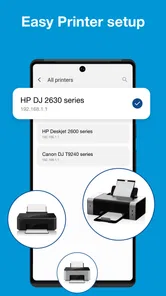
The most important part of using this app is not the print button itself. It is the relationship between the phone, the printer, and the network they use to find each other. In a straightforward home setup, I would expect the smoothest experience when both devices are connected to the same trusted wireless network and the printer is awake and ready. If the phone is using mobile data while the printer is sitting on a private Wi-Fi network, the app may not be able to discover it in the way a user expects.
That makes the first practical tip simple: before troubleshooting the app, check the connection on both ends. A printer can appear unavailable even when it is powered on, particularly if it has lost Wi-Fi access, joined a different network, or gone into a deeper sleep state. I would also avoid switching networks halfway through a print session. Moving from home Wi-Fi to a guest network, or from an office network to a personal hotspot, can change whether the phone is allowed to see local devices.
This is where the app feels different from printing through a computer that has already been configured. A computer may remember a printer and hide much of the setup work. On a phone, discovery can feel more immediate but also more exposed: the user notices every network mismatch. Smart HPrinter Service :ePrint is useful when it reduces that setup friction, but it should not be mistaken for a universal bridge that makes every printer reachable from every connection.
In an apartment, for example, I might receive a document by email, save it to the phone, open the printing app, and send it to an HP printer in the same room. That is a sensible everyday use case. In a workplace with separate employee and device networks, the result may be less predictable. The app can still be worth trying, but the network administrator’s configuration may matter more than the app interface.
More From Our News Desk

Weather by Xiaomi Review: Clear at a Glance, Less Clear Up Close

X Under Pressure: Can It Recover When Posting Goes Wrong?

Clash of Clans Is Won Between the Battles

Android Auto Makes the Case for Quieter Car Software

MobiOffice: Transforming Mobile Productivity with Seamless Integration

EA SPORTS FC™ Mobile Soccer: Redefining Mobile Sports Gaming
Why mobile printing is genuinely convenient
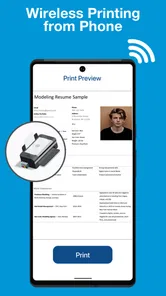
The strongest reason to use this app is convenience at the moment a paper copy becomes useful. I can imagine using it for a boarding document, a signed form, a school worksheet, a return label, or a short business document when opening a laptop would be unnecessary. The phone is already where many of these files arrive, so a mobile printing route can remove several small steps.
Its support for HP, Canon, Epson, and Brother printers gives it a broader purpose than a tool tied to only one manufacturer. That matters in homes where an older printer remains in service after a phone or computer has changed. It is also helpful for people who print in shared spaces and do not want to install a different manufacturer utility every time they encounter another printer brand.
Still, broad brand support should not be read as a guarantee that every model behaves identically. Printer families differ in how they handle paper sizes, color options, trays, duplex printing, and document formats. My advice would be to begin with a low-risk test page or an ordinary document rather than sending an irreplaceable form immediately. This is especially sensible when using an unfamiliar printer or a file with unusual formatting.
The mobile context also changes how I judge the interface. On a phone, I want the route from selecting a document to choosing a printer to be clear. I do not want to manage a long list of technical settings for a quick page. At the same time, hiding too many options can be frustrating when the document needs a specific paper size or color treatment. The app’s value therefore depends on whether the user’s needs are ordinary and quick, rather than highly specialized.
What to do when a print job fails
Connectivity problems are not always obvious. A printer may be visible but fail to complete a job. A document may appear ready but remain queued. A phone may show a printer that was available earlier and then lose it after the device changes networks. These moments are where a realistic review needs to be less optimistic than a store summary.
I would use a recovery routine instead of repeatedly tapping print. First, I would confirm that the printer has paper and is not displaying an error. Next, I would check that the phone and printer are on the same local connection, then close and reopen the printing workflow if the device list looks stale. If the printer has been idle, waking it manually can help. Only after those checks would I restart the app or the printer.
Another useful habit is to send one page first when the document is long or important. A small test can reveal a discovery problem, a paper mismatch, or a formatting issue before the whole job is released. This also helps distinguish an app connection problem from a printer-side problem. If a test page works but a particular file fails, the file itself may be the source of the trouble.
Recovery is less comfortable when the user is printing from a public or shared network. Some networks isolate connected devices for security, so the phone can access the internet while being prevented from communicating with a local printer. In that situation, changing app settings may not solve anything. A different network, the printer manufacturer’s own workflow, or a computer already connected to the printer may be the better route.
I also recommend checking for duplicate print jobs before trying again. When a first attempt seems frozen, sending the same document repeatedly can produce several copies once the connection recovers. That is a small but costly annoyance, especially with color pages or shared office printers. The safest approach is to cancel or inspect the queue when possible, then retry once the connection is stable.
Using the app without wasting time or data
A printing tool does not need to consume much mobile data when the phone and printer communicate locally, but the broader workflow can still involve downloads, cloud storage, email attachments, or document previews. I would prepare the file before opening the print process: save the correct version, check the page count, and rename confusing duplicates. This reduces the chance of sending the wrong attachment while moving between apps.
For privacy-conscious users, the important question is not only how much data is used but where the document travels during the process. Sensitive forms, identity documents, invoices, and medical paperwork deserve extra care. I would avoid printing confidential material from an unfamiliar public network and would prefer a trusted home or office connection. The app can help initiate a print job, but sensible document handling still belongs to the user.
There is also a practical data-saving advantage to avoiding unnecessary retries. If a large file is repeatedly prepared or transferred because the printer is unavailable, the process can become wasteful. Testing the connection first and printing a short sample where appropriate is a better habit than repeatedly submitting the full document. For image-heavy files, reducing unnecessary copies and checking the selected pages before sending can make a noticeable difference in both time and paper.
People who print only occasionally may appreciate the free entry point, while frequent users should pay attention to the app’s in-app purchase structure. Optional purchases range from $4.99 to $69.99 per item, so I would not assume that every advanced or convenience-oriented part of the experience is included forever simply because installation costs nothing. Before paying, I would make sure the app already works with the intended printer and that the extra purchase addresses a real need rather than a problem caused by network setup.
Where it fits beside the usual alternatives
The obvious alternative is the printer manufacturer’s own app. For a household built around one brand, that official option may provide deeper model-specific controls, clearer maintenance tools, ink information, firmware handling, or specialized scanning functions. If I needed those features regularly, I would lean toward the manufacturer’s software rather than a general-purpose printing utility.
Smart HPrinter Service :ePrint makes more sense when the main requirement is cross-brand convenience. Supporting HP, Canon, Epson, and Brother can be useful for families, small offices, students, or anyone who prints in different locations. It can also be a practical first attempt when the official app is unavailable, confusing, or excessive for a single document.
Computer-based printing remains the stronger choice for long reports, precise layout work, batch jobs, and professional color management. A desktop workflow usually provides more room to inspect margins, page breaks, scaling, and printer-specific settings. Mobile printing wins on immediacy, not on detailed control. I would use this app for quick output and switch to a computer when the document’s appearance matters more than speed.
There is a similar trade-off with operating-system printing tools. Built-in phone features can be convenient when they recognize the printer immediately, but they may not be equally helpful across brands and models. This app’s cross-brand focus is its practical argument, although the actual result still depends on whether the printer can be discovered through the current connection.
Who should use it, and who should skip it
I would recommend giving this app a try if you own an HP, Canon, Epson, or Brother printer and regularly receive documents on your phone. It is particularly suitable for students, home workers, renters, and small teams that need occasional paper copies without maintaining a full computer workstation. The free installation also makes it reasonable to test before committing to a different workflow.
I would be more cautious if you need advanced printer management, dependable office-wide deployment, detailed color calibration, or guaranteed control over specialized paper trays. Those needs are better matched to manufacturer software or a computer-based setup. I would also skip it as a first choice if your printer is only reachable through a restricted enterprise network and you cannot control the network configuration.
Another group that may not benefit much is anyone who almost never prints. If a printer is used once every few months, the main challenge may be remembering the printer’s network setup rather than choosing an app. In that case, keeping the official printer utility or using the computer already paired with the printer may be less frustrating than introducing another workflow.
Version, support, and day-to-day expectations
The current version is 2.8.0, and the app runs on Android 8.0 or later. That makes it accessible to many older Android phones, which is useful in households where the device used for printing is not the newest one. I would still keep the phone’s system and the app reasonably current, because connection behavior can be affected by changes in wireless security, document handling, or device permissions.
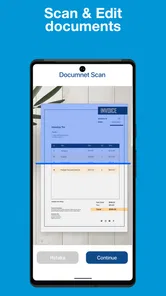
Pixster Studio positions the product as a simple printer connection rather than a complete office suite, and that distinction matches how I would use it. I would not install it expecting a full document editor, a replacement for printer maintenance software, or a solution to every wireless problem. Its best role is a focused bridge between a mobile file and a compatible printer.
The Everyone content rating also makes it approachable for shared family devices, though adults should still supervise the handling of private documents. A simple interface does not remove the need to check the selected file, printer, paper, and number of copies before confirming a job. Those small checks matter more on a phone because the screen gives less room for reviewing everything at once.
My connectivity verdict
After looking at the complete workflow, I see Smart HPrinter Service :ePrint as a useful convenience app with a clear condition attached: the phone and printer need a workable path to one another. When that condition is met, its cross-brand support can make occasional mobile printing feel much less cumbersome. The experience is especially appealing for quick documents that already live on the phone.
Its limitations are equally clear. It cannot compensate for a printer that is offline, a network that isolates devices, a sleeping printer that needs attention, or a document that requires precise desktop-level layout control. Users should also approach in-app purchases thoughtfully, since the free installation does not mean every possible convenience is included without cost.
My recommendation is to treat it as a practical first choice for simple, connected printing, not as a universal replacement for official printer software. If your HP, Canon, Epson, or Brother printer is on a compatible local network, this app may save you from opening a computer for small jobs. If your printing needs are technical, confidential, high-volume, or tied to a restricted office network, the usual manufacturer or desktop alternative will probably serve you better.
For the right user, the benefit is modest but real: fewer steps between receiving a file and holding the printed page. That is enough to make it worthwhile, provided you test the connection before sending important documents and choose the workflow that matches the printer you actually use.
Smart HPrinter Service :ePrint Frequently Asked Questions
What does Smart HPrinter Service :ePrint do, and which printer brands does it support?
Smart HPrinter Service :ePrint is an app for printing from an Android device to a compatible printer. Its description highlights connecting to an HP Smart Printer and printing, with support for Canon, Epson, and Brother printers as well. It may be useful for handling print jobs from your phone, but the experience depends on whether your printer model and network setup are compatible.
Who develops Smart HPrinter Service :ePrint, and who can use it?
Smart HPrinter Service :ePrint is developed by Pixster Studio. It is a business app with an Everyone content rating, so it is presented as suitable for a broad audience. Before downloading, consider whether you need mobile printing and whether your printer is supported; having the app installed does not by itself guarantee that every printer or printing setup will work.
What Android version does Smart HPrinter Service :ePrint require?
Smart HPrinter Service :ePrint requires Android 8.0 or later. Before downloading, check your phone or tablet’s software version in its Settings, since an older operating system may prevent installation or limit access to printing features. Keeping Android updated can also help with compatibility, but printer support still depends on the model and how it is connected to your network.
Is Smart HPrinter Service :ePrint free to download?
The app is free to download, but it also offers in-app purchases ranging from $4.99 to $69.99 per item. You can consider these costs before installing, especially if you expect to use any paid features. Smart HPrinter Service :ePrint is listed for everyone, and its business focus is reflected in its printing tools for mobile devices.
What is Smart HPrinter Service :ePrint used for?
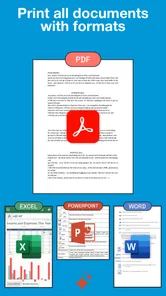
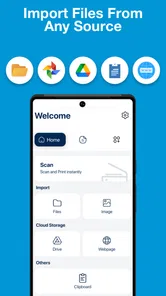
Smart HPrinter Service :ePrint is designed to help Android users print documents, photos, web pages, and other files from a mobile device to compatible printers. After installation, it generally works as a printing service that can be selected from Android’s printing settings or the share and print menus in supported applications. Its usefulness depends on printer compatibility, network configuration, and the Android version installed on your device.
Pros
- Prints directly from Android devices to compatible Wi‑Fi printers.
- Supports convenient mobile printing without needing a computer.
- Useful for documents
- photos
- emails
- and other everyday content.
- Simple service-based design keeps printing available across supported apps.
- Can reduce the need for separate printer-brand applications.
Cons
- Compatibility depends heavily on the printer model and Android version.
- Initial setup may require both devices to share the same Wi‑Fi network.
- Some advanced printer settings may not be available through the service.
- Printing performance can vary with network quality and printer response time.
- The app may be unnecessary if your printer already has a full-featured companion app.