Skullcandy
- 4.16K
- 3.5
- Installs
- 5.00M
- Price
- Free

Screenshots



Analysis by Reviewed
I spent time with Skullcandy as a companion for Skullcandy headphones and earbuds, and my overall impression is that it is more useful as a control center than as a standalone music app. That distinction matters. If you already own compatible Skullcandy hardware, the app can make the listening experience easier to adjust and personalize. If you only want a general music player, podcast tool, or equalizer for any brand, it is probably the wrong download.
Developed by Skullcandy Inc., this free Music & Audio app is built around the idea of bringing device settings into one place. Its store summary describes a complete Skullcandy experience, but in daily use I found the value depends heavily on whether your headphones are supported and whether you actually want to change their behavior. The app is available for Everyone, runs on Android 9 and later, and has reached over five million installs, so it is clearly intended for ordinary listeners rather than only technical audio enthusiasts.
What the app is really for when you own Skullcandy gear
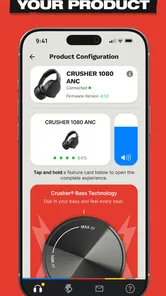
The easiest way to understand the app is to imagine buying a pair of Skullcandy earbuds and then wanting more control than the physical buttons provide. Instead of treating the headphones as fixed accessories, the app gives you a place to inspect the connection and work through the available settings for that model. That can be convenient when you switch between music, calls, commuting, and quiet listening during the day.
I would not install it simply because it appears in the Music & Audio category. It is not a replacement for Spotify, Apple Music, YouTube Music, a podcast player, or a general-purpose audio utility. It does not make sense as your main destination for discovering tracks. Its role is closer to a remote control and setup companion, with the exact usefulness shaped by the Skullcandy product in your hands.
That model-dependent nature is the first practical issue to consider. Two people can install the same app and have noticeably different experiences because their headphones expose different controls. Before spending time changing settings, I would pair the intended device and check what the app actually presents for it. That simple step prevents a common disappointment: expecting every Skullcandy product to offer the same level of adjustment.
In my experience, the app is most valuable when you want to make small changes without repeatedly reaching for your phone's Bluetooth menu or guessing what a button combination does. A clear screen can be easier than memorizing taps, presses, and hold times. It also gives you a more deliberate way to understand which options belong to the headphones and which belong to the phone.
Trust starts with knowing what you are installing
The app has been available since August 2019 and its current version is 5.0.5. It has an average rating of 3.5 from around sixteen thousand ratings, alongside roughly four thousand two hundred written reviews. I read that combination as a useful warning to keep expectations measured: the app has a substantial audience, but it is not the kind of universally smooth utility that I would recommend without checking compatibility and personal priorities.
More From Our News Desk

 Gmail
GmailGmail in a Busy Inbox: Who Benefits Most?
From first account to crowded workday, Gmail earns its place through dependable search and flexible sorting—but its best fit depends on how much inbox maintenance you can tolerate.

 Prime Video
Switching to Prime Video: What Changes in Your Viewing Routine
Prime Video can make a compelling second home for streaming, but switching means learning a different catalog, rental layer, and route from browsing to playback.

 Universal TV Remote Control
Universal TV Remote Control Works Best as a Reliable Backup
A phone remote earns its place through quick setup and reliable habits. Here is how to get more from Universal TV Remote Control—and where its limits show.

 Weather - By Xiaomi
Weather by Xiaomi Review: Clear at a Glance, Less Clear Up Close
Xiaomi’s weather app makes everyday forecasts quick to scan, but its calm surface can leave useful details and recovery paths harder to find than they should be.

 X
XX Under Pressure: Can It Recover When Posting Goes Wrong?
A resilience-focused review of X, examining setup, mistaken posts, interruptions, weak connections, and the gaps that matter when recovery needs to be dependable.

 Clash of Clans
Clash of Clans Is Won Between the Battles
Its raids are quick; its community is a long-term project of coordination, teaching, rivalry, and shared responsibility—with all the friction that entails.
Latest News



The free download lowers the barrier to trying it, although in-app purchases are listed from $4.99 to $49.99 per item. That does not automatically mean you will need to pay to use the basic companion functions, but it is a reason to pay attention to any purchase screen rather than tapping through setup on autopilot. I prefer treating the free installation as an opportunity to inspect the available controls first, not as a promise that every optional experience is included.
Skullcandy Inc. is named as the developer, which gives the app a direct relationship to the hardware brand. That is more reassuring than relying on an unrelated third-party controller, especially when you are connecting audio equipment. At the same time, a brand connection should not replace normal caution. I still look at the permission prompts, read what each request is for, and avoid granting access that does not seem necessary for the task I am trying to complete.
The most trustworthy habit here is simple: install it for a specific headphone task, then review every visible choice before continuing. I would not grant broad access merely because the app is made by the same company as the earbuds. Android's permission screens and system settings remain the best place to check what the app can access and to change those choices later.
Controls that can improve everyday listening
The strongest use case is adjustment. When I am listening at a desk, I may want one sound preference; when I am walking outside, I may care more about awareness and quick interaction. A companion app can reduce the friction of changing the device rather than forcing me to accept one permanent setup. The benefit is not dramatic every time, but it adds up when the headphones are part of a daily routine.
There is also a useful troubleshooting angle. If the connection behaves unexpectedly, opening the companion app can help me distinguish between a headphone setting and a phone-level issue. I can first confirm that the intended device is recognized, then test the available controls before blaming the music service. That workflow is more efficient than uninstalling several unrelated apps or repeatedly toggling Bluetooth without knowing what changed.
One non-obvious advantage is that the app encourages me to make changes while wearing the headphones and listening to a familiar track. I can compare a setting with the same passage instead of relying on memory. For a fair test, I keep the phone volume steady, change one option at a time, and listen for a full minute before deciding. This prevents the common mistake of choosing the last setting touched simply because it sounds different.
Another practical tip is to use the app before leaving home, not halfway through a commute. Pairing, permissions, and device recognition are easier to handle while stationary. Once the headphones are working as expected, I can put the phone away and avoid experimenting near traffic or in a crowded station. That is a small workflow change, but it makes the companion role feel much more useful.
Where privacy and permissions deserve attention
Because this app interacts with connected audio hardware, I pay closer attention to data-sensitive moments than I would with a simple offline player. Pairing a device, allowing nearby-device access, signing into an account if requested, and accepting optional prompts are separate decisions. I do not treat them as one package. I consider what I am trying to accomplish at each stage and continue only when the request matches that purpose.
I also revisit Android's permission manager after setup. This is especially sensible if I installed the app only to configure the headphones once. If a permission is no longer needed for the way I use the device, I prefer to remove it and see whether the core companion functions still work. That approach gives me more control than leaving every permission active indefinitely.
Account controls deserve the same careful treatment. If the app offers account creation or sign-in during use, I would first ask whether an account is necessary for the particular adjustment I want. I would use a unique password and avoid sharing more profile information than the setup requires. If I stop using the headphones, I would check the app and Android settings for sign-out, account removal, notification controls, and permission changes rather than simply deleting the icon.
I am deliberately cautious about interpreting any screen that sounds convenient. A prompt may combine device setup with optional communications, personalization, or purchases. I read the wording, look for a skip or later option, and take a screenshot of an important choice if I expect to revisit it. This is not a criticism unique to Skullcandy; it is a sensible way to preserve user agency in any connected-device app.
The app's Everyone rating makes it approachable for a broad audience, but an age label does not answer every privacy question. Parents, shared-device users, and people who keep strict boundaries between personal audio equipment and phone data should still inspect the actual Android prompts. The visible controls on your own device are more useful than assumptions based on the category or brand.
How I would use it in a normal day
Imagine starting with a morning video call, moving to music during a train ride, and ending the afternoon with a podcast. I would open the app at home, connect the Skullcandy earbuds, and confirm that the correct device is selected. I would then adjust the available listening controls for the first activity, test them with a short familiar clip, and close the app before leaving.
On the train, I would use the headphones normally rather than keeping the companion app open. If the sound or interaction felt wrong, I would wait until I was seated and safe before making one controlled change. Later, for the call, I would check the phone's call audio route separately. That distinction is important: a companion app can expose headphone controls, but it does not automatically solve every microphone, operating-system, or meeting-service problem.
At the end of the day, I would review whether the change actually helped. If I only opened the app once and never used its controls again, I might remove it until I needed it. If I regularly switch between listening situations, keeping it installed could be worthwhile. This is the kind of app that earns its place through repeated small conveniences rather than through constant screen time.
A second useful workflow is family or household troubleshooting. If someone says the earbuds are not behaving correctly, I would avoid changing several settings at once. I would connect the intended pair, note the current state, alter one option, and test again. That creates a basic record of what worked. It is much easier to undo one known change than to recover from a series of guesses.
What it does better than usual alternatives
The usual alternative is to rely on the phone's Bluetooth panel and the physical controls on the headphones. That approach is perfectly adequate if you want to pair once and never adjust anything. The Skullcandy app becomes preferable when the hardware has settings that are awkward to reach through buttons alone or when you want a clearer view of the device's available options.
Another alternative is a third-party equalizer or audio utility. Those tools may work across multiple brands, which is a major advantage for someone who owns headphones from several manufacturers. They can also be more appealing if your goal is to shape audio from many sources in one place. The trade-off is that a generic utility may not understand the specific controls of Skullcandy hardware. For a Skullcandy owner, the official companion has a more direct purpose.
There is also a difference between device control and music management. A streaming service is better for playlists, recommendations, downloads, and listening history. A system audio panel is better for quick volume changes and output selection. This app sits between those experiences, focusing on the relationship with the headphones. Expecting it to replace either alternative will make it seem limited, while using it for its intended companion role makes the design easier to appreciate.
I would choose a different option if I need one tool to manage headphones from several brands, if I want a full desktop-style equalizer, or if I dislike installing manufacturer utilities for occasional adjustments. I would also skip it if my Skullcandy device works exactly as I want through its buttons and the phone's Bluetooth settings. Extra software is not automatically an improvement when it adds another account, another notification source, or another place to review permissions.
Friction I noticed before recommending it
The biggest limitation is not necessarily a broken feature; it is the uncertainty created by model differences. The app's usefulness can feel excellent with one product and modest with another. That makes the first pairing and setup especially important. I would not judge the whole experience from the store summary alone, and I would not assume that a feature shown in someone else's review will appear for my particular headphones.
The rating of 3.5 also tells me to keep a troubleshooting mindset. A companion app has to coordinate with Bluetooth, Android, firmware behavior, and the headphones themselves. When something goes wrong, the visible app screen may not reveal which layer is responsible. My preferred order is to check battery level, confirm the correct device, review permissions, restart Bluetooth, and only then consider reinstalling. Reinstalling first can erase useful context without solving the underlying issue.
Notifications are another area where I prefer restraint. If the app offers alerts that are not needed for pairing or control, I would disable them. A headphone companion should not become a constant interruption. I also keep purchase prompts separate from setup decisions and confirm the amount before accepting anything, particularly because individual in-app items can range from $4.99 to $49.99.
Storage and battery impact are not the reasons I would reject the app, but I still monitor how often it runs and whether it remains useful after setup. If I notice that I never open it, I remove it and rely on the phone's built-in controls. If a future adjustment becomes necessary, reinstalling is a reasonable trade-off for keeping my phone simpler in the meantime.
Who should install it and who should pass
I would recommend trying it to someone who owns compatible Skullcandy earbuds or headphones and wants a more manageable way to adjust them. It is especially suitable for listeners who move between calls, music, podcasts, and different environments, because those changes make a dedicated control layer more valuable. It can also help less technical users who find button combinations confusing and prefer visible choices on a screen.
I would be more cautious with someone who owns several headphone brands. A single-brand app may create a fragmented setup, with one utility for each pair. In that situation, the phone's standard Bluetooth controls or a carefully chosen cross-brand audio tool may be less frustrating. I would also steer away from it for a child who does not need device customization, unless an adult is comfortable reviewing permissions, account prompts, notifications, and purchases together.
For privacy-conscious users, my recommendation is conditional rather than absolute. Install it only when there is a clear hardware-related reason, inspect every permission, use the minimum account information needed, and revisit the choices after setup. The app can still be useful under that approach, but it should remain a tool you control rather than something you leave unquestioned on the phone.
My cautious verdict
Skullcandy is a sensible companion app when the headphones are the reason you are downloading it. I like the idea of having device-specific controls in one place, and I find that approach more practical than memorizing every button gesture. The free price makes experimenting easy, while the direct connection to Skullcandy Inc. is preferable to handing control of branded hardware to an unrelated utility.
Still, I would not call it essential for every owner. The average rating of 3.5 suggests a mixed experience, and the app's value changes with the connected model, the phone, and the settings you actually need. The in-app purchase range also means I would read each screen carefully instead of assuming that every optional element belongs to the basic companion experience.
My final advice is to install it with a narrow goal: pair the intended Skullcandy device, inspect the controls, test one change at a time, and review permissions and account choices before settling in. If those controls solve a real daily annoyance, keep it. If the headphones already work perfectly without the app, there is no good reason to add another layer. For me, it earns a recommendation as a focused hardware companion, not as a general music app and not as a substitute for careful privacy choices.
Skullcandy Frequently Asked Questions
Is the Skullcandy app available for both Android and iOS?
Yes. Skullcandy is a companion app for Android and iOS, so you can use it with a supported Skullcandy device on either platform. Before downloading, check that your phone meets the operating-system requirement and has Bluetooth available for pairing. The app’s usefulness depends on your headphone or earbud model, since compatible products can offer different controls and settings.
Who develops the Skullcandy app, and what is it intended to do?
The app is developed by Skullcandy Inc. and is intended to bring compatible Skullcandy headphones and earbuds together with app-based controls. Its store summary describes it as “ONE APP. TOTAL CONTROL. THE FULL SKULLCANDY EXPERIENCE.” In practice, the features you can access depend on the product you connect, so it is worth checking compatibility before installing if you already own a particular model.
Is the Skullcandy app free to download, and are there any extra costs?
The Skullcandy app is free to download and is listed for everyone. The app also offers in-app purchases, with items ranging from $4.99 to $49.99. Whether you need to pay depends on the feature or item you choose; the basic companion functions for a compatible device are the main reason many people install it. Check any purchase details in the app before confirming.
What phones can run the Skullcandy app?
Skullcandy is a Music & Audio app from Skullcandy Inc. The listed minimum operating-system requirement is version 9, so check your phone’s software version before installing. The app is available for Android and iOS, and your phone also needs Bluetooth to connect to compatible headphones or earbuds. Keeping the operating system and app current can help avoid connection and compatibility problems.
What is the Skullcandy app used for?
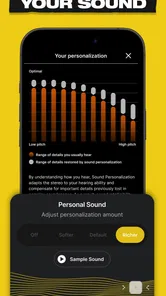
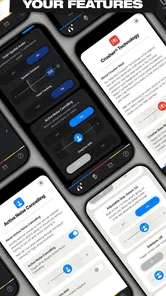
The Skullcandy app is a companion application for compatible Skullcandy headphones and earbuds. After pairing a supported device, you can check battery levels, adjust sound with equalizer presets, customize controls, install firmware updates, and access product-specific settings. The available features depend on the exact Skullcandy model you own, so not every device offers the same options.
Pros
- Personalized sound profiles improve listening for different music preferences.
- Tile integration helps locate misplaced compatible Skullcandy headphones.
- Simple controls make playback and calls easy to manage.
- Regular firmware updates can improve stability and headphone performance.
- Works with many Skullcandy models through one companion app.
Cons
- Some features are limited to newer or specific Skullcandy models.
- The app may request permissions that feel excessive for basic functions.
- Connection setup can occasionally require restarting Bluetooth or the app.
- Battery and device information may not update instantly.
- Advanced customization options vary considerably between headphone models.