Settings App
- 226.00
- 3.2
- Installs
- 500.00K
- Price
- Free

Screenshots
Analysis by Reviewed
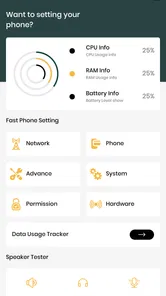
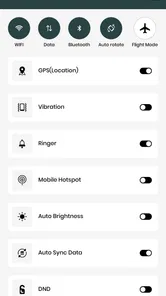
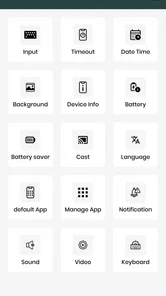
I installed Settings App to see whether it could make everyday Android adjustments feel less scattered. Its purpose is straightforward: it offers quick access to settings from a single personalization-focused utility, rather than asking me to hunt through several layers of the system menu. That sounds modest, but it can be useful when I need to change something quickly and already know which Android control I want.
The app is free, aimed at everyone, and comes from BourtinaUp. It has passed the half-million-install mark, so it is not an obscure experiment with no visible audience. At the same time, its average score sits at 3.3 from roughly 4.5 thousand ratings, which tells me to approach it as a practical shortcut rather than a polished replacement for Android’s own Settings app. My experience was best when I treated it as an access point, not as a complete settings platform.
What the shortcut approach feels like in daily use
The main appeal is speed. Android already includes the controls most people need, but reaching them can involve remembering where a manufacturer placed a particular option. A shortcut-oriented app can reduce that friction by putting familiar settings within easier reach. For someone who regularly switches connectivity, display behavior, sound, or device preferences, that can save small amounts of time throughout the day.
I found the idea especially useful in situations where I was doing something else with the phone. Imagine leaving home and wanting to check a connection setting before starting navigation, or changing a display option while reading in bed. The value is not that the underlying control becomes more powerful; the value is that the route to it becomes more direct.
That distinction matters. Settings App does not turn Android into a new operating system, and I would not install it expecting deep automation, advanced customization, or a redesigned control center. Its role is narrower. It helps me get closer to existing system settings, while the final behavior still depends on Android and the phone manufacturer.
The app is listed in the personalization category, which fits its practical purpose. It changes how I reach device controls rather than changing the visual identity of the phone in the same way a wallpaper, icon pack, or launcher would. If you want a new home-screen style, this is not the right kind of personalization. If you want a more convenient path to settings, the concept makes sense.
Why the Android version matters
The current release is version 4.0, and it supports devices running Android 5.0 or later. That broad compatibility is helpful for people using older phones, especially when the built-in settings layout feels dated or inconvenient. However, broad operating-system support also means the exact result can vary considerably between devices.
More From Our News Desk

 Gmail
GmailGmail in a Busy Inbox: Who Benefits Most?
From first account to crowded workday, Gmail earns its place through dependable search and flexible sorting—but its best fit depends on how much inbox maintenance you can tolerate.

 Prime Video
Switching to Prime Video: What Changes in Your Viewing Routine
Prime Video can make a compelling second home for streaming, but switching means learning a different catalog, rental layer, and route from browsing to playback.

 Universal TV Remote Control
Universal TV Remote Control Works Best as a Reliable Backup
A phone remote earns its place through quick setup and reliable habits. Here is how to get more from Universal TV Remote Control—and where its limits show.

 Weather - By Xiaomi
Weather by Xiaomi Review: Clear at a Glance, Less Clear Up Close
Xiaomi’s weather app makes everyday forecasts quick to scan, but its calm surface can leave useful details and recovery paths harder to find than they should be.

 X
XX Under Pressure: Can It Recover When Posting Goes Wrong?
A resilience-focused review of X, examining setup, mistaken posts, interruptions, weak connections, and the gaps that matter when recovery needs to be dependable.

 Clash of Clans
Clash of Clans Is Won Between the Battles
Its raids are quick; its community is a long-term project of coordination, teaching, rivalry, and shared responsibility—with all the friction that entails.
Latest News



Android manufacturers rename, move, or restrict certain controls. A setting that opens normally on one phone may look different on another, and a shortcut may lead to a system page whose available choices depend on the device. I would therefore judge the app by how quickly it reaches the relevant area, not by expecting every phone to display identical screens.
There is also a useful habit here: after opening a shortcut for the first time, I would note the final system page it reaches. That makes later use faster and helps identify whether the app is genuinely saving time or merely adding another launch step. For occasional settings, the difference may be negligible. For repeated tasks, the shortcut can become worthwhile.
Trust starts with what the app visibly does
For a utility that points toward system controls, trust is closely tied to user expectations. I want to understand when the app is acting as a doorway and when Android itself has taken over. The safest mental model is to view Settings App as a navigation layer. When a selection opens a familiar Android settings screen, I know I am dealing with the operating system’s own interface and permissions rather than a separate replacement.
I also prefer making changes one at a time. If I open a system page through the app, I can inspect the title and available options before changing anything. This is more reliable than tapping quickly through an unfamiliar list. It gives me a chance to confirm that I am adjusting the intended control, particularly on phones where similar options appear in different sections.
The developer is BourtinaUp, and the app’s public audience is large enough to show that people are trying it. Still, popularity alone is not a privacy guarantee, and the rating does not answer questions about data handling. My approach is to review the visible behavior and the choices Android presents, rather than assuming that a settings shortcut has access to everything on the phone.
When privacy matters, I would check the app’s permission prompts as they appear and avoid granting anything unrelated to its purpose. I would also inspect Android’s app-permission screen after installation. That is a practical step for any utility, because it lets me see which access categories are enabled and revoke permissions that do not fit my use. The important point is to make that decision myself instead of accepting every prompt automatically.
Controls, permissions, and the moment of handoff
One of the most useful ways to evaluate this app is to watch the handoff between its own interface and Android. A shortcut should lead me to a recognizable system destination. If I am changing a device option, I want Android to show the final confirmation, toggle, or selection screen clearly. That separation gives me more control than an app silently changing several things in the background.
For a data-sensitive task, I would pause before opening anything involving accounts, connectivity, location, or accessibility. These areas can affect personal information and device behavior even when the action itself looks simple. I would read the system page, check the current state, and only then decide whether to continue. Settings App can make the route shorter, but it does not remove the need for that judgment.
This is also where the app may be less convenient than Android’s normal Settings search. If I remember the exact name of an option, the built-in search can sometimes be faster and more informative. It may show related results or explain the path more clearly. Settings App is more useful when I want a direct collection of entry points, while system search is preferable when I know a phrase but not the category.
There is a trade-off between speed and context. A shortcut can take me directly to a page, but the regular settings hierarchy can help me understand neighboring options and how they relate. For a one-off change, speed wins. For learning how a device is configured, the ordinary Android route may be better.
Everyday workflows where it earns its place
My favorite use case is a repeated, low-risk routine. For example, before a long trip, I might open the app to reach several device areas in sequence, checking connection-related choices, display behavior, and sound preferences. I would still verify each page, but I would not need to remember where the manufacturer buried every option.
Another realistic scenario is helping a family member with an older Android phone. Instead of explaining a long path through menus, I could use the shortcut as a starting point and then show the person the actual system screen. That is important because the user should learn where the control lives, rather than becoming dependent on an unfamiliar utility for every small adjustment.
A third use is troubleshooting. When an app behaves strangely, I may need to inspect a system setting quickly. The shortcut can reduce the time spent navigating, but I would change only the specific option connected to the problem and record the original state mentally or in a note. That makes it easier to undo the change if it does not help.
There is a subtle advantage in this workflow: it encourages targeted changes. Instead of wandering through Android’s menus and modifying several unrelated options, I can open the likely area directly, inspect it, and stop. That reduces accidental changes, provided I slow down enough to read what is on screen.
Where the experience becomes less convincing
The app’s limitations are connected to its narrow purpose. If Android already makes a particular setting easy to reach, adding another app may not improve anything. I would not keep it simply because it exists; I would keep it only if its shortcuts are faster than my normal routine.
The visual experience may also feel less important than the destination. Since the app is primarily a gateway, I care more about clear labels and predictable opening behavior than decorative design. If a shortcut name is vague, or if the destination differs from what I expected on my phone, the convenience disappears quickly.
Device differences are another reason to keep expectations realistic. A shortcut cannot override manufacturer restrictions or create controls that the phone does not expose. Some system areas may require additional confirmation, and certain changes may be unavailable depending on the Android build. That is not necessarily a flaw in the shortcut itself, but it does limit what the app can accomplish.
I would also skip it if I am looking for automation. Someone who wants scheduled changes, elaborate routines, widgets, or a fully redesigned quick-settings panel should look for a tool built specifically for those jobs. Settings App is better suited to manual access than to hands-off behavior.
How it compares with the usual alternatives
The obvious alternative is Android’s built-in Settings app. It is already installed, deeply integrated, and the safest place to understand what a control does. It also reflects the exact layout and capabilities of the phone. For detailed browsing, system search, and privacy-sensitive decisions, I prefer the built-in option.
Settings App makes more sense when the normal route feels repetitive. It can act like a personal index of entry points, especially for someone who frequently revisits the same areas. The benefit is convenience, not extra authority. Android remains the source of the actual controls.
Quick Settings tiles are another alternative. They are excellent for immediate actions such as toggling common features, but they do not always expose the deeper configuration page behind a control. A shortcut app can be more useful when I need to inspect options rather than simply switch one state.
Launchers and widget tools solve a different problem. They can place shortcuts on the home screen and may offer broader customization, but they often involve more setup. Settings App is the simpler choice if I want a focused way to reach settings without redesigning the rest of the phone.
That comparison leads to a clear decision rule. Choose the app if your frustration is menu navigation. Choose Android’s own Settings if your priority is context and system integration. Choose automation or customization software if you want behavior beyond opening a settings page.
How I would set it up responsibly
I would begin with a small test rather than relying on it for every adjustment. I would open a familiar, low-risk setting, confirm that it reaches the expected Android page, and then close it. This quickly tells me whether the app’s organization matches my phone and whether the extra step is worthwhile.
Next, I would review Android’s permission manager and notification controls. I would keep only the access that makes sense for the way I use the app. If a prompt appears for a sensitive area, I would read the system explanation and decide based on the specific task, not on a blanket assumption that every request is necessary.
I would also avoid using a shortcut while distracted. A quick route is helpful, but speed can encourage mistakes. Before changing a setting related to connectivity, location, accounts, or accessibility, I would check the current value and consider whether another person relies on the phone’s existing configuration.
Finally, I would uninstall it if it did not save time after a few days. Free apps have no purchase barrier, but they still occupy storage, attention, and a place in my habits. A utility earns its place through repeated usefulness, not through the promise of convenience alone.
Who should use it and who should pass
I can recommend Settings App to people who often lose time inside Android’s menus, use an older compatible phone, or help others reach system controls. It is also reasonable for users who want a simple personalization utility focused on access rather than appearance. The free price makes testing easy, and the everyone age rating keeps the intended audience broad.
I would be more cautious if I rarely change settings or already use Android’s search and Quick Settings efficiently. In that situation, the app may add little. I would also pass if I expected a full control-center replacement, automatic routines, privacy management, or advanced device tweaking.
My trust judgment is similarly practical. I am comfortable treating it as a shortcut when I can see the handoff to Android and manage permissions myself. I would not treat its presence as proof that every setting is safe to change, nor would I assume that a popular install count answers questions about data practices. Those decisions remain mine to make through Android’s visible controls.
A cautious verdict after using it
Settings App is a focused tool with a useful but limited promise: make system settings easier to reach. In my experience, it works best as a lightweight navigation aid for repeated tasks, troubleshooting, and helping someone find a control on an Android phone. Its value depends heavily on the device’s own software and on whether the shortcuts are genuinely faster than the built-in alternatives.
The 3.3 average from about 4.5 thousand ratings reflects that this is not a universal must-have. Some people will appreciate the direct access, while others will find Android’s existing menus sufficient. The app has been available since June 13, 2025, and its current version is 4.0, but those details do not change the central trade-off: convenience comes from reducing navigation, not from adding deeper control.
My recommendation is conditional rather than enthusiastic: try it if reaching familiar settings is a recurring annoyance, test its shortcuts on your specific phone, and review permissions before settling into regular use. Keep Android’s own Settings as the place where you verify important changes. If the app consistently removes a few frustrating steps, it deserves a place in your toolkit; if it merely opens pages you already reach easily, uninstalling it is the more sensible choice.
Settings App Frequently Asked Questions
Is Settings App compatible with every Android phone?
Settings App is an Android personalization app with a minimum operating-system requirement of Android 5.0. That makes it an option for devices running that version or later, though the experience may differ depending on the phone and its software. Before downloading, check your device’s Android version and make sure you are choosing the app by BourtinaUp rather than confusing it with your phone’s built-in Settings.
Is Settings App free, and what should I know before installing it?
Settings App is free to download and is rated for Everyone. It is a third-party app from BourtinaUp, so it is distinct from the Settings application built into Android or iOS. Its short description is simply “Settings App,” and its stated purpose is to provide quick access to settings. Check that the app suits what you want before installing it.
What is the Settings app used for?
The Settings app is the central place for managing your device’s system preferences. From here, you can control Wi-Fi and mobile data, Bluetooth, display brightness, sounds, notifications, privacy permissions, accounts, storage, battery options, and security features. It is also where you usually find software updates, accessibility tools, backup options, and information about your phone or tablet.
Is the Settings app safe to use and download?
On most Android and iOS devices, Settings is a built-in system application rather than a regular app that needs to be downloaded separately. It is generally safe because it is provided by the device manufacturer or operating system developer. If you find a third-party app using the name “Settings,” check its publisher, permissions, reviews, and download source carefully before installing it.
Can I use Settings to improve my phone’s performance and battery life?
Yes, the Settings app includes several tools that may help improve performance and battery life. You can review battery usage, restrict background activity, remove unused applications, manage storage, reduce unnecessary notifications, and adjust display settings such as brightness or screen timeout. The exact options vary by device, Android version, iOS version, and manufacturer-specific software.
Pros
- Centralizes many device options in one easy-to-find location.
- Search tools help users locate specific settings quickly.
- Supports accessibility adjustments for different user needs.
- Provides useful controls for privacy
- notifications
- and app permissions.
- Changes usually apply immediately without requiring extra downloads.
Cons
- Some options vary significantly depending on the device manufacturer.
- Advanced settings can be confusing for users unfamiliar with Android or iOS.
- Frequent system updates may move or rename existing options.
- Certain carrier or administrator restrictions can limit available controls.
- Changing important settings incorrectly may affect battery life or security.