Screen Recorder | Video Rec
- 101.00
- 4.8
- Installs
- 100.00K
- Price
- Free

Screenshots
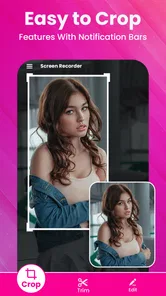
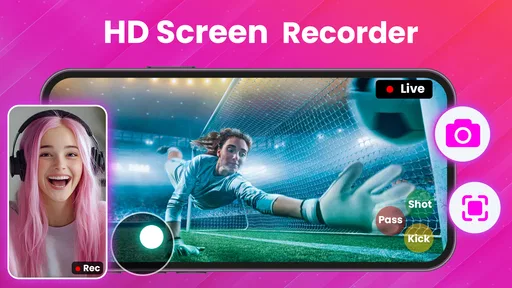
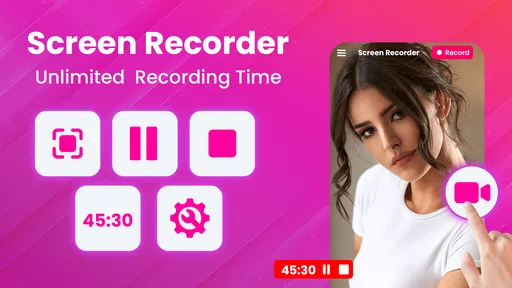
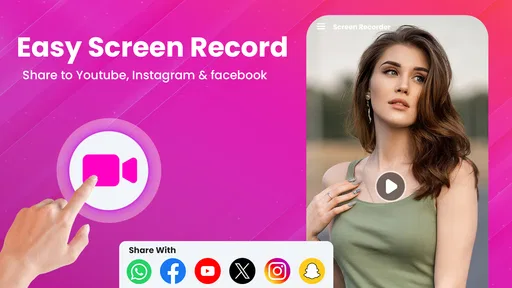
Analysis by Reviewed
I tested Screen Recorder | Video Rec as an everyday Android tool for capturing what happens on a phone. It belongs to the video players and editors category, but its practical role is simpler than that label suggests: it gives you a way to record screen activity and accompanying sound without needing root access. That makes it useful for demonstrations, troubleshooting clips, lessons, gameplay moments, and short explanations that are easier to show than describe.
My first impression was that the app is aimed at people who want a direct recording workflow rather than a full editing studio. The store summary highlights FHD and UHD recording, audio, and FaceTime recording, while the short description keeps the promise even more basic: screen recording. In daily use, that focus matters. I would consider it when I need to capture a process quickly, but I would not treat it as a replacement for a dedicated editor or a professional production setup.
The app is free to install, with optional in-app purchases ranging from $4.99 to $29.99 per item. It is rated for Everyone, runs on Android 6.0 or later, and comes from Infinity Tech Systems. Its current version is 9.4. The public response is encouraging, with a 4.8 average from around 400 ratings and more than 100 written reviews, alongside over 100K installs. Those figures suggest a small but clearly satisfied user base rather than an anonymous utility with no visible adoption.
How clear the recording workflow feels
For a screen recorder, readability and navigation are not cosmetic details. The whole point is often to begin capturing something before it disappears, so a complicated path can undermine the app’s main purpose. I found the concept easy to understand: open the tool, choose the recording setup that suits the moment, start capturing, and stop when the demonstration is complete. That mental model is much friendlier than an application that mixes recording, editing, streaming, and file management into one crowded dashboard.
The strongest part of this kind of design is its low explanation cost. If I were helping a relative record a video call explanation or showing a colleague how to reproduce a phone issue, I would rather point them toward one focused recorder than ask them to learn a large editing suite. The app’s name also makes its purpose immediately recognizable, which helps people who rely on familiar words instead of exploring unfamiliar icons.
There is an important distinction between being easy to understand and being equally easy for everyone to operate. A recorder can have a clear purpose while still asking the user to make several decisions at the wrong moment. Before capturing, users may need to think about image quality, sound, orientation, and whether sensitive notifications might appear. I recommend making those choices during a calm setup rather than when an important screen is already open.
That preparation is especially helpful for users who read slowly, use magnification, or need more time to confirm controls. A short test recording can reveal whether the selected quality is suitable and whether the saved result contains the expected audio. It also avoids the stress of discovering after a long capture that the wrong setting was chosen. For me, that small rehearsal is one of the most useful habits when using any screen recorder.
More From Our News Desk
 Instagram
Instagram’s Power Comes From Its Place in Your Phone
A close look at how Instagram turns Meta’s reach, recommendation systems and everyday camera habits into durable platform power—and what that costs users.

 Gmail
GmailGmail in a Busy Inbox: Who Benefits Most?
From first account to crowded workday, Gmail earns its place through dependable search and flexible sorting—but its best fit depends on how much inbox maintenance you can tolerate.

 Prime Video
Switching to Prime Video: What Changes in Your Viewing Routine
Prime Video can make a compelling second home for streaming, but switching means learning a different catalog, rental layer, and route from browsing to playback.

 Universal TV Remote Control
Universal TV Remote Control Works Best as a Reliable Backup
A phone remote earns its place through quick setup and reliable habits. Here is how to get more from Universal TV Remote Control—and where its limits show.

 Weather - By Xiaomi
Weather by Xiaomi Review: Clear at a Glance, Less Clear Up Close
Xiaomi’s weather app makes everyday forecasts quick to scan, but its calm surface can leave useful details and recovery paths harder to find than they should be.

 X
XX Under Pressure: Can It Recover When Posting Goes Wrong?
A resilience-focused review of X, examining setup, mistaken posts, interruptions, weak connections, and the gaps that matter when recovery needs to be dependable.
Latest News



Reading the result instead of only watching it
The app is most comfortable when the person receiving the recording can pause, replay, and inspect details at their own pace. That makes it valuable for visual instructions, software demonstrations, and support messages. A live explanation forces someone to keep up; a recording lets them stop at a difficult step. This is a meaningful advantage for people who process information more slowly or who need repeated exposure to a sequence.
However, a screen recording should not automatically be considered accessible simply because it is visual. If the captured interface contains tiny text, low contrast, fast animation, or information communicated only through color, the recording preserves those barriers. I would improve the source screen before recording: enlarge text where possible, avoid rushing through menus, and leave each important page visible long enough to understand.
Audio can add useful context, particularly when a spoken explanation accompanies the captured actions. The app’s store summary specifically presents recording with audio as part of its purpose. In practice, I would treat sound as an additional channel rather than a guarantee that every viewer can follow along. A noisy room, unclear speech, or an interface that changes faster than the narration can still make the clip difficult to use.
Controls, touch demands, and sensory comfort
Screen recording is often described as effortless, but it still involves several touch actions: opening the recorder, starting capture, stopping it, and sometimes returning to the saved file. That can be difficult for users with tremors, limited reach, reduced precision, or fatigue in the hands. I would plan the recording so the phone is stable and the final stop action is easy to reach, instead of trying to operate it one-handed while demonstrating another app.
A practical workaround is to rehearse the start and stop sequence before recording the real material. This reduces repeated attempts and helps users who need deliberate movements. It also benefits anyone recording a long process, because a mistake near the end is frustrating regardless of ability. The app can provide the recording function, but the surrounding workflow still needs to be designed thoughtfully by the person holding the phone.
Sensory load is another consideration. A moving screen, spoken commentary, notification activity, and touch interaction can become difficult to follow when they happen together. For a clearer result, I would close unrelated content, avoid rapid swiping, and narrate one action at a time. That is not a special effect or hidden feature; it is a recording discipline that makes the final video more usable for viewers with attention, hearing, or visual-processing differences.
Users who are sensitive to motion may prefer shorter captures with fewer transitions. People who are sensitive to sound may benefit from a quiet environment or from reviewing the clip with audio lowered. Since the app is designed around capturing the phone display, much of the sensory accessibility depends on what is placed on that display and how quickly it changes. The recorder can preserve a thoughtful demonstration, but it can also preserve a chaotic one.
Using it in different real-world situations
The most convincing use case for me is remote help. Imagine a family member asking how to change a setting on an Android phone. Instead of writing a long sequence of instructions, I can record the path once, keep the important screens visible, and send the resulting clip through the normal sharing method available on the device. The recipient can replay the difficult step without needing to coordinate a live call. This is especially useful when spoken instructions and written directions have both failed.
It also fits short lessons. A tutor can demonstrate a calculation app, a teacher can show a sequence inside an educational tool, or a trainer can capture a mobile workflow for later review. The benefit is not merely convenience. A learner who needs extra time can pause the recording, while someone who already understands a step can skip ahead. I would keep each lesson focused rather than recording an entire session, because shorter clips are easier to navigate and less tiring to revisit.
For app support, a screen recorder can communicate a problem more precisely than a written complaint. A user can show the exact path leading to an error, including the button pressed immediately before the issue appears. That context can save time for the person trying to reproduce the problem. I would still inspect the clip before sending it, because phone recordings can reveal private messages, account names, or other information that was not intended for the recipient.
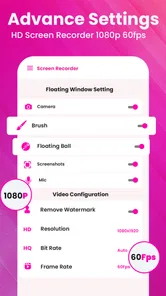
Gameplay is another natural scenario, particularly when the goal is to preserve a moment or explain a strategy. The advertised FHD and UHD capability gives users room to consider image quality, but higher quality is not automatically better in every situation. A sharper capture can be more demanding to store, process, or share, while a lower setting may be sufficient for a quick support clip. I would choose quality based on where the video will be watched, not simply select the highest option every time.
The same trade-off applies to users with older phones or limited storage. The minimum operating-system requirement reaches back to Android 6.0, which makes the app potentially relevant to people who do not use the newest devices. Yet compatibility alone does not promise identical performance across all hardware. I would run a brief test before a long recording, especially for fast games or high-resolution demonstrations, and check the result for smoothness and sound.
Audio, calls, and privacy in practice
The audio aspect deserves careful attention. Recording a narrated tutorial is different from capturing sound produced by another app, and recording a call introduces additional privacy and consent concerns. The store summary refers to audio and FaceTime recording, but I would not assume that every device, call type, or operating-system behavior will produce the same result. A responsible workflow is to test the exact situation with a harmless sample before relying on it for an important conversation or presentation.
When recording a call or another person’s voice, I would make sure everyone involved understands what is happening and that the recording is appropriate in the relevant setting. The app’s technical ability does not remove social or legal responsibilities. This is also an accessibility issue: a person may depend on a recorded conversation for later review, but the people being recorded still deserve clear notice and control over how their voices are used.
For narrated content, I recommend writing a few prompts before starting. This reduces pauses, repeated takes, and rushed explanations. It also helps users who find spontaneous speech difficult. A calm voice and consistent vocabulary are more useful than trying to sound polished. If the recording is intended for someone with hearing loss, I would pair the video with a written summary or transcript created separately, rather than assuming the audio alone is enough.
One of the less obvious risks is accidental capture. Notifications, incoming messages, and account details can appear while the recorder is running. I would enable a quiet environment, review the first seconds of the clip, and avoid opening private areas unless they are essential to the demonstration. This habit is particularly important when helping someone remotely, because a clip made for a narrow technical purpose can easily expose unrelated personal information.
Where it compares well and where alternatives win
Compared with a built-in recorder, this app is attractive when someone wants a dedicated tool with a clear recording identity and support for high-definition capture with audio. Built-in tools can be convenient because they are already integrated into the phone, so I would still choose one when it starts faster, offers the exact controls I need, or behaves more predictably on a particular device.
Compared with a full video editor, Screen Recorder | Video Rec is better suited to capturing the source material than polishing it. If I need cuts, captions, transitions, overlays, or a carefully assembled presentation, I would record first and then move the file into an editor designed for those tasks. Expecting this app alone to handle a complete production would create unnecessary frustration.
Compared with a remote-support application, a recording is asynchronous and less intrusive. The recipient does not need to answer immediately, and the person giving help can explain the same process once. A live support tool is still better when the problem changes from minute to minute or when the user needs someone to take control and respond interactively. The choice depends on whether the issue is repeatable and easy to demonstrate.
The optional purchase model also affects the decision. The app is free at the entry point, which makes it easy to test the workflow before spending anything. The listed purchase range, from $4.99 to $29.99 per item, means I would check what an upgrade changes and whether those additions matter to my use. Someone who only needs occasional short clips may find the free starting point adequate, while a frequent creator should evaluate the total value against a built-in recorder or another established tool.
Barriers that remain after a good setup
The biggest remaining barrier is variation between phones. Screen recording depends not only on the app but also on the Android version, hardware, display behavior, and the application being captured. A feature that works smoothly in one environment may behave differently elsewhere. I would not begin with a once-only recording of an important class, presentation, or support case. A short trial is a sensible safeguard.
Another barrier is the gap between capture and communication. A recording may show exactly what happened, yet still be hard to share with someone who has limited bandwidth, limited storage, or difficulty navigating video files. Short clips, clear filenames, and a brief written explanation can make the result more approachable. If the recipient cannot hear the audio or see small text comfortably, the recording needs supporting information rather than simply being sent again.
High-resolution recording can also create an inclusion trade-off. It may preserve fine details for viewers who need magnification, but it can produce a heavier file and a more demanding playback experience. I would make two versions when necessary: a detailed original for inspection and a more manageable copy for ordinary viewing. That workflow takes extra effort, but it recognizes that “best quality” depends on the viewer’s device and connection.
People who need extensive accessibility controls, formal captioning workflows, or advanced editing may outgrow this app quickly. It can be a useful capture step, but it should not be mistaken for an end-to-end accessibility solution. Likewise, users who are uncomfortable reviewing privacy-sensitive footage should prefer a workflow with strong manual checks before sharing, regardless of which recorder they choose.
My inclusive verdict
I see Screen Recorder | Video Rec as a focused and approachable option for Android users who need to show what is happening on their screen. Its free entry point, Everyone rating, broad operating-system reach, and emphasis on high-definition video with audio make it easy to consider for tutorials, troubleshooting, personal demonstrations, and selected call or gameplay situations. The strong average response from its current audience reinforces the impression that it solves a straightforward problem effectively.
Its value for different abilities comes less from a long list of specialized controls and more from the flexibility of recorded communication. A viewer can pause, repeat, and review a process instead of trying to follow it live. That can support people who need more time, who prefer visual demonstrations, or who find written instructions ambiguous. The benefit becomes much stronger when the person recording slows down, improves readability, and explains each action clearly.
My recommendation is to treat it as a dependable capture tool, not a complete accessibility or editing system. Test the exact phone and recording scenario, protect private information, choose quality with the recipient in mind, and add written context when audio or small on-screen text may create a barrier. With those precautions, the app is a sensible choice for quick, understandable screen-based help. I would skip it in favor of a built-in recorder or a fuller production app when speed, advanced editing, interactive support, or specialized accessibility output matters more than simple capture.
For a friend asking whether to try it, I would say yes if the goal is to record a phone demonstration without root access and without learning a complicated editor first. I would explain the limits before they start: a clear recording still depends on careful preparation, the highest resolution is not always the most practical, and audio or call capture should be tested and handled responsibly. That balanced expectation is what makes this app useful rather than merely attractive on paper.
Screen Recorder | Video Rec Frequently Asked Questions
Will Screen Recorder | Video Rec work on my device?
Screen Recorder | Video Rec is an Android app that requires Android 6.0 or later. It is listed in the Video Players & Editors category and is developed by Infinity Tech Systems. Before downloading, check your device’s Android version and available storage, since recordings can take up space, especially when you capture longer sessions or choose higher video quality.
Is Screen Recorder | Video Rec suitable for recording video calls or protected content?
The app’s description highlights screen recording with audio, including use with video calls. Whether a particular call or app can be recorded depends on its own restrictions, your device, and the permissions you grant. Some services prevent screen capture or audio recording for privacy and copyright reasons. Ask for consent before recording another person, and make a short test recording first.
What is Screen Recorder | Video Rec, and what can I use it for?
Screen Recorder | Video Rec is designed to capture your device’s screen as a video, making it useful for recording tutorials, gameplay, app demonstrations, video calls, presentations, and troubleshooting steps. Depending on the device and version, it may also let you capture microphone audio, system sounds, or both. Before recording, review the available controls and permissions so the final video includes everything you expect.
Does Screen Recorder | Video Rec record audio as well as the screen?
The app can generally record screen activity and may offer audio options such as microphone input, internal device sound, or a combination of both. However, audio availability can depend on your Android or iOS version, device manufacturer, app permissions, and the application being recorded. Some protected apps may block sound or screen capture, so it is worth testing a short recording before starting an important session.
Can I edit, save, and share recordings after capturing them?
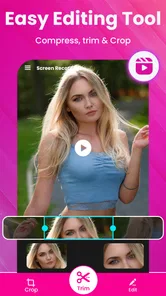
After recording, Screen Recorder | Video Rec typically provides access to saved videos through its internal gallery or your device’s media library. Depending on the installed version, you may be able to trim clips, remove unwanted sections, rename files, or share recordings through messaging apps and social networks. Check the export options carefully, because higher video quality and longer recordings can require considerably more storage space.
Pros
- Records screen activity smoothly for tutorials
- demos
- and gameplay.
- Simple controls make starting and stopping recordings quick.
- Supports capturing microphone audio during screen recordings.
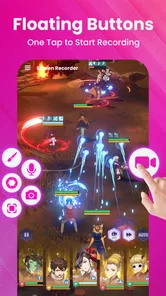
- Useful floating controls help manage recordings without leaving the app.
- Recorded videos can be reviewed and shared directly from the app.
Cons
- Video quality and file size may depend heavily on your device settings.
- Some features may require in-app purchases or premium access.
- Long recordings can consume considerable storage space.
- Audio capture may not work reliably with every app or device.
- Floating controls can occasionally appear in the final recording.