Screen Mirroring for Smart TV
- 58.00
- 3.1
- Installs
- 50.00K
- Price
- Free
Screenshots
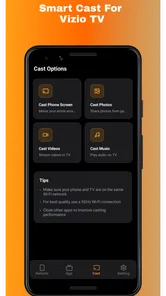
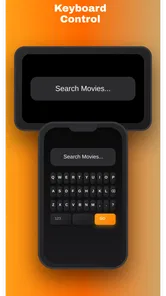
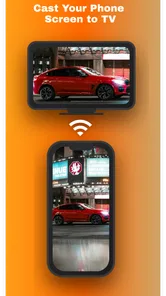
Analysis by Reviewed
Screen Mirroring for Smart TV is the kind of House & Home app I would reach for when I want to put something from my phone on a larger screen without turning the process into a technical project. My overall view is positive but measured: it can be a useful bridge between a mobile device and a compatible television, especially for casual viewing, photos, and media sharing, yet it is not the sort of tool I would choose blindly for demanding presentations or situations where absolute reliability matters.
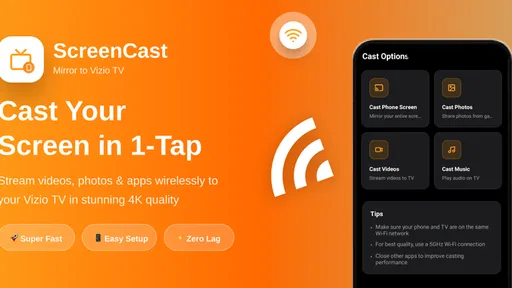
What makes the app appealing is its straightforward purpose. Instead of treating the television as a separate device, it gives the phone a practical role as the source of the content. The store summary focuses on mirroring the screen and casting video, photos, and media, and that matches the everyday reason most people install an app like this. I can imagine using it after a family event to show pictures, during a relaxed evening when a short video deserves a bigger display, or when several people want to look at the same mobile content together.
My main recommendation is simple: use it as a convenient casting helper, not as a guaranteed replacement for every built-in TV connection method. That distinction matters because screen mirroring depends on the phone, television, network, and the type of content being shared. The app may make the connection easier to start, but it cannot remove every compatibility issue that exists between different brands and devices.
How the app feels in everyday use
The first thing I appreciate about this app is that its purpose is easy to understand. There is no need to learn a complicated editing workflow or manage a large library inside the application. Its value comes from helping move what is already on the phone to a Smart TV. That narrow focus is a strength for people who want a practical result rather than a crowded toolbox.
A realistic example would be an evening at home after a trip. I might have a collection of photographs on my phone and want everyone in the room to see them without passing the handset around. A larger television changes the experience immediately: people can sit comfortably, details are easier to see, and the phone remains available for controlling the session. For that kind of informal sharing, a dedicated mirroring app can feel more natural than sending each image separately or relying on a cable.
The same applies to short videos and other media saved on the phone. A mobile screen is fine when I am alone, but it becomes limiting when two or three people are watching. The app’s usefulness is therefore less about adding new content and more about changing where existing content is viewed. That is an important distinction for anyone expecting a streaming service or a catalog of entertainment.
I also see value in spontaneous situations. If a visitor asks to see a photo, a clip, or something else already open on the phone, mirroring can avoid the awkwardness of gathering around a small display. In a home setting, that convenience is the strongest argument for keeping the app installed. It turns the television into a shared screen without requiring the user to prepare everything in advance.
More From Our News Desk

 Gmail
GmailGmail in a Busy Inbox: Who Benefits Most?
From first account to crowded workday, Gmail earns its place through dependable search and flexible sorting—but its best fit depends on how much inbox maintenance you can tolerate.

 Prime Video
Switching to Prime Video: What Changes in Your Viewing Routine
Prime Video can make a compelling second home for streaming, but switching means learning a different catalog, rental layer, and route from browsing to playback.

 Universal TV Remote Control
Universal TV Remote Control Works Best as a Reliable Backup
A phone remote earns its place through quick setup and reliable habits. Here is how to get more from Universal TV Remote Control—and where its limits show.

 Weather - By Xiaomi
Weather by Xiaomi Review: Clear at a Glance, Less Clear Up Close
Xiaomi’s weather app makes everyday forecasts quick to scan, but its calm surface can leave useful details and recovery paths harder to find than they should be.

 X
XX Under Pressure: Can It Recover When Posting Goes Wrong?
A resilience-focused review of X, examining setup, mistaken posts, interruptions, weak connections, and the gaps that matter when recovery needs to be dependable.

 Clash of Clans
Clash of Clans Is Won Between the Battles
Its raids are quick; its community is a long-term project of coordination, teaching, rivalry, and shared responsibility—with all the friction that entails.
Latest News



Where it is more useful than the usual alternatives
The obvious alternative is a cable. A wired connection can be dependable, but it also means having the right adapter, reaching the television, and dealing with a phone that is physically tied to the display. For occasional household sharing, that setup can be more effort than the task deserves. Screen Mirroring for Smart TV offers a more flexible approach when the devices can communicate properly.
Another alternative is using the television’s own built-in casting feature. That may be the better route when the TV already supports the exact service or protocol needed. Built-in options can be quicker once configured, and they may integrate more deeply with particular media platforms. Still, they are not always equally clear across different television interfaces. A separate app can be helpful when I want one familiar starting point instead of searching through the TV’s menus each time.
There is also a difference between sending one supported video and mirroring the whole phone screen. A dedicated cast button inside a media app may produce a cleaner result because the television receives the content directly. Full screen mirroring is broader: it can show photos, menus, webpages, and other things that do not offer a cast button. The trade-off is that the phone’s display becomes part of the viewing chain, so notifications, orientation changes, and other interruptions can matter.
This is one of the less obvious decisions users should make before installing it. If the goal is only to watch content from a service that already works directly on the TV, the television app or built-in cast control may be the cleaner choice. If the goal is to share personal media or something that lacks a dedicated TV application, mirroring becomes more attractive.
Small habits that make the experience smoother
My first practical tip is to prepare the viewing session before connecting. I would close unrelated apps, set the phone to the orientation that suits the television, and enable a quiet mode if I do not want private notifications appearing on the larger screen. This is not a flashy feature, but it makes a real difference when mirroring the entire display rather than sending a single file.
My second tip is to think about the network before blaming the app. The phone and television need a sensible connection path, and a crowded or unstable home network can make any wireless mirroring method feel unreliable. I would keep both devices on the same home network where appropriate, avoid moving too far from the usual connection area, and test with a simple photo before starting a longer viewing session.
A third useful habit is to choose the right source for the job. For a gallery of personal pictures, screen mirroring makes sense because the content is already on the phone. For a long video, I would first check whether the television or the video service can play it directly. Direct playback generally avoids keeping the phone’s screen active throughout the session and can be a better choice for extended watching.
These choices reveal the app’s real role. It is not automatically the best route for every kind of media. It is most valuable when flexibility matters more than a perfectly optimized playback pipeline.
Limitations I would consider before relying on it
The largest weakness is the uncertainty that comes with wireless compatibility. A mirroring app can provide a convenient interface, but the final result still depends on the Smart TV model, the phone, the network, and how each device handles screen sharing. A user who expects every television to connect instantly may become frustrated, particularly if the TV uses a proprietary system or requires a separate confirmation step.
I would therefore test the setup before an important event. If I planned to use the app for a work presentation, a classroom demonstration, or a family gathering where there would be no time for troubleshooting, I would not make it the only plan. A cable, a built-in TV feature, or a previously tested device could provide a safer backup. The app is more convincing for casual home use than for situations where a failed connection would cause real disruption.
Full-screen mirroring also has natural drawbacks. The phone may need to stay awake, the image can reflect the phone’s orientation, and anything visible on the display may be shown on the television. That includes interruptions or private material if I am not careful. I would never start mirroring while sensitive conversations or personal notifications might appear without first checking what is open.
There is another trade-off with control. When the phone is the source and controller, someone has to keep it nearby. That is convenient for choosing content, but it can be less comfortable than using a television remote or a native TV application. For a long film, I would prefer direct playback whenever available. For a quick photo session or short clip, the phone-based control is much less of a problem.
The commercial model is also worth noticing. The app is free to install, but optional in-app purchases range from $4.99 to $49.99 per item. That wide range means I would pay attention to what is offered before committing to anything. A free starting point is useful for testing compatibility, but I would not assume that every convenient function is included without checking the purchase screen carefully.
Its current version is 1.0.54, and the minimum requirement is Android 7.0. That makes the app accessible to many older Android phones, which is helpful in a household where not everyone has a recent handset. At the same time, a lower operating-system requirement does not guarantee that every older phone will deliver the same wireless performance. Hardware, manufacturer software, and television compatibility still influence the result.
Who should install it, and who should look elsewhere
I think this app is a good fit for someone who regularly wants to show phone-based content around the house. It suits families sharing photographs, users who occasionally display a mobile video for a group, and people who find their television’s own connection menus confusing. It can also be useful for anyone who wants a flexible way to display content that does not have a dedicated television app.
It is less suitable for a user who wants a complete entertainment platform. This is not a replacement for streaming subscriptions, a media library service, or a television operating system. It does not change the content available on the phone; it changes the screen on which that content can be viewed. That makes the app useful in a specific way, but limited if someone expects a broad catalog or advanced home-theater controls.
I would also be cautious about recommending it as the sole solution for professional work. A presentation can be interrupted by connection problems, screen orientation, or an unexpected notification. For those situations, I would favor the connection method I have already tested most thoroughly, even if it is less convenient. The app can still be a backup, but I would not make convenience more important than predictability.
The age rating of Everyone makes the app suitable in principle for a broad household audience. That is helpful for families, although younger users should still be shown how to avoid displaying private notifications or opening unrelated content while the television is connected. The main safety lesson here is practical screen awareness rather than complicated setup.
Shami Apps Studio has positioned the product in a focused part of the House & Home category, and that focus is easy to understand. The app has reached over 50 thousand installs, while its average rating is 3.1 from more than 200 ratings. I read those figures as a reason to approach it with realistic expectations rather than as proof that it will work identically for every household. The experience is likely to be strongest when the user treats compatibility testing as part of the setup.
What I would check during the first session
Before using it for anything important, I would run a short trial with a photograph and then a brief video. That test answers the questions that matter most in practice: whether the television appears, whether the connection stays active, whether the picture is comfortable to view, and whether controlling playback from the phone feels acceptable.
I would then try a different orientation if the first result looks cramped. Portrait content often leaves unused space on a wide television, while landscape content usually makes better use of the screen. This is not a defect unique to the app; it is a consequence of moving phone-shaped content onto a television-shaped display. Knowing that beforehand prevents disappointment.
I would also check how quickly I can stop sharing. Ending a session cleanly is just as important as beginning one, particularly in a shared home. Once finished, I would disconnect rather than leave the phone broadcasting unintentionally, and I would return to the normal phone screen before handling private messages.
Finally, I would decide whether the app deserves a permanent place on the phone. If I only need mirroring once a year and the television already provides a reliable built-in method, keeping another app may not be worthwhile. If I often share personal media and prefer a single familiar workflow, the convenience can justify it. That is the key personal trade-off: frequency of use versus the value of having a ready-made bridge.
My verdict after weighing convenience against reliability
Screen Mirroring for Smart TV is a useful specialist tool with a clear everyday purpose, but its best audience is the casual home user who understands the limits of wireless mirroring. I like the way it addresses a common problem without pretending to be a full media platform. Sharing a photo collection or a short clip on a television can be noticeably better than gathering around a phone, and the free entry point makes it reasonable to test with existing equipment.
My enthusiasm is tempered by the fact that no mirroring app can guarantee a perfect connection across every phone and Smart TV combination. The app is not the right choice when I need presentation-grade certainty, direct playback for long viewing sessions, or a replacement for a television’s native services. In those cases, a wired connection or built-in casting option may be more dependable.
For everyone else, I would try it with a low-pressure test: connect at home, share a photograph, play a short video, and see how the particular devices behave. If that first session is smooth, the app can become a handy part of a household media routine. If it struggles, the result is useful information too, because it tells me to choose the TV’s own tools or a cable before paying for optional extras.
In short, I recommend it for flexible, occasional sharing rather than unconditional daily dependence. It earns its place when the phone contains the content and the television is simply the better screen. That focused benefit is real, provided users match the app to the right situation and keep a tested alternative available for anything important.
Screen Mirroring for Smart TV Frequently Asked Questions
What devices and operating systems can I use with Screen Mirroring for Smart TV?
Screen Mirroring for Smart TV is an Android app, and its minimum operating system requirement is Android 7.0. It is intended to connect a phone or tablet with a compatible television or streaming device, so the TV’s own casting support also matters. If you use an iPhone or an older Android device, check compatibility before downloading rather than assuming the app will work with it.
Who makes the app, and is it intended for general home use?
The app is developed by Shami Apps Studio and is listed in the House & Home category. Its purpose is straightforward: mirroring a phone screen to a Smart TV and casting video, photos, and other media. It is marked for Everyone, so its intended audience is broad. As with any screen-sharing tool, consider who can see the TV before displaying personal messages or other private material.
What is Screen Mirroring for Smart TV and what can it do?
Screen Mirroring for Smart TV is designed to display content from your Android phone or tablet on a compatible television. During testing, it was useful for sharing photos, videos, presentations, websites, and some mobile games on a larger screen. The app generally works as a wireless casting tool, but the exact features depend on your phone, TV model, operating system, and available network connection.
How do I connect my phone to a Smart TV using the app?
Before connecting, make sure your phone and Smart TV are connected to the same Wi-Fi network. Open the application, allow the requested permissions, and select your television from the list of available devices. Confirm the connection on the TV if prompted, then choose the mirroring or casting option. If the television does not appear, restarting both devices and checking network compatibility usually helps.
Does Screen Mirroring for Smart TV work with every television?
The application may work with many modern Smart TVs and streaming devices, but it cannot guarantee compatibility with every model. Support can vary according to the TV manufacturer, wireless protocol, Android version, and whether the television allows screen-casting connections. Older TVs may require a compatible streaming stick, HDMI adapter, or separate receiver. Checking your TV’s built-in mirroring features before downloading is recommended.
Pros
- Works with many popular Smart TV brands and streaming devices.
- Simple interface makes starting a mirror session quick.
- Useful for sharing photos
- videos
- presentations
- and web pages.
- Supports both Android and iOS devices.
- Can mirror content without cables or extra adapters.
Cons
- Performance depends heavily on Wi-Fi speed and network stability.
- Some features may require a premium subscription.
- Audio and video can occasionally fall out of sync.
- DRM-protected apps may block mirroring or show a black screen.
- Mirroring can noticeably increase battery consumption.