Quick Share: File Transfer App
- 19.00
- 3.3
- Installs
- 500.00K
- Price
- Free

Screenshots
Analysis by Reviewed
I see Quick Share: File Transfer App as a focused tool for people who regularly move files between devices and want something simpler than sending everything through a chat or email account. Its promise is easy to understand: share files quickly while keeping them intact. That makes it worth considering for everyday transfers, but I would treat it as a practical utility rather than a replacement for every sharing method. File transfer depends on the devices and workflow involved, and a simple pitch is not the same as a guarantee that every handoff will be effortless.
A useful test before making it part of your routine
I would judge this app less by a single impressive transfer and more by whether it makes the next five ordinary handoffs easier. Try it with the same two devices you expect to use regularly, and pay attention to the steps that matter in real life: finding the right files, getting the other device ready, and confirming where the received items ended up. A transfer that works once but is awkward to repeat may not earn a permanent place on your home screen.
It is also worth deciding in advance what “quick” means for your situation. If you only need to send one image across the room, the fastest option may be whichever sharing method is already open. If you regularly move a group of files and then sort them on another device, a dedicated tool can be useful even if its first setup takes a little attention. The practical win is fewer steps across a repeated routine, not merely a fast-looking button.
A straightforward idea, with a few important trade-offs
I would approach Quick Share as a practical tool for a specific job, not as a universal answer to sharing. In the section that follows, I’ll look at where a dedicated transfer workflow can genuinely help, while keeping the key trade-off in view: convenience depends on both devices and the person receiving the files.
Where a dedicated transfer app can help
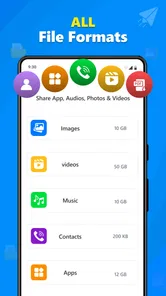
The strongest reason to try Quick Share: File Transfer App is that it gives file sharing its own place in your routine. Instead of attaching a document to a message, waiting for it to upload, and then asking someone to retrieve it, you can use a tool built around moving files. That distinction matters when you are sharing several items or when the original files should remain usable rather than being treated as chat attachments.
In a normal day, I can imagine using it after taking photos on one device and needing them on another for sorting or editing. It also suits passing a document to a family member nearby, or moving a collection of files when switching between devices. These are modest jobs, but they are exactly where a dedicated transfer app can save the little bits of friction that add up: finding an attachment option, choosing a messaging service, and later locating the file again.
The app sits in the Libraries & Demo area of the store, a somewhat unusual home for a file-sharing utility. It is made by Apps Vista Studio, and the app is free to install. The audience rating is Everyone, so its listing presents it as suitable for a broad range of users. It has a 3.3 average from around 1.5 thousand ratings, which suggests a mixed reception rather than universal approval. I would use that as a reason to test it with a small, unimportant transfer first instead of trusting it immediately with a large or irreplaceable batch.
More From Our News Desk

 Gmail
GmailGmail in a Busy Inbox: Who Benefits Most?
From first account to crowded workday, Gmail earns its place through dependable search and flexible sorting—but its best fit depends on how much inbox maintenance you can tolerate.

 Prime Video
Switching to Prime Video: What Changes in Your Viewing Routine
Prime Video can make a compelling second home for streaming, but switching means learning a different catalog, rental layer, and route from browsing to playback.

 Universal TV Remote Control
Universal TV Remote Control Works Best as a Reliable Backup
A phone remote earns its place through quick setup and reliable habits. Here is how to get more from Universal TV Remote Control—and where its limits show.

 Weather - By Xiaomi
Weather by Xiaomi Review: Clear at a Glance, Less Clear Up Close
Xiaomi’s weather app makes everyday forecasts quick to scan, but its calm surface can leave useful details and recovery paths harder to find than they should be.

 X
XX Under Pressure: Can It Recover When Posting Goes Wrong?
A resilience-focused review of X, examining setup, mistaken posts, interruptions, weak connections, and the gaps that matter when recovery needs to be dependable.

 Clash of Clans
Clash of Clans Is Won Between the Battles
Its raids are quick; its community is a long-term project of coordination, teaching, rivalry, and shared responsibility—with all the friction that entails.
Latest News



The version currently offered is 1.1.2, and it is listed for devices running Android 7.0 or later. That gives older Android users a chance to consider it, though compatibility alone cannot tell you how well it will fit a particular device or sharing routine. The app has passed 500 thousand installs, indicating that it has found an audience, but popularity does not answer the practical question of whether it works smoothly between the two devices you use.
Preserving files matters more than a flashy transfer claim
For me, the most useful part of the app’s stated purpose is the emphasis on avoiding data loss. When people share photos, documents, or other files through general-purpose services, they may not always know whether the original file is being transferred or whether the service is handling it in a way that changes the experience. A dedicated transfer tool is appealing when you care about keeping the item usable on the receiving device.
That is especially relevant for work in progress. If I were moving a document between a phone and a tablet before continuing to edit it, I would want to check the received copy before deleting the original. The same habit makes sense for photos that I plan to organize later: confirm that the files arrived and open as expected, then clean up the source device. This is not a special feature I can assume the app provides; it is a sensible workflow for any transfer app where the cost of losing a file would be annoying.
A useful tip is to make the first transfer a deliberate test. Choose one file that is easy to recognize, send it, and open it on the destination device. If the app is being used for a mixed batch, try one item from each relevant file type before sending everything. That small check helps reveal whether the workflow suits your devices without turning a routine transfer into a troubleshooting session.
Another practical consideration is organization. A transfer can succeed technically while still leaving you with a pile of files that is hard to identify later. Before sending, I would group related items and give ambiguous files clearer names. That is particularly helpful when moving several photos or documents in one sitting, because the receiving person can understand what belongs together without needing a follow-up message.
When it is a better choice than familiar alternatives
Compared with sending files through email, Quick Share is more appealing when the goal is simply to move something from one device to another rather than preserve a message thread. Email remains a sensible option for a small number of documents when a written record or remote delivery matters. For repeated handoffs between devices, though, opening a dedicated sharing app may feel more direct than composing a message and managing attachments.
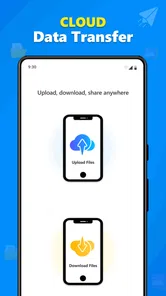
Cloud storage is a different kind of alternative. It is often more convenient when you need ongoing access from multiple places or want to keep a shared folder available over time. A transfer app is the more focused choice when you only need to move files from here to there. If you expect to revisit the same files on several devices, a cloud service may be the better fit; if you are trying to complete a one-off handoff, a dedicated transfer workflow may be less cumbersome.
Messaging apps are convenient when the file is part of a conversation, especially if the recipient is already there. But they can make a simple transfer feel tangled with chat history, notifications, and follow-up messages. Quick Share makes more sense when the file itself is the point. I would still use messaging if I needed to explain what I was sending or coordinate with someone who was not prepared to use another app.
These comparisons also clarify what I would not expect from this app. It is not automatically the best answer for sharing with someone far away, maintaining a long-term archive, or collaborating on a document. Those jobs call for communication, storage, or editing tools. Quick Share’s appeal is narrower: a dedicated route for moving files, without turning that task into a larger project.
The friction I would keep in mind
My main reservation is that a file-sharing app is only as convenient as the whole exchange. Both people may need to be comfortable with the app and ready to complete the transfer. If the recipient would rather receive a file through a familiar chat or email service, introducing a separate tool can create more work than it saves. That makes the app a stronger choice for transfers between your own devices or among people who already agree on a shared method.
The mixed rating reinforces the need for a cautious first impression. A 3.3 average does not prove that the app will fail for a particular user, but it is not a reason to assume a polished experience in every situation either. I would avoid making it the sole path for important files until I had personally checked the process on the devices I use. For a work deadline or a one-of-a-kind document, keeping the original until the destination copy has been verified is just good practice.
There is also a cost detail to weigh before settling into the app. Although it is free to install, it offers in-app purchases ranging from $1.99 to $14.99 per item. That does not make the basic download a poor choice, but I would look carefully at any purchase prompt and decide whether the paid item is actually relevant to my use. If I only need an occasional simple transfer, I would not spend money without first establishing that the app solves a recurring problem better than the tools I already use.
Because the app focuses on sharing, I would also plan around the receiving end rather than assuming the sender’s convenience is the only thing that matters. Before using it with someone else, I would explain what they need to do and make sure they are ready to receive the files. For a quick family handoff, that is a minor step; for a less technical recipient, it may be easier to use a method they already know. The best sharing option is the one both sides can complete without confusion.
Who I would recommend it to
I would suggest giving Quick Share a try if you often move files between your own devices, or if you share files with the same people and want a separate tool for that task. It is particularly worth testing when email attachments feel clumsy and messaging apps make file handoffs hard to keep track of. Start with a small transfer, check the receiving copy, and then decide whether the routine feels easier than your current method.
I would skip it, or at least avoid relying on it, if your main need is long-term cloud access, remote collaboration, or sending files to people who are unlikely to install or use another app. In those cases, a familiar email service, a messaging app, or cloud storage may reduce the coordination burden. I would also be cautious if a transfer must be dependable on the first attempt and there is no opportunity to verify the result.
For someone deciding whether it is worth a test, the clearest question is how often file movement itself causes friction. If the answer is often, a free app centered on that job is reasonable to try. If transfers are rare and your existing tools already handle them cleanly, there may be little benefit in adding another app to your routine. The app’s 500 thousand-plus installs show that many people have tried it, but your own first small transfer is a more useful test than any popularity figure.
My verdict after weighing the use case
Quick Share: File Transfer App has a sensible role: it aims to make a file handoff feel like a task in its own right, rather than an attachment buried inside another service. I like that focus, and the concern for keeping files intact is the right priority for a utility of this kind. At the same time, I would not confuse a focused purpose with guaranteed convenience; the recipient’s willingness, your device setup, and the importance of the files all affect whether it is the right choice.
My recommendation is measured: try it for a low-stakes transfer, confirm the destination copy, and keep using it only if it makes your particular routine simpler. At no cost to install, it is an approachable option for people who share files regularly, while its optional purchases are worth considering only if they address a need you actually have. For straightforward device-to-device sharing, it is worth a cautious trial; for archiving, collaboration, or reluctant recipients, your usual alternatives may be the smarter pick.
A practical call for different kinds of users
If you are setting up a phone for a relative, I would not assume that a new transfer app is automatically the kindest choice. A one-time explanation can be manageable, but a recurring process should be easy for the recipient to remember without relying on you each time. In that situation, compare the whole routine—not just the sending step—with the familiar option they already use. Quick Share is a better candidate when both ends can agree on the method and repeat it confidently.
For my own files, I would treat it as a convenient bridge rather than a backup plan. Moving a working set of photos or documents to another device can save time, but a transfer is not the same as keeping a second, organized copy over the long term. If losing the source would matter, I would retain it until I have checked the destination and made any separate backup I need. That distinction keeps a useful handoff tool from being asked to do the job of an archive.
Overall, Quick Share: File Transfer App makes the most sense when the file itself needs to move and the people involved are ready to use a dedicated route. Its focused purpose is appealing, but its value depends on whether it reduces friction for your actual devices and recipients. I would give it a small, reversible test, then let the results—not the promise of convenience—decide whether it earns a regular place in your sharing routine.
Quick Share: File Transfer App Frequently Asked Questions
What is Quick Share: File Transfer App used for?
Quick Share: File Transfer App is designed to help users send files between compatible devices. Depending on the app’s features and device support, it may be used for sharing photos, videos, documents, and other files without relying on email attachments. Before installing, check the app listing to confirm which file types and transfer methods it supports, since capabilities can vary by version and operating system.
How do I transfer files with Quick Share: File Transfer App?
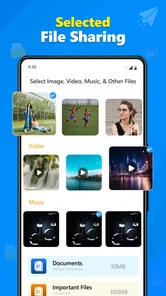
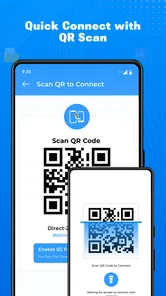
The usual process is to open the app on the sending and receiving devices, choose the files you want to share, and select or connect to the destination device. You may need to grant access to files, photos, or nearby-device features, and both devices may need to remain close during the transfer. Follow the instructions shown in the app, as setup and connection steps can differ across devices.
Does Quick Share: File Transfer App work without an internet connection?
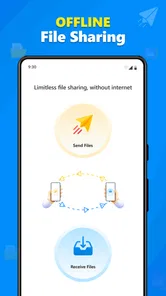
Some file-sharing apps can transfer files locally between nearby devices without using mobile data, while others require an internet connection or a specific network setup. Whether Quick Share: File Transfer App works offline depends on its current implementation and the devices involved. Check the app description and in-app guidance before relying on offline transfers, especially when sharing large files or using the app away from Wi-Fi.
Is Quick Share: File Transfer App safe, and what permissions might it request?
To transfer files, an app may request access to selected photos, media, documents, or nearby devices; the exact permissions depend on your operating system and how the app works. Review permission prompts carefully and grant only the access needed for your task. You can also check the developer information, privacy policy, and recent user feedback in the official app store before downloading.
Is Quick Share: File Transfer App free, and which devices are compatible?
Pricing and compatibility can change, so check the official Google Play or Apple App Store listing for the latest details before installing. Confirm that your device meets the stated operating-system requirements and that the app is available in your region. The receiving device may also need a compatible app or supported sharing feature. Look for any disclosed ads, in-app purchases, or limitations on transfers.
Pros
- Supports transferring files between Android devices without cables.
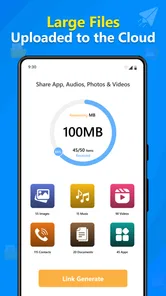
- Lets you share multiple files in one transfer.
- Simple interface makes common sharing tasks easy to start.
- Useful for sending photos
- videos
- and documents nearby.
- Can be a handy alternative when mobile data is limited.
Cons
- Both devices may need the app installed for transfers.
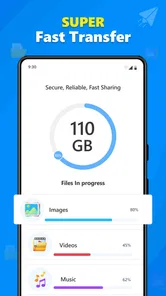
- Transfer speed can vary with distance and wireless conditions.
- Nearby-device permissions may be required to find recipients.
- Large transfers can take time and use substantial battery.
- The app’s features and reliability may vary by device.