Ps Controller for PS4 PS5
- 76.00
- 4.5
- Installs
- 100.00K
- Price
- Free

Screenshots
Analysis by Reviewed
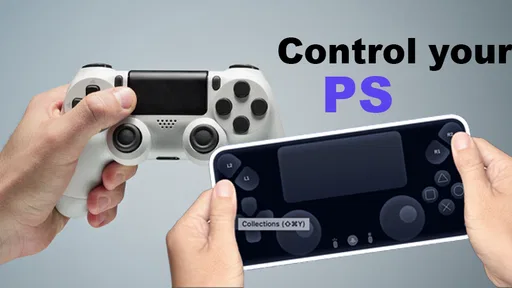
My first question with any phone-based PlayStation controller is simple: what am I trying to do that would be easier with the phone already in my hand? Ps Controller for PS4 PS5 is a free remote-control app from DTFHM in the Libraries & Demo category. I see its best role as an extra way to interact with a console when a regular controller is out of reach, rather than a replacement I would count on for every kind of play.
From picking up your phone to controlling the console
I find the phone-to-console handoff is the key question: the app is only convenient if it fits the devices and setup you already use. In this section, I’ll focus on choosing a low-pressure first task and checking the basics before relying on it, then move on to what the handoff feels like in an ordinary session. A quick, calm trial is more useful than testing it when everyone is waiting to play.
Start with the setup you actually have
Before installing any phone-based controller, I would check the basics: the console is available, the phone is compatible, and both can be used in the same home setup. That small pause matters because an app cannot make a console reachable if the underlying connection or device pairing is not in place. Treating it as a companion control option, rather than a guaranteed replacement for a physical gamepad, sets sensible expectations.
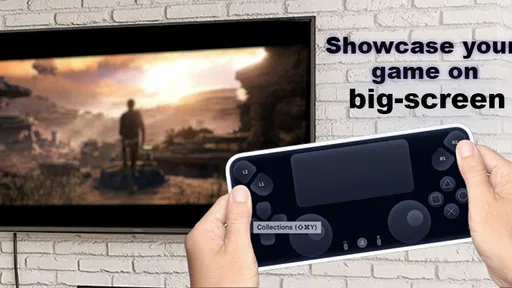
The app’s short description identifies it as a PS controller, and its summary focuses on remote control. That makes the most natural use case clear: reaching for a phone when a dedicated controller is inconvenient. I would consider it for navigating or controlling the console in a relaxed setting, especially when my phone is already in hand. I would not begin with the assumption that it will offer every function or the same feel as an official gamepad.
Compatibility is another practical first check. The current release is version 31.0, and the stated minimum Android OS is 7.0. That gives Android users a useful baseline before they install, though a compatible operating system alone does not guarantee that every phone or console arrangement will behave identically. If you use iOS, check the relevant app-store availability and requirements for your device before planning around it; I would not assume Android details automatically apply there.
Make the handoff from phone to console deliberate
My preferred workflow is to get the phone ready before I sit down to play: open the app, confirm that the console is available to control, and only then put the phone where I can reach it. This is more than tidiness. A phone works best as a controller when I do not have to keep switching between apps, searching for it under a cushion, or interrupting a session to sort out the connection.
That workflow also reveals the main trade-off. A phone is already a familiar, portable device, so it can be handy for quick control or for a room where a separate controller is not nearby. But it is not shaped like a traditional gamepad. Touch interaction does not provide the same physical reference points as buttons and sticks, so frequent or precise input may feel less natural. For a short, casual interaction, convenience can outweigh that difference; for a long play session, the physical controller is likely to remain the more comfortable choice.
More From Our News Desk

 Gmail
GmailGmail in a Busy Inbox: Who Benefits Most?
From first account to crowded workday, Gmail earns its place through dependable search and flexible sorting—but its best fit depends on how much inbox maintenance you can tolerate.

 Prime Video
Switching to Prime Video: What Changes in Your Viewing Routine
Prime Video can make a compelling second home for streaming, but switching means learning a different catalog, rental layer, and route from browsing to playback.

 Universal TV Remote Control
Universal TV Remote Control Works Best as a Reliable Backup
A phone remote earns its place through quick setup and reliable habits. Here is how to get more from Universal TV Remote Control—and where its limits show.

 Weather - By Xiaomi
Weather by Xiaomi Review: Clear at a Glance, Less Clear Up Close
Xiaomi’s weather app makes everyday forecasts quick to scan, but its calm surface can leave useful details and recovery paths harder to find than they should be.

 X
XX Under Pressure: Can It Recover When Posting Goes Wrong?
A resilience-focused review of X, examining setup, mistaken posts, interruptions, weak connections, and the gaps that matter when recovery needs to be dependable.

 Clash of Clans
Clash of Clans Is Won Between the Battles
Its raids are quick; its community is a long-term project of coordination, teaching, rivalry, and shared responsibility—with all the friction that entails.
Latest News



I would keep a standard controller close for the moments when the phone feels awkward. That is a useful handoff rather than a failure: use the app when it saves a trip or makes a quick interaction easier, then switch back when comfort, precision, or sustained play matters more. Thinking of the phone as an additional way into the console makes the app easier to judge fairly.
Where it fits into an ordinary evening
Imagine I have settled in with the console ready, but my usual controller is across the room or being used by someone else. The phone is on the table, so I try the app rather than pausing everything to retrieve another device. If it connects and responds as expected, that is a small but real convenience: I can use a device I already have at hand instead of searching for a spare controller.
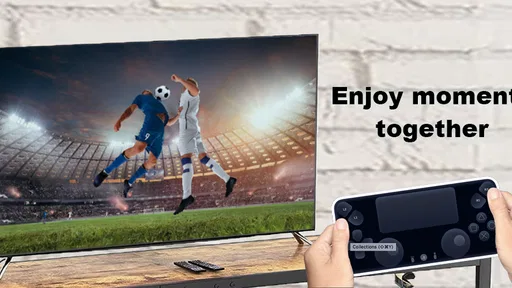
The same logic can help in a shared living room. One person may want to handle a simple console interaction while another keeps the physical controller, or someone may want to try remote control without buying another accessory. These are modest situations, not claims that a phone replaces a gamepad for every player. The app’s usefulness is strongest when the task is occasional and convenience matters more than familiar button feel.
A less obvious tip is to decide in advance what you want the phone to do. If your goal is a quick control task, keep the phone accessible and avoid treating it as your main input for a demanding session. If the task turns into regular play, pause and compare the experience with your normal controller instead of forcing a setup that is uncomfortable. That distinction helps separate a useful backup from a poor primary control choice.
What the app’s track record tells me—and what it doesn’t
Ps Controller for PS4 PS5 has an average rating of 4.5 from around 1.4 thousand ratings, alongside 76 written reviews, and it has passed 100 thousand installs. Those figures suggest that many Android users have tried it and that the overall response is favorable. I read them as helpful context, not a promise that pairing will be effortless on every particular phone, network, or console setup.
It is free, and its content rating is Everyone, which makes it easy to consider for a household where people of different ages may use the device. It was released on June 8, 2023, and the current version is 31.0. For me, the practical takeaway is to check that the version available on your device is current and to judge the app by a short real test before relying on it for an important session.
Compared with the usual alternative—a dedicated physical controller—the app’s strongest advantage is that the phone is portable and already part of daily life. A hardware controller generally has the more familiar shape and tactile controls, while this app offers a software-based route to remote control. If your goal is simply to have another way to interact with a PlayStation, the phone may be enough. If your goal is comfortable, precise play over an extended period, I would reach for the physical option first.
Where the flow can break down
The first point of friction is setup. Remote control depends on the app, phone, console, and connection working together, so an issue at any handoff can make the experience feel less convenient than simply picking up a controller. If the console is not reachable or the phone does not cooperate with your arrangement, repeating the same attempt is unlikely to improve the basic fit. I would verify the setup calmly and keep a conventional controller available rather than letting a quick convenience become a long interruption.
The second limitation is input comfort. A touchscreen can be less reassuring than physical controls because there are no raised buttons to locate by touch. That matters most when you need consistent, precise input or want to play for a long stretch. For casual use, I can accept the compromise; for demanding play, the compromise becomes the point. People who strongly prefer tactile controls should skip this as a replacement and consider it only as a backup.
There is also a difference between “remote control” and a complete substitute for every console interaction. The app’s stated purpose makes it reasonable to try as a way to control a PlayStation, but I would not choose it on the assumption that it duplicates every feature of a dedicated controller. A good test is to start with the specific task you care about, then see whether the controls and connection remain dependable enough for that task. If they do not, return to the usual controller rather than stretching the app beyond what feels practical.
Who I’d recommend it to
I would recommend Ps Controller for PS4 PS5 to Android users who want a free, convenient extra control option and are comfortable testing a phone-based setup. It makes the most sense for occasional use, shared spaces, or moments when a physical controller is not immediately available. The favorable rating and install history make it a reasonable app to try, while the straightforward purpose means you can quickly decide whether it suits your own routine.
I would be more cautious if you expect the phone to feel just like a gamepad, need dependable tactile input for extended play, or do not want to spend any time checking that your devices work together. In those cases, a dedicated controller is the better fit. The app is not compelling merely because it can be installed; it earns its place when the convenience of using your phone solves a real, recurring problem.
A practical verdict
My view is that this is best treated as a useful companion, not a universal controller replacement. Its appeal is easy to understand: the phone can provide another route to controlling a PlayStation, and the app is free to try. Its limits are equally important: setup can introduce friction, and touchscreen input may not suit everyone or every kind of play.
If you already have an Android device running at least version 7.0, I would give it a short trial in the exact situation where you expect to use it. Test the handoff from phone to console, see whether the controls feel manageable, and keep your normal gamepad nearby. If that trial makes a small everyday task easier, the app has done its job. If it creates more steps than it removes, there is no reason to force it; the familiar physical controller remains the sensible choice.
Choosing the right task for a phone controller
One useful way to decide whether this app belongs in my routine is to separate console access from serious play. If I only need to interact briefly, having a phone-based option can prevent a small interruption from becoming a search for the gamepad. If I expect to settle into a session where timing and repeated inputs matter, I would start with the physical controller instead. The distinction is not about the app being good or bad; it is about matching the input method to the job.
For someone sharing a home, I can also see value in keeping expectations modest and agreeing on a simple handoff. The person holding the phone can handle the occasional control task, then pass the console back to whoever is using the regular controller. That avoids treating the phone as a second full gaming station and makes its convenience easier to evaluate. If the household reaches for it repeatedly, that is a sign it is solving a real need; if it sits unused, there is little reason to build a routine around it.
Compared with a console’s usual physical controls, the app is a convenience-first alternative rather than a tactile one. Compared with doing nothing and getting up to find a controller, it may save a step. Compared with buying or borrowing another gamepad, it gives you a software option to try before adding hardware. Those are different comparisons, and the right one depends on whether your problem is occasional access, comfort during play, or having enough controllers for everyone.
A sensible first test
I would test it when there is no pressure to start a game immediately. Have the phone and console ready, try the task you actually expect to use it for, and notice whether the connection and input feel straightforward in your room. This is a better test than judging the app during a rushed moment, because it lets you identify where any friction occurs without making the whole evening depend on the result.
If the first attempt does not fit, I would avoid changing several parts of the setup at once. Check the basic device compatibility and availability, then try again in a calm moment; that makes it easier to tell whether the obstacle is a temporary setup issue or simply that a phone is not a comfortable controller for you. If the workflow remains clumsy, that is useful information, not a reason to keep troubleshooting indefinitely.
For Android users, the minimum operating-system requirement gives a quick initial compatibility check, but it is only a starting point. People using another platform should verify that the app is offered for their device before relying on it. In either case, I would keep a conventional controller within reach for the first few tries. That way, a failed handoff does not derail the activity, and the app can prove its value on its own merits.
My recommendation in context
The app is most appealing to someone who already has a compatible Android phone, wants a no-cost extra route to PlayStation control, and understands that touchscreen input may feel different from a gamepad. It is less suitable for anyone shopping for a comfortable primary controller, expecting identical controls, or relying on phone-based input for precision over a long session. I would decide based on the specific moment I want to make easier, rather than on the idea that every console task should move to a phone.
For me, the practical test is whether using the app removes more effort than it adds. If it is ready when I need a quick interaction and the console responds in a way I can manage, it earns a place as a backup. If I have to repeatedly interrupt what I am doing to sort out the handoff, or if the screen controls feel tiring, I would return to a physical controller and consider that the better tool for my setup.
Ps Controller for PS4 PS5 Frequently Asked Questions
What is Ps Controller for PS4 PS5, and what does it do?
Ps Controller for PS4 PS5 is a companion-style app intended to help users interact with PlayStation consoles from a phone or tablet. Its available features may include remote-control functions, console-related shortcuts, or connection tools, depending on the app version and device. It is not a replacement for a physical DualShock or DualSense controller, and its name alone does not establish that it is made or endorsed by Sony.
Can I use Ps Controller for PS4 PS5 to play games without a physical controller?
That depends on the specific controls the app provides and whether the game supports them. A phone-based interface may be suitable for basic navigation or simple actions, but it may not offer the responsiveness, button layout, or analog-stick precision needed for many games. Check the app description and recent user feedback before relying on it for gameplay, and keep a compatible physical controller available when playing.
How do I connect the app to a PS4 or PS5?
Connection steps can vary by app version, console, and network setup. Typically, a phone and console need to be on the same Wi-Fi network, and the console may need to be powered on or configured for remote features. Follow the in-app instructions and review the requested permissions carefully. If pairing fails, check network connectivity, console settings, and whether the app explicitly supports your console model.
Is Ps Controller for PS4 PS5 an official Sony app, and is it safe to use?
Do not assume the app is official based on its name. Before installing, verify the developer, publisher information, privacy policy, permissions, and recent reviews in the Google Play Store or Apple App Store. Avoid entering your PlayStation account password into an app unless you can confirm how that information is handled. Download only from a trusted store, and uninstall the app if its behavior or permission requests seem unexpected.
Is Ps Controller for PS4 PS5 free, and what should I check before downloading?
The price and business model can differ by platform and may change over time. Check the store listing for the current price, in-app purchases, subscriptions, ads, supported operating-system versions, and device requirements before downloading. Also confirm the app’s latest update date and whether users report connection problems with your console. Store availability and features may vary by country, phone, and app version.
Pros
- Offers a convenient way to control PS4 or PS5 from a mobile device.
- Useful for basic navigation when your controller is out of reach.
- Can make typing and menu browsing easier than using a gamepad.
- A phone-based option may help when troubleshooting controller issues.
- No need to carry an extra physical remote for simple console controls.
Cons
- Compatibility may vary by phone
- console
- and system software version.
- Some features may require both devices to be on the same Wi-Fi network.
- Touch controls can feel less precise than a physical controller.
- Setup and permissions may take time before the app can connect.
- Not a replacement for a gamepad in games that require full controller input.