

PixGroove: AI Video Generator
- 54.00
- 2.0
- Installs
- 50.00K
- Price
- Free

Screenshots
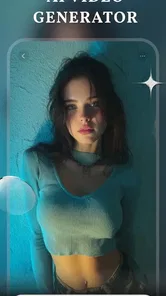
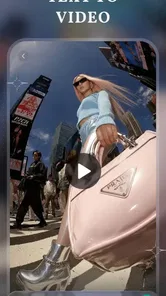

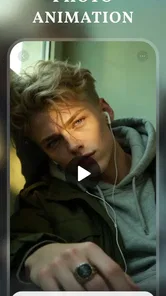
Analysis by Reviewed
I approached PixGroove: AI Video Generator as a quick photography tool for turning still images and written ideas into short AI-assisted videos. That sounds simple, and the basic appeal is clear: instead of opening a full video editor, arranging a timeline, and learning motion controls, I can start with a photo and text and see whether the app can produce something suitable for sharing. In practice, the experience is more dependent on preparation and patience than the short store wording suggests.
PixGroove is free to download, belongs to the photography category, and is made by MOSIMOSI ELECTRONIC PTE.LTD. It is aimed at Teen users, runs on Android 7.0 or later, and uses optional in-app purchases priced from $1.99 to $99.99 per item. The current version is 1.2.0, while the app itself was released on January 9, 2026. Those details matter because this is a relatively new tool, and the modest average rating of 2.0 from around 240 ratings suggests that some people have encountered enough friction to affect their overall impression.
What using PixGroove feels like in real life
The strongest reason to try it is speed. If I have a portrait, a product photograph, a travel image, or a simple visual concept, I can use text to describe the kind of movement or mood I want rather than building every transition manually. That makes the app more interesting for casual creators than for editors who already enjoy working with layers, keyframes, sound, and detailed timing.
I would describe the result as a starting point rather than a finished production workflow. AI-generated motion can be useful when the goal is to make a still image feel more alive, especially for a social post or a quick personal message. It is less suitable when the video must preserve exact details, match a brand style precisely, or follow a carefully timed script. The difference is important: PixGroove may save me from repetitive editing, but it does not remove the need to judge the output.
A realistic everyday example would be preparing a small shop announcement. I could take a clean photograph of one item, write a short instruction describing a gentle camera movement and an attention-grabbing ending, then review the generated clip before sharing it. The useful part is getting from a static image to a presentable concept quickly. The weak point is that I still need to check whether the product remains recognizable, whether text in the image has changed, and whether the movement looks natural enough for customers.
Where first-time users tend to get stuck
The first obstacle is usually not creativity but input quality. A crowded photograph gives an AI video tool too many things to interpret at once. Small faces, overlapping objects, reflective surfaces, and text printed inside an image can all make the final animation look less convincing. I get more predictable results when I begin with one clear subject, good lighting, and enough empty space around the main object.
Text prompts can also create avoidable confusion. A sentence such as “make it viral” is too vague to guide a visual result. I would instead describe the subject, the movement, and the mood in separate parts: what should remain visible, what should move, and how energetic the result should feel. This does not guarantee a perfect clip, but it gives the generator a more useful brief and makes it easier to decide whether the output followed the request.
More From Our News Desk

 Gmail
GmailGmail in a Busy Inbox: Who Benefits Most?
From first account to crowded workday, Gmail earns its place through dependable search and flexible sorting—but its best fit depends on how much inbox maintenance you can tolerate.

 Prime Video
Switching to Prime Video: What Changes in Your Viewing Routine
Prime Video can make a compelling second home for streaming, but switching means learning a different catalog, rental layer, and route from browsing to playback.

 Universal TV Remote Control
Universal TV Remote Control Works Best as a Reliable Backup
A phone remote earns its place through quick setup and reliable habits. Here is how to get more from Universal TV Remote Control—and where its limits show.

 Weather - By Xiaomi
Weather by Xiaomi Review: Clear at a Glance, Less Clear Up Close
Xiaomi’s weather app makes everyday forecasts quick to scan, but its calm surface can leave useful details and recovery paths harder to find than they should be.

 X
XX Under Pressure: Can It Recover When Posting Goes Wrong?
A resilience-focused review of X, examining setup, mistaken posts, interruptions, weak connections, and the gaps that matter when recovery needs to be dependable.

 Clash of Clans
Clash of Clans Is Won Between the Battles
Its raids are quick; its community is a long-term project of coordination, teaching, rivalry, and shared responsibility—with all the friction that entails.
Latest News



Another point of friction is expectation. The app’s concept is attractive because it presents video creation as something that can happen in seconds, but a fast generation step does not mean every attempt is immediately usable. I often need to inspect the result, adjust the wording, reconsider the source image, or try a more restrained idea. Anyone expecting a full replacement for a conventional editor may find that gap disappointing.
The rating is worth considering before installation. An average of 2.0 across roughly 240 ratings is not a reason to dismiss the app automatically, but it is a clear signal to approach it as an experiment rather than a dependable production tool. I would test it with a nonessential image first and avoid planning an important deadline around a first attempt.
Checks that make setup less frustrating
Before starting, I would confirm that the phone uses Android 7.0 or newer and that it has enough free working space for image and video processing. The minimum operating-system requirement is not demanding, but compatibility alone does not guarantee a smooth session on every device. Closing unnecessary apps can also help when the phone is already busy, particularly during a generation task.
I would prepare the source photo outside the app before importing it. Cropping out distractions, keeping the subject centered when appropriate, and choosing a sharp original gives PixGroove a cleaner foundation. If the image contains a logo, a face, or a product label that must remain exact, I would save the original separately and treat the generated result as a creative variation rather than the only copy.
It is also sensible to read each screen carefully before confirming a purchase. The app is free, but it includes optional items ranging from $1.99 to $99.99. I would not assume that free installation means every generation path or output option is free. Checking the wording around any purchase before tapping the confirmation button is a simple way to avoid an unpleasant surprise.
Because the content rating is Teen, I would also consider who will use the device and what kind of images will be uploaded. A parent setting up the app for a younger family member should make that decision deliberately rather than treating it like a child-focused toy. For personal projects, I would begin with ordinary images that do not contain sensitive information, private documents, or other material I would not want processed by a creative service.
A workflow that reduces wasted attempts
My preferred method is to start with a short, controlled idea instead of asking for a complicated scene. I choose one photo, describe one main motion, and specify the feeling I want. After reviewing the result, I change only one part of the prompt at a time. If I rewrite everything between attempts, I cannot tell whether the improvement came from the image, the wording, or a completely different instruction.
This one-change approach is a small but useful habit. For example, I might first request a slow, gentle movement. If the result feels lifeless, I can increase the energy in the wording without changing the source image. If the subject becomes distorted, I can keep the same prompt and use a simpler photograph. That process turns PixGroove from a guessing game into a basic visual test.
I would save the original image and any successful output as separate files before experimenting further. A generated clip can be useful as a reference even when it is not the final version, and keeping the source prevents accidental loss of the material I actually care about. This is particularly important for family photographs, portfolio images, and product pictures that may take time to recreate.
When a generation appears stuck, I would avoid repeatedly pressing the same control. Instead, I would wait briefly, check whether the task has completed, and then return to a simpler image or shorter instruction if necessary. Repeating a failed action can create confusion about whether the app is still working or whether multiple attempts have been started. A clean retry is easier to evaluate.
If the output looks wrong, I would diagnose it in stages. First, I would ask whether the source image itself is difficult to animate. Next, I would simplify the prompt. Then I would try a different image with one obvious subject. This is more productive than immediately blaming the app, because an AI animation tool can expose weaknesses in the source material that are invisible in a normal photograph.
When PixGroove is probably not the cause
Some apparent failures come from the device or connection rather than the creative request. A weak or unstable internet connection can interrupt cloud-based processing or make a completed action appear delayed. If the app behaves inconsistently, I would switch to a more reliable connection, reopen the session, and try a small test image before spending time on a detailed project.
Storage pressure is another easy factor to overlook. Photos and generated videos both need room, and a phone that is nearly full may behave unpredictably even when the app itself opens normally. I would remove only files I have already backed up, then retry. This is safer than deleting the original photograph or clearing everything without knowing what will be lost.
Device age can matter too. Android 7.0 is the stated minimum, but a phone that meets a software requirement may still have limited processing capacity compared with a newer model. If generation takes a long time or the app closes, I would test after restarting the phone and closing other demanding applications. If ordinary tasks work but this particular workload repeatedly fails, the limitation may be the device’s available resources rather than the image prompt.
It is also worth checking whether the problem is local to one project. If a simple photograph works but a complex collage does not, the source is the more likely trigger. If every image fails in the same way, the issue may be broader. That distinction helps me decide whether to keep refining the material or stop spending time on the app.
How it compares with familiar photography and video tools
Compared with a normal photo editor, PixGroove offers a more direct path from a still image to motion. A conventional editor gives me precise control over crops, filters, overlays, and timing, but I have to make those decisions manually. PixGroove is appealing when I want an idea quickly and am willing to accept some unpredictability in exchange for less hands-on work.
Compared with a traditional mobile video editor, it is better suited to short experiments than to structured projects. A timeline editor is the stronger choice when I need exact cuts, multiple clips, carefully placed captions, consistent branding, or dependable audio timing. I would use PixGroove to generate a visual starting point, then move to another tool if the project demanded precise finishing.
It also differs from a slideshow maker. A slideshow usually preserves the original photographs and adds controlled transitions. An AI video generator may create more expressive motion, but that freedom can introduce changes I did not request. For a memorial video, family archive, or formal presentation where fidelity matters more than novelty, I would favor the predictable slideshow approach.
The trade-off is therefore straightforward: PixGroove may reduce the effort needed to explore an idea, while established editors provide better control and repeatability. Neither approach is automatically superior. The right choice depends on whether I value a quick creative variation or an exact, dependable result.
Who will enjoy it, and who should skip it
I think PixGroove is most interesting for casual creators, social media users, photographers who want to animate selected stills, and people who dislike the technical side of video editing. It can also help someone test a visual concept before committing to a more elaborate production. The free entry point makes that kind of trial easier, provided the user pays attention to optional purchases.
I would be more cautious recommending it to professional marketers, filmmakers, educators preparing a fixed lesson, or anyone working under a strict deadline. The low average rating reinforces that caution, and the app’s AI approach naturally makes exact results less predictable than manual editing. If a client expects a specific movement, a brand asset must remain unchanged, or a presentation has to work on the first export, a conventional workflow is safer.
Privacy-conscious users should make their own careful judgment about the images they choose. I would avoid testing the service with identity documents, confidential work, private medical material, or photographs containing information that should not leave the phone. Even for ordinary creative work, using a duplicate rather than the only original is a sensible habit.
My practical verdict after weighing the friction
PixGroove has a clear and appealing purpose: it lets me explore animated versions of photographs without first becoming an experienced video editor. That makes it worth a cautious test for quick social content, playful experiments, and visual brainstorming. Its best use is not “press once and receive a finished campaign,” but “start with a good image, write a focused instruction, inspect the result, and decide whether the idea is worth developing.”
The main concerns are equally clear. The average rating of 2.0 indicates a rough experience for a meaningful portion of users, and the optional purchases require attention because the range reaches $99.99 per item. The app’s Teen rating also means I would not treat it as an unsupervised children’s creativity tool. Finally, anyone needing precise editing should choose a timeline-based alternative instead.
My recommendation is to install it only when the goal is experimentation and to begin with a harmless, well-composed photo. Keep the prompt specific, change one variable at a time, preserve the original, and do not rely on the first attempt for an important deadline. PixGroove is a promising shortcut for turning still images into ideas, but I would use it as a creative assistant rather than as my only video editor.
For me, that is the fairest way to judge this photography app. It can make a static image feel more active and may save time at the beginning of a project, yet its value depends heavily on the quality of the input and the user’s willingness to review and retry. If that balance suits you, the free download makes a small experiment reasonable. If you need control, consistency, or a guaranteed polished result, I would spend that time with a more conventional editing tool.
PixGroove: AI Video Generator Frequently Asked Questions
Is PixGroove: AI Video Generator suitable for beginners?
PixGroove is intended for people who want to explore AI-assisted video creation without relying on complex editing software. You can start with an idea or image and experiment with turning it into a short visual clip. As with other creative apps, the results may take some trial and adjustment, so beginners should be prepared to refine prompts and review each generated video.
What is PixGroove: AI Video Generator and what can I use it for?
PixGroove: AI Video Generator is designed to help users create short videos and animated visual content with artificial intelligence. You can use it to transform text ideas, images, or creative prompts into engaging clips for social media, presentations, personal projects, and entertainment. It is aimed at beginners as well as creators who want to experiment with AI-assisted video production without learning complex editing software.
Is PixGroove: AI Video Generator free to download and use?
PixGroove is free to download, but some features, effects, generation options, export tools, or higher-quality results can require in-app purchases. Individual purchases range from $1.99 to $99.99. Before creating multiple videos, check the pricing page and purchase conditions carefully. Also review whether credits are consumed per generation, since AI video tools commonly limit free usage or apply separate restrictions to premium content.
Does PixGroove require an internet connection to generate videos?
Yes, users should generally expect to need an active internet connection for PixGroove’s AI generation features. Video creation is usually processed through online servers rather than entirely on the phone, so generation speed can depend on your connection and server availability. Offline access may be limited to viewing saved projects or exported files, and mobile data usage can increase when producing or downloading high-resolution videos.
Can I use my own photos, prompts, or music in PixGroove videos?
PixGroove may allow users to provide creative prompts and upload personal images, depending on the tools available in the current version of the app. Support for music, voiceovers, or other media can vary by template and export option. Make sure you own or have permission to use uploaded photos, audio, logos, and other materials, especially if you plan to publish the finished video commercially or on public platforms.
Pros
- Creates short AI videos from simple text prompts.
- Offers creative styles for social media content.
- Easy interface for beginners with little editing experience.
- Can help turn still images into more engaging clips.
- Useful for quickly testing multiple visual ideas.
Cons
- AI results may not always match the prompt accurately.
- Video generation can consume credits or require a subscription.
- Some exports may include watermarks or resolution limits.
- Processing times can increase during busy periods.
- Generated characters and motion may contain visual glitches.










