Phone Cleaner
- 49.00
- 3.8
- Installs
- 100.00K
- Price
- Free

Screenshots


Analysis by Reviewed
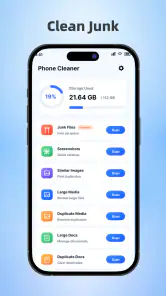
Phone Cleaner is the kind of Tools app I would open when my phone feels crowded, my photo library is getting out of hand, or I want a quick look at battery information without digging through several system menus. Developed by Omareyah Team, it brings junk cleaning, photo compression, app management, and battery details into one place. That sounds simple, but the real value depends on how carefully you use each section. Cleaning storage is not the same as deleting everything that looks unnecessary, and compressing photos is not automatically a good idea for every image.
I spent time looking at the app from that practical angle: where a new user may hesitate, which checks make the first run smoother, and how to recover when a cleanup does not produce the expected result. My overall impression is that Phone Cleaner is most useful as a hands-on maintenance shortcut, not as a magic button that can solve every slow-phone problem. It is free, rated for Everyone, and currently sits at version 1.0.2, so I would approach it as a focused utility that deserves a little attention before confirming any action.
Where the first cleanup can become confusing
The first place many people may get stuck is the word “junk.” On a phone, unwanted files can include temporary material, leftover downloads, duplicate-looking items, cached content, or files that are simply old. Those categories are not equally safe to remove. A screenshot you forgot about may be disposable, while a downloaded document that you still need may only look like clutter. My first rule with this app would be to review what it identifies rather than treating the scan result as an automatic command.
That matters especially for users who expect one tap to make a visibly faster phone. Storage cleanup can free room, but it does not necessarily fix weak signal, an aging battery, a problematic system update, or an app that is misbehaving. If the phone is slow because one service is repeatedly crashing, removing unrelated temporary files may change very little. Phone Cleaner is better viewed as a way to organize and inspect several maintenance tasks than as a universal performance diagnosis.
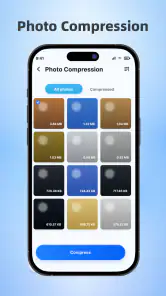
The photo compressor can also create uncertainty. Compression is useful when a phone is full because of large images, but the best setting depends on the purpose of those pictures. Images intended for messaging or casual viewing can usually tolerate more reduction than photos you plan to print, edit, or keep as personal archives. I would create a small test batch first, compare the result at full screen, and only then process a larger group. This workflow is slower than pressing a single button, but it protects the memories that matter.
App management presents a similar trade-off. An app that has not been opened recently may still be needed for travel, work, authentication, or an occasional device connection. Before removing anything, I would check its name, remember why it was installed, and make sure I know how to access the account or service again. The convenience of seeing apps together is valuable, but the decision to uninstall should remain mine.
Battery information is another area where expectations need to stay realistic. A battery screen can help me notice a worrying pattern, yet information alone cannot restore lost capacity. If the phone drains quickly because of poor reception, a bright display, background activity, or heavy use, the reading may be a clue rather than a complete explanation. I would use this section as a starting point for investigation, then compare it with the phone’s own battery settings when I need deeper system context.
What I would check before giving the app access to a real cleanup
I would begin with the phone itself rather than immediately blaming the utility if anything looks wrong. First, I would make sure the device is running a compatible system, since Phone Cleaner supports Android 8.0 and later. I would also close unrelated tasks, keep enough battery for the scan and cleanup process, and avoid starting during an important call, transfer, or update. These are ordinary precautions, but they prevent a maintenance session from being interrupted at the worst moment.
Next, I would look at the phone’s available storage before scanning. That baseline gives me something to compare with afterward. If the system already reports plenty of free space, I would not expect a dramatic result from removing temporary material. If storage is nearly full, I would prioritize personal files and large photos first, because those are often more meaningful than repeatedly clearing small caches.
I would also decide what I am trying to achieve. There are at least four different goals here: making room, reducing photo sizes, removing unused apps, or understanding battery behavior. Mixing them together can make the result difficult to judge. For example, if I want more space, compressing selected photos may be more useful than uninstalling a small utility I occasionally need. If I want better battery life, deleting files may not address the real cause at all.
Before changing photos or apps, I would make sure important content exists somewhere else that I trust. Phone Cleaner is a maintenance tool, not a substitute for a backup habit. I would not use a cleanup session as the moment to discover whether a treasured picture or an essential app can be recovered. A quick personal review of documents, downloads, camera folders, and rarely used apps makes the process far safer.
One useful habit is to handle one category at a time. I would scan for junk, review the candidates, and finish that decision before moving to photo compression. Then I would inspect photos separately, followed by apps and battery information. This creates a clear before-and-after trail. If something changes unexpectedly, I can identify which action caused it instead of trying to untangle four simultaneous changes.
The app is free, which makes this cautious approach easy to recommend for curious users who want to try it without adding a purchase decision to the setup. Its Everyone content rating also makes it approachable for a broad audience. Still, simple access should not be confused with permission to skip judgment. The safest experience comes from treating every cleanup list as a suggestion to inspect, not proof that every listed item is useless.
How I would recover when a task seems stuck
If a scan appears to stop progressing, I would first wait briefly and check whether the phone is still responding normally. A large photo library or a crowded storage area can take more attention than a nearly empty device. I would avoid repeatedly starting the same scan, because that makes it harder to tell whether the original task is still active. If the interface remains unresponsive, I would leave the app, reopen it, and try a smaller task rather than immediately selecting every available category.
For photo compression, a smaller group is the best recovery test. I would select a few nonessential images, process them, and inspect the output in the gallery. If that works, I would continue in batches. If the result is not what I want, I would stop before processing personal archives. This approach also helps reveal whether the problem is related to the size of the selection rather than the feature itself.
If an app-management action does not appear to change anything, I would check the system’s app list directly. The phone’s own settings can confirm whether an application is still installed and whether storage has changed. A delayed display or a small amount of freed space does not necessarily mean the action failed. Conversely, if the unwanted app remains, I would not repeat the action endlessly; I would use the operating system’s standard uninstall controls as the next step.
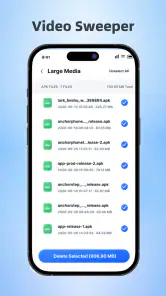
When a cleanup claims to have finished but storage looks unchanged, I would inspect the phone’s storage screen and consider what was actually selected. Removing temporary material may produce only a modest difference, while large videos, offline media, downloads, and photos may account for most of the used space. In that situation, the right recovery is not another blind cleanup. I would identify the largest categories and make deliberate choices about them.
Battery information can also be misread after a single observation. I would compare the display with my normal usage over a longer period and note whether the drain happens during gaming, navigation, weak reception, or idle time. If the phone becomes hot, shuts down unexpectedly, or loses charge unusually fast, I would treat that as a broader device concern rather than assuming a cleaning tool can repair it. Phone Cleaner may help me inspect the situation, but it cannot replace hardware service or system-level troubleshooting.
When the phone is the real source of the problem
It is easy to install a cleaner after a phone starts feeling slow, but the cause may be elsewhere. A nearly full operating system, an old battery, poor network conditions, a damaged charging cable, or an application that constantly refreshes can all create symptoms that resemble “junk.” I would use Phone Cleaner to narrow the possibilities, not to confirm my favorite explanation.
For example, imagine I am preparing for a weekend trip. My phone warns that storage is low just before I need maps and camera space. I would use the app to review disposable files, compress a carefully selected group of ordinary travel photos, and remove apps I genuinely no longer use. Then I would check the system storage screen and download only the maps I need. If the phone still reports low space, I would inspect videos, downloads, and offline content rather than assuming the cleaner missed something.
In another everyday situation, suppose the battery drops quickly during a commute. The battery section may help me notice the timing, but the actual cause could be a weak signal as the phone moves between towers, continuous navigation, or a display left bright. In that case, the usual battery controls built into Android may be more appropriate for changing background behavior. Phone Cleaner remains useful as an overview, but it is not necessarily the best tool for every adjustment.
This is where I see a clear difference between the app and the usual alternatives. Android’s built-in storage and battery pages generally offer more direct system context and are the safer reference when I need to verify what is happening. A dedicated gallery is usually better for detailed photo organization, editing, and backup decisions. The advantage here is concentration: Phone Cleaner puts several practical checks behind one utility instead of making me visit separate menus. The trade-off is that a concentrated interface may be less detailed than the specialized tools.
I would also skip it if I already maintain storage comfortably through the system settings, use a dedicated photo workflow, and rarely install or remove apps. Adding another utility would not automatically improve that routine. Likewise, users who want deep battery diagnostics, advanced file browsing, or extensive backup controls should look for tools designed specifically for those jobs. This app makes more sense for someone who values a simple starting point across several small maintenance tasks.
The current adoption level suggests that it has reached a meaningful group of Android users, with over one hundred thousand installs and an average rating of 3.8 from around three hundred ratings. I see that as a reason to take the app seriously enough to test, not as a guarantee that every phone will respond the same way. Device manufacturers organize storage differently, and personal habits determine whether cleaning or compression will make a noticeable difference.
Small workflows that make Phone Cleaner more useful
My preferred workflow begins with a baseline and ends with verification. I would note the available storage, scan one category, review the candidates, perform only the changes I understand, and then check the system’s storage page again. This prevents the common mistake of assuming that a completed animation equals a meaningful result. It also gives me a repeatable method when I use the app later.
A second useful workflow is a “staging” approach for photos. Instead of compressing an entire library, I would separate casual images from originals that matter. Screenshots, temporary reference pictures, and images already shared elsewhere are reasonable candidates for a trial. Family photos, work images, and anything intended for later editing should stay untouched until I am satisfied with the output. The important insight is that compression is a storage decision and a quality decision at the same time.
For app management, I would create a mental three-part filter: essential, occasional, and disposable. Essential apps stay. Occasional apps remain unless storage pressure is severe and I know I can reinstall them. Disposable apps are the ones I recognize and no longer need. This is more reliable than sorting only by how long ago an app was opened, because infrequent use does not mean low importance.
I would use the battery section at a consistent point in the day rather than checking it only after a dramatic drain. A morning and evening comparison can be more informative than a single glance, especially if my usage changes. I would record what I was doing when the battery fell quickly, then use the phone’s own controls to test likely causes. That turns the app from a reassurance button into part of a practical troubleshooting routine.
One limitation I would keep in mind is that a general cleaner may encourage over-maintenance. Constantly clearing temporary material is not always beneficial, because some apps may need to recreate it and may feel slower on the next launch. I would clean when I have a clear reason—storage pressure, a known accumulation of disposable material, or a planned device tidy-up—rather than treating the process as a daily ritual.
My practical verdict for different kinds of users
After using the app as a focused maintenance companion, I think Phone Cleaner is a reasonable choice for Android users who want one accessible place to review clutter, reduce selected photo sizes, manage installed apps, and inspect battery information. The combination is convenient, especially before travel, after months of downloading files, or when a phone needs a careful reset of its storage habits. The free price removes a major barrier to trying that workflow.
My recommendation comes with one condition: stay involved. The app is strongest when I use its categories to make informed decisions, not when I approve every result automatically. Review junk candidates, test compression on unimportant images, confirm an app is genuinely disposable, and verify changes through Android’s own settings. Those steps add a little time, but they greatly reduce the chance of deleting something useful or misdiagnosing a performance problem.
I would recommend it to someone who finds Android’s separate maintenance menus inconvenient and wants a straightforward starting point. I would not recommend relying on it alone for serious battery diagnosis, detailed file recovery, backup management, or problems caused by faulty hardware. In those situations, the system tools or a specialized service are the better choice.
Phone Cleaner is still a relatively focused utility from Omareyah Team, and its version 1.0.2 presentation feels best suited to practical, everyday maintenance rather than advanced power-user control. That is not a criticism by itself. For many people, a clear set of basic tasks is preferable to an overloaded dashboard. The important thing is to understand its role: it can help me find opportunities to free space and organize upkeep, while the final decisions—and the deeper diagnosis—remain with me.
My final advice is to use Phone Cleaner as a careful inspection tool, not a one-tap cure. If your phone needs modest storage relief or you want a convenient way to review several maintenance areas, it is worth trying. If your main problem is battery health, system instability, or advanced file organization, start with the built-in Android controls or a specialized alternative. Used within those limits, this free Tools app can make routine phone care less scattered and more manageable.
Pros
- Quickly identifies large
- duplicate
- and unwanted files.
- Simple interface makes storage cleanup easy for beginners.
- Can help free space without manually browsing every folder.
- Useful tools for managing photos
- videos
- and downloaded files.
- Provides a convenient overview of storage usage.
Cons
- Some features may be locked behind a subscription or in-app purchases.
- Cleaning suggestions should be reviewed to avoid deleting important files.
- Results can vary depending on device brand and Android version.
- May request broad storage permissions to scan device content.
- Background notifications or ads can feel intrusive for some users.

- Category
- Tools
- Version
- 1.0.2











