PDF Reader Lite - Fast Viewer
- 13.00
- 4.0
- Installs
- 100.00K
- Price
- Free
Screenshots
Analysis by Reviewed
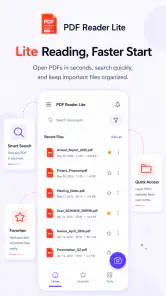
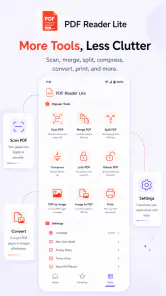
When I need to open a PDF quickly, I usually want something less complicated than a full office suite. PDF Reader Lite - Fast Viewer takes that focused approach: it is a free tools app from Omareyah Team for viewing PDFs and working directly on their pages. Its feature set goes beyond simple reading, with annotation, drawing, splitting, and merging included in the same workspace.
That combination makes it interesting for people who regularly receive forms, study notes, manuals, receipts, or work documents on a phone. I found the appeal less about replacing every document app and more about keeping common PDF tasks together without forcing me into a larger productivity package. It is available for everyone, supports devices running Android 8.0 or later, and its current release is version 1.0.1.
The app has reached over one hundred thousand installs and holds a 4.0 average from roughly three hundred ratings. Those figures suggest that it has found a real audience, while also leaving room for a balanced view rather than treating it as a flawless document solution. My main question is not whether it can open a PDF; most modern phones can do that. The useful question is whether its editing tools and file-management actions make everyday PDF handling simpler without taking control away from the user.
What using the reader feels like in everyday situations
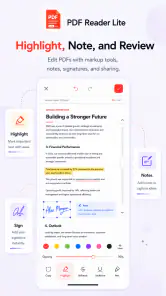
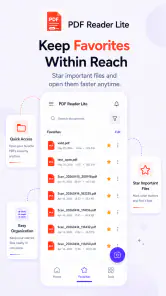
The most convincing use case is a small, practical one. Imagine receiving a rental form or school worksheet while away from a computer. I can open the document, read it on the phone, mark an important passage, draw attention to a section, and then separate pages if I only need to share one part. If two related documents belong together, the merge function can keep them in a single file. That workflow is more useful than a reader that only displays pages.
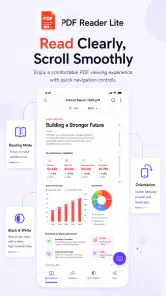
Reading remains the foundation, and the “Lite” identity matters here. Someone who mainly wants to inspect a PDF before deciding what to do with it will probably appreciate a narrower toolset than a full document editor. I would use it for manuals, travel confirmations, application instructions, invoices, and reference material that needs quick checking. The app is also suitable for a student who wants to underline or draw on study material rather than create an entirely new document.
Annotation and drawing serve different purposes, and it is worth treating them separately. Annotation is useful when I want to leave a clear note or mark a passage for later. Drawing is better for circling a number, adding a handwritten reminder, or pointing at a diagram. That distinction creates a practical workflow: use text-oriented marks for review, then use freehand drawing only where visual emphasis is faster than typing.
Splitting is especially helpful when a large document contains only a few relevant pages. Instead of sending an entire manual or application packet, I can make a smaller file containing the pages another person actually needs. Merging works in the opposite direction, such as combining a signed page, an identification copy, and a supporting document into one package. These actions are simple on paper, but having them beside the reader avoids the awkward routine of opening several unrelated apps.
There is also a useful trade-off in this compact design. A dedicated PDF tool can make a focused task feel faster, but it is not automatically the best choice for extensive document production. If I need advanced page design, spreadsheet editing, cloud collaboration, or a broad office workflow, I would look at a full productivity suite instead. This app makes more sense when the PDF is already created and I need to inspect, mark, reorganize, or prepare it for sharing.
Small workflows that make the feature set more useful
One tip is to decide the final purpose before annotating. If I am marking a document only for myself, drawing may be the quickest option. If another person will receive the file, clearer annotations are usually preferable because a quick handwritten circle can become ambiguous on a small screen. I would also keep the original untouched and use a separate working copy whenever the document is important. That habit protects against accidental changes while still taking advantage of the editing tools.
A second useful workflow is to split first and annotate second. When a document is long, marking pages inside the complete file can make the result harder to manage. Creating a focused subset before adding notes keeps the working file smaller and makes the purpose of the annotations clearer. This is particularly practical for study chapters, multi-page instructions, or forms that include several unrelated sections.
For merging, I would check the order before treating the result as finished. Combining files is not only about putting pages together; the sequence can affect whether the recipient understands the document. A cover page, main form, and supporting material should appear in a sensible progression. The app’s merge capability is therefore most useful when I approach it as a small document-assembly task rather than a button I press without reviewing the result.
These workflows also reveal why a lightweight reader can be valuable. The app is not merely a place to view pages. It can become a temporary workbench for a document that needs a few careful changes before it moves elsewhere. That is a narrower role than a complete office platform, but it is a role many phone users need often enough to justify a dedicated tool.
Trust starts with visible choices, not assumptions
When I review a document app, trust matters because PDFs can contain personal, financial, educational, or work-related information. I do not want to treat a convenient editor as automatically safe simply because it is easy to use. With this app, my practical approach is to pay attention to what the phone visibly asks me to allow, which files I choose to open, and whether I am comfortable with each action before confirming it.
The developer is Omareyah Team, and the app is free to use. Those facts make trying it straightforward, but they do not replace ordinary caution around sensitive documents. I would avoid opening a confidential file until I had reviewed the app’s visible prompts and the device-level controls available to me. The important point is to make an informed choice at the moment a file or permission is involved, rather than assuming that every document tool handles information in the same way.
I also prefer to test a new PDF utility with a harmless document first. A blank file or public manual can show how opening, marking, splitting, and merging behave without exposing private content. This gives me a chance to understand the interface and any confirmation screens before I use it for a tax document, medical report, identity record, or contract. It is a small step, but it is more meaningful than relying on a generic sense of security.
There is no reason to grant broader access than the task requires. On Android, I would review the app’s current permission prompts and the operating system’s controls, then allow only what is necessary for the action I am trying to perform. If a request appears unrelated to reading or managing a selected document, I would pause rather than accept it automatically. The same principle applies after testing: permissions can be revisited in device settings, and unused access can be removed when appropriate.
This is also where the app’s free model deserves a careful look from the user’s side. Free does not tell me everything about how a product handles information, so I would read any available privacy details and notices presented through the app or its store page before making it part of a sensitive workflow. I would not infer that documents are uploaded, retained, or shared without clear evidence, but I also would not make the opposite assumption. Caution is the honest middle ground.
How much control the user keeps during PDF work
The strongest part of this kind of app is user agency. I choose which PDF to open, whether to mark it, which pages to separate, and which files to combine. That is different from a service that tries to turn every document action into an account-based process. For quick local tasks, direct control can feel more comfortable because I can decide when a file is edited and when a result is ready to leave the phone.
I would still review every output before sharing it. After annotating, I would scroll through the pages to make sure marks landed where intended. After splitting, I would confirm that the selected pages are complete and in the right order. After merging, I would check that nothing important was omitted. These checks are not a criticism of this particular app; they are sensible safeguards whenever a mobile tool changes a document that another person may rely on.
One subtle advantage of separating the reading stage from the sharing stage is that it gives me a chance to reconsider what the recipient actually needs. A full PDF may contain extra pages, internal notes, or unrelated personal information. Splitting can help reduce accidental disclosure, provided I inspect the result carefully. In that sense, the page-management features are not only convenient; they can support more deliberate sharing decisions.
At the same time, the app may not be ideal for users who expect a complete account ecosystem. If your normal routine depends on synchronized libraries, team review, live collaboration, or seamless editing across several office formats, a broader platform may fit better. I would choose this reader for direct phone-based PDF handling, not because it promises to replace every tool in my document workflow.
Another consideration is device compatibility. Android 8.0 support gives the app a useful reach across older phones, but the experience can still vary with screen size, storage conditions, and the complexity of the files being handled. I would be especially careful with large or visually dense documents, checking that pages render correctly before relying on the result. A lightweight label suggests an approachable experience, but it should not be confused with a guarantee that every demanding PDF will behave identically.
Where it fits beside familiar alternatives
The usual alternative is the PDF viewer already included with a phone or installed as part of a browser or office suite. Those options are perfectly adequate when I only need to read a document. PDF Reader Lite becomes more compelling when I want reading, marking, drawing, splitting, and merging in one place. The benefit is reduced app switching, especially during a short task where moving between tools is more annoying than the edit itself.
Compared with a full office suite, this app appears more focused. An office package may offer stronger support for word-processing files, spreadsheets, presentations, cloud storage, and collaboration. That wider range is valuable for work teams and people who create documents from scratch. For someone who mostly receives PDFs and occasionally needs to reorganize or annotate them, the extra complexity of a large suite may not be worth it.
Compared with a specialized annotation product, the trade-off may go the other way. A dedicated note-taking or markup app can be better for intensive handwriting, structured study, or elaborate review systems. This reader’s advantage is breadth within the PDF format rather than deep specialization in one kind of annotation. I would recommend it to someone who wants several practical actions together, not to a professional reviewer seeking the most advanced markup environment available.
The free price also changes the decision. It lowers the barrier for occasional users who do not want to commit to a subscription or install a large suite for a single task. Still, I would judge it by the reliability of my own documents and workflow rather than by cost alone. A free tool that makes me repeat work or second-guess outputs is not truly convenient, while a focused app that handles routine jobs cleanly can earn a permanent place on the phone.
Who should install it, and who should look elsewhere
I think this app is a good match for people who regularly handle PDFs on Android and want more than passive reading. Students can use it to mark course material and extract relevant pages. Freelancers can prepare a compact document bundle before sending it to a client. Families can separate pages from a long form or combine related records. Anyone who receives PDFs by email or messaging and needs occasional edits may find the focused feature set more practical than a full office installation.
I would be more cautious about recommending it to someone whose documents are consistently highly confidential until that person has reviewed the visible permission requests and privacy information for themselves. I would also point advanced business users toward a solution with the specific collaboration, audit, synchronization, or document-management controls their organization requires. Those needs are more demanding than quick viewing and page editing.
People who only read PDFs may not gain much from installing a separate tool, particularly if their current viewer already opens files comfortably. Likewise, users who work primarily with non-PDF formats should not choose this app as a general document editor. Its value comes from the combination of PDF reading and practical page-level actions, so the more often those actions appear in your routine, the stronger the case becomes.
The age rating of Everyone makes the app broadly approachable, but responsible use still depends on the documents handled and the choices made around them. A general audience rating is not a substitute for reviewing file-sharing habits. I would keep sensitive originals backed up, work on copies when possible, and confirm the final file before sending it to anyone else.
My cautious verdict after weighing convenience and control
My overall impression is that PDF Reader Lite - Fast Viewer is most successful as a compact PDF workbench. It brings together the actions I actually use when a document needs attention but does not justify opening a full office suite. Reading, annotation, drawing, splitting, and merging form a sensible group, and the free price makes experimentation easy for Android users whose devices meet the minimum requirement.
I would not describe it as the universal answer for document work. Its best audience is someone with focused PDF needs, not someone searching for a complete business platform or an advanced collaborative editor. I would also keep trust decisions grounded in visible permissions, privacy notices, and my own handling of files. The app can give me control over the document workflow, but I still have to decide which files to open and where the finished documents should go.
For a realistic recommendation, I would install it, test it with a non-sensitive PDF, and run one complete workflow: open a file, add a clear mark, create a smaller page selection, combine it with another harmless document, and inspect the final result. That test tells me more than a feature list because it checks whether the app fits my habits. If the process feels natural, this is a practical free choice for everyday PDF tasks.
In short, I see PDF Reader Lite - Fast Viewer as a useful middle option between a basic viewer and a heavyweight office suite. It is focused enough for quick jobs, capable enough to reduce app switching, and flexible enough for study, household, and light professional documents. I would choose it when direct PDF control matters, while keeping a broader or more specialized alternative available for collaboration, advanced editing, or particularly sensitive work.
Pros
- Opens common PDF files quickly
- even on older phones.
- Clean interface makes basic reading easy for first-time users.
- Useful search tool helps locate words or phrases in long documents.
- Supports portrait and landscape reading for more comfortable viewing.
- Small app size saves storage compared with many full PDF suites.
Cons
- Advanced editing and annotation tools are limited or unavailable.
- Some documents may display differently from desktop PDF software.
- Large
- image-heavy PDFs can take longer to load.
- Free version may include advertisements or upgrade prompts.
- Cloud storage and collaboration features may be less extensive than rivals.
- Category
- Tools
- Version
- 1.0.1











