Permission Guard
- 549.00
- 4.7
- Installs
- 1.00M
- Price
- Free

Screenshots
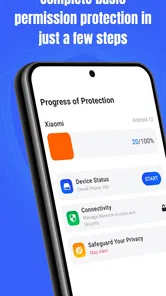
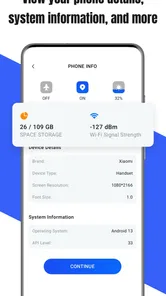
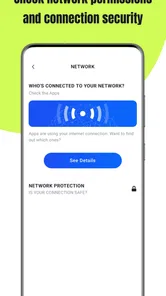
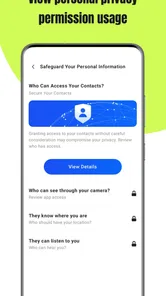
Analysis by Reviewed
When I decide whether an app belongs on my phone, I ask a simple question: does it make a recurring task easier without creating another chore? Permission Guard is aimed at a narrow but useful job: helping you keep track of app permissions. That makes it worth considering if you want a more deliberate way to review what apps can access, rather than relying on memory or opening each app’s settings one by one.
It is a free Android business app from VY Technology Services, with an Everyone age rating. Its appeal is practical rather than flashy. I would treat it as a companion for checking and managing permissions, not as a complete mobile-security suite or a substitute for Android’s own controls. The key decision is whether a dedicated place for permission oversight fits the way you already maintain your phone.
Check how you handle permissions today
Before installing another utility, I would ask how often I actually revisit access decisions. If I only change a permission when an app asks for it, a dedicated manager may help make reviews more deliberate. If I already know where Android keeps its controls and check them regularly, the extra app may simply duplicate a habit that works.
It also helps to separate two questions that can get blurred together: “Do I trust this app?” and “Does this app still need this access for what I do with it?” Permission Guard is relevant to the second question. A permission that was reasonable for a one-time task may no longer make sense months later, even if there was nothing suspicious about the app when you installed it.
Start with the permission problem you actually have
Permission tools are most useful when they help answer a concrete question: which apps have access that still makes sense, and which access deserves another look? If you install apps often, test tools for work, or keep older apps around, it can be easy to forget why a permission was granted. A focused manager gives you a reason to review those choices instead of treating them as settled forever.
I would begin by thinking about the permissions that matter to your own routine. An app that needs access to a feature for a task you actively use is different from one you rarely open. The useful habit is not to deny everything automatically; it is to connect each permission to a purpose. Permission Guard is relevant if you want that review process to feel more intentional.
It is also important to set expectations. Managing permissions is one part of looking after a phone, not a guarantee against every security or privacy risk. It does not replace careful app selection, operating-system updates, or sensible account practices. I see its strongest role as helping you notice and reconsider access, rather than promising that every concern can be solved from one screen.
More From Our News Desk

Weather by Xiaomi Review: Clear at a Glance, Less Clear Up Close

X Under Pressure: Can It Recover When Posting Goes Wrong?

Clash of Clans Is Won Between the Battles

Android Auto Makes the Case for Quieter Car Software

MobiOffice: Transforming Mobile Productivity with Seamless Integration

EA SPORTS FC™ Mobile Soccer: Redefining Mobile Sports Gaming
A better routine than checking only after a scare
A useful approach is to review permissions when something changes: after installing a new app, when an app’s purpose shifts, or when you are clearing out software you no longer use. That turns the tool into part of ordinary phone upkeep instead of something opened only after an alarming headline or an unexpected prompt.
One practical tip is to make the review about purpose, not just the permission name. Ask yourself whether you still use the app for the task that justified its access. If the answer is no, that is a good reason to reconsider the arrangement. If you are unsure, check whether changing access would interfere with a feature you rely on before making a broad change.
Where a dedicated manager can help
Android already provides permission controls, so the question is what a separate app adds to your routine. The built-in route is a sensible choice for someone who checks only occasionally and is comfortable navigating system settings. A dedicated permission app is more appealing if you want to make this responsibility more visible and keep the act of reviewing access from disappearing into a general settings menu.
That distinction matters most for people who manage a varied collection of apps. Someone who installs a work tool, a travel app, and a one-off utility may have different reasons for granting access to each. A focused review can help bring those decisions back into view later. It cannot decide for you whether a permission is justified; the value lies in making you ask the question.
For a realistic example, imagine that you install an app for a short work project and allow access needed to complete a task. Weeks later, the project is finished but the app remains on your phone. During a routine check, you can reconsider whether you still need the app and whether its access still fits your use. That is a small workflow, but it is more actionable than vaguely intending to “check privacy settings sometime.”
What the app is—and what I would not assume
The verified store summary describes Permission Guard as a security app for managing app permissions. I would keep the review grounded in that purpose rather than treating the name as evidence of broader protection. It is not a reason to assume that every kind of threat, tracking, or unsafe behavior is covered. For those concerns, a dedicated security product or the controls already built into Android may be a better match.
Likewise, a permission review is only as useful as the decisions that follow it. Blocking access indiscriminately can make an app’s expected function stop working, while leaving everything untouched defeats the point of reviewing. My advice is to change permissions selectively, then use the relevant app as you normally would. If something essential no longer works, revisit that specific choice rather than abandoning permission management altogether.
Who is likely to get the most value
I would recommend trying it if you want a focused prompt to revisit app access, especially when your phone has accumulated apps you do not use every day. It may suit people who prefer a dedicated management tool over navigating system settings, and users who want a repeatable review habit without turning privacy into a full-time project.
It is less compelling for someone who already checks Android’s permission controls regularly and finds them easy to use. It is also not the right answer if you are looking for a complete antivirus, a detailed app-behavior investigation tool, or an automated judgment about which access is safe. In those cases, the operating system’s own controls or a specialist tool designed for that broader need may be more appropriate.
The app has a 4.7 average from around 9,100 ratings, with roughly 549 written reviews, and has passed 1 million installs. Those figures suggest that many users have found it worth trying, but they do not tell me whether its approach will suit your habits. I would weigh them as context, not as a replacement for deciding whether a dedicated permission workflow solves a problem you actually have.
Choosing between this, system settings, and broader tools
The usual alternative is to use Android’s built-in permission pages. That route has the advantage of being part of the phone itself, and it is a good fit when you want to make an occasional adjustment without installing another app. Permission Guard is the more focused option when you want permission management to be a distinct task. The trade-off is straightforward: a dedicated tool can make a narrow job easier to revisit, while built-in controls avoid adding another app to maintain.
Broader security apps are a different category. They may make sense if your main concern extends beyond app permissions, but I would not choose one just to solve a permission-review problem. Conversely, I would not expect this focused app to replace those wider protections. Matching the tool to the job is more useful than picking the app with the broadest-sounding label.
There is also a small switching cost to consider. If you already have a reliable habit in system settings, moving to another interface may not save you much effort. If you have no habit at all, the value may be less about changing every permission immediately and more about creating a regular point at which you reconsider access. Start with a few apps you recognize, make deliberate changes, and see whether the process feels clearer than your existing method.
Make a first review without disrupting your routine
I would avoid treating the first session as a cleanup race. Start with apps you recognize and can test right away, rather than changing access for several unfamiliar or essential tools at once. If a feature you rely on behaves differently afterward, making one change at a time gives you a much better chance of knowing what caused it.
A useful order is to look first at apps you rarely open, then ask whether you still need the app itself before deciding what to do about its permissions. Removing software that no longer serves a purpose can be a simpler choice than keeping it installed and repeatedly debating its access. For an app you do need, consider permissions in the context of the feature you use, not just the app’s name or category.
That approach also answers a common practical concern: does a permission manager make decisions on your behalf? I would use Permission Guard as a place to review and manage access, while keeping the judgment with myself. If you want an automatic verdict on whether each permission is safe, this is not the kind of tool I would rely on for that decision.
Version, compatibility, and the practical commitment
Permission Guard is currently version 2.8.5 and requires Android 7.0 or later. That makes the first practical check simple: confirm that your phone meets the minimum requirement before planning to use it. It was released on March 4, 2025, and is free, so trying it does not require a purchase decision. Still, installing any management app is a choice to add another tool to your phone, and that is worthwhile only if you expect to use it.
Because permission controls are closely tied to Android, I would approach the app as an aid to your own review rather than as an independent authority. Read what you are changing, consider how you use the app involved, and avoid making several unrelated changes at once. That gives you a clearer way to identify the cause if a feature stops behaving as expected.
The developer is VY Technology Services, and the app’s business-category placement reflects its utility-oriented role more than a consumer entertainment purpose. That classification is not the reason I would install it; the reason is whether a focused permission review makes my phone easier to manage. If your priority is a simple, repeatable way to think about app access, its narrow scope is an advantage. If you want a broad security dashboard, it is probably not the tool to start with.
My recommendation
I would give Permission Guard a try if you have been meaning to review app access but rarely make time for it. Its clearest use is as a prompt for deliberate decisions: keep access that supports a feature you still use, reconsider access that no longer has an obvious purpose, and remove apps that have outlived their usefulness. That is a grounded, useful role for a dedicated permissions app.
I would skip it if Android’s own controls already work well for you, or if your real need is protection that goes beyond managing permissions. In either case, another app may add more steps than value. For everyone else, Permission Guard is a sensible, free option to explore, provided you treat it as a practical management aid rather than a promise of complete security. Its best result is not a dramatic transformation; it is a more thoughtful routine for deciding what your apps are allowed to do.
Permission Guard Frequently Asked Questions
What is Permission Guard, and what does it do?
Permission Guard is an Android utility intended to help users review and manage the permissions requested by installed apps. It can make it easier to spot which apps may access sensitive features or information, such as the camera, microphone, contacts, or location. Its exact features depend on the app version and your Android release, so check the listing and in-app descriptions before installing.
Is Permission Guard compatible with every Android phone?
Compatibility can vary by Android version, device manufacturer, and the particular Permission Guard release. Newer versions of Android restrict how third-party apps can inspect or change other apps’ permissions, while some controls may require system settings or special access. Before downloading, compare the app’s stated requirements with your phone’s software version, and remember that an unavailable feature may reflect an Android limitation rather than a problem with your device.
Does Permission Guard automatically block or revoke app permissions?
Do not assume that Permission Guard can automatically block every permission. Android determines which actions an ordinary app is allowed to perform, and its rules differ across versions; in many cases, permission changes must be approved in the system’s own settings. Review the app’s current feature description to see whether it only reports permissions, offers shortcuts to settings, or supports additional controls on your device.
Is Permission Guard safe, and what permissions does it need?
As with any utility that examines app permissions, check Permission Guard’s requested access, developer information, privacy policy, and recent reviews before installing. A permission-management tool may need access to information about installed apps, but that does not automatically establish how collected data is handled. Download it from a source you trust, grant only access that is clearly explained, and avoid sharing sensitive information if the privacy terms are unclear.
Is Permission Guard free, and are there ads or in-app purchases?
Pricing, advertisements, and optional purchases can change between releases and distribution stores, so confirm the current details on the download page and in the app before proceeding. Also check whether any features are limited to a paid version and whether the listing describes subscriptions or recurring charges. If you only need Android’s built-in permission controls, you can usually review them through your phone’s Settings without installing an additional app.
Pros
- Helps you review app permissions from one central place.
- Can make it easier to spot apps with access they may not need.
- Useful for privacy-conscious users who want more control.
- Permission details can help you understand what each app can access.
- Encourages regular checks of installed apps’ access settings.
Cons
- Available controls may vary by Android version and device.
- Some permission changes may require manual action in system settings.
- Restricting permissions can cause apps or features to stop working.
- It may not offer the same controls on every Android device.
- Reviewing permissions across many apps can take time.