PDF scanner - Scan Documents
- 232.00
- 4.4
- Installs
- 1.00M
- Price
- Free
Screenshots
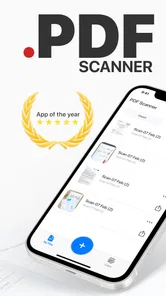
Analysis by Reviewed
I find document-scanning apps most useful when they remove a small but annoying task from my day: turning a paper receipt, signed form, or handwritten note into something I can send immediately. PDF scanner - Scan Documents takes that straightforward approach. It is a free business app from Captain Show LLC, designed around scanning, converting, and sharing documents with a phone. After using it, my impression is that it is best understood as a practical mobile utility rather than a complete office suite.
The app has a 4.4 average from around 5.6 thousand ratings and has passed one million installs, which suggests that its simple purpose appeals to a broad audience. It is available for Everyone, runs on Android 9 or later, and its current version is 1.3.3. Those details matter because this is the kind of tool people often install in a hurry, usually when a document needs to be sent before they have access to a printer or desktop scanner.
Where scanning usually gets stuck
The first difficulty is rarely the PDF conversion itself. It is usually the capture stage. A phone camera has to recognize the page against its surroundings, and a dark table, curled paper, glare, or weak indoor lighting can make an otherwise simple scan look uneven. I get better results when I place the document on a flat, contrasting surface and hold the phone directly above it instead of scanning from an angle.
This is especially important with receipts and forms. A receipt may be narrow and pale, while a form can contain small boxes and faint lines. If the page is captured too far away, the final PDF may technically be complete but uncomfortable to read. I prefer filling most of the camera view with the paper while leaving a little space around the edges. That gives the crop enough room without wasting resolution on the surrounding desk.
Another common sticking point is assuming that every scan will be clean on the first attempt. I treat the first capture as a draft. Before sharing, I inspect the corners, the bottom edge, and any area containing a signature or account number. A page can look fine in the camera preview while losing a small section during cropping. That quick check is more valuable than immediately repeating the whole process later.
Users who expect a full replacement for desktop document software may also feel friction. The app focuses on making a PDF from a phone, so it is a better fit for capturing and sending paper than for managing a large archive, performing detailed layout work, or handling complex office editing. I would not choose it as my only document system for a business that needs extensive filing and collaboration.
Setup checks that prevent avoidable problems
Because the app is free to install, trying it does not require a purchase decision at the beginning. However, the app includes in-app purchases ranging from $0.99 to $29.99 per item. I would check the available options before building a regular workflow around it, especially if I planned to use it frequently or expected tools beyond the basic scanning task.
More From Our News Desk

Weather by Xiaomi Review: Clear at a Glance, Less Clear Up Close

X Under Pressure: Can It Recover When Posting Goes Wrong?

Clash of Clans Is Won Between the Battles

Android Auto Makes the Case for Quieter Car Software

MobiOffice: Transforming Mobile Productivity with Seamless Integration

EA SPORTS FC™ Mobile Soccer: Redefining Mobile Sports Gaming
I also make sure the phone has enough free storage before scanning a long set of pages. A single document may be small, but repeated test captures and exported files can accumulate. Keeping the phone charged is sensible too, particularly when scanning several pages under poor lighting, where repeated captures are more likely.
For a first test, I recommend using a harmless one-page document rather than an important contract. Scan it, review the edges, convert it, and open the resulting PDF in another viewer. This confirms that the complete path works on the device: capture, page handling, conversion, and sharing. It is a simple check, but it catches problems before an urgent document is involved.
I would also decide where the finished file should go before starting. If I am scanning a receipt for reimbursement, I may want a clearly named file and a copy in my usual storage location. If I am sending a signed form, I may need to verify the attachment after sharing. The app can make the PDF, but a reliable document habit still depends on how I organize the result afterward.
Camera technique has more impact than many people expect. I avoid placing the phone’s shadow across the page and rotate the paper rather than twisting the phone when possible. For glossy documents, changing the angle of the light is often more effective than moving the phone closer. These are not special settings inside the app; they are practical ways to give its scanning process a cleaner image to work with.
A recovery workflow when a scan goes wrong
When a page looks distorted, I do not immediately blame the PDF export. I first return to the original capture and ask whether the paper was fully visible, whether the phone was tilted, and whether glare covered any text. Repeating the scan with better positioning is usually faster than trying to rescue a poor image.
If only one page in a multi-page document is bad, I replace that page rather than starting from zero. My preferred recovery sequence is to keep the acceptable pages, recapture the problem page on a flat surface, and then review the complete document again before sharing. This avoids the frustrating situation where fixing one page accidentally creates a second incomplete version.
For a document with a signature, I inspect the signature at normal reading size rather than relying on a tiny thumbnail. Signatures are often near the bottom edge, exactly where an overly tight crop can cause trouble. The same check applies to stamps, handwritten dates, and check marks, which can be lighter than printed text.
Long documents deserve a slower review. I look for a consistent orientation, readable pages, and accidental blank captures. A blank page can happen when the phone is moved between sheets or when the camera briefly points away from the document. Removing mistakes before sharing makes the final file easier for the recipient to use and prevents an avoidable second email.
File naming is another small recovery tool. Instead of leaving several exports with similar names, I use a name that identifies the purpose and date in ordinary language. That makes it easier to find the correct attachment later, particularly when I have scanned several versions of a form. The app handles the conversion, but naming prevents confusion after the conversion is finished.
When the app is not the cause
Sometimes a user sees a problem after tapping share and assumes the scanner failed. In reality, the issue may be the destination app, an unavailable account, a weak connection, or a file-handling limitation elsewhere on the phone. I test the PDF by opening it locally first. If it opens correctly, the scan itself is probably fine and the next troubleshooting step belongs to the sharing or storage service.
A recipient who cannot open a file may also be using an outdated viewer or may have received an incomplete attachment. I check the sent item and, when necessary, share the PDF through another ordinary channel. This distinction matters because rescanning a perfectly readable document wastes time and can introduce a new image-quality problem.
Cloud storage can create a similar misunderstanding. If a file is not visible in a particular folder, I check the app or service where it was sent rather than assuming the scanner deleted it. I also avoid making several exports while searching, since duplicate files can make the original harder to identify.
Phone camera problems should be separated from app problems as well. If other camera-based apps show blur, focus trouble, or strange exposure, cleaning the lens and checking the phone’s camera behavior is a better first move than reinstalling the scanner. A document app cannot restore detail that the camera never captured.
There is also a privacy judgment that belongs with the user. I avoid scanning sensitive identity documents casually, especially when I do not need a digital copy. For necessary documents, I share only with the intended recipient and remove unnecessary duplicates from places where I no longer need them. The convenience of a mobile PDF should not encourage careless handling of personal information.
How it fits into a real day
Imagine receiving a paper expense receipt after a work trip. I would place it on a clear surface, capture it with the phone held straight above the page, and inspect the merchant, total, and date before creating the PDF. Then I would give the file a recognizable name and attach it to the reimbursement message. The useful part is not simply having a scan; it is completing the whole chain without carrying the receipt to a desktop scanner.
The same workflow works for a signed permission form, a delivery note, or a short application that must be returned by email. In each case, I would prioritize legibility over speed. A clean one-page scan is more useful than a rushed file that technically contains the page but makes the recipient zoom in to read it.
For students, the app can be convenient for turning a worksheet or handwritten page into a shareable document. I would still review pencil marks and faint writing carefully, since those details are easier to lose than bold printed text. For small businesses, it can help with occasional paperwork, but I would compare the effort of manual naming and filing against a dedicated document-management system if scanning becomes a daily administrative job.
Compared with a traditional flatbed scanner, the phone-based approach wins on availability and speed. I can use it away from the office and process a document immediately. The trade-off is consistency: a flatbed scanner generally offers more predictable alignment and lighting, especially for batches of pages. Compared with a general camera app, this app is more focused on producing a document-shaped result rather than leaving me to crop and prepare every image manually.
Compared with a full office suite, PDF scanner - Scan Documents is narrower. That narrow focus is helpful when I only need to capture and share paper, but limiting when I need extensive editing, collaboration, or records management. I would choose the app for occasional paperwork and keep a broader tool available for documents that need substantial changes after scanning.
Who should use it, and who should skip it
I would recommend it to people who regularly face small, time-sensitive scanning jobs: freelancers sending invoices, parents returning forms, students submitting handwritten work, or employees digitizing receipts while away from the office. The free entry point makes it easy to test, and the Everyone age rating makes it approachable for general household use.
I would be more cautious about recommending it as the foundation of a large office workflow. Teams that require strict naming rules, extensive searchable archives, detailed access controls, or advanced editing may be better served by a specialized document platform. The app can still be useful for capturing a page, but it may not cover everything that happens afterward.
It is also not my first choice when the source is already a digital document. If I already have the original file, converting or sharing that file directly usually preserves text and formatting better than photographing a screen or printed copy. The scanner is most valuable when paper is the only version available.
One practical strength is that it encourages a short path from paper to PDF. One practical weakness is that the quality of that path depends heavily on the capture conditions and on what I do after export. People who want a completely automatic archive may find that they still need their own process for naming, checking, and storing files.
My practical verdict
After using it as a mobile document utility, I see PDF scanner - Scan Documents as a sensible choice for quick, occasional paperwork. Its purpose is clear, its business category fits the job, and Captain Show LLC has kept the experience centered on turning physical pages into shareable PDFs rather than making it feel like an oversized office suite.
The app is free, though the presence of paid items means I would review the purchase screen before committing to frequent use. I would also install it only on a device running Android 9 or newer, which covers many current phones but is worth checking on an older handset. Its current version, 1.3.3, is the version I would look for when troubleshooting so that my experience matches the available release.
My strongest advice is to judge the app by the complete workflow, not just the scan button. Use good light, keep the phone level, inspect important edges, test the exported PDF, and confirm the attachment after sharing. Those habits solve more real-world problems than repeatedly changing settings without checking the original capture.
My bottom line is simple: choose it when you need a fast paper-to-PDF bridge, not when you need a full document-management office. For a receipt, signed page, or short form, it can save a trip to a scanner and get the file moving quickly. For high-volume archiving or detailed editing, I would use a more specialized alternative and keep this app as a convenient backup for the moments when paper appears unexpectedly.
PDF scanner - Scan Documents Frequently Asked Questions
Is PDF Scanner - Scan Documents available for my device?
PDF Scanner - Scan Documents is an app for mobile devices, with a minimum operating-system requirement of version 9. Before downloading, check your device’s software version and make sure there is enough storage for the app and the documents you plan to scan. The app is free to download, and its Everyone age rating makes it suitable for a broad audience.
Who develops PDF Scanner - Scan Documents, and is it widely used?
PDF Scanner - Scan Documents is developed by Captain Show LLC and is listed in the Business category. It has an average rating of 4.4 from around 5,600 ratings, with over 200 written reviews and more than one million installs. Those figures offer a general sense of its reach, but your experience can still depend on your device and the features you need.
What is PDF Scanner - Scan Documents used for?
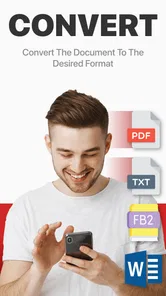
PDF Scanner - Scan Documents is designed to turn your smartphone or tablet into a portable document scanner. You can capture receipts, contracts, notes, forms, business cards, and other paper documents with the camera, then save them as digital files. The app generally includes tools for cropping, improving readability, organizing scans, and exporting documents as PDFs or image files.
Does PDF Scanner - Scan Documents produce clear and accurate scans?
The scanning quality depends mainly on your device’s camera, lighting, and how steadily you hold the phone. In testing, documents are easiest to read when placed on a flat, contrasting surface under bright, even light. Automatic edge detection and image enhancement can improve the result, but users should still check every page before sharing, especially when scanning small text, signatures, faded receipts, or multi-page paperwork.
Can I scan several pages and combine them into one PDF?
Yes, the app is intended to support multi-page document scanning, allowing you to capture several pages and combine them into a single PDF file. This is useful for school notes, invoices, applications, and contracts. Before exporting, review the page order, rotate incorrectly captured pages, and remove duplicates. Some advanced options, such as unlimited pages or special export settings, may depend on the app version or subscription.
Pros
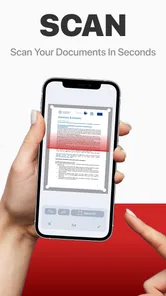
- Quickly scans documents using your phone’s camera
- Automatic edge detection helps create clean page boundaries
- Supports multi-page documents in a single PDF file
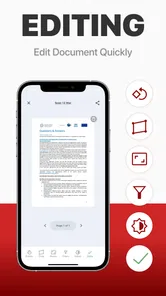
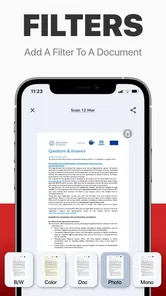
- Useful filters improve readability of scanned text
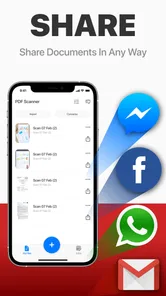
- Easy sharing through email
- messaging
- and cloud services
Cons
- Scan quality depends heavily on lighting and camera focus
- Some advanced tools may require a paid subscription
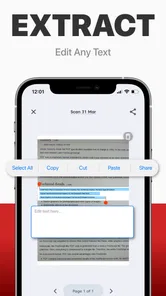
- OCR results can contain errors with handwriting or complex layouts
- Large multi-page scans may use considerable storage space
- Ads may interrupt the scanning workflow in the free version