PDF Reader – Read & Manage
- 256.00
- 4.4
- Installs
- 1.00M
- Price
- Free
Screenshots
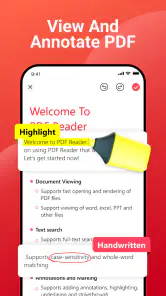
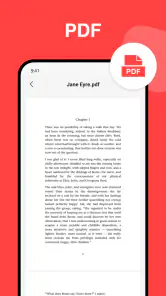
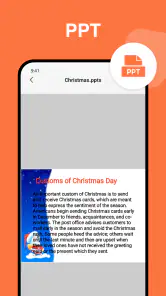
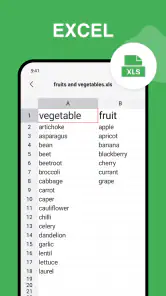
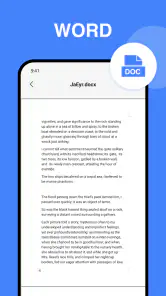
Analysis by Reviewed
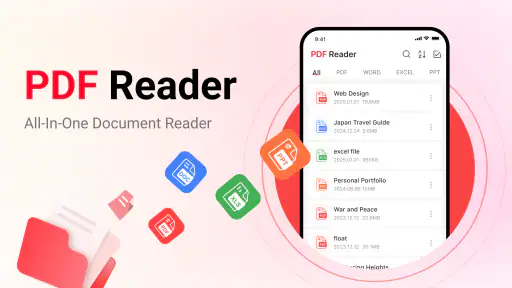
I spent time using PDF Reader – Read & Manage as a practical document tool rather than treating it like a full office suite. Its main appeal is straightforward: it gives me a place to view PDFs and convert images without charging for access. That makes it useful for the everyday moments when I need to open a document quickly, check a page, or turn a photo into a more convenient file.
The app comes from theblue llc and sits in the tools category. It is free, rated for Everyone, and runs on devices using Android 11 or newer. The current release is version 1.3.1, while its overall reception is a 4.4 average from around 5.4K ratings. With over 1M installs, it has clearly found an audience among people who want a simple document utility rather than a complicated professional workspace.
How I use it for a dependable PDF routine
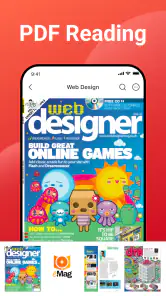
My normal workflow starts with a basic question: do I need to read a PDF, or do I need to work on its contents? For reading, this app is easy to understand. I open a document, move through its pages, and use it as a focused viewer instead of searching through a general file-management app. That distinction matters when I receive a manual, a form, a receipt, or a document shared in a messaging conversation.
The strongest part of the experience is the lack of unnecessary ambition. A PDF viewer does not need to distract me with a large editing workspace when my immediate task is simply checking information. I can use it before a meeting to review an attachment, confirm a delivery document, or read instructions while away from a computer. For these jobs, the app’s narrow purpose works in its favor.
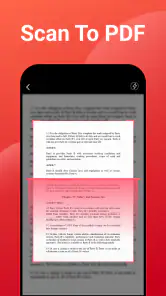
The image conversion side gives it a second practical role. When I have an image that needs to be handled like a document, converting it can make the next step more convenient. A photographed page, a saved screenshot, or an image received from another person may be easier to share or archive once it is in PDF form. I would not treat that as a replacement for a dedicated scanning system, but it is useful when the source is already on my phone.
A realistic example is preparing a school or work document from a phone. Someone sends me a picture of a signed page, and I need to keep it with other PDFs. Instead of leaving it buried among camera images, I can use the conversion workflow and then open the resulting document in the same general tool. That small change makes later searching and sharing less awkward.
There is also a useful habit here: I try to decide the final destination before converting anything. If the file is only for my own reference, a quick conversion is enough. If I will send it to someone else, I first check the source image for glare, cropped edges, and unreadable text. The app can change the format, but it cannot rescue a page that was photographed badly. This is one of the most important practical limits to remember.
The everyday strengths are in the small decisions
I find the app most comfortable when I keep my document routine simple. I open a PDF to read it, convert an image when the format is inconvenient, and then move on to the next task. That makes it a good fit for students, casual users, families, and anyone who occasionally receives documents but does not want a large productivity platform.
It is also a reasonable choice for a secondary device. If I have an older Android phone that still meets the Android 11 requirement, I can use it as a document-reading device without expecting the phone to become a complete office workstation. The Everyone age rating also makes the app broadly approachable for household use, although the suitability of an individual document naturally depends on its contents rather than the app’s rating.
What I would not do is assume that viewing and converting automatically means editing, signing, organizing, or extracting information. Those are separate jobs. A simple reader may be more pleasant for opening a file, while a specialized PDF editor is usually the better tool for changing text or adding formal annotations. Choosing the right tool at the start saves more time than trying to force one app to handle every document task.
Settings, shortcuts, and repeatable habits that improve the experience
Check the basics before building a routine
When I install a document app, I first look through its available settings instead of immediately importing a large collection of files. In this case, that means checking how documents are opened, how the interface behaves while reading, and whether the conversion flow matches the way I normally select images. I avoid assuming that a familiar option exists simply because another PDF app includes it.
This approach is especially helpful because PDF tools often differ in small but important ways. One app may emphasize a page-by-page view, another may prioritize continuous scrolling, and another may place file actions behind a separate menu. I spend a few minutes learning where the controls are, then use the same sequence each time. That repeatability is more valuable than constantly searching for a faster-looking alternative.
If the app offers reading preferences, I would adjust them for the type of documents I handle most often. Long manuals are easier when scrolling feels natural, while short forms can be quicker to inspect page by page. I also keep the screen brightness and system display settings in mind, because reading comfort is not controlled by the document viewer alone. A good setup is the one that lets me finish a document without repeatedly changing the phone.
For image conversion, I use a preparation step that many casual users skip. I crop unnecessary background first when the source is a photo, rotate the image correctly, and check that the entire page is visible. If the image contains a lot of empty space, the resulting document may be less pleasant to read. This is not a hidden feature; it is a workflow improvement that makes the app’s existing purpose more useful.
Use a consistent file habit
I also recommend keeping a clear naming habit outside the reading screen. A converted file is easier to find when its name reflects the document rather than the camera’s default label. I use a short description and, when useful, the month or project name. That makes the app more valuable as part of a broader phone workflow, even if the application itself is intentionally focused.
Another good habit is to review the converted result immediately. I open the new PDF, move through its pages, and check the orientation before sharing it. This catches the most common practical problems: a page facing the wrong way, an image cut at the edge, or a conversion that does not look as clean as the original. A ten-second check is much better than discovering the problem after sending the file.
For repeat tasks, I keep the sequence stable: select the image, convert it, inspect the result, rename or place it appropriately, and then share or archive it. The benefit is not speed in isolation. The benefit is fewer forgotten steps. When I am handling several pages or documents, a fixed routine reduces the chance that one file remains in the wrong format or gets sent before I verify it.
Faster patterns for regular users
People who use the app often can make it feel faster by reducing unnecessary decisions. I keep frequently used document locations easy to reach through the phone’s normal file tools, and I open files from the place where they arrive instead of making duplicate copies without a reason. If a PDF comes from a message, I read it there or pass it into the reader directly when that is convenient.
For a group of image pages, I prepare all the source images first. I check their order, orientation, and quality before starting conversion. This is more efficient than converting one page, stopping to repair it, and then discovering that the remaining pages follow a different order. The app’s value is highest when the input is organized before the conversion begins.
I also separate “read now” documents from “keep” documents. A temporary attachment does not need the same treatment as a warranty, travel confirmation, or important form. This keeps my phone from becoming a confusing archive and helps me judge whether a conversion is worthwhile. If I only need to glance at an image once, converting it may add an unnecessary file.
Another useful pattern is using the viewer as a checkpoint before sharing. I do not rely on a thumbnail or the file name. I open the PDF, inspect the first and last pages, and make sure the document is the one I intended to send. This is particularly helpful when several similar images are stored together.
Where the simple design becomes a limitation
The same simplicity that makes the app approachable can limit users with more demanding requirements. If I need advanced annotation, detailed form filling, text editing, document signing, optical character recognition, or collaborative review, I would look toward a specialized alternative. A dedicated PDF editor is better when the document itself must be changed rather than merely viewed or converted.
It is also not the first tool I would choose for a large professional archive. People managing many folders, shared documents, or strict version control may prefer a broader document-management service. That kind of system can offer stronger organization and collaboration features, while this app is better understood as a focused utility for opening PDFs and converting images.
Users should also think about the quality of the original image. Conversion is not the same as scanning, cleaning, or recognizing printed text. A dark photograph, a page with shadows, or a tilted image may remain difficult to read after conversion. I would use a proper scanning app when the document needs automatic edge detection, enhancement, or searchable text. For a clean image that simply needs a PDF format, this app is more appropriate.
There is a similar trade-off with advanced reading needs. If someone depends on specialized accessibility controls, extensive annotation workflows, or complex document navigation, they should test whether the available viewing experience suits them before making it their main reader. A focused app can be comfortable for ordinary documents but less suitable for a highly customized professional setup.
Who should install it, and who should skip it?
I would recommend it to someone who wants a free, uncomplicated way to read PDFs on an Android phone and occasionally turn images into PDF documents. It is especially sensible for students checking course files, households storing photographed paperwork, and workers who receive attachments but do not edit them every day.
I would skip it as a primary choice if my work depended on changing PDF text, signing contracts, marking up designs, or extracting searchable content from photographed pages. In those situations, the extra features of another category of app are more important than the clean simplicity of this one. Installing a reader and an editor separately can be a better arrangement than expecting one tool to do both jobs.
The free price makes experimentation easy, and the broad device requirement means many current Android users can try it without a financial commitment. Still, free access does not remove the need to judge the workflow. I would install it because its two core tasks match my needs, not merely because it costs nothing.
My final view after using it as a daily utility
The best way to approach this app is as a focused document companion, not a complete PDF office. In my experience, it earns its place when I need a readable PDF viewer and a straightforward way to convert an image. Its usefulness grows when I pair it with simple habits: prepare images before conversion, inspect every result, keep file names clear, and choose a specialized tool when the document needs serious editing.
The app’s 4.4 average and more than a million installs suggest that its uncomplicated purpose resonates with many users, but those figures should not be mistaken for proof that it suits every workflow. I see it as a practical choice for ordinary document handling, especially when I want to avoid a crowded productivity suite. The developer, theblue llc, has kept the concept easy to understand, and that clarity is its main advantage.
After using PDF Reader – Read & Manage, I would recommend it to a friend who asks for a lightweight PDF tool rather than a full editing platform. I would tell that friend to check the app’s settings once, establish a repeatable conversion routine, and judge each document by its real purpose. For reading and basic image-to-PDF work, it is a sensible free option. For advanced document production, I would choose something more specialized instead.
Pros
- Opens PDFs quickly
- even when switching between several documents.
- Useful search tool helps locate words or phrases inside lengthy files.
- Supports pinch-to-zoom for comfortable reading on smaller phone screens.
- Recent-files list makes it easy to return to documents you opened earlier.
- Simple interface is approachable for users who want basic PDF access.
Cons
- Some advanced editing or annotation tools may require a paid upgrade.
- Large
- image-heavy PDFs can take longer to load on older devices.
- The app may use noticeable storage when many documents are kept offline.
- Limited customization may disappoint users seeking extensive reading controls.
- Occasional ads can interrupt the experience in the free version.
- Category
- Tools
- Version
- 1.3.1











