PDF Reader - Annotate Docs
- 9.00
- 3.3
- Installs
- 50.00K
- Price
- Free
Screenshots
Analysis by Reviewed
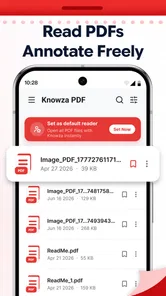
When I need to open a document, mark something worth revisiting, and keep my PDFs from becoming a pile of forgotten files, I want a reader that stays focused on the document rather than turning the task into a project. PDF Reader - Annotate Docs is built around that straightforward purpose: reading, marking up, editing, and managing PDF files. It is a free personalization app from The Galaxy Info, and its appeal is less about a long list of extras than about bringing common document tasks together.
That simple pitch also sets a fair expectation. This is a utility for people who regularly handle PDFs on a phone or tablet, not a substitute for a full desktop publishing suite or a dedicated cloud-based document workflow. I would consider it when I need a practical place to work with documents on Android, while keeping in mind that an app’s broad description does not tell me how every individual tool behaves in daily use.
A closer look at its value and tradeoffs
I look at the app’s free access as a low-risk way to check whether its PDF workflow suits me, rather than a promise that every possible use will remain cost-free. The more important measure is whether it helps me finish routine document tasks without adding confusion about saved copies; next, I’d weigh that convenience against the limits of a phone-based reader.
What free access means here
The app is free to download, so trying it does not require an upfront purchase. That makes it relatively easy to test against your existing PDF reader: open a document you already use, see whether the reading and annotation experience suits you, and decide whether its way of managing files fits your habits. Free access is a useful starting point, but it is not proof that every feature or future use is cost-free; I would check the app’s current screen and store details before relying on any assumption about optional purchases.
For a reader used occasionally, avoiding a new subscription or one-time payment can be the main value. If you only need to check a form, mark a passage, or keep a document handy, a free option may be enough. If your work depends on advanced editing, secure document handling, or a tightly controlled team process, price alone should not decide the choice. The time saved and the reliability of the workflow matter more than the download cost.
The app is rated for Everyone, which makes its intended audience broad rather than restricted to adults. It has an average rating of 3.3 from around fifty ratings, with fewer than ten written reviews. I treat that as a modest signal, not a verdict: it gives prospective users some feedback to weigh, but not a deep body of experience that can answer questions about their particular device or documents.
Where a focused PDF workflow can help
PDFs often arrive in the middle of another task: a school handout, a form, a set of instructions, or a document someone has asked me to review. A reader that combines viewing with annotation and basic editing can reduce the number of times I have to switch tools. The useful question is not simply whether an app can open a PDF, but whether it lets me finish the next small step without losing track of the original file.
More From Our News Desk

 Gmail
GmailGmail in a Busy Inbox: Who Benefits Most?
From first account to crowded workday, Gmail earns its place through dependable search and flexible sorting—but its best fit depends on how much inbox maintenance you can tolerate.

 Prime Video
Switching to Prime Video: What Changes in Your Viewing Routine
Prime Video can make a compelling second home for streaming, but switching means learning a different catalog, rental layer, and route from browsing to playback.

 Universal TV Remote Control
Universal TV Remote Control Works Best as a Reliable Backup
A phone remote earns its place through quick setup and reliable habits. Here is how to get more from Universal TV Remote Control—and where its limits show.

 Weather - By Xiaomi
Weather by Xiaomi Review: Clear at a Glance, Less Clear Up Close
Xiaomi’s weather app makes everyday forecasts quick to scan, but its calm surface can leave useful details and recovery paths harder to find than they should be.

 X
XX Under Pressure: Can It Recover When Posting Goes Wrong?
A resilience-focused review of X, examining setup, mistaken posts, interruptions, weak connections, and the gaps that matter when recovery needs to be dependable.

 Clash of Clans
Clash of Clans Is Won Between the Battles
Its raids are quick; its community is a long-term project of coordination, teaching, rivalry, and shared responsibility—with all the friction that entails.
Latest News



One practical workflow is to treat a document as a temporary workbench. I might open a reference PDF, mark the paragraphs I need, make the permitted edits, and then organize it so I can find it again. Keeping those actions close together can be more convenient than reading in one app, making notes elsewhere, and later trying to remember which version contains the changes. The tradeoff is that a single app’s approach may be less flexible than choosing a specialized tool for each step.
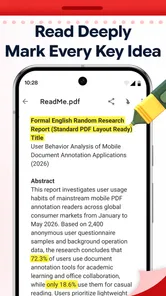
A less obvious benefit of annotation is that it can turn a long document into a personal navigation aid. Instead of rereading everything before a meeting or class, I can use my own marks to return to the points I considered important. This works best when I annotate selectively: mark a decision, question, or key detail rather than coloring every other paragraph. A cluttered document quickly loses the very advantage annotation is meant to provide.
Document management is useful in a similarly unglamorous way. If I regularly receive PDFs from different people, being able to manage them in the same environment where I read them may help me maintain a clearer working set. A good habit is to distinguish a clean original from the copy I have marked or edited. That simple separation makes it easier to avoid sending a draft when someone expected an untouched document, regardless of which reader I use.
Tradeoffs to consider before relying on it
The biggest limitation of a compact PDF reader is that the word “edit” can mean different things. It may refer to making changes within a document workflow, while users sometimes expect to rewrite paragraphs, rearrange pages, or alter complex layouts as they would in a desktop editor. I would test the exact kind of change I need before making this my default tool. For substantial layout work, a dedicated editor on a computer is often the safer choice.
Annotation also has practical limits. A mark that looks clear on a phone may be less useful when the document is printed or viewed on a larger screen, and handwritten notes can become cramped on dense pages. I would use concise comments and avoid relying on tiny marks for important instructions. If the document will be reviewed by colleagues, consistency matters: a predictable style of highlights and notes makes the file easier for someone else to interpret.
Managing a document on a mobile device can bring its own friction. Files may be opened from different places, and a reader is only helpful if I can identify the version I need and understand where my work has gone. Before editing anything important, I would make a copy and reopen the saved result to check that the changes are present. This is sensible practice for any PDF tool, especially when a form or signed document must remain intact.
I would also distinguish a personal reader from a formal document system. If I need shared permissions, a dependable audit trail, or an organization-wide archive, I would look for a service designed around those requirements rather than assume a general-purpose reader provides them. Likewise, someone handling sensitive paperwork should assess the app and their own device practices before placing confidential files into any mobile workflow.
Who is most likely to get value
This app makes the most sense for someone who reads PDFs on Android and wants reading, annotation, editing, and document management in one place. Students reviewing course material, people checking reference documents, and anyone who frequently receives PDFs by email or messaging may appreciate having a focused tool ready when a file arrives. The benefit is especially plausible when tasks are short and self-contained rather than part of a complicated collaboration process.
Consider an everyday example: I receive a schedule or set of instructions while away from my desk and need to note a few items before the day gets busy. A mobile PDF reader can let me inspect the document and mark the points I need to act on, rather than leaving the file unopened until I return to a computer. Later, I can use those marks as a reminder. For this kind of quick, personal follow-up, convenience is more important than extensive desktop controls.
It is less compelling for someone who only views PDFs once in a while and already has a reader that handles those occasional files comfortably. It may also be the wrong choice for people who depend on advanced document production, extensive collaboration, or a specific work-approved platform. In those cases, a familiar office suite, desktop PDF editor, or organization-managed document service may be a better fit, even if it is less convenient for quick mobile reading.
The app is on version 1.0 and was released on June 18, 2026. Its minimum operating system requirement is Android 8.0, so anyone considering it should check that their device meets that baseline. More than 50,000 installs suggest that people have tried it, but install volume alone cannot tell me whether it will suit a particular workflow. I would treat the current version as a reason to test carefully rather than assume that it covers every specialized PDF need.
How it compares with familiar alternatives
The usual alternatives fall into two broad groups: basic viewers that prioritize opening and reading, and fuller office or PDF suites that offer a wider set of document tools. A focused reader can be a comfortable middle ground when I want more than viewing but do not need a complete desktop-style environment. Its practical advantage is the possibility of keeping routine PDF work together; its potential disadvantage is that a broader suite may offer more control for complex tasks.
Compared with a basic viewer, annotation and editing are the reasons to consider this app rather than simply use whatever opens PDFs by default. Compared with a comprehensive editor, the decision turns on depth and workflow. If my task is to read and leave useful marks, a lighter tool may be easier to live with. If I need precise page restructuring or a team process, I would choose the option whose capabilities are explicitly suited to that job instead of stretching a general reader beyond its role.
I would make the comparison with a real document, not a sample file. Try opening a PDF with text, then one with a form or layout you commonly encounter, and see whether reading and marking it feels comfortable. Save a changed copy and confirm you can locate it afterward. This small test answers the questions that matter most: whether the app handles your everyday material, whether its workflow is clear, and whether its output is usable where you need it next.
Practical checks before making it your default
One useful test is to start with a document that has a clear purpose and a low cost of error, such as a public schedule or personal study notes. Open it from the place where you normally receive PDFs, make a small annotation, then leave the app and return to the file. That checks more than whether the page displays: it helps you see whether you can resume the task and distinguish the marked copy from the untouched one.
If you regularly read long documents, try a workflow that does not depend on remembering where you left off. Add only the marks that will help you act later, and give yourself a consistent meaning for each kind of note—for example, questions to resolve versus details to remember. This is not a special tool feature; it is a way to make mobile annotation more useful and reduce the chance that a document becomes a confusing collection of marks.
For forms, the key question is whether your actual task is simply reviewing the file or changing information that must be submitted. Those are different needs. I would test a copy first, confirm the saved result opens correctly, and keep the original untouched until I know the output is usable. If the document has a formal submission process or must preserve signatures and layout, a purpose-built form or desktop workflow is a more cautious choice.
My verdict for everyday PDF use
PDF Reader - Annotate Docs is worth considering if you want a free Android app centered on working with PDFs rather than just viewing them. Its stated combination of reading, annotation, editing, and management speaks to a real mobile need: doing enough with a document while away from a computer to keep work moving. I like the focus, but I would not confuse a convenient reader with a professional publishing or collaboration system.
My recommendation is to try it with low-stakes documents first and keep originals separate when making changes. If the reading and marking workflow feels natural, it could be a useful everyday companion for study notes, reference files, and quick reviews. If you need deeper editing, predictable team controls, or a tool you already trust for sensitive paperwork, choose an alternative designed for those demands. The free entry point makes a test reasonable; the right long-term choice depends on how well the app handles your actual PDFs.
PDF Reader - Annotate Docs Frequently Asked Questions
What can you do with PDF Reader - Annotate Docs?
PDF Reader - Annotate Docs is designed for opening and reading PDF files, with annotation tools that can help you mark up documents as you review them. Depending on the app version and your device, available tools may include highlighting text, adding notes, drawing, or making other on-page comments. Check the app listing for the current feature set, since tools and options can change with updates.
Can you edit the original text or images in a PDF?
Annotation is different from editing a PDF’s original contents. This app’s name highlights reading and marking up documents, so you should not assume it can rewrite existing text, replace images, or rearrange pages like a full PDF editor. If you need to make structural changes, inspect the app’s current description or try the relevant feature before relying on it for an important document.
Can you use the app without an internet connection?
PDF reading and annotation may work offline when the document is already saved on your device, but features that depend on online storage, sharing, or other connected services may require internet access. Availability can vary by app version and file location. For travel or work without a reliable connection, download the PDF in advance and test that you can open and mark it up offline.
Is PDF Reader - Annotate Docs free, and are there ads or in-app purchases?
Pricing, advertising, and paid features can differ between the Android and iOS versions and may change over time. Review the app’s store listing before downloading to see whether it is free to install, offers subscriptions or one-time purchases, or includes ads. Also check the terms for any trial, renewal, or feature limits so you know what to expect before using it regularly.
Are my documents private and secure when I use the app?
A PDF reader may need access to files you choose to open, but the way documents are stored, shared, or processed depends on the app’s permissions and privacy practices. Before opening sensitive records, review the developer’s privacy policy and the permissions shown by your device. Avoid sharing confidential files through features you have not checked, and keep the app updated for current security fixes.
Pros
- Opens PDFs quickly
- including larger documents.
- Searches for words or phrases across a document.
- Supports bookmarks for returning to important pages.
- Offers flexible page viewing and zoom controls.
- Keeps document access convenient with local file browsing.
Cons
- Some advanced tools may require a paid upgrade.
- Large PDFs can use significant storage space.
- Handwritten notes may be harder to edit than typed annotations.
- Document navigation can feel less convenient on small screens.
- Compatibility with unusual or damaged PDFs may vary.