Mp4 to Mp3 - Convert Video to
- 449.00
- 4.6
- Installs
- 1.00M
- Price
- Free

Screenshots
Analysis by Reviewed
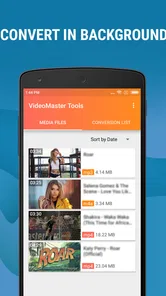
When I need the audio from a video rather than the video itself, I usually want the shortest possible route from one file to the other. Mp4 to Mp3 - Convert Video to is built around exactly that job: turning MP4 video or M4A audio into an MP3 file, then helping me trim it and keep the result organized. It is a free Android app in the video players and editors category, developed by HGPUBLISHING LIMITED, and its uncomplicated purpose is also its main appeal.
After trying it as a practical file-conversion tool, I found that it makes the most sense for people who already have media stored on their phone and want a usable audio copy without opening a full desktop editor. The app is rated at 4.6 from roughly twelve thousand ratings, with more than a million installs, so it has clearly found an audience beyond occasional experimentation. Still, popularity does not make it a universal audio solution. Its value depends on whether you need quick extraction and light editing, or a more complete music-production workflow.
What the conversion feature really changes
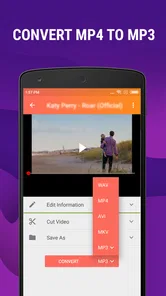
The central capability is straightforward: I can take an MP4 and create an MP3 from its audio track. That sounds like a small distinction, but it changes how the file behaves in everyday use. A video recording of a speech, a personal clip containing a song, or a saved performance can become an audio file that is easier to play while doing something else and more convenient to place in a music collection.
The app also accepts M4A as a source, which is useful when the original recording is already audio-based but I want an MP3 for broader compatibility with older players, simple editing tools, or devices that handle MP3 more predictably. I would not treat conversion as a way to improve sound quality. The result can only work with the audio information present in the source, so converting a low-quality recording will not make it clearer. The practical gain is format flexibility, not sonic restoration.
That distinction matters when deciding whether to use it. If I have a video whose picture is irrelevant, extracting the soundtrack can reduce clutter and make the content easier to revisit. If I care about preserving the original audio exactly, changing formats may not be the best route. In that situation, keeping the original file or using a lossless workflow would be more appropriate than choosing MP3 simply because it is familiar.
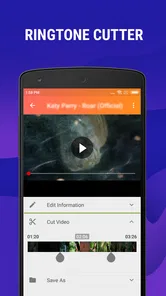
The built-in ringtone cutter gives the conversion feature a second practical direction. Instead of exporting an entire recording and then opening another editor, I can select a shorter portion for a ringtone or notification sound. This is especially handy for spoken clips, memorable musical passages, or a personal recording where only one moment matters.
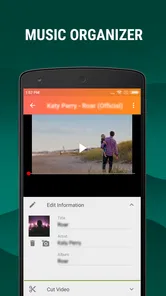
I also found the music organizer useful as a finishing step. Conversion tools can become messy when they leave several similarly named files in storage. An organizer gives the output a place in a more manageable collection, which is important if I convert several clips over time. I would still check the filename and playback result after each important conversion, because a clean library depends as much on my naming habits as on the app itself.
More From Our News Desk
 Instagram
Instagram’s Power Comes From Its Place in Your Phone
A close look at how Instagram turns Meta’s reach, recommendation systems and everyday camera habits into durable platform power—and what that costs users.

 Gmail
GmailGmail in a Busy Inbox: Who Benefits Most?
From first account to crowded workday, Gmail earns its place through dependable search and flexible sorting—but its best fit depends on how much inbox maintenance you can tolerate.

 Prime Video
Switching to Prime Video: What Changes in Your Viewing Routine
Prime Video can make a compelling second home for streaming, but switching means learning a different catalog, rental layer, and route from browsing to playback.

 Universal TV Remote Control
Universal TV Remote Control Works Best as a Reliable Backup
A phone remote earns its place through quick setup and reliable habits. Here is how to get more from Universal TV Remote Control—and where its limits show.

 Weather - By Xiaomi
Weather by Xiaomi Review: Clear at a Glance, Less Clear Up Close
Xiaomi’s weather app makes everyday forecasts quick to scan, but its calm surface can leave useful details and recovery paths harder to find than they should be.

 X
XX Under Pressure: Can It Recover When Posting Goes Wrong?
A resilience-focused review of X, examining setup, mistaken posts, interruptions, weak connections, and the gaps that matter when recovery needs to be dependable.
Latest News



How I would use it from a phone
My preferred workflow starts with one source file rather than a large batch of unrelated media. I choose the MP4 or M4A, select the MP3 conversion option, and then decide whether I need the complete audio or only a section. For a full recording, I leave the track intact. For a ringtone, I use the cutter to remove introductions, pauses, or sections that would be awkward when the sound starts playing.
The useful habit is to listen to the selected section before treating the job as finished. A cut that looks correct on a timeline can begin a fraction too early, include unwanted silence, or end in the middle of a word. For a ringtone, I prefer a clean start and a natural ending over simply choosing the loudest part. This is one of the small advantages of having conversion and trimming in the same app: I can make that decision while the source is still in front of me.
For a longer spoken recording, I would avoid trimming too aggressively. Removing every pause may make a lecture or interview sound unnatural, while keeping the whole video’s audio may leave unnecessary material at the beginning and end. The app is most useful here as a simple preparation tool, not as a replacement for a detailed audio editor with noise reduction, equalization, fades, and multitrack controls.
One practical tip is to keep the original source until I have checked the exported MP3 on the device where I plan to use it. That protects against an accidental trim or an output that is not the right section. It also lets me repeat the process with a different crop instead of trying to reconstruct the source later.
Another tip is to use descriptive names immediately. A filename such as “meeting-audio-final” or “ringtone-short” is more useful than a generic converted name once several files have accumulated. The organizer can help, but organization works best when the source and purpose are obvious. This is a small workflow improvement that becomes increasingly valuable for people who convert clips regularly.
A realistic everyday example
Imagine recording a family event where one person tells a story that everyone wants to keep, but nobody needs the surrounding video. I would use the MP4 as the source, convert it to MP3, trim away the setup and the conversation afterward, and save the shorter audio version. The result would be easier to send, replay, and store than the complete video, while the original could remain untouched as a visual memory.
A similar situation applies to a personal performance. Perhaps I recorded myself playing an instrument and want to listen back during a walk. The MP3 would let me focus on the sound without carrying the visual part of the recording through a video player. If I wanted a short notification sound from one phrase, the cutter would make a second, shorter version without requiring a separate editing app.
There is also a useful accessibility angle. Someone who wants to listen to the spoken content of a video while the phone is in a pocket may prefer an audio file. The conversion does not create a transcript or improve the speaker’s clarity, but it removes the need to keep the screen and video active. For personal recordings and media already stored locally, that can be a meaningful change in how the content is consumed.
I would not use this workflow to download or extract material from services where doing so violates usage rules or someone else’s rights. The sensible use case is media I created, own, or have permission to convert. That keeps the app in its proper role as a local file utility rather than treating it as a way around a platform’s restrictions.
Where it is more convenient than usual alternatives
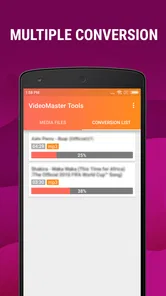
Compared with a full desktop converter, the strongest advantage is immediacy. I do not need to move a file to a computer, open a large editor, choose an export profile, and transfer the result back. For a single MP4 or M4A on an Android phone, a focused mobile tool can be less intimidating and much faster to understand.
Compared with a general-purpose video editor, this app is also less distracting for a simple extraction. Video editors often expose timelines, filters, transitions, captions, and visual controls that have nothing to do with making an MP3. If my only goal is audio from an existing file, those extra tools can slow me down rather than help.
On the other hand, a dedicated audio editor is better when the source needs repair. If I need to remove background noise, balance volume between speakers, add fades, change pitch, or combine several recordings, I would choose the specialist tool. This app’s focused design is an advantage for conversion, but it is also the boundary of what I would expect it to handle comfortably.
Online converters can seem convenient because they work in a browser, but a local phone workflow is preferable when I do not want to upload a personal recording. It also avoids the extra steps of waiting for a web page, downloading the result, and locating it afterward. I still pay attention to where the output is saved and keep my own copies organized, because local conversion does not automatically solve file management.
The trade-offs I noticed
The first trade-off is format choice. MP3 is widely recognized and easy to share, but it is a compressed format. For casual listening, a ringtone, or a spoken recording, that may be perfectly acceptable. For archiving an important original or preserving the best possible quality, I would keep the source and consider whether another format better matches the purpose.
The second is the difference between simple trimming and detailed editing. The cutter is useful for choosing a segment, but I would not expect the same precision or control as a professional workstation. If the exact timing of a musical edit matters, or if I need several layers of sound, the app is likely to feel limited rather than empowering.
There is also a storage trade-off. Keeping the original MP4, a complete MP3, and one or more trimmed versions can create duplicate content. I recommend deciding which files are archival and which are temporary before starting a larger cleanup. The organizer can make the collection easier to browse, but it cannot decide which copy has lasting value for me.
The app is free to install, while in-app purchases range from around six dollars and fifty cents to thirty dollars per item. That makes it worth testing the basic workflow before paying for anything. I would judge any optional purchase by how often I convert files and whether the extra value solves a repeated problem, not by assuming that every user needs the paid route.
Compatibility is another consideration. The app runs on Android devices using version seven or later, and the current version is 1.5.5.4. That covers many phones, but anyone using an older handset should check the operating-system requirement before planning around it. On a supported device, I would still test one short file first, especially if the source is unusually large or important.
Who gets the most from it
I think the best audience is someone who regularly receives or creates MP4 clips and wants the audio separated with minimal effort. Students can use it for personal recordings they need to listen to later, families can keep the spoken portion of a memorable video, and casual creators can prepare a short sound for a phone without opening a complicated editor.
It is also a good fit for people who want a phone-first workflow. The combination of conversion, ringtone trimming, and music organization covers a small but coherent chain: take an existing media file, keep the part that matters, and make the result easier to find. That is more useful than a converter that stops immediately after export.
I would recommend skipping it if the main goal is professional audio production, advanced restoration, or careful preservation of high-quality recordings. I would also look elsewhere if I need a broad video editor rather than an audio extraction tool. The app earns its place through focus, not through a large collection of unrelated capabilities.
For me, the deciding question is simple: do I need an MP3 from a local MP4 or M4A, and do I want to trim it without switching between several apps? If the answer is yes, Mp4 to Mp3 - Convert Video to offers a practical, approachable solution. Its strongest feature is not complexity but the way conversion, ringtone cutting, and basic organization fit together in one small workflow.
HGPUBLISHING LIMITED has kept the concept easy to understand, and the Everyone age rating makes it approachable for a broad audience. I would still use it with sensible file habits: keep originals, listen to exports, name results clearly, and convert only media I am entitled to use. With those expectations, the app is a useful everyday utility rather than an overpromised replacement for a full editor.
My final view is positive but specific. I would install it for quick local conversions and short ringtone edits, especially when moving files to a computer would be unnecessary work. I would not choose it for demanding sound design or quality-critical archiving. For the right user, the real benefit is turning a video into a manageable audio file in a few focused steps, then keeping that result ready for listening, sharing, or personal use.
Mp4 to Mp3 - Convert Video to Frequently Asked Questions
Is Mp4 to Mp3 - Convert Video free to download, and are there optional purchases?
The app is free to download, so you can try its video-to-audio conversion without paying upfront. It also offers in-app purchases, which may be relevant if you want access to additional options. The core idea is straightforward: select a video, extract its audio, and save it as an MP3. Check the purchase details shown in the app before confirming any transaction.
What devices can run Mp4 to Mp3 - Convert Video?
Mp4 to Mp3 - Convert Video is an Android app from HGPUBLISHING LIMITED in the Video Players & Editors category. It requires Android 7.0 or later, so check your device’s Android version before downloading. If your phone meets that requirement, you can install it and try converting a short video first to see how the workflow and output suit your needs.
What does Mp4 to Mp3 - Convert Video do?
Mp4 to Mp3 - Convert Video is designed to extract audio from video files and save it as an MP3 track. After selecting a compatible video from your device, you can usually choose the desired audio quality or output settings before starting the conversion. It is useful for creating audio-only files from personal recordings, downloaded videos, lectures, or other content you are legally allowed to convert. The app also includes a ringtone cutter and music organizer, so it can help with basic audio tasks after conversion.
Which video and audio formats are supported?
The application is primarily intended for converting MP4 videos into MP3 audio, although the exact range of supported input formats may depend on the app version and your device. MP4 files generally work best, while unusual codecs, damaged videos, or files with unsupported audio tracks may fail. Before converting important media, test a short clip and check the available format and quality options.
Can I choose the MP3 quality and save location?
Most versions provide basic output controls, such as selecting an audio bitrate or choosing from preset quality levels. Higher bitrates can produce larger files, while lower settings save storage space. Converted tracks are normally placed in the app’s output folder or your device’s media storage, where they can be opened, renamed, shared, or moved using a file manager.
Pros
- Converts MP4 videos to MP3 audio quickly on most devices.
- Supports extracting audio for offline listening and personal use.
- Simple interface suitable for users with little technical experience.
- Lets you choose common audio quality and output settings.
- Useful for creating audio files from videos already stored on your device.
Cons
- Conversion speed may decrease with long or high-resolution videos.
- Some features or settings may be limited in the free version.
- Output quality depends heavily on the original video's audio track.
- Large converted files can consume considerable phone storage.
- Ads may interrupt the conversion workflow in the free experience.