Loud Volume Booster
- 1.50K
- 4.4
- Installs
- 500.00K
- Price
- Free

Screenshots



Analysis by Reviewed
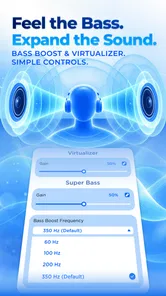
I tried Loud Volume Booster as a practical audio utility rather than treating it as a magic fix for every quiet recording. Developed by TAMob, this free Music & Audio app is aimed at people who want more control over playback, with tools for boosting loudness and adjusting the character of sound. Its main appeal is simple: when your phone sounds weak at the desk, in the kitchen, or through a small speaker, it gives you another layer of control beyond the normal system volume slider.
That extra control is useful, but it also creates the main source of confusion. Turning up a booster does not create detail that was never present in the recording, and it cannot repair a blocked speaker, a poor Bluetooth connection, or an audio track mastered too quietly without side effects. My experience was much better when I used it as a careful listening tool instead of leaving every effect at its maximum.
The app is free to install and suitable for Everyone. It has reached over 500 thousand installs, with a 4.4 average from around 16 thousand ratings and roughly 1.5 thousand written reviews. Those figures suggest that the straightforward idea has found a real audience, but they do not remove the need to set it up thoughtfully. The current version is 36, and it runs on Android 7.0 or later.
Where Loud Volume Booster Usually Feels Difficult
I’ve found the biggest challenge is separating a genuine app problem from a change in the audio source or output device. This section looks at the moments when louder playback turns harsh, muddled, or unexpectedly unchanged, and why a quick comparison at neutral settings is often more useful than adding another effect.
The first problem is expecting one control to solve every audio issue
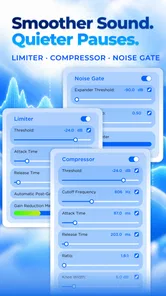
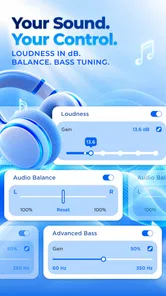
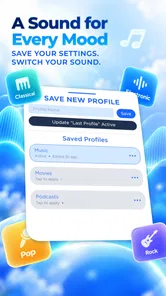
The most common stumbling block is assuming that “louder” automatically means “better.” In practice, increasing overall output can make vocals easier to hear while also making cymbals harsh, bass muddy, or background hiss more obvious. The app includes equalizer, reverb, bass boost, and volume-profile controls, so there are several ways to change the result. That flexibility is helpful, but it means a careless combination can sound worse than the original.
I found it more useful to begin with the cleanest possible boost, listen for distortion, and only then make small tonal changes. If speech is the priority, adding a large bass effect usually works against clarity. If music is the priority, a little low-end lift may make a small phone speaker feel fuller, but pushing it too far can reduce definition. The best setting depends on the recording, the speaker, and the room.
Different playback routes can behave differently
A setting that sounds effective through the phone speaker may not translate well to wired headphones, Bluetooth earbuds, or a car system. External devices often have their own volume controls and sound processing. If the app seems to do nothing, I would first check the device’s physical or on-screen volume, confirm that the intended output is selected, and test a different song or video before assuming the booster has failed.
More From Our News Desk

 Gmail
GmailGmail in a Busy Inbox: Who Benefits Most?
From first account to crowded workday, Gmail earns its place through dependable search and flexible sorting—but its best fit depends on how much inbox maintenance you can tolerate.

 Prime Video
Switching to Prime Video: What Changes in Your Viewing Routine
Prime Video can make a compelling second home for streaming, but switching means learning a different catalog, rental layer, and route from browsing to playback.

 Universal TV Remote Control
Universal TV Remote Control Works Best as a Reliable Backup
A phone remote earns its place through quick setup and reliable habits. Here is how to get more from Universal TV Remote Control—and where its limits show.

 Weather - By Xiaomi
Weather by Xiaomi Review: Clear at a Glance, Less Clear Up Close
Xiaomi’s weather app makes everyday forecasts quick to scan, but its calm surface can leave useful details and recovery paths harder to find than they should be.

 X
XX Under Pressure: Can It Recover When Posting Goes Wrong?
A resilience-focused review of X, examining setup, mistaken posts, interruptions, weak connections, and the gaps that matter when recovery needs to be dependable.

 Clash of Clans
Clash of Clans Is Won Between the Battles
Its raids are quick; its community is a long-term project of coordination, teaching, rivalry, and shared responsibility—with all the friction that entails.
Latest News



This is an important distinction: the app can adjust the audio path it is able to influence, but it cannot override every part of Android’s audio handling. Bluetooth equipment may apply its own limits, while another audio app may take control of playback. A quiet result is therefore not automatically evidence of a fault in Loud Volume Booster.
Effects can hide the real source of the problem
Reverb is a good example. It can make a dry recording feel wider or more spacious, but it can also blur speech and make a small room recording sound distant. Bass boost can add warmth, yet it may expose rattling from a phone case or speaker enclosure. These are creative controls, not universal repairs.
My practical advice is to change one control at a time and return to the original sound between adjustments. That makes it much easier to identify whether the improvement came from the volume level, the equalizer, or an effect. It also prevents the familiar situation where several aggressive changes are active and the user no longer knows which one caused the unpleasant result.
Setup Checks That Save Time
Before adjusting anything, I like to make the playback route and listening conditions predictable. This section covers a few checks that help distinguish a useful profile from one that only seemed right with a different speaker, room, or type of content.
Start with a controlled listening test
Before using the app during a call, workout, commute, or movie, I would test it with a familiar track at a moderate level. Familiar material makes changes easier to judge because you already know how the voice, bass, and high frequencies should sound. A spoken podcast or dialogue-heavy video is especially useful for checking whether increased loudness actually improves intelligibility.
Keep the phone in the same position during the comparison. Moving it closer to a wall or placing it on a hard surface can change the perceived loudness independently of the app. This small habit avoids giving the booster credit for an acoustic change in the room.
Check the system volume before adjusting effects
Loud Volume Booster works best when the regular Android volume is already set sensibly. I would not begin by maxing out every slider. Instead, raise the normal volume gradually, then use the app for the remaining adjustment. This gives the speaker or headphones a better chance of staying clean and makes it easier to return to a comfortable level later.
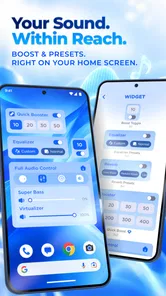
Because the app offers volume profiles, it can be useful to think in terms of situations rather than one permanent setting. A quiet indoor listening level may be appropriate for a podcast, while a noisy kitchen or outdoor setting may need another approach. The practical benefit is not simply “more volume”; it is being able to make a deliberate adjustment without repeatedly rebuilding the same sound balance.
Use the equalizer as a correction tool, not a decoration
The equalizer is most valuable when it addresses a specific problem. If voices sound buried, a modest reduction in competing low frequencies may help more than boosting everything. If music sounds thin, a restrained bass adjustment may be enough. I would avoid making a dramatic smile-shaped curve unless I had a clear reason, because exaggerated boosts can make the output tiring and less natural.
There is also a safety consideration in everyday use. A setting that seems comfortable for a short test can become unpleasant after a longer listening session. I recommend checking the result after several minutes and lowering it if the sound feels sharp, fatiguing, or physically uncomfortable. The goal is usable clarity, not the highest possible number on a control.
Be cautious with bass boost and reverb together
One of the less obvious trade-offs is that bass boost and reverb can compound muddiness. Bass already occupies a lot of sonic space, while reverb adds lingering sound around notes and voices. Used together, they may make a small speaker seem fuller at first but less defined afterward. For spoken content, I normally keep both restrained. For music, I would compare the effect with and without reverb rather than assuming that extra spaciousness is an improvement.
If the app appears to have no audible impact, I would turn effects off and test the main volume change alone. That simple reset separates a routing issue from an effect setting that is masking the difference. It is also a useful way to recover from an overprocessed sound without needing to remember every previous adjustment.
Remember the purchase model while planning your use
The app is free, but in-app purchases are listed at $12.99 per item. I would therefore explore the basic workflow first and decide whether the free experience meets the need before considering anything extra. A person who only wants occasional help with a quiet clip may not need to spend anything, while someone who relies on advanced control every day should examine the purchase prompt carefully before confirming it.
The important point is to judge the app by the improvement it gives your own device and listening habits. A purchase cannot overcome a damaged speaker, a badly encoded file, or a Bluetooth device with its own output limitation.
Recovering When the Workflow Goes Wrong
When the sound changes suddenly, I avoid chasing it with more boosts; that can make the next playback unexpectedly loud or harder to diagnose. This section focuses on practical reset steps and on rebuilding a clean baseline before deciding whether the app, the player, or the output route is responsible.
When the sound suddenly becomes harsh
If playback becomes distorted after an adjustment, I would first lower the booster and return the equalizer and bass controls toward neutral. If the sound remains unpleasant, stop playback and restart with a familiar, less demanding track. Distortion can come from asking the phone speaker to reproduce more energy than it can handle cleanly, especially in low frequencies.
A useful recovery habit is to keep a simple baseline in mind: normal system volume at a comfortable level, no dramatic equalizer curve, and effects introduced one by one. Once that baseline sounds clean, any change can be judged fairly. Without it, users often respond to distortion by adding another effect, which usually makes troubleshooting harder.
When the app appears to stop affecting playback
First check whether playback has moved to another output, such as headphones or a Bluetooth speaker. Then test a separate audio source. If one app responds and another does not, the issue may be related to how that particular app handles audio rather than to the booster itself. Closing and reopening the affected playback app can also be a reasonable general troubleshooting step.
I would avoid repeatedly raising the level while trying to diagnose this. If the output suddenly returns, the accumulated setting may be far louder than intended. Lower the volume before resuming normal listening, especially if headphones are connected.
When a profile no longer feels right
Volume profiles are convenient, but they can become confusing if the phone, headphones, or room changes. A profile that worked through the built-in speaker may be excessive through earbuds. If a saved setup sounds wrong, compare it with a neutral arrangement and rebuild from the current output device instead of assuming the profile itself is defective.
This is one of the app’s practical strengths and weaknesses at the same time. Profiles can reduce repeated fiddling, but they also encourage users to forget that audio equipment changes the result. I would treat them as starting points, not permanent guarantees.
When safe listening matters more than maximum output
A volume booster is not a reason to ignore discomfort, ringing, or fatigue. If listening feels physically unpleasant, reduce the level and take a break. The app is most useful when it helps you hear content comfortably at a sensible setting. It is not the right tool for trying to overpower a noisy environment indefinitely.
For accessibility-related listening needs, I would test the app carefully with the exact device and content involved. It may improve audibility in some situations, but it should not be treated as a replacement for professional hearing advice or equipment designed for that purpose.
When the App Is Not the Cause
A quiet or unclear result can come from the phone, recording, playback app, or connected equipment rather than the booster. This section considers those alternatives and helps identify when a different fix is more appropriate than further audio processing.
A blocked or damaged speaker needs physical attention
If every source sounds quiet, muffled, or uneven even after returning the app to a neutral state, inspect the phone itself. A case, dust, moisture, or hardware damage can reduce output. Software amplification may make the symptom louder without restoring the missing clarity. In that situation, cleaning the exterior carefully or seeking device support is more sensible than increasing the boost.
A bad recording cannot be remastered by playback gain
Some files are simply recorded at a low level, contain heavy background noise, or have already been compressed poorly. Raising the volume increases the wanted signal and the unwanted noise together. The equalizer may make parts of the recording easier to follow, but it cannot reconstruct detail that was not captured.
This is where a dedicated media player or an editor may be a better alternative. A player with strong format support can be preferable when the issue is file compatibility, while an editor is more appropriate when you need to permanently change a recording. Loud Volume Booster is better suited to immediate playback adjustment than to repairing or exporting audio.
System and hardware controls can be the stronger option
If you only need a small volume change, Android’s own controls are simpler and less likely to introduce distortion. Many headphones and speakers also provide their own volume management or sound modes. In those cases, adding another processing layer may create unnecessary complexity.
On the other hand, the app earns its place when the normal slider is not enough and you want to shape the sound rather than merely raise it. The combination of equalizer, bass adjustment, reverb, and profiles gives it more flexibility than a basic volume button. The trade-off is that you have to listen critically and accept that every effect can introduce a new problem.
Who should skip it
I would skip Loud Volume Booster if your main need is professional audio editing, precise mastering, or guaranteed consistency across several devices. I would also avoid relying on it if your phone has a hardware fault or if you need a solution for a hearing-related condition. A dedicated audio player, repaired device, external speaker, or specialist accessibility product may be more appropriate.
It is also not ideal for someone who wants completely automatic behavior with no adjustment. The app is approachable, but its useful results come from making small decisions about output, tone, and effects. Users who dislike any experimentation may be happier with the standard system volume controls.
Who gets the most from it
The best match is someone who regularly watches videos, listens to podcasts, or plays music on Android and occasionally finds the standard output too restrained. It is particularly practical for a person who switches between the phone speaker and headphones and wants a quick way to adapt the sound. The free entry point also makes it easy to test without committing immediately.
A realistic example is listening to a spoken program while cooking. The phone may be close enough to hear but still lose words under running water or kitchen noise. I would use a modest volume increase, keep bass low, and avoid reverb so speech stays direct. When the program ends, I would lower the setting rather than leaving the phone prepared for a much louder environment.
My Practical Verdict After Using It
Loud Volume Booster is a useful Android audio utility when the problem is genuinely a lack of playback level or when the built-in sound feels too flat. TAMob has put several relevant controls in one place, and the app’s free availability makes experimentation straightforward. I especially like the idea of using profiles for different listening situations, provided each one is checked again when the output device changes.
Its limitations are equally clear. More volume can reveal distortion, bass boost can reduce clarity, reverb can blur speech, and another app or hardware device may prevent the expected result. None of those issues makes the app poor; they define the boundaries of what a playback booster can realistically do. The strongest results came from restrained settings and short comparisons, not from pushing every control upward.
With a 4.4 average and more than half a million installs, it is a well-established choice for people looking for louder Android playback. The Everyone age rating and support for Android 7.0 or later also make it broadly approachable. Still, I would treat the current version 36 as a tool to test against your own phone, headphones, and favorite content rather than as a promise of identical results for everyone.
My recommendation is simple: try it if your normal volume range is occasionally insufficient and you want equalizer and effect controls in the same utility. Begin with a familiar spoken track, raise the level gradually, keep bass and reverb modest, and compare every change with a neutral setting. If the real problem is a damaged speaker, a noisy recording, or a device-specific limit, choose the appropriate hardware or software fix instead. Used with those expectations, Loud Volume Booster can be a handy everyday companion rather than a source of louder but less enjoyable sound.
Loud Volume Booster Frequently Asked Questions
Who develops Loud Volume Booster, and what kind of app is it?
Loud Volume Booster is a Music & Audio app developed by TAMob. Its focus is adjusting how loud and how shaped your device’s audio sounds, rather than serving as a music player or a library for discovering tracks. If you are looking for a tool to enhance playback from other apps, its purpose may suit you; the results can still depend on your phone and audio equipment.
What age group is Loud Volume Booster suitable for?
Loud Volume Booster has an Everyone content rating, so it is intended for a broad audience. However, that rating does not make high-volume listening risk-free. If children use the app, it is sensible to supervise volume levels, especially with headphones, and to encourage breaks. The most important consideration is using any amplification carefully, since loud sound can affect hearing regardless of the app’s age rating.
How popular is Loud Volume Booster, and what do users say about it?
Loud Volume Booster has an average rating of 4.4 from around 16,000 ratings, with roughly 1,500 written reviews and over 500,000 installs. Those figures suggest that many people have tried it, but ratings cannot predict how well it will work on your particular phone, headphones, or preferred audio apps. Reading recent reviews can help you judge whether other users describe results relevant to your setup.
Is Loud Volume Booster free to download, and are there in-app purchases?
Loud Volume Booster is free to download, so you can try its volume-enhancement features without paying upfront. The app also offers in-app purchases, with items priced at $12.99 each. Before buying anything, check the purchase details shown in the app and decide whether the available features are worth the cost for your listening needs.
What devices and Android versions can run Loud Volume Booster?
Loud Volume Booster is an Android app that requires Android 7.0 or later. Your experience may still vary from one compatible phone to another because manufacturers, audio hardware, and system settings can affect how volume enhancement works. The app is developed by TAMob, and its current version is 36, so check your device’s Android version before downloading.
Pros
- Boosts quiet audio for music
- videos
- podcasts
- and calls.
- Simple controls make volume adjustments quick and easy.
- Works with many headphones and external Bluetooth speakers.
- Useful for improving speech clarity in videos and audiobooks.
- Small app size and low setup effort for everyday use.
Cons
- Excessive amplification can cause distortion and crackling.
- May not increase volume beyond hardware or system limits.
- Extended loud playback can risk hearing damage.
- Some features may depend on device compatibility or Android version.
- Ads or in-app purchases may interrupt the listening experience.