Legacy View
- 159.00
- 4.6
- Installs
- 50.00K
- Price
- Free

Screenshots
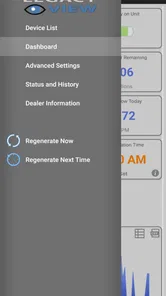
Analysis by Reviewed
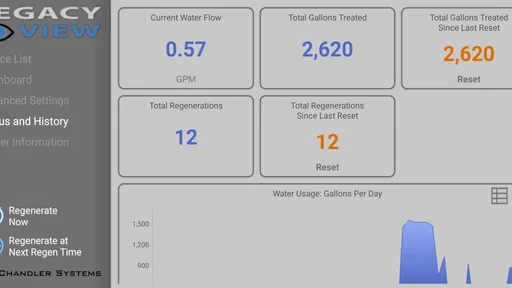
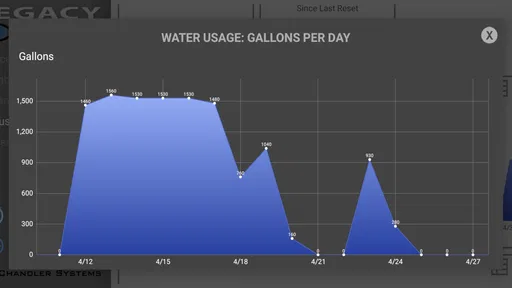
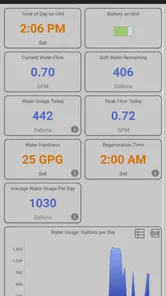
I approached Legacy View as a practical household tool rather than an app I would open for entertainment. Its purpose is straightforward: it gives owners information about, and control over, a Chandler Systems water treatment system. That narrow focus is important. This is not a general smart-home dashboard, a water bill tracker, or a replacement for a plumber. It is most useful when you already have the compatible treatment equipment and want a more convenient way to keep an eye on it.
My first impression was that the app makes more sense when I think of it as a remote companion for equipment that normally sits out of sight. A water treatment system can operate quietly for weeks, so the value is not constant interaction. The value is being able to check its condition, understand what it is doing, and make an adjustment without walking to the utility area every time. That makes the app especially relevant for homeowners who have their system in a basement, garage, utility closet, or another inconvenient location.
Chandler Systems is the developer, and the app sits in the House & Home category. It is free to install, available to Everyone, and has built a solid audience with a 4.6 average from around 1.2 thousand ratings and more than 50 thousand installs. Those figures suggest that it serves a specific but established audience rather than trying to be a universal home-management app. I would still begin with one question: do you actually own a Chandler Systems water treatment system? If the answer is no, there is little reason to install it.
Getting from installation to a useful first check
I would use the first session to establish a calm baseline, not to change settings in a hurry. Being beside the treatment system makes it easier to match what the phone shows with the equipment in your home, and that gives the next section a practical focus: what to check before expecting the app to be useful.
What to expect before opening the app
The most important expectation to set is that Legacy View is equipment-dependent. Its usefulness comes from the connection between the app and the treatment system, not from the phone application alone. If you are researching water softeners or filtration equipment, this app should be viewed as part of the ownership experience, not as a standalone way to improve water quality.
That distinction also explains why the app may feel more specialized than familiar household apps. A lighting app can often demonstrate something immediately after installation because the phone itself can control a bulb. Here, the meaningful information depends on the treatment equipment being available and properly connected. The first successful moment is therefore not simply launching the app; it is reaching a screen where the system’s information is relevant to your home.
I would install it when I am near the treatment system, especially during the first setup. Having the equipment within reach makes it easier to identify the correct unit and notice whether an action in the app produces the expected response. This is a small but useful preparation step. Trying to configure a specialized home-control app from another room can turn a simple task into guesswork.
More From Our News Desk

 Gmail
GmailGmail in a Busy Inbox: Who Benefits Most?
From first account to crowded workday, Gmail earns its place through dependable search and flexible sorting—but its best fit depends on how much inbox maintenance you can tolerate.

 Prime Video
Switching to Prime Video: What Changes in Your Viewing Routine
Prime Video can make a compelling second home for streaming, but switching means learning a different catalog, rental layer, and route from browsing to playback.

 Universal TV Remote Control
Universal TV Remote Control Works Best as a Reliable Backup
A phone remote earns its place through quick setup and reliable habits. Here is how to get more from Universal TV Remote Control—and where its limits show.

 Weather - By Xiaomi
Weather by Xiaomi Review: Clear at a Glance, Less Clear Up Close
Xiaomi’s weather app makes everyday forecasts quick to scan, but its calm surface can leave useful details and recovery paths harder to find than they should be.

 X
XX Under Pressure: Can It Recover When Posting Goes Wrong?
A resilience-focused review of X, examining setup, mistaken posts, interruptions, weak connections, and the gaps that matter when recovery needs to be dependable.

 Clash of Clans
Clash of Clans Is Won Between the Battles
Its raids are quick; its community is a long-term project of coordination, teaching, rivalry, and shared responsibility—with all the friction that entails.
Latest News



The app’s minimum operating requirement is Android 6.0, which covers a broad range of older Android phones. The current version is 6.18.2, so users with newer devices should still pay attention to the normal behavior of their particular phone, especially if it has aggressive battery management or restricts background activity. I would not treat an older compatible operating system as a guarantee that every connection experience will be identical across phones.
How I would handle the first setup
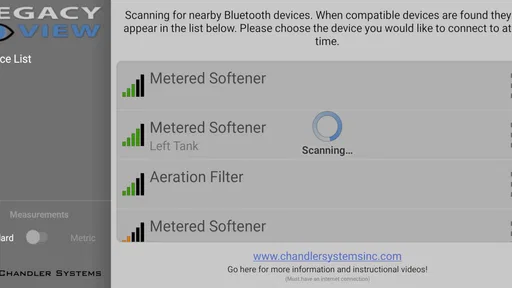
I would begin by opening Legacy View beside the treatment equipment and following its connection or identification flow carefully rather than tapping through it quickly. With a specialized controller, the most common early mistake is selecting the wrong device or assuming that a nearby system is automatically ready to communicate. The app is designed around Chandler Systems equipment, so the correct unit matters from the start.
During setup, I would keep the phone awake and avoid moving too far away until the app has finished establishing contact. If the process pauses, I would first check the simple possibilities: the treatment system has power, the phone’s relevant connection capability is available, and I am working with the intended unit. Restarting the app repeatedly is less useful than confirming those basics in order.
A helpful habit is to treat the first session as an identification exercise. Look at the information the app presents and compare it with what you know about the equipment in your home. Does the system appear to be the one you expected? Does the status make sense given its recent activity? This is not about becoming a water-treatment technician. It is about creating confidence that the app is showing the right household system before you rely on it later.
I also recommend doing the initial setup when nobody urgently needs water-related equipment to operate. A quiet moment gives you time to notice what each control means. If the system is in a utility area, take a quick look at the physical controls as well. The app is convenient, but the equipment itself remains an important reference point when something appears unusual.
The first meaningful success
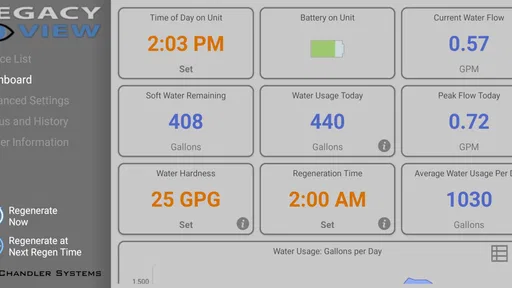
For a first-time user, I would define success as completing one safe information check and understanding what the app is showing. Open the system view, review its current information, and make a note of which screen you would return to if you wanted to check it again later. That simple routine is more valuable than changing settings immediately.
Once the information looks consistent, the next useful test is a deliberate control action that you already understand from the system’s normal operation. Make only one change, wait for the app to reflect it, and then confirm the result rather than issuing several commands in a row. This one-action-at-a-time approach reduces confusion and gives you a clear way to tell whether the app responded.
The practical advantage here is remote convenience. Imagine noticing that the water treatment system may need attention while you are preparing dinner. Instead of leaving the kitchen, finding the utility area, and trying to interpret the equipment there, you can use the phone to check the available information first. If everything looks normal, you have saved a trip. If something looks unusual, you have a better starting point before deciding whether to inspect the unit physically.
That scenario also shows the app’s limits. A phone screen can help you understand the system’s reported state, but it cannot replace a physical inspection when there is a leak, a power problem, a blocked line, or another mechanical issue. I would use Legacy View as an early diagnostic convenience, not as permission to ignore visible problems around the equipment.
Where new users can become confused
The first source of confusion is the difference between information and control. Seeing a status does not necessarily mean that the system needs an adjustment, and changing a control does not automatically solve the underlying cause of an unexpected result. I would read the displayed information first, think about what has recently happened in the household, and only then decide whether an action is appropriate.
A second source of friction is the distance between the app and the physical system. If the app does not immediately show what you expect, it is tempting to assume the equipment is faulty. It may be more useful to check whether the phone is communicating with the correct system and whether the equipment is powered before drawing that conclusion. A specialized app can appear unresponsive when the real issue is the connection path between phone and device.
Another easy mistake is treating a convenient control as something to use casually. Water treatment equipment follows its own operating logic, and repeated commands can make it harder to understand what is happening. My advice is to make a change only when you know why you are making it, then give the system time to reflect that change. If you are unsure what a control will do, the physical equipment documentation or a qualified service professional is a better source of certainty than trial and error.
Notifications and phone behavior can also affect expectations. I would not assume that a control app replaces regular household awareness. Open it when you need to check the system, and keep an occasional physical eye on the installation. This is particularly important if the equipment is in a place where a small leak or unusual sound could go unnoticed.
Using it as part of a sensible household routine
Legacy View becomes more useful when it is connected to a simple routine instead of being treated as an emergency-only tool. For example, I would check the system after a service visit, after a power interruption, or before leaving the home for an extended period. Those moments give the information a clear purpose and make it easier to notice whether the system is behaving as expected.
A less obvious benefit is that the app can help you communicate more clearly with someone else in the household. If another person normally handles the utility equipment, the app provides a shared point of reference for the system’s information and controls. That does not remove the need to explain the equipment, but it can reduce the “go look at the box and tell me what you see” routine.
I would also use the app to prepare for a service conversation. If something seems wrong, record what you noticed in ordinary language: when you checked, what the app showed, and what changed after a control action. The app is not a service ticket, but a clear sequence of observations can be more useful than a vague report that “the softener is acting strangely.” This is one of the strongest practical workflows for a specialized control app.
At the same time, I would avoid turning every small variation into a problem. Water treatment systems operate as part of a larger household setup, and the app’s information should be interpreted in context. Recent usage, maintenance, and the physical condition of the installation may matter. The best approach is to use the app to ask better questions, not to expect it to make every maintenance decision for you.
Who should use it and who should skip it
I would recommend Legacy View to a Chandler Systems owner who wants easier access to system information and control from a phone. It is particularly appealing when the equipment is physically inconvenient to reach, when more than one household member needs visibility, or when you like checking a system before deciding whether a trip to the utility area is necessary.
It may also suit a homeowner who prefers a measured, hands-on approach to maintenance. The app encourages you to look at the system’s state and then decide what to do. Used carefully, that can make routine ownership less mysterious, particularly for someone who has recently moved into a home with treatment equipment already installed.
I would skip it if you do not have compatible Chandler Systems equipment, if you are looking for a complete smart-home platform, or if you expect an app to independently test the quality of your water. It is also not the right first choice for someone dealing with an urgent physical fault. In that situation, inspect the equipment safely and contact appropriate support rather than relying on remote controls.
Compared with a generic home-maintenance notebook, Legacy View offers a direct relationship with the treatment system instead of asking you to record everything manually. Compared with a broad smart-home hub, it is narrower but potentially more relevant to the equipment it supports. That trade-off is the central buying decision: you give up breadth in exchange for a focused tool built around one type of household system.
What I would do after the first successful session
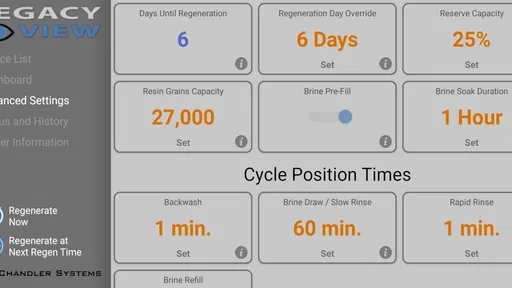
After confirming that the app is connected and showing the expected system, I would spend a few minutes learning the difference between the main information screens and the available controls. I would not change several settings just to explore. Instead, I would identify the screen I need for a routine check and the control I would use only when there is a clear reason.
I would then repeat the check on another ordinary day, when nothing appears wrong. That second visit is valuable because it creates a personal baseline. You learn what normal looks like for your installation, which makes an unusual display easier to recognize later. This is a more reliable learning method than trying to memorize every label during setup.
If another person uses the system, I would show them the same basic path: open the app, select the correct treatment system, review the information, and avoid making changes without understanding them. Keeping the routine simple is better than giving everyone a long technical explanation. The goal is shared confidence, not turning the household into a maintenance crew.
Legacy View has been available since October 20, 2015, and its continued presence alongside the current 6.18.2 release gives it the feel of an established companion rather than a brand-new experiment. Still, my recommendation is practical rather than automatic: install it because it matches your Chandler Systems equipment and your need for convenient access, not because every home needs another app.
My overall view is positive for the right owner. The app does one specialized job, and that focus is its strength. It can make routine checks easier, reduce unnecessary trips to a remote utility area, and give you a clearer starting point when something deserves attention. The best way to get value from it is to begin with observation, test one meaningful action, and keep the physical system in the loop. If that matches how you want to manage your home, the free download is an easy recommendation; if you need broad smart-home control or emergency troubleshooting, another kind of tool will serve you better.
Legacy View Frequently Asked Questions
What is Legacy View, and how does it help with a home water treatment system?
Legacy View is a House & Home app from Chandler Systems for information and control of a Chandler Systems water treatment system. It gives users a way to access system information and control features through an app, making it useful for people who want to manage their water treatment system from a compatible device. Its average rating is 4.6, based on around 1,200 ratings.
What is Legacy View, and what can I use it for?
Legacy View is designed to give users access to older or archived content in a more convenient interface. Depending on the version and platform, it may help you browse historical records, review previous information, or use features that are not available in a newer application. Before downloading, check the app description carefully to confirm that its content and purpose match what you need.
Is Legacy View available for both Android and iOS devices?
Availability can vary according to the developer, region, and device requirements. Legacy View may be offered for Android, iPhone, or only through a compatible web-based service. Before installing it, review the official store listing to confirm supported operating-system versions, device compatibility, and whether the application is still receiving updates. Older devices may not support every function.
Does Legacy View require an account or an internet connection?
Some Legacy View features may require users to sign in, especially when the application displays personal, synchronized, or restricted information. An internet connection may also be necessary to load updated records or access online services. Certain previously downloaded material could remain available offline, but you should not assume that the complete app works without connectivity. Check the permissions and login requirements before installation.
Is Legacy View free to download, and are there additional costs?
The download price and available features depend on the version distributed through the official app store. Legacy View may be free to install while requiring an existing service, subscription, organization account, or paid access for certain content. Review the store page for in-app purchases, recurring charges, and terms before proceeding. Avoid unofficial versions that claim to unlock paid features, since they may be unsafe.
Pros
- Simple interface makes browsing legacy content easy.
- Useful for users who prefer a familiar
- traditional viewing experience.
- Lightweight design should work well on older devices.
- Content is presented with minimal visual distractions.
- Quick access to core viewing features without a steep learning curve.
Cons
- The dated design may feel unappealing to users who prefer modern apps.
- Limited customization can make the experience feel less personal.
- Navigation may seem basic compared with newer alternatives.
- Performance and compatibility may vary across recent devices.
- Updates and support may not be as frequent as with larger platforms.