

Klipzo – AI Video Creator
- 4.00
- 4.0
- Installs
- 50.00K
- Price
- Free
Screenshots
Analysis by Reviewed
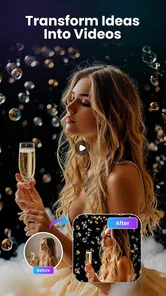
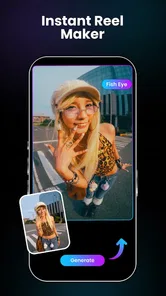
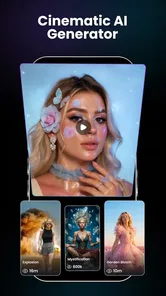
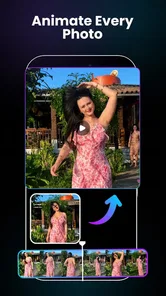
I approached Klipzo as a photography app for the moment when a still image feels too static. Its purpose is straightforward: turn favourite photos into short AI-assisted videos that are easier to share and more expressive than a single picture. That makes it interesting for people who already keep a camera roll full of family moments, travel shots, portraits, product images, or social-media material but do not want to learn a full video editor.
My overall impression is that Klipzo is best understood as a quick creative tool rather than a replacement for a serious editing suite. The appeal is the jump from photo to moving visual without requiring you to build a timeline manually. The trade-off is that AI creation can feel less predictable than conventional editing, especially when you want exact control over timing, movement, or the final look. The app is free to install, while optional purchases range from $0.99 to $149.99 per item, so it is worth deciding how casually or frequently you plan to use it before committing to paid creation.
How Klipzo feels when turning photos into videos
I find the appeal of Klipzo clearest when I think of it as a bridge between a photo I already like and a small video I can share. In this section, I’ll focus on the practical feel of that change: what makes the first try approachable, and why choosing the right picture matters more than trying to animate everything. That leads naturally to the first-use choices that help a new creator get a result worth keeping.
A faster starting point than traditional editing
The strongest idea here is the reduced barrier between choosing an image and getting something that feels animated. In a usual mobile editor, I would expect to crop a picture, place it on a timeline, choose transitions, adjust duration, add music or text, and then review the result. Klipzo is aimed at shortening that process through AI. That is particularly useful when the goal is not a carefully directed film but a visual post, a personal greeting, or a more engaging way to revisit a photograph.
That does not mean every project will be instant in practice. AI video creation involves more work than applying a simple filter, and the perceived speed can depend on the complexity of the selected image and the device handling the task. I would therefore approach it as a quick-start app, not as a promise that every result will appear immediately. The important advantage is the creative momentum: you can begin with one photo instead of planning an entire sequence.
For a realistic everyday example, imagine taking a portrait at a birthday gathering and wanting to send something warmer than the original still image. I would select the clearest photo, try a restrained animation first, and check whether the face and background remain natural. If the result works, it can become a small message for family or a social post. If it looks too artificial, the original photo is still the better choice. That simple workflow keeps the app useful without forcing AI into every picture.
What affects the feeling of speed
The app’s workflow is most attractive when I already know which photo I want to use. Searching through a large camera roll, comparing several similar images, and repeatedly regenerating variations can remove much of the time saved by automation. My practical advice is to prepare a small selection first: one well-lit image, one alternative with a clear subject, and perhaps a wider composition if the first attempt feels cramped.
More From Our News Desk

 Gmail
GmailGmail in a Busy Inbox: Who Benefits Most?
From first account to crowded workday, Gmail earns its place through dependable search and flexible sorting—but its best fit depends on how much inbox maintenance you can tolerate.

 Prime Video
Switching to Prime Video: What Changes in Your Viewing Routine
Prime Video can make a compelling second home for streaming, but switching means learning a different catalog, rental layer, and route from browsing to playback.

 Universal TV Remote Control
Universal TV Remote Control Works Best as a Reliable Backup
A phone remote earns its place through quick setup and reliable habits. Here is how to get more from Universal TV Remote Control—and where its limits show.

 Weather - By Xiaomi
Weather by Xiaomi Review: Clear at a Glance, Less Clear Up Close
Xiaomi’s weather app makes everyday forecasts quick to scan, but its calm surface can leave useful details and recovery paths harder to find than they should be.

 X
XX Under Pressure: Can It Recover When Posting Goes Wrong?
A resilience-focused review of X, examining setup, mistaken posts, interruptions, weak connections, and the gaps that matter when recovery needs to be dependable.

 Clash of Clans
Clash of Clans Is Won Between the Battles
Its raids are quick; its community is a long-term project of coordination, teaching, rivalry, and shared responsibility—with all the friction that entails.
Latest News



Image quality matters as well. A sharp subject with visible separation from the background gives an AI animation a clearer starting point than a dark, crowded photograph. This is not a Klipzo-specific editing trick so much as a useful way to reduce wasted attempts. The more ambiguous the picture, the more likely I am to spend time judging whether an odd movement came from the app or from the source image itself.
The app is a better fit for spontaneous creativity than for a deadline where every second matters. If I needed a precisely timed promotional clip or a repeatable sequence for many images, I would prefer a conventional editor with explicit controls. Klipzo’s value is the exploratory stage: it helps me discover whether a still image can become an appealing moving moment before I invest more effort.
Where heavy use can become frustrating
Repeated AI generation is the scenario where I would pay closest attention to resource demands. Creating one clip for a favourite photograph is a light commitment. Testing many photos, trying several styles, or rebuilding a result after an unsatisfying interpretation is a much heavier session. Longer use can also make storage planning more important because source photos, temporary files, and exported videos may accumulate together.
I would avoid starting a large batch while the phone is nearly full or when I need the device for something urgent. Even without assuming a particular processing method, image-to-video work is more demanding than browsing a gallery. A sensible routine is to review the camera roll first, keep only the strongest candidates in the project, and remove failed exports once I have chosen a final version.
This is also where the optional purchase model deserves attention. A free entry point makes it easy to experiment, but frequent creators should read each purchase screen carefully before generating many variations. The listed range, from $0.99 to $149.99 per item, is broad enough that I would not treat every creative experiment as cost-free. I would begin with a single simple project and learn what the app offers before spending on a larger workflow.
Stability and recovering from an imperfect result
Reliability in an AI creative app is not only about whether it opens. It is also about whether the result matches the source, whether a failed attempt can be abandoned without losing the original, and whether I can return to the project without confusion. Klipzo’s photography focus gives it a clear use case, but AI interpretation naturally introduces uncertainty. A successful generation may feel impressive, while another image may produce movement that distracts from the subject.
My safest workflow would be deliberately reversible. I would keep the original photo untouched, create one test from a duplicate or selected copy, and judge the output before making further changes. For important memories, I would export or preserve the still image separately rather than treating the animated version as the only copy. This matters especially with family photos, where an unusual facial or background movement can make the result less suitable than expected.
If a generation does not work, the best recovery is usually to change the input rather than endlessly forcing the same image. Try a cleaner crop, remove a distracting background, or choose a photo with a more obvious main subject. That approach also helps identify whether the limitation is the particular picture or the app’s interpretation. I would not assume that several retries guarantee a better result; sometimes the source image is simply better left still.
The current version is 2.0, which makes the app feel like a focused tool that may continue to evolve, but I would judge it by the workflow available today rather than by possible future additions. The developer is Noventis Technologies LLC, and the app has reached over 50 thousand installs. Its average rating is 3.7, a sign that the concept appeals to a meaningful group of users while the experience may not be equally convincing for everyone. I read that as a reason to test it with low-stakes images first.
Device limits and practical expectations
Klipzo supports devices running at least iOS or Android equivalent to version 8.1, depending on the platform listing, so the stated operating-system requirement is not aimed only at the newest phones. Still, operating-system compatibility does not guarantee identical comfort on every device. A newer phone may feel more suitable for repeated creation, while an older compatible device could make heavy sessions less pleasant because of its general hardware limits.
I would also consider screen size. A larger display makes it easier to inspect faces, edges, and background movement before sharing. On a smaller phone, an animation can appear acceptable at a glance but reveal distracting details when viewed elsewhere. For that reason, I would check the result at normal playback size and, when possible, view it once without immediately posting it.
Battery and free storage are practical concerns for any app that turns photographs into videos. I would start a demanding session with enough battery, avoid keeping unnecessary duplicate exports, and leave room for the app to work comfortably. These habits are more useful than expecting the application to behave like a lightweight photo filter. The distinction is important: Klipzo begins with photography, but its output is video, and video creation usually creates a heavier workflow.
The mature age classification of 17+ is another detail parents and younger users should take seriously. That rating means I would not recommend handing the app to a child without checking the platform’s current guidance and the context in which it will be used. For adults, it is a reminder to think about the photos being uploaded or transformed, particularly when working with private family images or portraits of other people.
Who gets the most from the app
I see Klipzo working best for casual creators who want a noticeable visual change without learning keyframes, masks, or a full editing timeline. It can suit someone preparing a birthday greeting, a travel recap built from a few standout photos, a personal memory post, or a simple visual for a small business. The app is also useful for testing an idea: before opening a desktop editor, I can find out whether a photograph has enough character to carry motion.
It is less suitable for users who need exact creative direction. If I were producing a carefully branded advertisement, matching movement across many images, or controlling every transition and audio cue, I would choose a traditional mobile editor or desktop software. Those tools take longer to learn, but their predictability is an advantage when the final result must follow a fixed brief.
Photographers who want their original composition preserved exactly may also prefer a conventional slideshow or subtle pan-and-zoom effect. AI movement can add energy, but energy is not always improvement. A quiet landscape, an architectural photograph, or a carefully composed portrait may benefit more from gentle editing than from an effect that changes the mood of the image.
How it compares with familiar alternatives
Compared with a standard photo editor, Klipzo offers a more direct route to motion. A normal editor is usually better for correcting exposure, removing distractions, cropping with precision, and preparing a polished still image. Klipzo becomes more compelling after those basic decisions, when the question changes from “How do I improve this photo?” to “Can this photo become a moving clip?”
Compared with a conventional video editor, the app appears designed to reduce manual work rather than maximize control. A timeline-based tool is preferable when I need fixed durations, layered text, deliberate transitions, voice-over, or a repeatable template. Klipzo is preferable when I want to explore a visual idea quickly and accept that the AI may shape part of the result.
That trade-off also affects consistency. A traditional editor can produce a predictable result from a set of instructions. An AI creator may produce a more surprising result, which can be exciting for personal content but inconvenient for a professional series. I would use Klipzo at the concept and experimentation end of my workflow, then move to a more controlled editor if the clip became important enough to refine.
Small workflow choices that improve the outcome
My first tip is to choose photos with one obvious subject. A single person, pet, object, or landscape feature gives the animation a clearer visual priority than a crowded group scene. For group photos, I would test the image carefully because movement that looks acceptable around one person can feel distracting when several faces are involved.
My second tip is to compare the animated result with the still image before sharing. The moving version may attract attention, but it can also expose blur, awkward edges, or a change in mood. I would ask whether the motion adds meaning. If it does not, keeping the original is not a failure; it is good editing judgement.
My third tip is to treat variations as a selection process, not as a guarantee. I would make a small number of deliberate attempts, note which source images behave best, and stop when the result is clearly usable. This prevents the common trap of generating endlessly because the first output was merely acceptable. It also helps control storage and any possible in-app spending.
A fourth useful habit is to create for the destination in mind. A clip intended for a private message can be judged for warmth and clarity, while one intended for a public social post needs a stronger opening image and a result that remains understandable without explanation. I would not assume that the same animation works equally well in both contexts. The source photo, the audience, and the amount of attention available should guide the choice.
What I would check before installing
The app is free, but free installation should not be confused with unlimited use. I would look at the purchase prompt before beginning a serious project, especially because individual in-app items can reach $149.99. Anyone sharing a device with family members should be especially careful about accidental purchases and should use the platform’s purchase controls where appropriate.
I would also make sure the phone has enough free space and that the original photos are backed up somewhere separate. This is basic preparation, but it becomes more important when a photography app creates video versions that may be larger and more numerous than the source images. Keeping originals safe means I can experiment without worrying that an unsuccessful result has replaced something valuable.
Finally, I would decide whether I want creative surprise or precise control. That single question clarifies the choice better than the app’s category. If I want a quick transformation and enjoy comparing unexpected interpretations, Klipzo is appealing. If I want to direct every frame, I would save time by using a conventional editor from the start.
My performance verdict
In my view, Klipzo has a clear and useful role in mobile photography: it turns the camera roll into a starting point for motion without demanding the full commitment of video editing. Its perceived speed should be strongest for one-off experiments with prepared images, while heavy batches and repeated variations deserve more patience, storage awareness, and attention to possible purchase costs.
The app’s stability is best judged through a cautious workflow: preserve the original, test a strong image, review the result at normal size, and keep only the versions that genuinely improve the photo. That approach also protects against the main creative weakness of AI video tools, which is not necessarily failure but an output that moves without adding anything meaningful.
With a 3.7 average from around 8.8 thousand ratings, Klipzo looks like a product with genuine appeal but a distinctly mixed experience. I would recommend it to adults who want quick, playful photo animation and are comfortable accepting some unpredictability. I would skip it for professional work requiring exact repeatability, for users who dislike experimenting, or for anyone seeking a complete, traditional video editor.
My honest recommendation is to treat Klipzo as a creative sketchbook for photographs, not as the final tool for every video job. Start with a memorable but non-critical image, learn how the app handles your style of photography, and decide from the results whether its AI approach fits your habits. When it does, the shortcut from still image to moving clip can be genuinely enjoyable; when it does not, a carefully edited photograph or a conventional timeline will usually serve you better.
Klipzo – AI Video Creator Frequently Asked Questions
What devices and operating systems can run Klipzo – AI Video Creator?
Klipzo is a photography app for creating AI-assisted videos from photos. Before downloading, check that your device meets the app’s minimum operating-system requirement, which is version 8.1. The app is available for Android, and compatibility can vary by device, so checking its store page on your own device is a sensible first step.
Is Klipzo suitable for personal photos, or is it mainly for business content?
Klipzo can be useful for a range of creative purposes, from personal clips and video stories to promotional material and presentations. Its focus is turning favourite photos into AI videos, so it may suit users who want to give images a more dynamic presentation. Consider the intended audience and review the finished video before sharing it publicly.
What is Klipzo – AI Video Creator and what can I use it for?
Klipzo – AI Video Creator is designed to help users create short videos with the assistance of artificial intelligence. It can be useful for social media clips, promotional content, video stories, presentations, and creative experiments. Depending on the available tools, users may be able to combine text, images, templates, music, effects, and automated editing without needing advanced video-editing experience.
Is Klipzo suitable for beginners without video-editing experience?
Yes, Klipzo is primarily aimed at making video creation more accessible to beginners. Its AI-assisted workflow can reduce the amount of manual editing required, while templates and guided tools may help users produce content more quickly. However, the quality of the final result still depends on the prompts, media files, style choices, and adjustments you provide, so some experimentation may be necessary.
Does Klipzo create complete videos from text automatically?
Klipzo may support AI-powered video generation from written instructions, but the exact capabilities can vary according to the app version, subscription plan, and device platform. Text-based generation does not always produce a perfect result on the first attempt. Users should review the scenes, timing, visuals, audio, and captions carefully and make corrections before publishing or sharing the finished video.
Pros
- Creates short videos quickly from simple text prompts.
- Offers AI-assisted editing for users with little video experience.
- Useful templates help produce content for social media platforms.
- Can generate engaging visuals without advanced filming equipment.
- Speeds up brainstorming by turning ideas into video concepts.
Cons
- AI results may not always match the intended style or message.
- Some advanced tools may require a paid subscription.
- Generated videos can feel repetitive when using popular templates.
- Export quality and available formats may vary by plan or device.
- Processing times can increase for longer or more complex projects.










