HeyGen: AI Video Generator
- 484.00
- 4.7
- Installs
- 1.00M
- Price
- Free

Screenshots
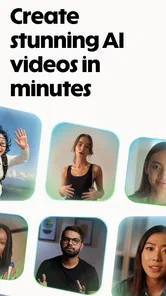

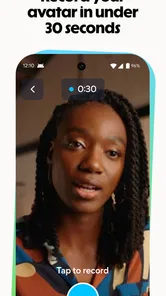
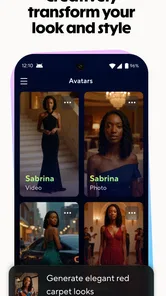
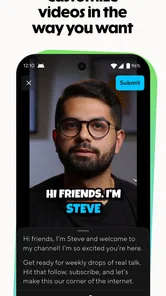
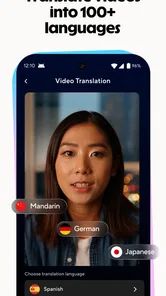
Analysis by Reviewed
I’d think of HeyGen: AI Video Generator as a shortcut from an idea or a still image to a presenter-style video, rather than as a full replacement for a traditional video editor. That distinction matters when you first open it: the appealing part is getting a visual draft moving without filming yourself, while the trade-off is that you still need to make thoughtful choices about wording, presentation, and whether an AI-made result suits your audience.
For someone who has never made an AI avatar video, the simplest goal is not to create a polished campaign on the first try. It is to make one short, clear clip that proves the workflow makes sense for you. I’d start with a small announcement, a quick explanation, or a social post, then judge whether the generated delivery feels appropriate. That keeps the first experiment useful even if you decide to revise it or try another tool.
What to expect from an AI video workflow
HeyGen is a video creation app from HeyGen Technology Inc., in the video editing and player space. Its central appeal is the ability to build a video around an AI avatar, turn written material into a video, or animate a photo. Those are different starting points, not interchangeable buttons: the best route depends on whether you have a script, a visual identity, or a particular image you want to bring to life.
If you already have a short script, text-to-video is the natural first experiment. If you need a visible speaker but do not want to record yourself, an avatar-led clip is a better fit. A photo-based workflow is most relevant when the image itself is central to the message. I would choose one route and keep the first project narrow rather than testing every option at once; that makes it easier to tell whether the output is helping or merely adding novelty.
The app is free to install, and the audience rating is Everyone. It has a 4.7 average from around 62,000 ratings, with more than a million installs. That suggests a substantial audience has tried it, but popularity does not guarantee that a particular video will look or sound right for your use. My practical advice is to treat the first result as a draft and decide based on the clip itself, not the headline appeal of AI video.
Who is likely to get value from it
I can see HeyGen working well for a solo creator who needs a simple presenter-style introduction, a small business owner explaining a service, or a teacher preparing a concise visual prompt. It can also help someone who has a useful message but feels uncomfortable appearing on camera. In these cases, the value is not just speed; it is having another way to turn a rough idea into something watchable.
It is less suited to people whose videos depend on spontaneous expression, precise physical demonstrations, or a strong personal connection with the real speaker. A genuine recording may feel more trustworthy for a sensitive apology, a personal story, or a product demonstration where viewers need to see hands interacting with an object. If that authenticity is the point, a phone camera and a straightforward editor are often the better choice.
More From Our News Desk
 Instagram
Instagram’s Power Comes From Its Place in Your Phone
A close look at how Instagram turns Meta’s reach, recommendation systems and everyday camera habits into durable platform power—and what that costs users.

 Gmail
GmailGmail in a Busy Inbox: Who Benefits Most?
From first account to crowded workday, Gmail earns its place through dependable search and flexible sorting—but its best fit depends on how much inbox maintenance you can tolerate.

 Prime Video
Switching to Prime Video: What Changes in Your Viewing Routine
Prime Video can make a compelling second home for streaming, but switching means learning a different catalog, rental layer, and route from browsing to playback.

 Universal TV Remote Control
Universal TV Remote Control Works Best as a Reliable Backup
A phone remote earns its place through quick setup and reliable habits. Here is how to get more from Universal TV Remote Control—and where its limits show.

 Weather - By Xiaomi
Weather by Xiaomi Review: Clear at a Glance, Less Clear Up Close
Xiaomi’s weather app makes everyday forecasts quick to scan, but its calm surface can leave useful details and recovery paths harder to find than they should be.

 X
XX Under Pressure: Can It Recover When Posting Goes Wrong?
A resilience-focused review of X, examining setup, mistaken posts, interruptions, weak connections, and the gaps that matter when recovery needs to be dependable.
Latest News



Set up the first project with a small goal
On first use, I’d decide what a viewer should remember after watching. Write that as one sentence before choosing an avatar or image. This small step prevents a common beginner problem: spending time exploring visual options before knowing what the video is meant to say. For a first clip, a single idea is easier to assess than a broad overview with several claims.
Keep the wording conversational and break long thoughts into short sentences. Text designed for reading often sounds stiff when delivered aloud, especially when it contains long lists, abbreviations, or several clauses. I’d read the script out loud once before using it. If it feels awkward in your own voice, it is unlikely to feel natural when presented by an avatar.
Then choose the creation path that matches what you have ready. A script-first project should begin with a compact piece of writing. For a photo-led result, choose an image that supports the message rather than one selected only because it looks striking. When using an avatar, think about the role the presenter is playing: a calm explainer and an energetic promotional voice call for different wording and pacing, even if the underlying topic is the same.
Make the first result easy to judge
A realistic first success could be a short welcome message for a class, a quick explanation of a service, or a simple update for a social channel. For example, if I were telling customers that a shop has changed its opening routine, I would state the change plainly, add the relevant context, and finish with one useful next step. I would not try to squeeze a full brand story into the same clip.
After generating a draft, watch it once as a viewer rather than as its creator. Ask whether the message is clear, whether the presenter’s appearance fits the subject, and whether any sentence sounds unnatural. If the result feels off, revise one thing at a time. Shortening a sentence may solve a pacing issue more effectively than changing the whole visual direction, while a mismatched image calls for changing the visual rather than rewriting good copy.
The most useful first-project habit is to separate script problems from presentation problems. If the words are vague, no avatar choice will make the message precise. If the words are clear but the visual tone feels wrong, rewriting everything can create extra work without fixing the mismatch. Making one controlled change per pass gives you a better sense of what the app can and cannot improve.
Where beginners can get confused
One point worth keeping in mind is that “AI video” can describe several different tasks. A script converted into a presenter-led clip is not the same creative result as bringing a photograph to life. Before committing time to a direction, check that the tool you selected corresponds to the outcome you actually want. If you want a person explaining a message, begin with the avatar route; if the image is the focus, a photo-based experiment makes more sense.
Another source of confusion is expecting the app to make editorial decisions for you. It can help create the video, but you still need to decide what belongs in the script, whether the tone is respectful, and whether an AI presenter is appropriate for the topic. I would avoid using an artificial presenter for a message where viewers specifically need a real person’s firsthand account or visible expertise.
It is also easy to overestimate what a polished-looking draft communicates. A smooth presentation does not automatically make information accurate or persuasive. Read names, figures, and important claims carefully in the finished clip, and make sure the message still sounds like something you would be comfortable saying yourself. That review is especially worthwhile for public-facing business or educational material.
People sometimes wonder whether they need to be experienced editors to get started. I would not treat editing expertise as a prerequisite for trying a simple avatar or text-based concept. The more important skill is writing a short script and being willing to review the output. On the other hand, if your goal involves carefully timed cuts, detailed visual storytelling, or extensive control over a finished production, a dedicated editor may give you more room to work.
Free to try, with paid choices to weigh
The app is listed as free, with in-app purchases ranging from $4.99 to $999.99 per item. That is a wide spread, so I would not assume that every useful option is included at no cost or that a paid choice is necessary for a first experiment. Start by finding out whether the basic workflow meets your needs, then consider spending only if a specific limitation is getting in the way of a real project.
That is also why it helps to define success before exploring further. If one short draft lets you test whether an avatar suits your audience, you have learned something even if you stop there. If you expect to create videos regularly, consider how often you will use the app and whether the format actually saves time compared with recording and editing a real presenter. Avoid paying simply because a generated result looks impressive on first viewing.
How it compares with ordinary video tools
Compared with a conventional mobile editor, HeyGen is more focused on generating a presenter-oriented starting point than on giving you a blank timeline for assembling footage. A standard editor is usually the more natural choice when you already have camera clips, need to trim a sequence, or want to arrange your own visual material with close control. HeyGen makes more sense when you have a message but no presenter recording ready, or when you want to explore a photo-led idea.
Compared with recording yourself, the app can lower the practical barrier of getting a speaker on screen. That can be valuable if you are camera-shy or need to test different explanations without filming each one. The trade-off is that a generated presenter may not carry the personal warmth, natural gestures, or credibility of the actual person behind the message. I would use it for clear, repeatable explanations, not as an automatic substitute for human presence.
It also differs from a general-purpose design app: the decision is not simply how to arrange text and images, but whether a generated speaker or animated image is the right way to deliver the idea. That makes the app especially useful for people who want a video-shaped result from a script, but less compelling if their main need is a flexible editing workspace. In that case, choose the tool around the material you already have.
What to try after the first clip
Once a basic draft works, I would make a second version for a different audience rather than immediately adding complexity. For instance, turn a formal explanation into a warmer welcome, or simplify a technical introduction for someone encountering the subject for the first time. This tests whether the workflow is genuinely useful for communication, instead of merely producing a novel visual.
A useful next step is to compare two short scripts with different levels of detail. Keep the main point the same, but make one version more concise. Watch both and notice whether the shorter delivery is easier to follow. This is a practical way to learn how much wording your chosen format can carry before the video feels crowded. It also helps you improve the message without relying on more elaborate visuals.
HeyGen is currently at version 1.2.3 and requires Android 10 or later. Those details matter when deciding whether an older device is suitable, but the more important question is whether you want generated presenters or photo-based video in the first place. The app is free to begin with, and its Everyone content rating makes it broadly accessible, while any purchase decision is best left until you have tested a real use case.
My recommendation
I’d recommend HeyGen: AI Video Generator to a first-time creator who wants to test an avatar-led explanation or turn a concise script into a video without filming. Begin with one small, low-stakes message, keep the writing natural, and review the draft for both clarity and fit. That path gives you a meaningful first result without requiring you to learn a full editing workflow first.
I would skip it if your work depends on authentic on-camera emotion, detailed manual editing, or footage of real actions that viewers need to inspect. In those cases, recording with a phone and editing the clips directly gives you more control and may feel more credible. For everyone else, the app is worth a careful trial: not because AI automatically makes better videos, but because it offers a practical alternative when the message is ready and a conventional presenter is not.
HeyGen: AI Video Generator Frequently Asked Questions
What is HeyGen: AI Video Generator, and what can you create with it?
HeyGen is an AI-powered video creation app designed to turn written scripts and other content into presenter-led videos. Depending on the features available in your version, you can choose an AI avatar, add a script, select a voice and language, and generate a video without filming yourself. It may suit explainers, marketing materials, training content, and social posts, though results should be reviewed before publishing.
Do I need video-editing experience or special equipment to use HeyGen?
You generally do not need a camera, studio, or advanced editing skills to make a basic HeyGen video. The app guides you through selecting a presenter and entering or preparing a script, then generates the video using AI. Some familiarity with writing and reviewing video content helps, however. More detailed projects may also require extra editing elsewhere, and the exact creation tools can vary by app version and account.
Is HeyGen free, and are there limits or paid features?
HeyGen may offer a free way to try the service, but free access can come with restrictions such as limited video creation, duration, available avatars, or export options. Paid plans may unlock additional features or higher usage limits. Pricing and included allowances can change, so check the current plan details in the app or on HeyGen’s official site before subscribing. Also review renewal terms and cancellation steps before starting a trial.
Can HeyGen create videos in different languages, and how natural do they sound?
HeyGen supports multilingual video creation, with available languages and voices depending on the tools and plan offered at the time you use it. AI speech can sound polished, but pronunciation, pacing, names, and specialized terminology may need careful checking. If you use translation or voice-generation features, proofread the script and listen to the finished video before sharing it, especially for customer-facing, educational, or professional material.
What should I know about privacy, consent, and using AI avatars?
Before uploading personal material or creating a video that resembles a real person, read HeyGen’s current privacy policy and terms. Only use someone’s image, voice, or likeness with appropriate permission, and avoid submitting confidential information unless you understand how it may be processed and retained. AI-generated presenters can also be mistaken for real people, so label or explain synthetic content when appropriate and follow the rules that apply to your intended use.
Pros
- Creates presenter-led videos from text without filming or editing on camera.
- Supports multiple languages and AI voice options for broader audience reach.
- Avatar and voice previews make it easier to compare styles before rendering.
- Useful templates help produce polished videos for common business needs.
- Can speed up creation of training
- marketing
- and explainer content.
Cons
- Natural gestures and facial expressions can still look artificial.
- Longer or higher-quality videos may take time to generate.
- Free access may be limited by credits
- features
- or watermarks.
- Accurate pronunciation of names and specialist terms may require adjustments.
- AI avatars may not provide the personal feel of a real presenter.