Emoji Battery: DIY Status Bar
- 13.00
- 4.2
- Installs
- 100.00K
- Price
- Free

Screenshots
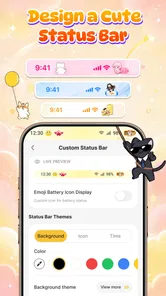
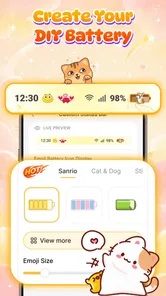
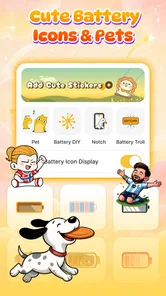
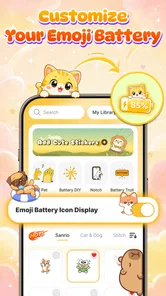

Analysis by Reviewed
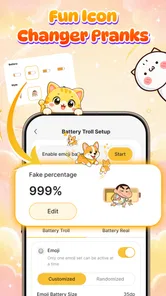
I like phone customizers best when they make a small change feel personal without turning setup into a project. Emoji Battery: DIY Status Bar aims for exactly that kind of quick visual tweak: it lets you give the battery indicator a more playful look and add screen pets. If you have ever glanced at your status bar and wished it felt less plain, the idea is appealing. The important question is whether that personality is worth giving up some of the clean, predictable feel of a standard Android interface.
A good fit for small, personal touches
I would also consider this app if you share a phone casually with family and want a harmless way to make your own screen feel recognizable. A distinctive battery style can act as a small visual signature, particularly when you switch between devices or profiles. I would not use that as a substitute for security or a reliable way to identify who is holding a phone, though; it is simply a bit of personality in a place you see often.
Think about the times you glance at your phone without intending to interact with it: while waiting for a ride, checking the time between tasks, or looking down before heading out. That is where a decorative status-bar change can earn its keep. If you rarely notice the status bar, the novelty may not last, and a wallpaper or home-screen change could give you more visible personalization for the same effort.
What to expect from the customization
This is a personalization app from ImoDevel, built around making the status bar more expressive rather than changing the whole phone. Its focus is unusually specific: emoji-style battery customization and playful characters on the screen. That narrow scope is a strength if you want a fun accent, but it also means this is not a complete theme engine for redesigning icons, menus, or every part of your home screen.
I would approach it as a visual accessory, not as a battery-management tool. The emoji treatment changes how the battery indicator looks; it should not be confused with improving battery life, diagnosing power problems, or replacing Android’s actual battery information. Keep the phone’s regular battery readout in mind when you need precise, quick status checks, especially if you depend on a clear percentage or system-level alerts.
The app is free to install, and its audience is broad: it has an Everyone content rating, a 4.2 average from around 213 ratings, and over 100,000 installs. Those figures suggest that the concept has found an audience, but I would still judge it by whether the visual result suits your device and habits. Optional in-app purchases are listed at $4.99 to $11.99 per item, so it is sensible to explore the basic experience before deciding whether any paid item is worthwhile.
For a first-time user, the best expectation is modest. You are trying to make one familiar part of the screen more amusing or distinctive, not unlock a hidden Android capability. That framing makes the app easier to evaluate: if a playful battery icon and a little on-screen character make you smile without getting in the way, it is doing its job.
More From Our News Desk

 Gmail
GmailGmail in a Busy Inbox: Who Benefits Most?
From first account to crowded workday, Gmail earns its place through dependable search and flexible sorting—but its best fit depends on how much inbox maintenance you can tolerate.

 Prime Video
Switching to Prime Video: What Changes in Your Viewing Routine
Prime Video can make a compelling second home for streaming, but switching means learning a different catalog, rental layer, and route from browsing to playback.

 Universal TV Remote Control
Universal TV Remote Control Works Best as a Reliable Backup
A phone remote earns its place through quick setup and reliable habits. Here is how to get more from Universal TV Remote Control—and where its limits show.

 Weather - By Xiaomi
Weather by Xiaomi Review: Clear at a Glance, Less Clear Up Close
Xiaomi’s weather app makes everyday forecasts quick to scan, but its calm surface can leave useful details and recovery paths harder to find than they should be.

 X
XX Under Pressure: Can It Recover When Posting Goes Wrong?
A resilience-focused review of X, examining setup, mistaken posts, interruptions, weak connections, and the gaps that matter when recovery needs to be dependable.

 Clash of Clans
Clash of Clans Is Won Between the Battles
Its raids are quick; its community is a long-term project of coordination, teaching, rivalry, and shared responsibility—with all the friction that entails.
Latest News



Getting from installation to a first result
After installing it, I would begin by looking for the main battery appearance controls and choosing a style that remains easy to recognize at a glance. A bright or unusual emoji can be charming, but the battery symbol still needs to communicate something useful when you are checking the phone quickly. Start with one change rather than adjusting several visual elements at once; that makes it much easier to tell whether the new look is comfortable in everyday use.
Then check the result in the places where you normally notice the status bar: the home screen, an app with a pale background, and one with a darker interface if you use both. A design that looks lively on one screen may lose contrast on another. This is a practical detail people often skip when customizing: the status bar is not a poster you admire once, but a small interface you repeatedly scan under different conditions.
For the first successful action, choose an emoji battery style, apply it, and leave it in place long enough to notice whether it remains readable during ordinary phone use. If the app offers a separate way to place or show a screen pet, treat that as a second experiment rather than bundling it into the first. Changing one thing at a time helps you identify whether any visual clutter comes from the battery treatment or from the character.
A useful test is to check your battery before leaving home, then again later without opening the app. If you can still interpret the indicator quickly, the customization is serving its purpose. If you find yourself pausing to decode a cute symbol, choose a simpler look or return to the standard display. Personalization should make the phone feel more yours, not add a tiny puzzle to routine checks.
Making the first setup easier to judge
For a low-pressure first session, I would avoid trying to make the phone look perfect immediately. Pick a battery design that is easy to distinguish from nearby status icons, use the phone normally, and only then decide whether a screen pet belongs in the mix. This sequence gives you a clean comparison with the default appearance instead of asking you to evaluate several new visual cues at once.
A practical everyday test is a busy morning: check the battery while packing, glance at the phone during a commute, and use a messaging app with the screen brightness you normally prefer. If the new symbol is still instantly understandable in those quick moments, it has passed a more meaningful test than simply looking attractive in the app’s own controls. If not, simplify or switch back before the decoration becomes a small daily annoyance.
Where the screen pets fit in
The screen pets give the app a different kind of appeal from a straightforward icon changer. They are there for personality and amusement, so I would think of them as decorative companions rather than functional widgets. That distinction matters: if you want a glanceable tool that helps organize tasks or display information, a pet-focused touch may feel like extra visual noise rather than a useful addition.
Try adding a character only after you are happy with the battery appearance. Then use the phone as you normally do for a while: read a message, open a map, or check a note. The point is to see whether the pet stays out of the way during the activities you care about. A decoration can be delightful when you notice it occasionally and irritating if it competes with text, buttons, or other important screen content.
One non-obvious trade-off is that a more playful interface can change how quickly you read the phone. Standard system indicators are familiar, while an emoji-led version asks your eyes to learn a new visual cue. That may be a pleasant change for someone who enjoys customizing small details, but it is not necessarily ideal for a person who values instant legibility above character.
Common points of confusion
The biggest possible misunderstanding is expecting a cosmetic battery icon to report power more accurately or help the battery last longer. It is a personalization choice, not a substitute for Android’s underlying battery controls. If your priority is diagnosing drain, setting limits, or checking detailed usage, the phone’s built-in battery settings are the more appropriate place to start.
Another point to keep in mind is that status-bar appearance belongs to the operating system’s interface. Android versions, device makers, and screen layouts can affect how custom elements fit into that space. The app’s minimum OS is Android 7.0, and its current version is 3.0, but support for that system level does not mean every phone will render every customization identically. If something looks cramped or less visible on your device, simplify the design rather than assuming you have configured it incorrectly.
It is also easy to confuse “free to install” with “every optional item is free.” The initial download costs nothing, while in-app purchases range from $4.99 to $11.99 per item. I would first decide whether the core visual idea works for you. If it does, you can then consider whether a paid item adds something you genuinely want; if you are only curious, there is no reason to treat a purchase as part of the first setup.
Finally, remember that extra decoration can make the interface feel busier even if it technically fits. If you use your phone for work, rely on a minimal status bar, or often need to read battery state at a glance, a conventional indicator may be the better choice. The app is most appealing when personality is a benefit in itself, rather than a way to solve a practical phone problem.
How it compares with familiar alternatives
Compared with leaving Android’s default battery indicator alone, this app offers a more expressive look but asks you to trade some of the system’s familiar simplicity. Compared with broader theme and wallpaper tools, it is more focused: the draw is the battery treatment and screen pets, not a full visual makeover. That makes it easier to understand what you are trying to change, though it also limits its value if your goal is to coordinate every icon and screen.
For someone who already uses a minimal launcher or carefully matched wallpaper, the app may be a small finishing touch. For someone who wants a unified redesign, a fuller customization tool is likely a better fit. And if your main interest is practical battery information, the stock Android display is the more direct option. I see this app as a niche extra, not a replacement for those alternatives.
Who will enjoy it, and what to try next
I would recommend giving it a try if you enjoy small visual details, like emoji, and want your phone to feel a little less standard without redesigning everything. It is also a reasonable choice for someone who wants a lighthearted screen accent and is happy to judge the result on their own device. The app is less suited to people who dislike interface decoration, need the clearest possible status bar, or expect battery-saving features.
If you use accessibility settings or have trouble distinguishing small symbols, prioritize a clear conventional battery display over novelty. A decorative indicator is a poor trade if it makes a basic status check slower or less comfortable. Likewise, anyone who finds moving or character-like elements distracting should skip the screen pets and consider whether the battery treatment alone is enough to justify keeping the app.
Once the battery style feels comfortable, the next step is to test a screen pet on the screen where you spend the most time. Keep it only if it adds delight without distracting from messages or controls. If the combination feels crowded, remove one element; a single well-chosen detail often looks more intentional than several competing ones.
My recommendation is to start simple and let readability decide. Emoji Battery: DIY Status Bar has a clear, playful purpose, and that focus is appealing when you want a small personal touch rather than a sweeping makeover. Use the free experience to see whether the style works with your Android layout, keep the standard battery tools in mind for practical checks, and consider paid items only if you have already found a look you want to keep.
Emoji Battery: DIY Status Bar Frequently Asked Questions
What is Emoji Battery: DIY Status Bar?
Emoji Battery: DIY Status Bar is a customization app designed to make your device’s battery display more expressive. Depending on the features available in your version, it may let you choose emoji-style battery indicators, adjust their appearance, or add a decorative element to the status bar. Check the app’s screenshots and description on the download page to confirm which options are supported on your device.
How do I set up the emoji battery indicator?
After installing the app, open it and explore its battery design or customization settings. Select a style you like, then follow any on-screen instructions to enable the indicator or grant the permissions the app requests. Android manufacturers and system versions handle status-bar overlays differently, so the setup may not look identical on every phone. If a change does not appear, review the app’s instructions and your device’s display settings.
Does Emoji Battery: DIY Status Bar work on every Android phone?
Compatibility can vary by Android version, device manufacturer, and the way a phone manages its status bar. Some features may require overlay or accessibility permissions, and certain system interfaces may restrict custom indicators altogether. Before downloading, check the app’s listed Android requirements and recent user feedback for your device model. If you are using iOS, verify availability and feature support in the App Store, since iOS places tighter limits on status-bar customization.
Does the app drain battery or affect phone performance?
A battery-themed customization app should not be assumed to have zero impact: features that remain active in the background or refresh frequently may use some power or system resources. The actual effect depends on how the app is implemented and on your device. After setting it up, monitor battery usage in your phone’s settings. If you notice unusual drain, disable the active indicator or remove the app and compare usage.
Is Emoji Battery: DIY Status Bar free, and is it safe to install?
The price, advertising, and optional in-app purchases can change, so check the current store listing before installing rather than relying on an older description. Download the app only from an official app store or another trusted source, and read the privacy details and requested permissions. Grant only permissions needed for the features you want. If an access request seems unrelated to battery customization, pause and review the app’s explanation first.
Pros
- Adds a playful emoji to the status bar to personalize your phone.
- Offers a simple way to change the look of your battery indicator.
- DIY customization lets you choose a style that suits your preferences.
- Lightweight concept focused on a single
- easy-to-understand feature.
- Useful for making battery status more visually distinctive.
Cons
- Emoji designs may be difficult to read at a glance.
- Status bar appearance can vary across Android devices and versions.
- Customization options may feel limited compared with full theming apps.
- May not work consistently with every launcher or status bar setup.
- The app’s visual changes may be subtle on some screens.