Droid Cam Link: Remote Monitor
- 0.00
- 0.0
- Installs
- 10.00K
- Price
- Free
Screenshots
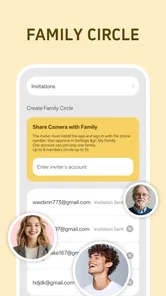
Analysis by Reviewed
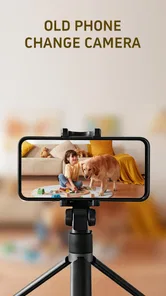
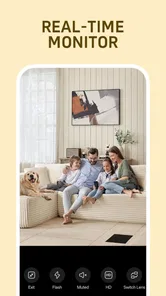
I tested Droid Cam Link: Remote Monitor as a practical way to give an older phone a second life around the home. Its basic idea is easy to understand: use one phone as a camera and another device as the viewer. That makes it appealing for checking a room, watching a sleeping child nearby, keeping an eye on a pet, or seeing what is happening at the front door while you are working elsewhere.
What I like most is that the app starts from hardware many people already own. Instead of buying a separate indoor camera immediately, I can place an unused phone where I need a view and turn it into a useful household tool. The experience is not identical to using a purpose-built security camera, though, and that difference matters. This is best understood as a flexible camera-linking app for casual monitoring, not as a complete home-security system.
The app sits in the House & Home category and is made by Hefei OneSevenRead Technology Co., Ltd. It is free to install, suitable for Everyone, and currently listed as version 1.3.0. It has passed the early stage of being unknown, with over ten thousand installs, but I still approached it as a focused utility rather than a mature smart-home platform. That perspective helped me judge where it is genuinely convenient and where a traditional camera remains the better choice.
Starting with a dependable two-device routine
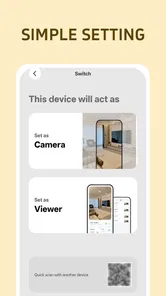
The most important part of using Droid Cam Link is not the first launch; it is creating a repeatable setup. I treat the old phone as the camera unit and the newer phone or other compatible viewing device as the monitor. Before placing anything permanently, I make sure both devices have enough battery, connect them to the same reliable network when required by the app's workflow, and position the camera so its view is useful rather than merely wide.
This simple preparation prevents a common mistake: judging the app while the old phone is sitting at an awkward angle or running on a nearly empty battery. A phone designed for hand-held use usually needs a stand, shelf, clamp, or improvised support. The camera may also rotate or shift when someone touches the charging cable. I found that a stable physical position is just as important as the software connection.
For a quick household check, the workflow is pleasantly direct. I launch the camera side, open the viewing side, and confirm that the picture is pointed at the area I actually need. Then I lock the arrangement in place. If I am monitoring a pet’s bed, for example, I avoid aiming at a bright window because the result can make the room appear darker than it is. If I am watching a doorway, I leave enough space around the entrance to see movement rather than framing only the door handle.
The real strength is repurposing, not replacing dedicated hardware. An unused phone already has a screen, camera, processor, and wireless connection. Droid Cam Link brings those parts together in a way that can be useful within minutes. That is a strong fit for temporary situations such as checking a delivery area, observing a room while decorating, or keeping a visual connection to a child playing nearby.
More From Our News Desk

 Gmail
GmailGmail in a Busy Inbox: Who Benefits Most?
From first account to crowded workday, Gmail earns its place through dependable search and flexible sorting—but its best fit depends on how much inbox maintenance you can tolerate.

 Prime Video
Switching to Prime Video: What Changes in Your Viewing Routine
Prime Video can make a compelling second home for streaming, but switching means learning a different catalog, rental layer, and route from browsing to playback.

 Universal TV Remote Control
Universal TV Remote Control Works Best as a Reliable Backup
A phone remote earns its place through quick setup and reliable habits. Here is how to get more from Universal TV Remote Control—and where its limits show.

 Weather - By Xiaomi
Weather by Xiaomi Review: Clear at a Glance, Less Clear Up Close
Xiaomi’s weather app makes everyday forecasts quick to scan, but its calm surface can leave useful details and recovery paths harder to find than they should be.

 X
XX Under Pressure: Can It Recover When Posting Goes Wrong?
A resilience-focused review of X, examining setup, mistaken posts, interruptions, weak connections, and the gaps that matter when recovery needs to be dependable.

 Clash of Clans
Clash of Clans Is Won Between the Battles
Its raids are quick; its community is a long-term project of coordination, teaching, rivalry, and shared responsibility—with all the friction that entails.
Latest News



For longer sessions, I keep the old phone connected to power and remove unnecessary background activity. I also lower the chance of accidental interruption by putting the device somewhere it will not be picked up, called away, or disturbed by notifications. These are ordinary phone-management habits, but they make a noticeable difference when the device is being used as a stationary camera rather than as a normal phone.
A realistic evening use case
One scenario where the app makes sense is preparing dinner while a child is resting in another room. I can place the spare phone on a stable surface with a clear view, open the camera connection, and keep the viewer nearby. I am not relying on it to detect a problem automatically; I am using it as a visual check that saves me from walking back and forth every few minutes.
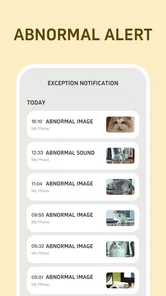
That distinction is important. The app is useful when I am already available to look at the screen. It is less suitable when I need guaranteed alerts, continuous recording, night vision, or a carefully engineered security system. In the evening example, it reduces interruptions. It does not remove the need for responsible supervision.
The same pattern works for pets. I can check whether a dog has settled down after a noisy event or see whether a cat is using a new bed. For home projects, I can point the old phone at a doorway or work area and glance over without carrying the device around. These uses benefit from the app’s flexibility because the camera can be moved whenever the situation changes.
Settings and placement choices that matter most
I would not begin by chasing the highest possible image quality. The first setting to check is the camera selection. If the phone offers more than one camera, the useful choice depends on the scene: a rear camera may give a better view when the handset is positioned facing outward, while a front camera can be easier when I need to see the device’s screen and align it from the same side.
Next, I check orientation. A portrait view can be convenient for a narrow hallway, while a landscape view usually makes more sense for a room or play area. The best orientation is the one that shows the important zone with the least empty space. A wider-looking image is not automatically more useful if the subject becomes too small to recognize.
Lighting deserves more attention than many people expect. An old phone may produce an acceptable image in a bright room but struggle when the main light is behind the subject. I place a lamp or room light so that it illuminates the area being monitored rather than shining directly into the lens. This small adjustment often improves practical visibility more than changing a resolution option.
Focus and exposure can also affect the result. If the app or phone leaves the camera trying to compensate for a bright wall or window, I reposition the device first. I avoid placing the lens close to reflective surfaces, glass, or a television, since glare and changing brightness can make the picture harder to interpret. These are not glamorous tweaks, but they are the kind of details that separate a useful monitor from a blurry phone pointed at a room.
Connection stability is another early check. I test the camera from the exact location where it will be used, not only beside the router. Walls, distance, and household network traffic can change the experience. If the picture is unreliable at the final position, moving the phone a little closer to the access point may help more than repeatedly restarting both devices.
I also check the phone’s power behavior. Some older devices become warm during extended camera use, especially while charging. I leave ventilation around the phone instead of covering it with fabric or placing it in a tight enclosure. A stand that keeps the camera upright and the charging port accessible is a better long-term solution than balancing the phone against books.
Privacy is part of the setup as well. I point the camera only at the area that needs monitoring and avoid capturing private spaces unnecessarily. I tell other people in the home when a phone is being used as a camera. The app’s convenience should not encourage casual surveillance, and a spare phone should be treated with the same care as any other camera.
The pricing model is worth noticing before making the app part of a regular routine. The application is free, while optional in-app purchases range from $1.99 to $29.99 per item. I would first establish whether the basic workflow solves my problem before paying for anything. A purchase may be reasonable if it removes a limitation that matters to my use, but I would not spend simply because a temporary camera setup feels clever.
How I make the picture easier to use
I use a three-step placement check. First, I frame the area where activity is most likely. Second, I walk through that area while watching the viewer, checking whether my body disappears behind furniture or falls outside the frame. Third, I leave the room and return once more, because the view can look fine from directly in front of the phone but fail from the actual angle of approach.
This habit is especially useful for doors and hallways. A camera pointed straight at a wall beside the entrance may technically show movement, but it will not show enough context to understand what happened. A slightly diagonal position often gives a better balance between the doorway and the surrounding space.
For a pet, I place the phone low enough to see the animal’s resting area but high enough that it cannot knock the device over. For a child’s room, I avoid placing the phone within reach and make sure the charging lead is safely managed. The app cannot solve poor physical placement, so the user’s setup decisions remain central to the result.
Faster patterns for people who use it repeatedly
Once the basic connection works, I create a routine instead of treating every session as a fresh experiment. I keep the old phone’s stand and charging cable together, mark the preferred camera position, and use the same viewer device whenever possible. This reduces the small delays that otherwise make a quick check feel more complicated than it should.
I also give each use a clear purpose. One arrangement may be for the front entry, another for a pet area, and another for a temporary project. I do not try to make one position serve every situation. A camera that is excellent for a doorway may be poor for a wide living room, and constantly moving it makes the setup less reliable.
A useful shortcut is to prepare the physical environment before opening the app. I clear the lens, connect power, place the phone, and check the light first. Then I start the camera and viewer. This order avoids spending time troubleshooting a software connection when the real problem is a blocked lens, a loose cable, or a device facing the wrong direction.
For short monitoring sessions, I keep the viewer within reach and glance at it at sensible intervals rather than staring continuously. This is more comfortable and matches the app’s role as a visual aid. If I need constant attention, I would rather stay physically nearby or choose equipment designed for that level of supervision.
Another practical habit is to test the complete arrangement after any change. Moving the phone by only a small amount can alter glare, focus, and the visible area. I reconnect after changing the network, switching camera orientation, or updating the phone’s power settings. The extra check takes little time and prevents false confidence later.
The app is also useful as a temporary second viewpoint during home tasks. While assembling furniture, I can place the old phone where it shows the work area and keep the viewer nearby. This lets me check alignment or observe a hard-to-see corner without repeatedly moving around. It is not a professional inspection camera, but the flexibility of using a spare handset is valuable for occasional jobs.
For remote family situations, I would be more cautious. A phone-based camera can help someone check a nearby room, but I would not assume that the connection will remain available indefinitely or that the system offers the safeguards of a dedicated service. If the purpose involves an older person living alone, valuable property, or a serious safety concern, reliability and emergency features should take priority over convenience.
Where the usual alternatives are stronger
A dedicated indoor camera normally wins for permanent installation. It is built to stay in one place, often has a more suitable stand, and may include features such as motion alerts, recording controls, or night-oriented hardware. Droid Cam Link is more attractive when I already have an unused phone and need a flexible view without buying another device.
A video-calling app can provide a similar visual connection, but it is usually organized around conversations rather than household monitoring. Droid Cam Link feels more focused on the camera-to-viewer arrangement. On the other hand, a video call may be preferable when I need to speak with someone immediately instead of only looking at a room.
Cloud-based smart-home systems can be easier for checking a camera from far away, but they may involve accounts, subscriptions, or a more involved setup. This app’s appeal is its lightweight, repurposed-hardware approach. The trade-off is that I should not expect the same polished remote-management experience as a complete smart-camera ecosystem.
Advanced limits that should shape your decision
The biggest limitation is that an old phone remains an old phone. Battery health may be poor, the camera may be modest, and the device may slow down under sustained use. Even if the app connects correctly, the overall result depends heavily on the handset’s camera, network hardware, screen, and power condition.
Heat is another practical concern. Continuous camera use and charging can make a tired device uncomfortable or unstable. I would not hide the phone under a cushion, inside a closed cabinet, or behind thick objects to make it less visible. If the phone becomes hot, I stop the session and improve airflow rather than forcing it to continue.
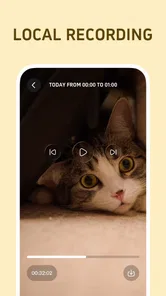
There is also a difference between seeing a live view and having a record of events. I use the app for observation, not as proof that something happened. If I need dependable evidence, scheduled recording, event history, or notifications when nobody is watching, I would choose a purpose-built camera system with those functions clearly designed into it.
Network dependence can create another weak point. A setup that works perfectly in one room may be less dependable at the edge of the home network. I test it at the intended location and avoid placing the camera where a brief connection interruption would create a serious risk. For casual checks, a short interruption may be harmless; for security monitoring, it is a reason to choose a different tool.
I would also skip this app if the main goal is discreet surveillance. A phone is visibly a phone, and responsible use requires consent and sensible placement. The fact that an old handset can become a camera does not change the privacy expectations of people who may appear in its view.
Compatibility deserves a quick check before installing it on an especially old device. The listed minimum operating system is Android 7.0, so phones below that level are not the right starting point. The app is presented as an Android utility, which makes it most suitable for readers who already have compatible Android hardware available for the camera role.
The application was released on February 9, 2026, and its current version is 1.3.0. Those details matter mainly because I would keep expectations realistic: it is a relatively new, focused tool rather than a household name with years of visible history. I would test it with a low-stakes use first, then decide whether it deserves a permanent place in my home routine.
Who should use it and who should pass
I recommend it to someone with a spare Android phone who wants a temporary indoor view, a simple way to check a nearby room, or a low-cost experiment before buying dedicated hardware. It is particularly appealing to practical users who do not mind arranging a stand, managing power, and checking the network themselves.
I would point a less technical user toward a dedicated camera if they want something that can be installed once and forgotten. I would also suggest another option for anyone who needs dependable alerts, long-term recording, remote access from outside the home, or purpose-built night monitoring. Droid Cam Link can be useful without being the right answer to every home-camera problem.
My final impression is positive but measured. The app gives an old phone a clear new role and can make everyday monitoring more convenient when I stay involved in the setup. Its value comes from flexibility, low initial cost, and the ability to reuse hardware already sitting in a drawer. Its weaknesses come from the same source: the quality and reliability of the experience depend on that old phone and the surrounding network.
For me, the best way to use Droid Cam Link: Remote Monitor is as a repeatable, short-term household workflow: prepare the phone, place it carefully, check the view, keep it powered safely, and use the viewer when I need a quick look. I would not treat it as a replacement for a full security system, but I would happily keep it in mind for pets, rooms, home projects, and other situations where a spare phone can solve a small problem without adding another device to the shopping list.
That makes the app easy to recommend to the right person. If you already own compatible Android hardware and value practical reuse more than automation, it is worth trying for free. If your priority is hands-off protection, guaranteed availability, or advanced camera management, spend your effort comparing dedicated alternatives instead.
Droid Cam Link: Remote Monitor Frequently Asked Questions
Is Droid Cam Link: Remote Monitor free to download, and are there in-app purchases?
Droid Cam Link: Remote Monitor is free to download, so you can try setting up a phone as a camera without paying upfront. The app also offers in-app purchases, with items priced from $1.99 to $29.99. Check the purchase details in the app before confirming anything, especially if you only need basic remote viewing rather than additional features.
Which phones can install Droid Cam Link: Remote Monitor?
The app is listed for Android devices running version 7.0 or later, so check your phone’s software version before downloading. Its intended use involves setting one device up as a camera and another as a viewer, so consider whether you have compatible devices available for both roles. The app is rated Everyone and is published by Hefei OneSevenRead Technology Co., Ltd.
What is Droid Cam Link: Remote Monitor used for?
Droid Cam Link: Remote Monitor is designed to turn a compatible smartphone or tablet into a remotely viewable camera. It can be useful for checking a room, monitoring pets, watching a workspace, or using an older device as a basic security camera. After installation, users generally connect the camera device and viewing device through the supported connection method, then access the live video feed remotely.
How do I connect two devices with Droid Cam Link: Remote Monitor?
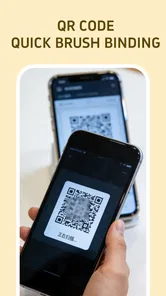
The usual setup requires installing the application on the device that will act as the camera and configuring another compatible device as the viewer or monitor. Depending on the app version, the connection may rely on the same Wi-Fi network, a pairing code, or another in-app connection process. Carefully follow the on-screen instructions, and make sure both devices have network access and the necessary permissions enabled.
Does Droid Cam Link: Remote Monitor work without an internet connection?
Whether the app works without internet depends on its connection mode and the features available in the installed version. A local Wi-Fi connection may be enough for viewing a camera on the same network, while remote access from outside the home usually requires internet connectivity. Users should also remember that network quality, router settings, and mobile data restrictions can affect reliability and video performance.
Pros
- Turns an Android phone into a handy wireless security camera.
- Remote viewing helps monitor rooms
- pets
- children
- or entryways.
- Simple setup makes it accessible for users with limited technical experience.
- Useful for checking a space without buying dedicated surveillance hardware.
- Compact app can extend the life of an older spare smartphone.
Cons
- Video quality depends heavily on the phone’s camera and network strength.
- Continuous streaming can drain the phone battery quickly.
- Remote monitoring may require keeping the phone plugged in for long sessions.
- Privacy risks increase if the camera or account is poorly secured.
- Some features may be limited by device compatibility or app permissions.