DreamShot - AI Image & Video
- 8.00
- 3.6
- Installs
- 100.00K
- Price
- Free

Screenshots
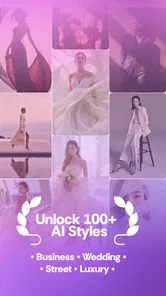
Analysis by Reviewed
I would approach DreamShot as a focused creative tool rather than a full video-editing suite. Its appeal is the promise of turning personal photos into polished-looking portraits and AI-made visual content without asking you to learn a complicated editing workflow. That makes it interesting if you want a quick starting point for a profile picture, a social post, or an image with a more stylized feel. It is less compelling if you expect detailed control over every edit or need a dependable editor for a finished video project.
In the video and photo editing space, apps often fall into two broad camps: hands-on editors that give you layers and fine adjustments, and generators that trade some control for speed. DreamShot sits closer to the second camp. I’d judge it by how easily it helps you reach a result you actually want, how much revision it allows, and whether the output suits your intended use—not simply by how striking an AI image looks in a preview.
What to decide before you start
I’d begin by deciding what you need the finished image to do, because a playful social portrait and a trustworthy work profile call for different standards. I’d also set a limit on how much time I want to spend comparing generated versions; that makes it easier to tell whether the tool is saving effort or just moving it into selection. With that goal clear, it becomes easier to see where DreamShot is most useful.
Is a generated look what you want?
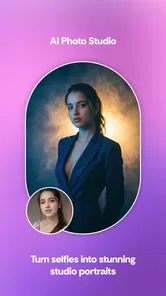
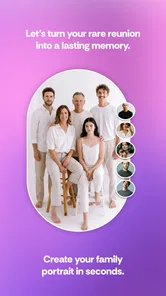
The key question is whether you want to create an image from a personal photo or refine a picture through deliberate, manual editing. DreamShot is aimed at AI-generated visuals and studio-style headshots, so it makes most sense when you are open to the app interpreting your source image. If you want to correct a specific detail, preserve every feature exactly, or match a precise brand style, a conventional editor may be a safer choice.
I would also think about where the result will appear. A playful social image can tolerate a little visual surprise; a professional profile photo needs to look recognizably like you. Before spending time on a full set of generations, try one image and inspect the face, hair, clothing, and background at normal viewing size. A thumbnail can look convincing while a detail becomes distracting once you zoom in.
Fast results versus careful control
AI tools can make the first step feel easy, but ease at the start does not guarantee an effortless finish. You may need to choose a source photo carefully, compare several results, and decide whether the output feels natural enough for its purpose. For a casual post, that process can be a welcome shortcut. For a headshot that represents you at work, I’d allow time to review the result instead of treating the first attractive image as final.
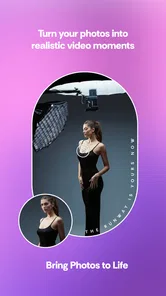
This distinction also helps set expectations around video. DreamShot is listed among video players and editors, but its central creative pitch is AI-generated imagery and video. I would not choose it on the assumption that it replaces a timeline editor for trimming, arranging clips, or building a carefully paced project. If those controls are your priority, compare it with an editor built around manual assembly.
More From Our News Desk

 Gmail
GmailGmail in a Busy Inbox: Who Benefits Most?
From first account to crowded workday, Gmail earns its place through dependable search and flexible sorting—but its best fit depends on how much inbox maintenance you can tolerate.

 Prime Video
Switching to Prime Video: What Changes in Your Viewing Routine
Prime Video can make a compelling second home for streaming, but switching means learning a different catalog, rental layer, and route from browsing to playback.

 Universal TV Remote Control
Universal TV Remote Control Works Best as a Reliable Backup
A phone remote earns its place through quick setup and reliable habits. Here is how to get more from Universal TV Remote Control—and where its limits show.

 Weather - By Xiaomi
Weather by Xiaomi Review: Clear at a Glance, Less Clear Up Close
Xiaomi’s weather app makes everyday forecasts quick to scan, but its calm surface can leave useful details and recovery paths harder to find than they should be.

 X
XX Under Pressure: Can It Recover When Posting Goes Wrong?
A resilience-focused review of X, examining setup, mistaken posts, interruptions, weak connections, and the gaps that matter when recovery needs to be dependable.

 Clash of Clans
Clash of Clans Is Won Between the Battles
Its raids are quick; its community is a long-term project of coordination, teaching, rivalry, and shared responsibility—with all the friction that entails.
Latest News



Where DreamShot makes the most sense
The best fit is a one-off visual task where a polished portrait or a fresh creative direction matters more than exact, repeatable edits. I’d use a clean source photo and compare the result at full size before sharing it, especially if other people will rely on it as a faithful likeness. That focused use is quite different from expecting the app to manage an entire editing project.
A low-friction route to a new portrait
The strongest use case is a person who needs a refreshed portrait but does not want to organize a photo shoot or spend a long time retouching. A clean, well-lit selfie gives an AI portrait tool a more useful starting point than a blurry or heavily filtered picture. I’d take a few source photos with different angles and simple backgrounds, then test the one that looks most like the image I want to end up with.
That small preparation step is more valuable than it sounds. If you upload a picture with busy surroundings, strong shadows, or objects close to your face, the app has more visual material to interpret. A plain background and an unobstructed face make it easier to judge whether the generated result is a genuine improvement. I would keep the original photo nearby too, so I can compare the finished image rather than relying on memory.
Everyday social content without a full editing session
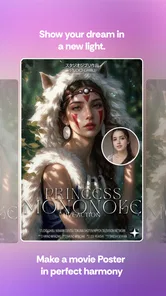
Imagine you are preparing a quick post for a personal account and the photo you took is usable but not quite the mood you had in mind. A generator can be a convenient way to explore a more polished or imaginative direction before you commit to posting. I’d treat those outputs as creative options, not automatic upgrades: the best-looking version is not always the one that feels most like you or fits the audience.
DreamShot may also suit someone who makes occasional visuals but does not want to learn a desktop workflow. The benefit is not that AI removes all creative decisions; it shifts them. Instead of adjusting every parameter by hand, you spend more effort choosing a source image and evaluating the alternatives. If that trade-off sounds appealing, the app’s focused approach could save time.
How I would evaluate its results
For a headshot, I would check whether the face remains familiar, whether the lighting looks plausible, and whether the background competes with the subject. For an artistic image, I would be more forgiving about realism but still look for obvious inconsistencies. This is a useful habit with any generative app: decide what matters for the intended use before judging the output, rather than letting a dramatic style distract from a practical flaw.
I would also keep a distinction between “good enough to share” and “ready for a formal profile.” A generated picture that works well in a casual post may not be appropriate for a résumé, company directory, or account where people expect a straightforward likeness. If authenticity matters more than polish, a real photo with light manual edits is usually the more dependable route.
Where another kind of app may fit better
If I needed to preserve every detail, make precise adjustments, or assemble a sequence of clips, I’d look first at a conventional editor. A new camera photo or portrait service can also be the simpler choice when authenticity is the priority. The useful question is not which type of app is universally better, but which one reduces the work that matters for this particular result.
Choose a conventional editor for precision
If your main goal is to crop footage, arrange clips, add a specific title, or make small corrections without changing the character of the original image, a traditional editor is likely a better fit. Those tools are designed around direct control. DreamShot’s attraction is the possibility of a transformed result, so there is a natural trade-off: less hands-on work can also mean less predictability.
For a multi-part video, I would plan the project in a dedicated editor and use an AI generator only for a particular visual asset if that is what you need. Keeping those roles separate can prevent frustration. A generator may help with ideation or a standout image, while an editor handles the structure and finishing work. I would not assume one app has to do both jobs equally well.
Choose a camera or portrait service when fidelity matters
If you need a dependable, accurate likeness for official or professional use, taking a new photo under good lighting may be simpler than repeatedly trying to steer a generated one. A portrait service can also be a better option when you want consistent framing and a result that looks like a conventional photograph. The right choice depends on whether you value speed and creative variation more than direct control over the final appearance.
There is also a practical privacy consideration with any app that processes personal photos: think carefully before using images of other people or sensitive situations. I would start with a photo I am comfortable using for this purpose and review the app’s current privacy information before uploading anything more personal. That is a sensible check for image-generation tools in general, not a claim about a particular policy.
Expect a learning curve in the selection, not just the editing
AI creativity can feel effortless when an early result works, but choosing among alternatives is still a task. If you tend to prefer exact, repeatable edits, the variability may be a drawback. If you enjoy comparing interpretations and can accept that some attempts may miss the mark, that same variability can be part of the appeal.
My practical tip is to define a stopping point before you begin. Decide whether you need one usable profile image or are exploring styles for fun, then stop once you have a result that meets that goal. Otherwise, it is easy to spend more time comparing variations than you would have spent making a simple manual edit.
Price, access, and the cost of switching
I’d treat the free install as a chance to test whether its visual style works for me, then consider an in-app purchase only after checking what it unlocks for my intended task. The listed items range from $9.99 to $34.99, so I would avoid paying on the strength of a preview alone. Keeping my regular editor available also makes trying DreamShot a low-commitment experiment.
What the free entry point means in practice
DreamShot is free to install, with in-app purchases listed from $9.99 to $34.99 per item. I would try the free experience first and only consider paying after confirming that the app’s results suit the kind of image I actually need. Before buying, check what each purchase unlocks and whether it matches your intended use; a price range by itself does not tell you which option is worthwhile.
The app is developed by DooMoon and has a 3.6 average from around 470 ratings, with 100K+ installs. That gives a prospective user some context, but I would not treat popularity or the average as a substitute for testing it against your own photos. People may have very different expectations of an AI portrait tool: one user wants a playful transformation, while another expects a natural professional headshot.
It is rated for Everyone, and the current version is 0.4.0. Those details are useful context, but they do not answer the more personal question of whether the generated style suits you. I’d base that decision on a short trial and a careful look at the output, especially before relying on it for a work profile or paying for additional access.
Switching is easy if you keep your workflow simple
Trying DreamShot does not require you to abandon your usual editing app. You can treat it as a separate experiment: use it for a portrait or visual concept, then return to your regular editor if you need precise cropping, text, or a sequence of clips. That split workflow is a sensible way to test its value without making it responsible for every stage of a project.
The main switching cost is attention. You need to select suitable source images, assess whether the generated versions preserve the qualities you care about, and decide if a paid option is justified. If you are already comfortable with a manual editor and only need a small adjustment, moving to an AI workflow may add more decisions than it removes.
DreamShot is available for devices running Android 9 or later. If you are choosing it for a shared family device or an older phone, check compatibility before planning a workflow around it. For an occasional experiment, that is a small hurdle; for someone who needs to make content regularly, device fit and a repeatable process matter more.
My recommendation
My recommendation comes down to how much creative variation you welcome. If you want a quick AI-assisted portrait or an image idea and can judge the result critically, I think it is worth trying; if fidelity, precise control, or a complete video workflow matters most, I’d choose another tool. In either case, I’d start with one suitable photo and a clear purpose before investing more time or money.
Who I would recommend it to
I’d recommend DreamShot to someone who wants to explore AI-assisted portraits or create a distinctive image without learning a detailed editing suite. It is especially appealing if you are comfortable treating generated results as drafts to compare, rather than expecting a single tap to produce a perfect, faithful photograph. For a quick social image or a fresh profile-photo idea, that balance can be useful.
I would be more cautious if you need precise control, consistent professional branding, or a video editor built around assembling and refining clips. In those cases, a conventional photo or video editor—or simply taking a new photograph—may be the more reliable tool. The app’s 3.6 average is a reason to keep expectations measured, not a verdict that it will or will not suit your particular use.
How I’d try it before committing
Start with a clear selfie, choose a purpose for the result, and judge the image at full size rather than only in a preview. Check whether the face still looks like you and whether the style feels appropriate for the place you plan to use it. If it does, explore further; if it does not, switch to a manual edit or a fresh photo instead of chasing a result that the app may not be suited to deliver.
Overall, I see DreamShot as a targeted creative option, not an all-purpose replacement for editing. Its value depends on whether you enjoy the speed and variation of AI-generated visuals enough to accept a less hands-on process. If that is the trade you want, it is worth trying; if accuracy and control come first, I’d choose a different route.
DreamShot - AI Image & Video Frequently Asked Questions
What is DreamShot - AI Image & Video?
DreamShot is an AI-powered creative app designed to turn text prompts or other provided inputs into images and video-style content. It may offer tools for generating visuals, trying different looks, and saving or sharing results. The exact features and available generation options can vary by app version, device, and account, so check the current store listing before downloading if you need a particular tool.
How do I create an image or video with DreamShot?
The usual workflow is to open the relevant creation tool, describe the scene or style you want, choose any available settings, and start generation. Clear prompts with details about the subject, mood, colors, and composition can help guide the result. Video generation may take longer or have different limits than image creation; follow the in-app instructions, since options and steps can change between versions.
Is DreamShot free to use, or does it require a subscription?
Availability of free generations, paid plans, and in-app purchases can change over time and may differ between Android and iOS. Review the app’s store page and its pricing screen before starting, paying particular attention to trial terms, renewal frequency, and generation limits. If you begin a subscription, manage or cancel it through the relevant Google Play or Apple account settings.
Does DreamShot require an internet connection, and what happens to my prompts or images?
AI image and video generation commonly relies on online processing, so an internet connection may be required for creating content and accessing account features. Prompts, uploaded files, and generated results may be handled according to the developer’s privacy policy. Before sharing sensitive material, check the permissions requested, the policy’s data-retention details, and whether the app provides controls to delete content or account data.
Can I use DreamShot’s generated images and videos commercially?
Commercial-use rights depend on DreamShot’s current terms, the type of content generated, and any restrictions that apply to your account or subscription. Do not assume that every result is cleared for advertising, resale, or business use. Read the app’s terms and any copyright or content-policy guidance before publishing or monetizing creations, and make sure your prompts and uploaded materials do not infringe someone else’s rights.
Pros
- Quickly generates images and videos from text prompts.
- AI tools make creative editing accessible to beginners.
- Useful for creating social media visuals and concepts.
- Offers a convenient way to explore different visual styles.
- Combines image and video creation in one app.
Cons
- AI results may not match the prompt precisely.
- Generation quality can vary between styles and requests.
- Creating videos may take longer than generating still images.
- Some features or generations may require payment or credits.
- Requires an internet connection for AI generation.