

Blackmagic Camera
- 478.00
- 4.6
- Installs
- 1.00M
- Price
- Free

Screenshots
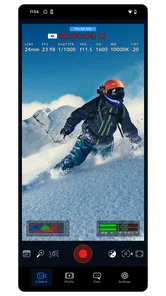
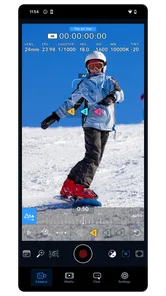
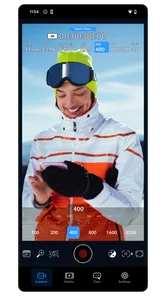
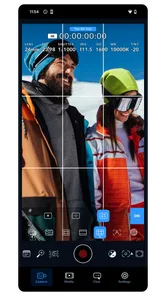
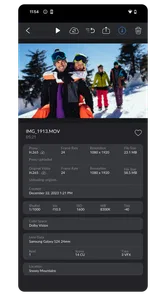
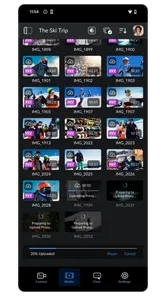
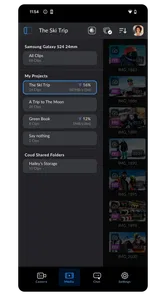
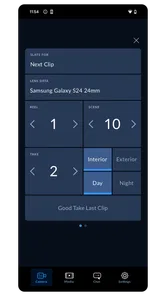
Analysis by Reviewed
On a first launch, Blackmagic Camera can look like a lot of camera for a phone, but I wouldn’t let the controls put you off. You can get a useful clip without touching every setting. I’d start with one simple goal: keep a subject in focus and make the image look steady from shot to shot. Once that feels comfortable, the extra choices become easier to understand.
What to expect from a more hands-on camera
This free photography app comes from Blackmagic Design Inc., the company behind DaVinci Resolve. It has a 4.7 average from around 7,200 ratings, and more than a million installs. It is rated for everyone, though its focus on filming controls will matter most to people who want to shape their footage instead of simply tapping record.
Compared with the standard camera app on a phone, the appeal here is control: you can adjust focus, exposure, and white balance rather than relying entirely on automatic decisions. The trade-off is attention. If you are trying to capture a fleeting moment, the usual camera app may be faster; if you have a few seconds to prepare a shot, these controls can help keep its look consistent.
Unleashing the Magic
If you're into filming or even just creating video content for fun, you've probably heard of Blackmagic Design. They're the masterminds behind the popular DaVinci Resolve. The Blackmagic Camera app borrows some of that cinematic magic and brings it right to your smartphone. The first thing I noticed was how intuitive the interface is. It doesn't bombard you with overwhelming options, yet it offers a plethora of features that make filming seamless and professional.
Features That Stand Out
One of the standout features of this app is its ability to shoot in 4K. I mean, who doesn't want to capture their moments in ultra-high definition? Not just that, but the app supports a range of frame rates, allowing you to get that slow-motion effect perfectly. It’s like having a mini professional camera in your pocket.
Another feature I found super useful is the manual control over focus, exposure, and white balance. For anyone who's serious about the quality of their videos, these controls are a godsend. You can tweak your settings to match the lighting conditions perfectly, ensuring your footage looks crisp and professional.
Starting simple, then building a routine
On your first outing, I would keep the setup modest: choose a scene with steady light, frame it, and make one adjustment at a time. Set focus on the subject, then check exposure before changing white balance. That order makes it easier to see what each control is doing, and it gives you a useful baseline for the next clip rather than a pile of unexplained changes.
More From Our News Desk

 Gmail
GmailGmail in a Busy Inbox: Who Benefits Most?
From first account to crowded workday, Gmail earns its place through dependable search and flexible sorting—but its best fit depends on how much inbox maintenance you can tolerate.

 Prime Video
Switching to Prime Video: What Changes in Your Viewing Routine
Prime Video can make a compelling second home for streaming, but switching means learning a different catalog, rental layer, and route from browsing to playback.

 Universal TV Remote Control
Universal TV Remote Control Works Best as a Reliable Backup
A phone remote earns its place through quick setup and reliable habits. Here is how to get more from Universal TV Remote Control—and where its limits show.

 Weather - By Xiaomi
Weather by Xiaomi Review: Clear at a Glance, Less Clear Up Close
Xiaomi’s weather app makes everyday forecasts quick to scan, but its calm surface can leave useful details and recovery paths harder to find than they should be.

 X
XX Under Pressure: Can It Recover When Posting Goes Wrong?
A resilience-focused review of X, examining setup, mistaken posts, interruptions, weak connections, and the gaps that matter when recovery needs to be dependable.

 Clash of Clans
Clash of Clans Is Won Between the Battles
Its raids are quick; its community is a long-term project of coordination, teaching, rivalry, and shared responsibility—with all the friction that entails.
Latest News



A practical first success could be a short video of making coffee by a bright window. Lock your attention on the cup or your hands, avoid shifting between a bright window and a dim counter mid-shot, and record a few seconds before reviewing the result. If the image looks too bright or the color feels off, adjust one setting and shoot again. This small comparison teaches more than exploring every menu at once.
The User Experience
Using the app felt like a breeze. The developers have clearly put a lot of thought into making it user-friendly. Whether you're a tech-savvy individual or someone who's just starting out, you'll find navigating through the app to be straightforward. The menus are logically arranged, and everything you need is just a tap away.
One thing I particularly loved was the app's responsiveness. There was no lag when switching between different modes, and the real-time feedback on adjustments was pretty impressive. It's like the app was reading my mind!
Small choices that improve a shoot
For a talking clip, sound deserves a check before you start: the app supports external microphones, so you can use one when clearer speech matters more than the convenience of recording with the phone alone. I would make a brief test recording and listen back, especially in a room with a fan or other background noise. Better image controls cannot rescue audio that is hard to understand.
Frame rate is another choice worth making before filming. A slower-looking effect can suit a deliberate action, but it is not automatically better for a casual clip; matching the setting to the movement keeps the result from feeling like an effect added for its own sake. If you are filming an event that will not happen again, prioritize getting the moment over experimenting with settings.
Storage and battery are practical considerations whenever you record high-resolution video. Before a longer session, I would make room on the phone and start with a charged battery. That is especially helpful for a walk, a family gathering, or a series of takes, where stopping to manage the phone can break your rhythm.
Version 3.2.1.0001 is the current release, and the app was released on June 3, 2024. I would still check how the controls behave on your own phone before relying on a carefully planned shoot: camera hardware and available options can differ between devices. A quick test in the lighting you expect is more useful than assuming every phone will produce the same result.
Also, the app supports external microphones, which is a huge plus. If you're serious about sound quality, this feature will be right up your alley. Trust me; your audience will thank you for it.
Choosing the right tool for the moment
The useful comparison is not simply “professional app versus basic app.” A phone’s default camera is often the better choice when someone suddenly waves from across the room, when you need a quick photo, or when you want the phone to make decisions without interruption. Blackmagic Camera makes more sense when you can pause, compose, and repeat a take. For many people, keeping both options available is the sensible arrangement rather than replacing one with the other.
It also occupies a different role from an editing app. Its controls help you make decisions while recording; they do not remove the need to review and organize clips afterward. If your main problem is trimming a video or adding captions, an editor is the more direct tool. If the footage itself is inconsistent because focus or color shifts between takes, a camera app with manual controls addresses the earlier point in the process.
A practical routine for interviews and everyday clips
For a short interview, I would place the phone securely, ask the speaker to stay in a comfortable position, and check focus and exposure before the conversation begins. Then I’d record a brief test and listen through the phone or headphones if available. This catches a common mistake: concentrating on the picture while overlooking a microphone that is too far from the speaker or a noisy room. The external-mic option is useful, but it does not make microphone placement irrelevant.
For a family event, I would use a lighter touch. Set up only what you can check quickly, then let the moment happen. A manual setup can help if you are recording a performance from a fixed spot, where lighting remains fairly similar, but it can become a distraction as people move between bright and dim areas. In changing light, be ready to recheck exposure instead of assuming an earlier adjustment will suit every angle.
Where manual control helps—and where it asks too much
One less obvious benefit of manual settings is repeatability. If you are filming several clips in the same room, keeping focus and white balance consistent can make them feel as though they belong together. That is handy for a small product demonstration, a cooking sequence, or a set of social posts recorded in one session. Make a note of what looked right, or simply avoid changing several controls at once; otherwise, it is hard to know which adjustment improved the image.
The same control can be a drawback when the scene changes quickly. A person walking from shade into sunlight may need a different exposure than the static shot you tested. The app gives you ways to shape the image, but it does not remove the need to pay attention to the scene. I would not choose a manual workflow for every spontaneous clip, and I would not assume that an adjustment that worked indoors will suit an outdoor shot.
High-resolution recording is appealing, but it is worth deciding what the clip is for before choosing settings. A short video intended for sharing may not need the same care as footage you plan to keep and edit. More demanding recording can make storage management and battery planning more important, so I’d test a representative clip and check that the result fits the way I actually use my phone. That avoids discovering halfway through a longer session that the workflow is inconvenient.
Who will get the most from it
I think this is a strong fit for people making short films, social videos, interviews, or family recordings where consistent focus and color matter. It can also help a beginner understand why a shot changes when lighting shifts, because manual adjustments make those choices visible. You do not need professional gear to get value from a more intentional workflow.
I would skip it when speed is the main goal: a child doing something unexpected, a quick document scan, or a casual snapshot is better served by the phone’s familiar default camera. It is also not the right choice if you never want to think about exposure or focus. The extra control is only useful when you are willing to spend a moment using it.
Questions to settle before a longer shoot
Before relying on it for an important recording, I’d ask myself three practical questions. Does my phone offer the controls I plan to use? Does the framing and focus work in the actual place I’ll be filming? And does my setup capture speech clearly enough? A short rehearsal answers these more reliably than guessing from the app’s menus. Because phone hardware differs, it is worth checking the particular camera you intend to use rather than planning around another person’s result.
If you are moving from an automatic camera app, you do not need to learn every control in one sitting. Begin with focus and exposure, then introduce white balance when you want a more consistent look across clips. If that feels like too much, return to automatic decisions for that recording. The app is most approachable when you treat manual control as an option, not a test you have to pass before you can film.
Final Thoughts
To wrap it up, the Blackmagic Camera app is a fantastic tool for anyone looking to up their videography game. It's packed with features that are both powerful and easy to use. Whether you're capturing a family event or working on a professional project, this app has got you covered.
In a world where content is king, having a reliable app like this one can make all the difference. So, if you're on the hunt for an app that blends functionality with ease of use, give the Blackmagic Camera app a shot. You might just find it becomes your go-to tool for all things video.
Blackmagic Camera Frequently Asked Questions
Is Blackmagic Camera free to download, and who is it for?
Blackmagic Camera is a free photography app from Blackmagic Design Inc. It is aimed at people who want hands-on control over video capture rather than relying only on automatic camera settings. Its professional-style controls may appeal to filmmakers and content creators, while casual users can also explore it as a camera app. The content rating is Everyone.
What are the main features of the Blackmagic Camera app?
The Blackmagic Camera app brings professional-grade video capturing capabilities to your mobile device. It offers features like 4K recording, manual control over ISO, shutter speed, and white balance, and supports various formats including Blackmagic RAW. Additionally, it provides advanced tools like focus peaking, false color, and histogram, which are essential for filmmakers and videographers.
Is the Blackmagic Camera app compatible with all devices?
The Blackmagic Camera app is designed for high-performance devices and may not be compatible with all smartphones. It requires a device with a powerful processor and a high-resolution camera to utilize its advanced features fully. Users should check the app's compatibility with their device specifications before downloading it to ensure optimal performance.
Does the Blackmagic Camera app support external microphones?
Yes, the Blackmagic Camera app supports the use of external microphones, which allows for enhanced audio quality in video recordings. This feature is particularly useful for filmmakers and content creators who need professional-level sound to accompany their high-quality video captures. Users can connect compatible microphones via the device's audio input.
What formats does the Blackmagic Camera app support for video export?
The Blackmagic Camera app supports a variety of video formats for export, including Blackmagic RAW, ProRes, and H.264. This flexibility allows creators to choose the format that best suits their editing workflow and storage capabilities. Exporting in Blackmagic RAW, in particular, is ideal for those looking to maintain the highest quality for post-production.
Pros
- Intuitive user interface for easy navigation.
- Wide range of professional features.
- High-quality video output.
- Seamless integration with editing software.
- Regular updates enhance functionality.
Cons
- Requires a powerful device for best performance.
- Some features need a learning curve.
- Higher battery consumption.
- Limited support for older devices.
- Occasional minor bugs reported.










