All Screen Receiver
- 204.00
- 2.9
- Installs
- 1.00M
- Price
- Free
Screenshots
Analysis by Reviewed
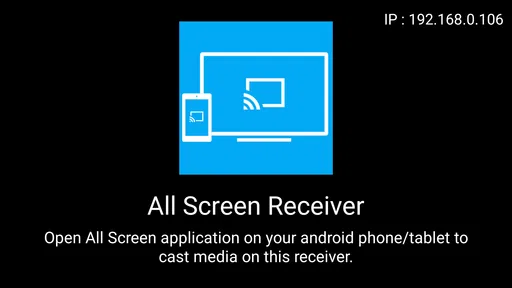
I treat All Screen Receiver as a companion in a casting setup, not as a standalone video player that can send anything anywhere. That distinction matters: the app is meant to work alongside the All Screen app, so the useful question is whether both parts fit the way you already watch or share media. For a quick photo slideshow or a video on a larger display, that pairing can be handy; if you expect one install to handle every step, the relationship may feel less obvious.
Start with a simple receiver workflow
The most sensible way to approach it is to set up the receiver on the screen or device you want to use, then use the companion app to begin sharing. I’d do a short test with a photo or brief clip before planning a movie night. That checks the basic connection while there’s still time to sort out a mismatch between devices, rather than discovering it when everyone is waiting. Since this is a receiver companion, I would not assume it replaces the sender app or works independently as a general-purpose player.
A practical everyday example is sharing a few pictures after dinner. I’d open the receiver first, make sure the intended display is ready, and then start the session from the companion app. For a one-off presentation, that sequence is also useful: test one image, confirm it appears on the larger screen, and only then move through the rest. The small rehearsal is less glamorous than tapping once and hoping, but it helps distinguish a connection issue from a file or playback issue.
Check the parts of the setup that affect reliability
Before relying on casting, I’d check that the devices are on a compatible network and that the receiving screen is actually prepared to accept a session. Those are sensible first checks for a receiver-based workflow, not secret app features. If discovery fails, I’d restart the receiver and the sending app before changing several things at once; changing one step at a time makes it easier to spot what fixed the problem.
It also helps to decide what you need before connecting. A few still images are a forgiving test, while a longer video makes network stability and device compatibility more noticeable. I would test the exact kind of media I plan to show, especially if the session matters. A smooth photo display does not automatically prove that every video file or audio arrangement will behave the same way.
Build a repeatable routine instead of hunting for shortcuts
I wouldn’t count on undocumented shortcuts or hidden controls. The useful time-saver is a repeatable order: prepare the receiving device, open the sender, test the content, then begin sharing. If you cast often, keeping that sequence in mind is more dependable than expecting the app to remember a previous destination or reconnect automatically. It also makes the setup easier to explain to someone else in the room.
For a casual gathering, I’d queue up the pictures or video I want to show before starting, rather than trying to browse and cast while people are waiting. That reduces fumbling on the phone and keeps the receiver’s role straightforward. If you are presenting something important, keep the original on your phone as a fallback. Receiver-based casting adds convenience, but it is still a chain involving the sender, the receiver, the network, and the display.
More From Our News Desk
 Instagram
’s Power Comes From Its Place in Your Phone
A close look at how Instagram turns Meta’s reach, recommendation systems and everyday camera habits into durable platform power—and what that costs users.
 Gmail
Gmail in a Busy Inbox: Who Benefits Most?
From first account to crowded workday, Gmail earns its place through dependable search and flexible sorting—but its best fit depends on how much inbox maintenance you can tolerate.
 Prime Video
Switching to Prime Video: What Changes in Your Viewing Routine
Prime Video can make a compelling second home for streaming, but switching means learning a different catalog, rental layer, and route from browsing to playback.
 Universal TV Remote Control
 Works Best as a Reliable Backup
A phone remote earns its place through quick setup and reliable habits. Here is how to get more from Universal TV Remote Control—and where its limits show.
 Weather - By Xiaomi
Weather by Xiaomi Review: Clear at a Glance, Less Clear Up Close
Xiaomi’s weather app makes everyday forecasts quick to scan, but its calm surface can leave useful details and recovery paths harder to find than they should be.

 X
X Under Pressure: Can It Recover When Posting Goes Wrong?
A resilience-focused review of X, examining setup, mistaken posts, interruptions, weak connections, and the gaps that matter when recovery needs to be dependable.
Latest News



Know when another option is a better fit
Compared with a built-in casting feature, a dedicated receiver app can be useful when its companion workflow matches the devices you have. But built-in tools may be simpler if your phone and television already work well together, because there is less to install and coordinate. A direct cable can be a more predictable choice for a presentation where network discovery is unwelcome, while a regular media player is better if all you want is to play a file on the phone itself.
That is the main trade-off I’d weigh: this app is aimed at a particular sender-and-receiver arrangement, not every possible screen-sharing need. If you want mirroring for games, low-latency interaction, or a universal solution across unfamiliar hardware, I would test the setup carefully or choose a tool designed around that specific use. For occasional sharing of photos and video, the extra receiver step may be perfectly reasonable.
Developed by Swastek, this free app sits in the video-player and editing space, though its role is more about receiving shared media than editing it. It is rated for Everyone, has a 2.9 average from around 2,400 ratings, and has passed 1 million installs. It first appeared on September 10, 2016; version 1.0.55 lists Android 4.4 as its minimum requirement. Those figures suggest a long-running utility with a mixed reception, so I’d approach it as a practical tool to test against your own devices rather than assume it will be a perfect fit.
The mixed rating is a reason to keep expectations measured, not a verdict on every setup. Receiver apps can feel effortless when the devices cooperate and frustrating when discovery or compatibility gets in the way. I would install it only if I have a clear use for the companion arrangement, then check whether it behaves consistently with the media I actually plan to share. That is a more useful test than relying on a broad promise of casting.
Choose a first test that answers the right question
When I’m deciding whether this kind of receiver belongs in my routine, I separate two questions: can the devices find each other, and does the content I care about play acceptably? A single photo answers only the first part. If the real plan is to show a long clip, test a clip of similar length and type before you depend on the setup. This is a small but useful distinction because a successful connection can create false confidence about the rest of the session.
I’d also test from the place where I expect to use it. A receiver that works beside the television may behave differently once the phone is across the room or the display is in another part of the home. Rather than treating that as a flaw in isolation, use the test to learn where the arrangement is dependable. For a familiar living-room setup, that may be enough; for a meeting room or a relative’s unfamiliar television, I’d bring a fallback plan.
Make sharing easier for the people watching
There is a social side to casting that is easy to overlook. If friends or family are waiting, the person holding the phone becomes the operator, so it helps to decide the order of photos or videos before connecting. I would avoid handing the phone around mid-session unless that is part of the plan: the receiver workflow is simplest when one person manages the sender and everyone else can just watch.
For a family slideshow, I’d pick a small set of images in advance and keep the phone unlocked and nearby, rather than pausing repeatedly to search through a large library. For a work presentation, I’d use a short opening slide or image as a check, then keep the relevant files close at hand. These habits do not add new app capabilities, but they reduce the most common sources of awkwardness: indecision, accidental interruptions, and discovering too late that the chosen media is not suitable.
Where convenience stops being enough
The receiver approach is most appealing when the goal is simple viewing on a bigger screen. It is less compelling when the phone itself must be mirrored precisely, when fast interaction matters, or when you need to control a presentation with no tolerance for interruptions. In those situations, a television’s own casting tools, a wired connection, or a dedicated presentation setup may be a better match. I would choose the method based on the consequence of failure, not just on which one takes fewer taps to try.
There is also a practical difference between occasional and routine use. If I only share a few pictures now and then, learning the receiver-and-sender sequence is a modest investment. If I need to connect to many different displays, the extra dependency on compatible devices and network discovery may become a recurring nuisance. In that case, I would first check whether a built-in option already covers the places I visit most often, and keep this pairing for the setups where it proves reliable.
A measured fit for a specific kind of sharing
Let me take you on a journey through the world of All Screen Receiver, a nifty little app that’s been making waves in the connectivity space. You know how we often struggle with casting our phone screens onto our TV without a hitch? Well, this app is here to save the day. When I first stumbled upon it, I was skeptical, but after giving it a whirl, I have to say, it’s quite impressive.
Seamless Connectivity: A Game Changer
First things first, the setup was a breeze. All Screen Receiver doesn’t make you jump through hoops to get started. Just download, follow the on-screen instructions, and you’re good to go. I found myself hooked right from the get-go because, honestly, who has time for complicated setups? The app supports a myriad of devices, so it doesn’t matter if you’re Team Android or Team iOS; you’re covered.
Features That Stand Out
What really caught my eye were the diverse features. You can stream videos, photos, and even music. Imagine showing your holiday snaps on the big screen with just a few taps. It’s like having a personal cinema at home, minus the sticky floors and overpriced popcorn. One of the standout features for me was its ability to support multiple formats. Whether it’s MP4, MKV, or even AAC, All Screen Receiver doesn’t discriminate. This versatility is a huge plus in my book.
Furthermore, it’s worth mentioning the app’s user interface. It’s intuitive, clean, and doesn’t try to overwhelm you with unnecessary clutter. This is crucial because, at the end of the day, an app that’s easy to navigate is one you’ll actually use. Trust me, I’ve seen my fair share of apps that are more confusing than calculus!
Performance and Reliability
When it comes to performance, All Screen Receiver delivers a smooth experience. During my testing phase, I didn’t encounter any noticeable lag or stutter. The connection remained stable, which is a relief because there’s nothing more frustrating than a stream that keeps buffering. It’s like the app understands our modern-day impatience and caters to it perfectly.
Reliability-wise, it’s been solid. Whether you’re streaming a movie night with friends or showing off your latest vacation videos, you can count on it to perform consistently. And that peace of mind, my friends, is invaluable.
Who should make room for it?
I’d recommend considering it if your main goal is to receive shared media on a screen and you are comfortable using the matching sender app. The clearest fit is someone who occasionally wants to show phone photos, a personal video, or music to other people without passing the phone around. It may also suit a household where the same devices are used repeatedly, since a familiar routine makes receiver-based sharing less of a chore.
I would skip it if you expect a standalone player, a universal answer for every television, or dependable screen mirroring for interactive tasks. People who mainly watch on their phones do not gain much from adding a receiving step, and anyone presenting under time pressure should test the exact arrangement first. The app’s free price makes trying it less of a commitment, but it does not remove the need to confirm that the sender, receiver, network, and screen work together.
Why You Should Give It a Go
In conclusion, if you’re on the lookout for an efficient, user-friendly casting app, it should definitely be on your radar. It doesn’t just promise seamless connectivity; it delivers on that promise. From its straightforward setup to its robust performance, it ticks all the right boxes. So next time you’re in the mood to binge-watch your favorite series on a bigger screen, you know which app to turn to.
With it, your phone and TV become best buds, ready to entertain you at a moment’s notice. So, go ahead, give it a try, and see for yourself just how easy screen casting can be!
My verdict after weighing the trade-offs
My recommendation is conditional rather than universal: try it when you have a concrete receiving device and a reason to share, then judge it by a few repeatable tests instead of a single lucky connection. Keep a photo test, a short video test, and your intended everyday workflow in mind. If all three are dependable in your own setup, the companion arrangement can earn a place in your routine; if only the simplest case works, use it for that and nothing more.
The most useful expectation is modest: this is a focused piece of a casting workflow, not a guarantee that every source and screen will cooperate. That focus can be an advantage for casual sharing, but it is also why people seeking universal compatibility or a no-fuss alternative to built-in casting may prefer another route. I’d give it a fair trial when the use case fits, while keeping an easy backup for anything important.
All Screen Receiver Frequently Asked Questions
What should I check before installing All Screen Receiver?
First, make sure the device you want to use as a receiver is compatible with the All Screen app you plan to pair it with. All Screen Receiver is a companion app, rather than a standalone screen-sharing solution, so you will need the related app and a suitable receiving device. It is also worth checking that your phone or tablet meets the app’s operating-system requirements before downloading.
Who develops All Screen Receiver, and is it suitable for everyone?
All Screen Receiver is developed by Swastek and is listed for everyone. It is in the Video Players & Editors category, so its main appeal is to people looking for a way to receive streamed media on another screen. The app has an average rating of about 2.9 from roughly 2,400 ratings, which may be useful context when deciding whether it fits your needs.
What is All Screen Receiver and how does it work?
All Screen Receiver is an application that allows you to stream content from your Android or iOS device to your TV or other compatible devices. It works by connecting your device to the receiver via Wi-Fi, enabling you to display videos, photos, and other media on a larger screen. The app is user-friendly and supports various media formats, making it a versatile choice for home entertainment.
Is All Screen Receiver compatible with all devices?
While All Screen Receiver supports a wide range of devices, it is essential to check compatibility before downloading. The app works with most smart TVs, Android TV boxes, and other devices that support DLNA or Chromecast. However, some older models or less common brands may not be compatible. Always verify your device's specifications to ensure seamless connectivity.
Does All Screen Receiver require an internet connection to function?
All Screen Receiver primarily uses a Wi-Fi connection to stream content from your device to the receiver. While it does not necessarily need an internet connection to function, having one ensures smoother and more stable streaming. Without internet, you can still mirror local content stored on your device, but accessing online streaming services would require internet access.
Pros
- Allows seamless screen sharing.
- Supports multiple file formats.
- User-friendly interface.
- Fast connection setup.
- Compatible with various devices.
Cons
- Occasional connection drops.
- Limited free version features.
- Requires stable internet.
- Ads in the free version.
- Some UI elements can be confusing.