

AI Photo Lab: Generate & Edit
- 9.00
- 3.7
- Installs
- 1.00M
- Price
- Free
Screenshots

Analysis by Reviewed
I judge a photo app by two things: whether it helps me make an image I actually want to share, and whether I can make sensible choices when a picture is personal. AI Photo Lab: Generate & Edit sits at that intersection. It is a free photography app from BaseGroup, built around AI portrait creation and photo editing. Its promise is appealing, but I would treat it as a creative tool to explore rather than a place to hand over sensitive images without thinking.
Creative portraits, with trust kept in view
I look at AI portrait apps through both the image they help me make and the choices they put in front of me along the way. Here, I’d start with a simple, non-sensitive photo and pay attention to the permission prompts and explanations before editing; that keeps the first experiment low stakes. From there, the key question is whether the app gives me enough clear, visible control to feel comfortable using it again.
What the app is trying to do
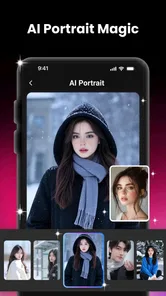
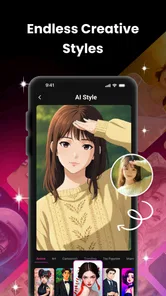
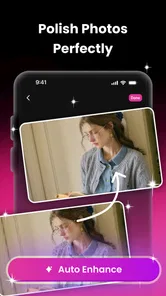
The appeal here is a quicker route from an ordinary photo to a more stylized portrait. Instead of opening a full desktop editor and adjusting every detail, I can approach the image with a specific creative goal: make a portrait feel more polished, give it a different visual character, or experiment with an AI-assisted result. That makes the app most interesting for casual creators who want options without learning a complicated editing workflow.
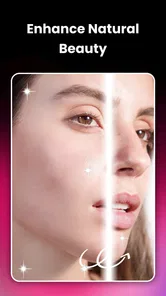
I would not confuse that convenience with a guarantee that every result will look natural. AI portrait tools can change the impression of a face, and an edit that seems attractive in a small preview may feel artificial when viewed closely. My practical advice is to compare the result against the original before sharing it, especially if the picture is meant to represent you accurately rather than serve as playful art.
The app is listed in photography and is rated for Everyone, so its intended audience is broad. That does not mean every image is a good candidate for processing. A casual selfie or a portrait made for a social post is a more comfortable starting point than an image containing a child, private paperwork, a home interior, or someone who has not agreed to an AI transformation.
Where it fits among photo editors
Compared with a conventional phone editor, the main reason to try this app is the AI-centered approach. Standard editors are usually the safer bet when I want predictable adjustments such as cropping, exposure correction, or a subtle color change. AI tools are more useful when I want to explore a new look and can accept that the output may interpret the source image rather than simply refine it.
That difference matters for workflow. I would keep the original untouched, make a separate copy for experimentation, and judge the finished image at full size before replacing anything. This simple habit is especially useful with portraits: it lets me keep a natural version for professional use while trying a more imaginative treatment for a profile picture or a personal project.
More From Our News Desk

 Gmail
GmailGmail in a Busy Inbox: Who Benefits Most?
From first account to crowded workday, Gmail earns its place through dependable search and flexible sorting—but its best fit depends on how much inbox maintenance you can tolerate.

 Prime Video
Switching to Prime Video: What Changes in Your Viewing Routine
Prime Video can make a compelling second home for streaming, but switching means learning a different catalog, rental layer, and route from browsing to playback.

 Universal TV Remote Control
Universal TV Remote Control Works Best as a Reliable Backup
A phone remote earns its place through quick setup and reliable habits. Here is how to get more from Universal TV Remote Control—and where its limits show.

 Weather - By Xiaomi
Weather by Xiaomi Review: Clear at a Glance, Less Clear Up Close
Xiaomi’s weather app makes everyday forecasts quick to scan, but its calm surface can leave useful details and recovery paths harder to find than they should be.

 X
XX Under Pressure: Can It Recover When Posting Goes Wrong?
A resilience-focused review of X, examining setup, mistaken posts, interruptions, weak connections, and the gaps that matter when recovery needs to be dependable.

 Clash of Clans
Clash of Clans Is Won Between the Battles
Its raids are quick; its community is a long-term project of coordination, teaching, rivalry, and shared responsibility—with all the friction that entails.
Latest News



The app has an average rating of 3.7 from around 2,100 ratings, alongside 9 written reviews. I read that as a reason to approach it with measured expectations, not as proof that it will suit every editing style. It has reached over 1 million installs, suggesting plenty of people have tried it, but popularity alone does not tell me how well a particular portrait workflow will match my taste.
What I would check before editing a personal photo
Trust is not something I can infer from an AI feature or a polished result. Before selecting a sensitive image, I would look at the app’s permission prompts and any privacy information presented inside the app or its store page. I would pay attention to what access is requested, whether the choice is limited to selected photos or the whole library, and whether an account is presented as necessary for the task I want to do.
I would also read any on-screen explanation before starting an AI operation. A portrait may feel personal even when it is not obviously private: a child’s face, a workplace badge, or a photo taken inside someone’s home can reveal more than the subject intended. If I cannot tell what will happen to an image from the choices and explanations shown to me, I would use a non-sensitive test photo instead.
That is not a claim about how this app stores or handles images; it is a sensible checkpoint for any AI photo tool. I avoid assuming that an image stays only on my device, or that deleting a finished edit necessarily removes every copy involved in processing. When the image matters, I prefer to make the decision based on clear in-app explanations rather than on guesses.
Small workflow choices that make a difference
For a low-risk first try, I would choose a well-lit portrait with a simple background and no identifying details. That gives me a cleaner way to judge whether the AI treatment suits my face, without bringing unrelated people or private surroundings into the experiment. It also makes it easier to spot changes that are more than stylistic, such as an altered expression or a detail that no longer looks like the original.
A second useful habit is to define the intended use before editing. For a playful avatar, I might accept a stronger transformation; for a résumé or work profile, I would keep the image close to reality and use a traditional editor if I need precise control. The same output can be fun in one context and misleading in another, so the right level of editing depends on where it will appear.
I would be cautious about making several versions and then forgetting which one is the unedited source. Keeping the original in a separate location makes it easy to return to it and prevents an experimental result from becoming the only copy. This is a small but valuable safeguard when an app encourages quick, repeated creative decisions.
Who should try it, and who may prefer another tool
I can see AI Photo Lab appealing to someone who enjoys experimenting with portraits, wants an approachable mobile starting point, and does not need every change to be manually controlled. It may also suit a person who wants to explore an alternate look before deciding whether that style works for a social image or a personal creative project.
I would steer away from it for anyone who needs exact, repeatable retouching, relies on a strict professional workflow, or wants a clear separation between local editing and cloud-based processing but cannot establish that distinction from the app’s own explanations. A conventional editor is a better fit when precision and predictable adjustments matter more than AI-generated variation. Someone handling confidential client images should also follow their organization’s rules rather than treating a free consumer app as an approved work tool.
The app is free and currently at version 1.0.3, with Android support beginning at version 7.0. Those details make it easy to consider as a casual trial, but free access should not be treated as a privacy guarantee or as evidence about what happens to photos. I would still review the choices shown during setup and editing, and decide whether they fit the image I plan to use.
My cautious verdict
AI Photo Lab: Generate & Edit is worth considering if you want to experiment with AI-assisted portrait looks on a phone and are comfortable checking each result rather than accepting it blindly. Its strongest case is creative exploration; its weaker case is any situation where I need exact control or have serious concerns about the handling of a sensitive image.
My recommendation is to begin with a non-sensitive portrait, inspect the permission and privacy choices, and compare the finished image with the original before sharing it. If the available explanations and controls leave you comfortable, the app can be a handy way to test new portrait styles. If they do not, choosing a traditional editor—or simply keeping the photo unedited—is the more sensible call.
For me, that balance is the right way to approach this kind of tool: enjoy the creative possibility, but keep ownership of the decision. The app is free, rated for Everyone, and developed by BaseGroup; those facts make it approachable, not automatically right for every photo. Use it where experimentation is welcome, and choose another workflow whenever privacy, authenticity, or fine-grained control matters more.
A low-stakes way to decide if it suits you
I would make the first session a small experiment rather than a full photo-library project. Pick one ordinary portrait, decide what you want to change before opening the editor, and assess whether the output actually serves that purpose. This gives you a useful answer to the practical question—does its style appeal to me?—without turning the first try into a commitment to use it for every picture.
For example, imagine I take a quick selfie before meeting friends and want a more distinctive image for a group chat. I could try an AI treatment on a copy, then check whether the result still feels like me and whether the background or facial details have shifted in distracting ways. If it looks overworked, I can keep the original and use a basic crop or light adjustment elsewhere. That is a more reliable decision than judging a thumbnail alone.
Choosing the right image and destination
One trade-off worth noticing is that a portrait can be technically attractive while becoming less useful for its original purpose. A playful transformation may work as an avatar but be a poor choice for a staff directory, application, or document where people expect a faithful likeness. I would match the edit to the audience, not just to the most dramatic preview.
Group photos call for extra care. Even if I am comfortable experimenting with my own face, other people in the frame may not want their appearance altered or their image processed. A tightly framed photo of one consenting adult is easier to evaluate and less likely to involve someone else’s privacy. If cropping can remove bystanders before trying an effect, that is a sensible first step.
When comparing the result, I would look beyond whether the face appears smoother or more polished. Check hair edges, glasses, earrings, and the boundary between the subject and the background; these areas can make an edit feel convincing or noticeably artificial. Zooming in briefly, then viewing the image at its intended size, helps avoid both extremes: rejecting a perfectly usable social image for tiny flaws or sharing an edit whose odd details are obvious on a larger screen.
What the free trial does—and does not—settle
Because there is no purchase price to consider, trying the app may feel like an easy decision. I would still separate “free to use” from “free of trade-offs.” Before granting access, I would pause at each prompt and choose the narrowest option that lets me complete the task, if the system presents one. If a feature asks for access that seems broader than the photo I intend to edit, I would reconsider rather than approve automatically.
It is also useful to think about account control before investing time in a workflow. If the app presents an account choice, I would check what the screen says is required and whether I can proceed without creating one. I would avoid entering extra personal details simply because a form appears, and would not upload a sensitive image until the app’s own explanations make the process clear enough for me. Those checks are practical, not a substitute for reading any privacy terms that apply.
For someone deciding whether to keep using it, the key question is not only whether the first image looks good. Ask whether the controls and explanations feel understandable, whether the result preserves the level of resemblance you want, and whether the workflow fits the way you handle originals. If one of those answers is no, a familiar editor may be the better everyday choice even if its effects are less surprising.
Who will get the most from its style
I would point curious portrait-makers toward it when their goal is exploration: trying a fresh profile-picture mood, making a personal creative image, or seeing how an AI interpretation changes a straightforward selfie. It is less compelling for photographers who prefer to shape every adjustment themselves, or for people whose editing needs are mostly practical corrections that a standard phone editor can handle predictably.
My cautious recommendation remains conditional. Use a simple, non-sensitive image; keep the original; and make a deliberate choice about permissions and any account prompts before proceeding. If the app’s visible options leave you comfortable and the edited portrait still feels appropriate for its destination, it may be a useful creative addition. If not, there is no need to force the fit: a conventional editor or an untouched photo can be the more trustworthy choice for that particular moment.
AI Photo Lab: Generate & Edit Frequently Asked Questions
What is AI Photo Lab: Generate & Edit?
AI Photo Lab: Generate & Edit is a photo-editing app that uses artificial intelligence to help transform images and create visual effects. Depending on the tools available in your version, you may be able to apply styles, enhance portraits, remove or change backgrounds, or generate edited images from prompts. Check the app listing for the current feature set, since tools and availability can vary by platform and update.
Is AI Photo Lab: Generate & Edit free to use?
The app may be available to download without an upfront charge, but that does not necessarily mean every feature is free. AI editing tools can be limited by daily credits, usage caps, ads, or a paid subscription, and some exports or effects may require payment. Before subscribing or starting a trial, review the price, renewal terms, and cancellation instructions shown in the store and inside the app.
Do I need an internet connection to edit photos?
Some basic editing functions may work on your device, but AI-powered generation and enhancement often rely on online processing. If a tool requires a server connection, you will need internet access to submit a photo and receive the result; processing time can also depend on connection quality and service availability. Check the app’s prompts before editing, especially if you plan to use it while travelling or offline.
What happens to the photos I upload to AI Photo Lab?
AI editing may involve sending an image to the developer’s servers or a third-party processing service, so it is worth checking the app’s privacy policy before uploading personal or sensitive photographs. Look for details about storage, retention, sharing, and deletion, as well as the permissions the app requests. Avoid submitting images you would not want processed or stored outside your device.
Can I use AI Photo Lab: Generate & Edit on both Android and iOS?
Availability depends on the app’s current store listings and the compatibility of your device. Check Google Play or the Apple App Store for the supported operating-system versions, required permissions, and any regional restrictions before downloading. Features may differ between Android and iOS, and an older phone may have performance limitations. Use the official store listing to confirm that the app is available for your device.
Pros
- Combines AI generation and photo editing in one app.
- Can make portraits and creative images without advanced editing skills.
- Offers a quick way to experiment with different visual styles.
- Useful for refreshing profile pictures and social media posts.
- Simple
- approachable tools make it easy for beginners to get started.
Cons
- AI results can differ from the prompt or look less natural than expected.
- Some features or styles may require a paid plan or in-app purchase.
- Processing image requests may take time
- especially during busy periods.
- Results depend on the quality and clarity of the uploaded photo.
- AI edits may change facial details
- so outputs may not preserve exact likeness.










