Zora - Music Player
- 6.00
- 4.6
- Installs
- 10.00K
- Price
- Free

Screenshots
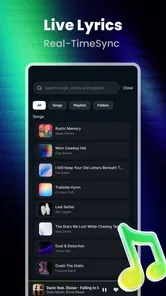
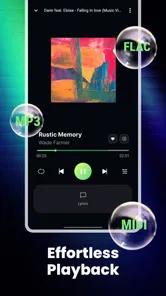
Analysis by Reviewed
I approached Zora - Music Player as someone who already keeps music on a phone and wants a calmer way to listen to it. This is a free Music & Audio app from THREESIDE PEPTIDES, aimed at people who own their files rather than depending entirely on a streaming catalog. That distinction matters from the first minute: the useful question is not “Which online service does it connect to?” but “How well does it help me enjoy the music already available on my device?”
My overall impression is positive, with an important qualification. Zora is most appealing when your listening life is built around local music: albums you have transferred, purchases you keep offline, recordings you are allowed to store, or a personal collection that does not fit neatly inside a streaming subscription. If you mainly want instant access to millions of tracks, recommendations, shared playlists, or cloud synchronization, a conventional streaming service will probably feel more complete. If you want a focused player for music you genuinely own, this app has a clear reason to exist.
Getting from installation to your first proper listening session
Before I settle into a first listen, I like to separate the app’s clear purpose from assumptions about how it handles a device or personal information. Zora is built around music already on your phone, so the most useful first step is to notice what choices the app presents during setup and decide what feels appropriate. That gives me a practical basis for considering trust, rather than guessing at unseen policies.
What to expect when you open it
The app is listed as free, carries an Everyone age rating, and currently sits at a 4.7 average from around 140 ratings. It has passed the ten-thousand-install mark, which gives it a modest but real user base without making it feel like an anonymous experiment. The current version is 1.1.2, and it supports devices running Android 8.0 or later.
Those details set the right expectations. I would not approach this as a giant entertainment platform with a social layer surrounding the player. Its appeal is narrower and more practical: open the app, find the music stored on your phone, and listen without turning the experience into a hunt through online content. That narrow focus can be refreshing, especially if you are tired of recommendations interrupting the simple act of playing an album.
The store short description is simply “Zora,” while the longer positioning presents it as a local music player for people who truly own their music. I think the latter idea describes the experience better than any list of fashionable features could. The app’s value depends heavily on your files being organized and accessible on the device. A person with a carefully maintained collection will get more from it than someone whose entire library lives inside a streaming account.
Preparing your library before the first tap
Before blaming the player for a missing album, I recommend checking the basics of your phone’s music collection. Make sure the tracks are actually stored locally, that the files are in a format your device normally handles, and that album and artist information is reasonably tidy. A local player can only present what it can find, and messy tags can make a perfectly good collection look scattered.
More From Our News Desk

 Gmail
GmailGmail in a Busy Inbox: Who Benefits Most?
From first account to crowded workday, Gmail earns its place through dependable search and flexible sorting—but its best fit depends on how much inbox maintenance you can tolerate.

 Prime Video
Switching to Prime Video: What Changes in Your Viewing Routine
Prime Video can make a compelling second home for streaming, but switching means learning a different catalog, rental layer, and route from browsing to playback.

 Universal TV Remote Control
Universal TV Remote Control Works Best as a Reliable Backup
A phone remote earns its place through quick setup and reliable habits. Here is how to get more from Universal TV Remote Control—and where its limits show.

 Weather - By Xiaomi
Weather by Xiaomi Review: Clear at a Glance, Less Clear Up Close
Xiaomi’s weather app makes everyday forecasts quick to scan, but its calm surface can leave useful details and recovery paths harder to find than they should be.

 X
XX Under Pressure: Can It Recover When Posting Goes Wrong?
A resilience-focused review of X, examining setup, mistaken posts, interruptions, weak connections, and the gaps that matter when recovery needs to be dependable.

 Clash of Clans
Clash of Clans Is Won Between the Battles
Its raids are quick; its community is a long-term project of coordination, teaching, rivalry, and shared responsibility—with all the friction that entails.
Latest News



This is the first non-obvious trade-off. Streaming apps hide most library maintenance from you, but that convenience comes with dependence on their catalog and account systems. With Zora, ownership gives you more control, yet organization becomes partly your responsibility. I see that as a fair exchange for listeners who care about keeping a personal collection, but it is worth knowing before installation.
If your phone contains only a few tracks, the first session may be very quick. If you have years of music in several folders, give yourself a little patience while you work out which files you want available. Starting with one familiar album is better than trying to solve your entire collection at once. That approach makes it easier to tell whether the app is behaving as expected and gives you an immediate success instead of a long setup project.
The first successful action
For a first-time user, I would define success very simply: locate one album or song you know well, start playback, and confirm that the app makes it easy to return to that music. Do not begin by judging the whole library. Choose something with recognizable artwork or metadata, play it, and spend a minute checking whether the basic listening flow feels natural.
That small test tells you more than an extended tour of menus. You learn whether your files are being recognized, whether the names appear as you expect, and whether the player suits the way you normally choose music. If the first album is easy to find, try a second artist or a different folder. This is also a useful way to uncover tagging problems: an album that appears split into several entries often needs cleaner metadata rather than a different player.
My practical advice is to treat the first successful playback as a library check, not merely a button press. Listen to a track you know well and compare the experience with the way you usually use music on your phone. Does local playback feel faster and less distracting? Do you prefer selecting music from your own collection? If yes, the app is already solving the main problem it was designed for.
Where local playback differs from streaming
The comparison with streaming alternatives is unavoidable, but it should be made fairly. A streaming app is better when discovery is the priority. It can be the easier choice for new releases, curated mixes, collaborative listening, and music you do not own. It also removes much of the work involved in moving and maintaining files.
Zora is better suited to a different habit. I can imagine using it for a carefully selected offline collection, a phone loaded for travel, or an album library that includes music no streaming service handles exactly the way I want. The experience is less about being fed something new and more about respecting the choices I have already made. That can make listening feel more deliberate.
There is also a privacy and reliability angle in the everyday sense: local music does not require me to keep searching a catalog whenever I want to hear a file I already possess. At the same time, local playback does not magically protect a collection from a damaged phone or a lost file. I would still keep a separate backup of important music. A player can organize access to your collection, but it should not be mistaken for a backup strategy.
A realistic daily scenario
Imagine leaving home with a phone containing a few favorite albums and a long commute ahead. With a streaming service, you might need to remember which playlists were downloaded, deal with a changing catalog, or navigate past recommendations before reaching the album you wanted. With a local player such as Zora, the useful preparation happens earlier: put the music on the device, keep the collection understandable, and then choose from what is already there.
That workflow is especially attractive when you want a predictable listening session. I would use it for a flight, a road trip, a workout playlist assembled from owned tracks, or an evening when I want to hear a complete album rather than jump between suggestions. The limitation is equally clear: the app cannot replace the discovery engine of a streaming platform. If I want to explore an unfamiliar genre without preparing anything, the usual streaming alternative is more convenient.
Common confusion during setup
The biggest source of confusion with any local music player is the difference between “available on my account” and “stored on my phone.” Music that appears in a streaming library is not automatically the same as an ordinary local file. Likewise, a track visible in a file manager may not appear in the player exactly as expected if its metadata is incomplete or inconsistent.
When an album seems absent, I would check the file location and naming before reinstalling the app. Look for duplicate copies, unusual folder structures, and artist or album fields that do not match the rest of the collection. This is a useful troubleshooting habit because it separates a library problem from a player problem. It also prevents the common mistake of repeatedly rescanning without improving the information the app has to work with.
Another point worth understanding is that a local player is not necessarily a library-management service. Zora’s central job is listening to music you own on the device. If your ideal workflow includes purchasing tracks, editing tags in bulk, backing up files, syncing across several devices, or maintaining a cloud collection, you may need other tools alongside it. That is not a criticism so much as a boundary: the app is easier to judge when you expect a focused player rather than an entire music ecosystem.
How to make the library easier to use
I found that the most effective improvement happens before opening the player: make the collection consistent. Use the same artist spelling across an album, avoid mixing album names with extra comments, and keep compilation tracks labeled in a way that makes sense to you. This is not glamorous advice, but it has a direct effect on how quickly you can find something later.
A second useful workflow is to create a small “known good” group of albums. These are files you have already tested and tagged properly. When you add new music, compare it with that group. If the new album appears oddly, you know to fix it while the source files are still easy to identify. This turns library maintenance into a quick habit instead of a frustrating cleanup session months later.
A third trade-off concerns storage. Keeping music locally uses space, and a large collection can compete with photos, videos, and other apps. The benefit is dependable access to your chosen files; the cost is that you must decide what deserves room on the device. I would start with the albums I actually replay rather than transferring everything immediately. That keeps the first experience focused and makes the app’s usefulness easier to judge.
Who will enjoy it most
I would recommend Zora to someone who has deliberately built a personal music collection and wants a straightforward way to listen to it on Android. It makes particular sense for listeners who value albums, keep offline files, dislike algorithmic clutter, or want their music choices to remain independent of a streaming subscription. The fact that it is free lowers the risk of trying it, especially if your collection is already on the phone.
It may also suit a listener who has moved between services and wants a stable home for music they purchased or archived. Instead of rebuilding the same playlists whenever a service changes its catalog, you can keep the files under your own control. That independence is the strongest reason to consider this app, not a secondary bonus.
Who should skip it
I would skip it if your music life is almost entirely online. If you expect instant catalog search, personalized radio, podcasts, artist discovery, lyrics services, social sharing, or seamless cloud access across devices, a mainstream streaming app will probably match your expectations better. Installing a local player will not turn owned files into a streaming catalog.
I would also hesitate if you dislike organizing files. Local ownership is rewarding only when you are willing to spend at least a little time keeping the collection understandable. Someone who wants every album automatically sorted, backed up, and synchronized may find the surrounding work more annoying than the focused playback is worth.
My next-step recommendation
After the first successful playback, I would not immediately transfer the entire collection. I would use Zora for a day with a small, representative selection: one familiar album, a few individual tracks, and something recently added. Notice how quickly you can return to music, whether your metadata is clear, and whether local listening fits naturally into your routine.
If that trial feels good, expand gradually and keep your files backed up somewhere separate. If it feels restrictive, that does not mean the app failed; it may simply mean your needs are centered on discovery and cloud convenience rather than ownership. In that case, a streaming alternative is the more sensible tool, and Zora can remain unnecessary rather than becoming another app you rarely open.
My final view is that Zora - Music Player succeeds by choosing a specific audience instead of trying to imitate every part of modern music software. THREESIDE PEPTIDES has positioned it for listeners who want to play music stored on their own devices, and that focus is both its strength and its limitation. The app is free, approachable for an Everyone-rated audience, and worth trying if your collection is already local.
I would recommend it to a friend with one condition: bring your own music and realistic expectations. Start with a well-organized album, confirm that the basic playback path works for you, and then decide whether the ownership-first workflow feels better than streaming. For the right listener, that modest change can make music feel more personal and less dependent on whatever a service happens to offer today.
Zora - Music Player Frequently Asked Questions
Can Zora - Music Player find and organize music already saved on my phone?
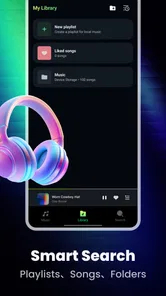
Zora is intended for people who keep their music files on their device, so its main role is playing audio stored locally rather than providing a streaming catalog. A local player may organize a library by details such as albums, artists, folders, or playlists, depending on the version and platform. After installing, allow access to audio files if prompted so the app can locate your music.
Is Zora - Music Player free, and what should I know before installing it?
Zora is free to download and is rated for Everyone. It is a Music & Audio app from THREESIDE PEPTIDES, with a 4.7 average from 141 ratings and 10K+ installs. The current version is 1.1.2, and the minimum operating system is 8.0. Check that your device meets this requirement and review the app’s current store page before installing.
What is Zora - Music Player, and what can it do?
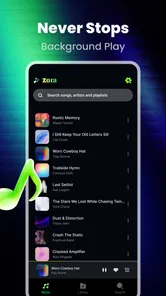
Zora - Music Player is designed for listening to music stored on your device, with a straightforward interface focused on local playback rather than streaming. Depending on the version and platform, it may organize songs by albums, artists, folders, or playlists and provide standard controls such as shuffle, repeat, queue management, and background playback. It is best suited to users who already own audio files and want a convenient player without a subscription.
Does Zora - Music Player require an internet connection or account?
For playing music that is already downloaded to your phone, Zora generally does not need a continuous internet connection. This makes it useful for offline listening, travel, or areas with unreliable data service. An account may not be necessary for basic playback, although internet access could still be requested for optional features, updates, advertising, artwork, or other online services. Check the app’s current permissions and store listing before installing.
Which audio files and devices are supported by Zora - Music Player?
Support can vary according to the Android or iOS version, so users should verify compatibility before transferring a large music library. Common formats such as MP3, AAC, and WAV are typically the most reliable, while less common or protected files may not play correctly. Zora is intended for smartphones and tablets, but headphone controls, Bluetooth devices, car systems, widgets, and casting features may depend on the operating system and device.
Pros
- Clean
- modern interface that is easy to navigate
- Supports offline playback for music stored on your device
- Useful playlist and queue controls for everyday listening
- Quickly scans local audio files after initial setup
- Lightweight design uses fewer resources than streaming apps
Cons
- No built-in music streaming or discovery features
- Limited options for editing tags and album artwork
- Some advanced audio settings may require extra configuration
- Playback can depend on your device’s supported audio formats
- May feel too basic for users wanting social or cloud features