WiFi Signal Map
- 4.00
- 4.3
- Installs
- 10.00K
- Price
- Free

Screenshots
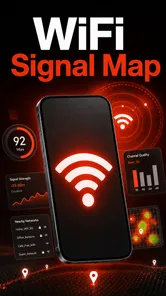
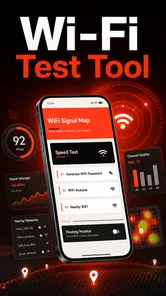
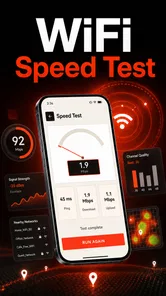
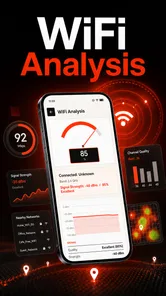
Analysis by Reviewed
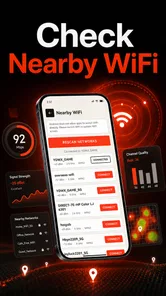
I spent time with WiFi Signal Map as a practical Android tools app, and its appeal is easy to understand: it focuses on helping me see nearby Wi-Fi networks and inspect their signal information in real time. That sounds simple, but it targets a problem that is often surprisingly difficult to diagnose from the standard phone settings alone. When a connection feels slow, unreliable, or weaker in one room than another, having a clearer view of the wireless environment can make the next step more sensible.
The app is developed by Susan Litwiller Executive NeuroCoaching LLC and is available free of charge. It is rated for Everyone, so its basic audience is broad rather than limited to technical users. The current release is version 1.0.3, and it requires Android 10 or newer. I would describe it as a focused utility rather than a complete home-network management suite: its job is to help me observe Wi-Fi conditions, not replace a router’s administration panel or a professional network-analysis system.
What the app actually helps me see
The central experience is scanning for nearby wireless networks and viewing live signal information. In everyday use, that gives me a more useful starting point than simply looking at the Wi-Fi icon in the status bar. The icon usually compresses a complicated radio environment into a few bars, while a signal-focused tool is intended to show more context as I move around or compare locations.
That distinction matters when I am trying to work out whether the problem is distance, interference, a poor router position, or a device-specific issue. A weak connection in a bedroom may not mean that the internet service is failing. It may mean the signal has to pass through several walls, or that another network is competing nearby. By scanning the surrounding networks, I can at least investigate the wireless side before changing settings blindly.
I also like the fact that the app’s purpose is immediately understandable. There is no need to learn a large collection of unrelated tools before getting to the useful part. The experience is built around observation: scan, look at the available signal information, move to another position, and compare what changes. That makes it approachable for someone who has never used a network utility.
At the same time, I would not confuse visibility with diagnosis. Seeing nearby networks does not automatically tell me why a connection is slow, whether my internet provider is having an outage, or whether a router needs replacement. The app can make the wireless environment easier to inspect, but I still need to interpret what I see and test the connection in a sensible way.
A realistic home troubleshooting routine
Imagine I am trying to decide where to place a router in a small apartment. Instead of choosing a location based only on convenience, I can scan near the current position, then repeat the check in the hallway, living area, and room where the connection is weakest. If the signal changes noticeably from one spot to another, that gives me practical evidence for repositioning the router or choosing a better place for a mesh unit.
More From Our News Desk

 Gmail
GmailGmail in a Busy Inbox: Who Benefits Most?
From first account to crowded workday, Gmail earns its place through dependable search and flexible sorting—but its best fit depends on how much inbox maintenance you can tolerate.

 Prime Video
Switching to Prime Video: What Changes in Your Viewing Routine
Prime Video can make a compelling second home for streaming, but switching means learning a different catalog, rental layer, and route from browsing to playback.

 Universal TV Remote Control
Universal TV Remote Control Works Best as a Reliable Backup
A phone remote earns its place through quick setup and reliable habits. Here is how to get more from Universal TV Remote Control—and where its limits show.

 Weather - By Xiaomi
Weather by Xiaomi Review: Clear at a Glance, Less Clear Up Close
Xiaomi’s weather app makes everyday forecasts quick to scan, but its calm surface can leave useful details and recovery paths harder to find than they should be.

 X
XX Under Pressure: Can It Recover When Posting Goes Wrong?
A resilience-focused review of X, examining setup, mistaken posts, interruptions, weak connections, and the gaps that matter when recovery needs to be dependable.

 Clash of Clans
Clash of Clans Is Won Between the Battles
Its raids are quick; its community is a long-term project of coordination, teaching, rivalry, and shared responsibility—with all the friction that entails.
Latest News



A second useful routine is checking the same area at different times. If the signal appears stable but the connection feels worse during a busy part of the day, the issue may involve congestion or internet usage rather than simple range. I would not treat the app alone as proof of the cause, but it can help me separate a physical coverage problem from a situation that needs a different test.
For renters, this kind of inspection can be especially useful because moving a router, adding cabling, or installing equipment may not be convenient. A quick scan can help identify whether a small change in placement is worth trying before spending money on hardware. It is also helpful when setting up a new phone or laptop and wanting to understand whether the device is seeing the same wireless environment as another device.
How I would use the live information
The most valuable habit is to compare locations rather than stare at one reading. A single result can be misleading if the phone is held differently, if I am standing close to a wall, or if the surrounding wireless activity changes. I would keep the phone in roughly the same position while walking through the areas I care about, then note which places consistently look stronger or weaker.
This approach turns the app into a lightweight mapping aid. I can check the desk where I work, the sofa where I stream, and the corner where a smart device is installed. The point is not to create a laboratory-grade survey. The point is to replace guesswork with a repeatable comparison that reflects how I actually use the network.
Another non-obvious benefit is that the scan can reveal when the network I expect to use is not the only one visible from a location. In a densely occupied building, several nearby networks may be present even when my own router seems fine. That context helps explain why moving a device a short distance can sometimes improve reliability, while moving it much farther may make little difference.
I would also run the scan after making one change at a time. If I move the router, change the position of an extender, or relocate a desk, checking immediately afterward gives me a clearer comparison than changing several things together. This is a small workflow improvement, but it prevents the common mistake of making multiple adjustments and then not knowing which one helped.
Where it fits beside ordinary Android settings
Android’s built-in Wi-Fi screen is perfectly adequate for connecting to a network, forgetting an old connection, or checking whether I am online. It is not designed primarily as a dedicated signal-observation workspace. WiFi Signal Map makes more sense when I want to investigate the surrounding wireless environment rather than simply join a network.
It also occupies a different space from a speed-test app. A speed test tells me how quickly data moves between my device and a test service at a particular moment. That is useful for checking internet performance, but it does not by itself explain whether the wireless signal is poor in one room. I would use the two types of tools together: inspect the local Wi-Fi conditions first, then test internet speed from the locations that matter.
Router-manufacturer apps are usually better for changing network names, passwords, parental controls, or router-specific settings. WiFi Signal Map is more attractive when I want a device-side view that is not tied to one brand of networking equipment. The trade-off is that it should not be expected to provide the same control over the network itself.
Professional network-analysis software can go much deeper, particularly for people managing offices or troubleshooting complicated deployments. That depth often brings more terminology and a steeper learning curve. For a household user who mainly wants to compare signal conditions around a home, a focused tool can be easier to approach, provided the user understands its narrower purpose.
Cost, access, and the value question
Because the app is free, the main value question is not whether it replaces an expensive piece of networking equipment. It is whether the information it provides helps me make better decisions before I buy, move, or reset anything. For that purpose, free access is a strong advantage. I can use it as a first diagnostic step without committing money to a trial or subscription.
That does not mean every user will get the same value from it. Someone with excellent coverage, a simple home layout, and no interest in troubleshooting may open it once and never need it again. In contrast, anyone deciding between router placement options or investigating a dead zone can get practical value from even occasional use.
I also see value in using a free tool before purchasing a range extender. An extender may help, but it can also add complexity and may not solve a problem caused by interference, poor placement, or a weak internet connection. Checking the signal around the home first gives me a more informed reason to buy hardware, rather than treating every slow room as proof that an extender is needed.
The app’s audience size suggests that it has reached more than a tiny group of specialists, with over ten thousand installs and a 4.4 average from around forty-five ratings. Those figures make it look established enough to attract real interest, while still leaving room for me to judge it by my own needs rather than treating popularity as proof that it fits every setup.
Small frictions and important limitations
The first limitation is the narrow scope. Scanning networks and viewing signal information is useful, but it is only one part of troubleshooting. If the real issue is a modem, an overloaded connection, a faulty cable, or a problem with a particular device, the app will not resolve that by itself. I would avoid using it as a universal explanation for every Wi-Fi complaint.
Signal information can also be easy to overinterpret. A stronger reading does not always guarantee a faster or more stable internet experience. Network congestion, router performance, interference, and service quality can all affect the result. The best way to use this app is comparatively: look for patterns across places and repeat checks after changes, rather than treating one moment as a final verdict.
There is also a practical learning curve, even though the app is aimed at general users. A person unfamiliar with wireless networking may see several networks and signal readings but still wonder what action to take. My advice would be to begin with one clear question, such as “Which room has the weakest coverage?” Then use the scan to answer that question instead of trying to understand every visible detail at once.
Privacy-conscious users may reasonably want to think about what any network-scanning utility does on their phone before using it. I would review the app’s permission prompts carefully and grant only what Android requires for the intended scan. The important point is not to assume that a simple interface means there is nothing worth checking in the device settings.
Another trade-off is that the app depends on the phone as the measuring device. Different phones can have different wireless hardware and behavior, so I would avoid comparing readings from unrelated devices as though they were perfectly interchangeable instruments. For a household placement decision, consistency matters more: use the same phone, the same route, and similar conditions when comparing rooms.
Who is likely to get the most from it?
I think this app is a good fit for people who want a straightforward way to investigate Wi-Fi coverage without learning a full professional toolkit. It suits renters, home workers, students, and families trying to understand why one part of a home performs differently from another. It can also help someone preparing to buy networking equipment by showing whether the current problem appears to be related to coverage.
It is particularly useful for a person who prefers evidence over trial and error. Rather than moving a router randomly or buying an extender immediately, I can scan first, make one change, and check again. That workflow costs nothing and can prevent unnecessary purchases.
People who manage a small office may also find it useful for quick spot checks, especially when the question is simply whether a workstation is positioned in a weak area. However, I would not choose it as the only tool for a business network that needs detailed planning, long-term monitoring, or centralized administration.
I would skip it if my main goal is to control the router, manage connected devices, run internet-speed tests, or perform advanced security analysis. A router app, speed-test utility, or specialist network analyzer would be a better match for those jobs. Installing this one will not turn a phone into a complete network operations console.
My verdict after weighing the trade-offs
My overall impression is positive because the app has a clear job and makes that job accessible without charging for access. Its strongest use is not dramatic: it helps me replace vague impressions about Wi-Fi coverage with side-by-side observations. That is enough to support better decisions about placement, room coverage, and whether additional hardware is worth considering.
I would recommend it to a friend who says, “The Wi-Fi is bad in this room, but I do not know why.” I would suggest scanning several locations, keeping the phone position consistent, repeating the check after one change, and then using a speed test or router settings separately if the problem continues. That combination respects what the app can show without asking it to answer questions outside its role.
The free price makes the decision easy for curious users, while the Everyone age rating keeps it approachable for a broad household audience. Still, its value depends on having a real wireless question to investigate. If the network already works well everywhere, there may be little reason to keep opening it. If coverage problems are costing time or tempting me to buy equipment blindly, the app earns its place as a first step.
In short, WiFi Signal Map is best viewed as a focused Android utility for understanding local Wi-Fi signal conditions. It is not a replacement for router controls, internet testing, or professional analysis, but it can be a practical and cost-free way to make home-network troubleshooting more deliberate. For me, that makes it worth trying before spending money or making major changes to the setup.
WiFi Signal Map Frequently Asked Questions
Is WiFi Signal Map free, and what should I know before downloading it?
WiFi Signal Map is a free Tools app for scanning Wi-Fi networks and viewing real-time signal information. It is listed for everyone, so its content rating is suitable for a general audience. Before downloading, check that your device meets the app’s minimum operating-system requirement and consider whether its network and location permissions fit your preferences.
Which devices can run WiFi Signal Map?
The available version is 1.0.3, and the app requires operating system version 10 or later. Check your device’s system version before downloading, since an older device may not meet that requirement. Wi-Fi scanning capabilities can also vary by phone and operating system, so the information and controls you see may differ between devices.
What is WiFi Signal Map and what does it do?
WiFi Signal Map is an app designed to help you understand wireless network coverage around you. It can display nearby Wi-Fi networks and, depending on the device and available features, provide information such as signal strength, connection quality, and location-based coverage. It is useful for identifying weak areas, comparing networks, and finding a better position for your router or mobile device.
Does WiFi Signal Map require an internet connection to work?
Some of the app’s basic functions may work without mobile data, especially when scanning nearby Wi-Fi networks or checking local signal strength. However, features involving online maps, cloud-based data, community information, or downloading map content may require an internet connection. Results can also vary by device because Android and iOS handle Wi-Fi scanning and location access differently.
What permissions does WiFi Signal Map request, and are they necessary?
WiFi Signal Map may request access to location services, nearby devices, Wi-Fi information, and possibly storage or network access. Location permission is commonly required because modern mobile operating systems restrict Wi-Fi scanning unless location services are enabled. Before accepting, review the permission explanation and your system privacy settings, particularly if you are uncomfortable sharing location data.
Pros
- Shows nearby Wi‑Fi networks and their signal strength clearly.
- Helps identify stronger connection spots around your home or office.
- Useful for finding crowded channels and possible interference.
- Simple interface makes basic signal checks quick to perform.
- Can assist with planning router placement and coverage improvements.
Cons
- Results may vary depending on your phone’s Wi‑Fi hardware.
- Some advanced mapping features may require extra permissions or setup.
- Signal readings can change quickly as networks move or fluctuate.
- May provide limited value in areas with few detectable Wi‑Fi networks.
- Background scanning could increase battery usage on some devices.