WiFi Lab
- 15.00
- 3.9
- Installs
- 100.00K
- Price
- Free

Screenshots
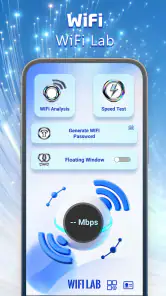
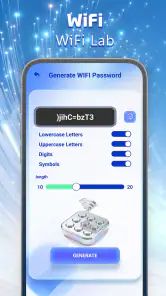
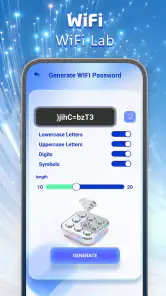
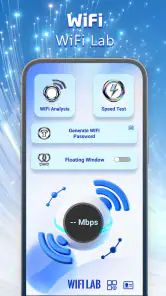
Analysis by Reviewed
WiFi Lab is the kind of tools app I would open when my home network feels confusing rather than completely broken. Its short store description, “WiFi Lab,” is brief, while its broader purpose is to help users understand their network. In my experience, that makes it more useful as a first look at a Wi-Fi problem than as a complete replacement for a router’s administration app or a specialist network-analysis suite.
The app is free, aimed at everyone, and developed by RUNNFENG LIMITED. It has reached over one hundred thousand installs, with a 3.9 average from nearly two hundred ratings. Those figures suggest that people are finding a practical reason to try it, although the rating also tells me to keep expectations sensible: this is a straightforward utility, not a magical fix for every slow connection.
Where WiFi Lab becomes useful—and where people get stuck
The first thing I noticed about this type of app is that the hardest part is often not reading the result. It is getting a useful result in the right circumstances. A network tool can only observe what the phone can see at that moment, so testing from the wrong room, while disconnected from Wi-Fi, or during a temporary router hiccup can lead to an unhelpful conclusion.
I would begin with a simple question: what am I trying to understand? If the issue is that one bedroom has weak service, I would test there rather than beside the router. If a video call keeps dropping, I would check the connection during the time the problem actually happens. If a new device refuses to connect, I would first confirm that the phone running WiFi Lab is connected to the same home network I am investigating.
The most useful habit is to treat each result as a snapshot, not a verdict. A single reading can show what the network looked like in one place and at one moment. Repeating the same check from two or three locations gives a much clearer picture. That small change in method is more valuable than repeatedly pressing a test button from the same spot.
Another common sticking point is confusing the internet connection with the wireless connection inside the home. WiFi Lab may help me understand the network around the phone, but a poor online experience can also come from the broadband line, a busy service, a distant server, or the device itself. I would not blame the app—or the router—until I had separated those possibilities.
What to check before blaming the tool
I would start by confirming that Wi-Fi is switched on and that the phone is connected to the intended network. Homes with a guest network, an extender, or several similarly named networks can make this surprisingly easy to get wrong. A test made on a guest network may not tell me anything useful about devices or behavior on the main network.
Next, I would move slowly through the area I care about. Testing immediately beside the router can make almost any home network look healthy, while testing behind thick walls, near large appliances, or at the far edge of the property can reveal the real problem. I would note where the result changes instead of relying on memory.
It is also worth closing unrelated network-heavy activity before comparing results. A cloud backup, system update, streaming session, or game download can make a connection appear worse than usual. I would repeat the check after that activity ends, especially if the first result seems out of character.
Phone settings can affect the experience too. If the operating system asks for access needed to inspect nearby wireless networks, I would read the request carefully and allow only what is necessary for the feature I want to use. If the app cannot show useful information, I would check the phone’s Wi-Fi and location-related settings before assuming that WiFi Lab is malfunctioning.
A setup routine that saves time
My preferred setup is deliberately boring. I connect the phone to the home Wi-Fi, wait until the connection indicator settles, open the app, and begin from a location where I already know the network is normally reliable. That gives me a reference point. From there, I walk to the problem area and compare what changes.
I would also avoid changing several things at once. Restarting the router, moving an extender, switching networks, and testing on a different phone all at the same time may produce a better result, but I will not know why. WiFi Lab is more helpful when I use it as part of a controlled check: change one factor, test again, and write down what happened.
For a family home, I would make a small map using ordinary labels such as kitchen, office, hallway, and bedroom. I would not need technical language. Recording the result in each place creates a practical picture that can guide a router move or help decide whether an extender is worth considering. This is one of the app’s more useful roles: turning a vague complaint into a location-based observation.
The current release is version 1.0.0, and I would keep that in mind when judging the overall experience. An early version can be perfectly usable while still feeling less polished than long-established network utilities. If a screen seems unclear, I would look for the simplest interpretation first rather than assuming that every label represents a deep diagnostic measurement.
Recovering a workflow when the result looks wrong
When a scan or network view does not behave as expected, I would restart the workflow rather than repeatedly tapping through it. First I would leave the screen, confirm the phone’s connection, and reopen WiFi Lab. Then I would test from the same reference location used during setup. If the reference check works but the problem location does not, the issue is more likely related to coverage or local interference than to the basic setup.
If nothing useful appears, I would toggle Wi-Fi off and on from the phone, reconnect to the intended network, and try again. A full phone restart is reasonable if the wireless connection itself seems stuck. I would avoid resetting the router immediately, because that can interrupt everyone in the home and may erase the chance to observe the original problem.
There is a useful recovery pattern for intermittent problems. I would run one check when the connection feels normal and another when it feels poor. If the result changes with the symptom, the app is helping me capture the problem. If the result stays similar while only one service fails, I would investigate that service or the internet route instead of treating the Wi-Fi reading as proof of a local fault.
Another practical tip is to test with the phone in a stable position. Holding it in different orientations, placing it behind the body, or moving it while the app is working can make comparisons less consistent. I would put the phone on a table for a moment in each room, use the same pause before reading the result, and repeat anything that looks unusually different.
For a work-from-home scenario, I would use the app before an important meeting rather than during one. I could check the office, the nearest hallway, and a backup location. If the office is unreliable, I would know where to move before the call begins. This is a better use of a network utility than waiting until a meeting freezes and then trying random fixes under pressure.
For a new router or extender, I would first test the old arrangement, then make the hardware change, and finally repeat the same route through the home. That gives me a before-and-after comparison. It also prevents a common mistake: judging an extender only from the room where it is installed instead of checking whether it improves the place where people actually use the network.
When the app is not the cause
Sometimes the phone is connected to Wi-Fi but the internet is unavailable. In that situation, WiFi Lab may correctly show that the phone is on the local network while the real failure sits beyond the router. I would compare another device, check whether the router reports an internet fault, and try a normal webpage or service. If every device fails, the broadband connection becomes a stronger suspect.
The opposite situation also happens: one phone struggles while other devices work normally. Then I would look at the phone’s distance from the router, its software state, and whether it has joined the same network as the other devices. A network app cannot repair a damaged wireless radio, an overloaded phone, or a device-specific compatibility issue.
Interference can be temporary and difficult to identify from one reading. Nearby networks, household electronics, building materials, and crowded periods can all affect wireless performance. I would test at different times and in different rooms before deciding that a router must be replaced. If the problem appears only in one corner of the home, placement may matter more than buying faster service.
It is also important not to confuse speed with stability. A connection can seem fast during a short check and still suffer from brief interruptions that ruin calls or online games. For those cases, I would observe the network while performing the activity that fails. If WiFi Lab does not explain the interruption on its own, I would use the router’s event information or the affected service’s diagnostics as the next step.
This is where I see a clear boundary between WiFi Lab and more advanced alternatives. A router manufacturer’s app is usually the better choice for changing network names, passwords, parental controls, or device access. A specialist analyzer may be better for detailed channel investigation and technical troubleshooting. A broadband provider’s own test may be more appropriate when the problem affects the connection entering the home. WiFi Lab makes the most sense as a convenient observation layer between everyday checking and those more specialized tools.
Who will get the most from it
I think WiFi Lab suits people who want a clearer starting point without learning networking terminology. It can be useful for checking whether a weak room is genuinely different from the rest of the home, comparing a router position with a proposed new position, or preparing evidence before contacting an internet provider. The free price makes that first investigation easy to justify.
It is also a reasonable choice for someone helping relatives with home Wi-Fi. Instead of asking them to describe an abstract problem, I could guide them through the same simple route: connect, check a known-good room, walk to the problem area, and compare. That creates a shared reference point and reduces the temptation to restart equipment without understanding what changed.
I would skip it if I already need advanced packet analysis, detailed network administration, or a full dashboard for many managed devices. I would also choose a router-specific app when the goal is to change settings rather than understand the wireless environment. WiFi Lab should not be selected simply because it has “Wi-Fi” in its name; its value depends on wanting a practical view of the connection from the phone’s location.
The everyone age rating is appropriate for a general household utility, but that does not remove the need for sensible judgment. I would avoid sharing private network details unnecessarily, and I would not use a result from a public hotspot to make assumptions about my home router. The safest workflow is to use it on networks I am authorized to inspect and to treat unfamiliar network information carefully.
My practical verdict
After using WiFi Lab as a troubleshooting companion, I see it as a modest but approachable tool rather than a complete network laboratory. Its strongest quality is the way it encourages a more organized look at a wireless connection: check the right network, test from the right place, repeat the observation, and separate local Wi-Fi from wider internet problems.
The 3.9 average gives me a balanced impression. There is enough interest around the app to make it worth trying, but not enough reason to assume that every phone and every home setup will feel equally smooth. Version 1.0.0 also makes a patient approach sensible. I would judge it by whether it helps answer my immediate question, not by expecting it to replace mature router software or specialist diagnostics.
My recommendation is straightforward: if you are trying to understand why one part of your home has unreliable Wi-Fi, install it and use a repeatable room-by-room check. Keep notes, compare normal and bad moments, and confirm the result with another device when possible. If the issue is router configuration, broadband service, or a single device, move to the tool designed for that part of the problem.
WiFi Lab is most valuable when it turns “the Wi-Fi is bad” into a specific, testable observation. That is not a dramatic promise, but it is exactly the kind of practical help I want from a free network tool. For everyday diagnosis, it earns a place on my phone; for deep technical work or direct network control, I would reach for a more specialized alternative.
Pros
- Simple interface makes Wi‑Fi testing easy for beginners.
- Provides useful details about nearby wireless networks.
- Can help identify crowded channels and possible interference.
- Useful for checking signal strength in different areas.
- Lightweight design should work well on most Android devices.
Cons
- Some features may require location access to scan networks.
- Results can vary depending on device hardware and Android limits.
- It cannot improve your router’s speed or signal by itself.
- Advanced network analysis tools may be limited.
- Scanning may use extra battery during extended troubleshooting.

- Category
- Tools
- Version
- 1.0.0











