WavePad Audio Editor
- 2.50K
- 4.0
- Installs
- 10.00M
- Price
- Free
Screenshots
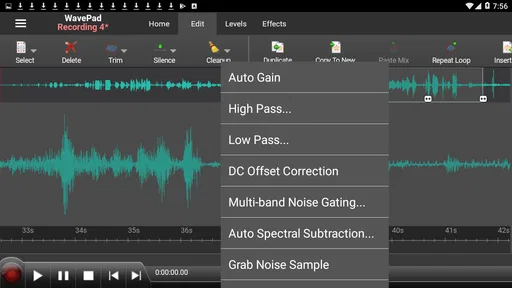
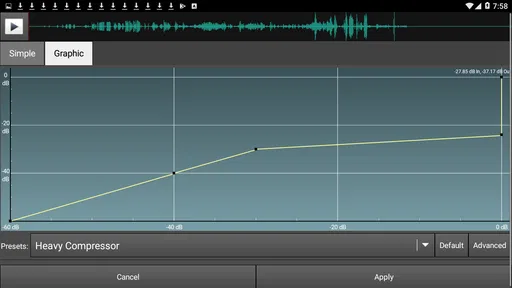
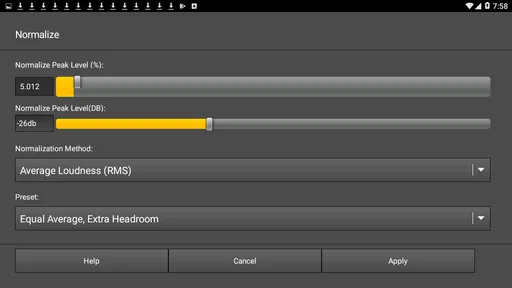
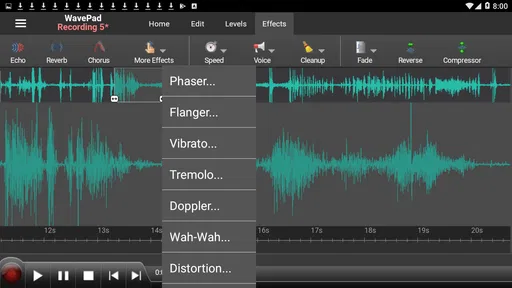
Analysis by Reviewed
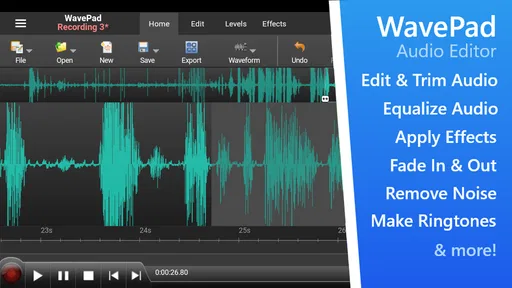
I approached WavePad Audio Editor as the sort of tool you keep on a phone for practical audio jobs rather than casual listening. It belongs to the Music & Audio category, is made by NCH Software, and is available free of charge with optional in-app purchases ranging from $0.99 to $99.99 per item. My first impression was that it aims much higher than a simple voice recorder: it is designed for editing, cleaning up, trimming, and preparing audio when you do not want to move immediately to a computer.
That ambition is also where some of the friction begins. A full-featured editor can feel crowded if you only want to cut the beginning off a recording, and mobile editing is naturally less comfortable than working with a large monitor and a mouse. Still, I found a useful balance here. Once I stopped treating it like a one-button recorder and started working in small, deliberate steps, it became a capable pocket editor for voice clips, music snippets, interviews, sound effects, and other everyday projects.
Where the first editing problems usually appear
The most common difficulty is not necessarily a broken function. It is understanding what kind of job the app is built to handle. Someone opening it expecting a recorder with a large record button may be surprised by the editing-focused layout and the number of choices available after importing or creating a file. WavePad is better viewed as a compact workstation: you select a section, apply an operation, listen back, and then decide whether to keep going.
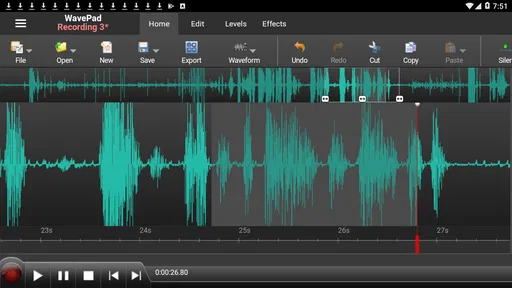
That distinction matters because audio editing is unforgiving. A small selection can remove a breath, the end of a word, or the natural pause between two ideas. On a phone screen, it is easy to drag a waveform handle farther than intended. I learned to zoom in before making a precise cut and to play a little beyond the selected area before confirming anything. That extra listening step is more valuable than trying to edit quickly.
Another point that can confuse new users is the difference between changing a section and changing the whole recording. If you select only one part of a clip, an effect or adjustment may apply to that area rather than the complete file. For a spoken recording, that can be useful when one phrase is too loud. It can also be frustrating when you think you are improving the entire track and only hear a change in one small region.
My practical advice is to make the selection first, then pause and ask what you want the next command to affect. This sounds obvious, but it prevents many avoidable mistakes. I also recommend keeping an untouched copy before experimenting with stronger edits. The app is much easier to trust when you know you can return to the original instead of trying to reconstruct a recording from memory.
People also get stuck when they expect every audio problem to be solved by an effect. Noise, echo, clipping, and distant speech are different problems. A filter may reduce an unwanted sound, but it cannot reliably restore detail that was never captured. If the microphone was covered, the room was extremely reverberant, or the source was recorded too quietly, editing can improve the result without making it perfect.
More From Our News Desk

 Gmail
GmailGmail in a Busy Inbox: Who Benefits Most?
From first account to crowded workday, Gmail earns its place through dependable search and flexible sorting—but its best fit depends on how much inbox maintenance you can tolerate.

 Prime Video
Switching to Prime Video: What Changes in Your Viewing Routine
Prime Video can make a compelling second home for streaming, but switching means learning a different catalog, rental layer, and route from browsing to playback.

 Universal TV Remote Control
Universal TV Remote Control Works Best as a Reliable Backup
A phone remote earns its place through quick setup and reliable habits. Here is how to get more from Universal TV Remote Control—and where its limits show.

 Weather - By Xiaomi
Weather by Xiaomi Review: Clear at a Glance, Less Clear Up Close
Xiaomi’s weather app makes everyday forecasts quick to scan, but its calm surface can leave useful details and recovery paths harder to find than they should be.

 X
XX Under Pressure: Can It Recover When Posting Goes Wrong?
A resilience-focused review of X, examining setup, mistaken posts, interruptions, weak connections, and the gaps that matter when recovery needs to be dependable.

 Clash of Clans
Clash of Clans Is Won Between the Battles
Its raids are quick; its community is a long-term project of coordination, teaching, rivalry, and shared responsibility—with all the friction that entails.
Latest News



What I check before blaming the editor
Before editing, I listen to the original from beginning to end, even if it is only a short clip. I check whether the problem is constant or appears in one moment. A steady background hum suggests a different approach from a single loud bump, while distorted speech usually points to recording levels rather than a missing effect. This simple diagnosis keeps me from applying several changes blindly.
I also check the file itself. If the audio sounds fine in another player but behaves unexpectedly inside the editor, I close other audio apps and reopen the project. If it sounds wrong everywhere, the issue may already be part of the recording. This distinction is important because repeated processing can make a weak source harsher, thinner, or less natural.
Storage is another sensible check. Editing needs room for the source and the working copy, especially when I create several versions while testing changes. When a save or export does not behave as expected, I first make space, close unnecessary apps, and try again with a short test file. That is safer than repeating a long edit without knowing whether the phone has enough room to complete it.
Setting up a reliable workflow on a phone
WavePad runs on devices using Android 6.0 or later, so compatibility is broad, but an older supported device may still feel less comfortable with demanding projects than a newer phone. The current version is 20.24. I would not judge the app only by whether it opens: the real test is whether your phone can preview, edit, and save the kind of audio you use without becoming inconvenient.
My preferred setup is deliberately boring. I make a short test recording or open a short sample, identify where the controls and waveform behave comfortably, and save a copy before doing serious work. This reveals whether the screen is responsive enough for precise selections and whether the output location is easy for me to find later. It also prevents a long interview or important voice memo from becoming the first experiment.
For spoken audio, I use a staged process. First I trim obvious silence at the beginning and end. Next I remove large unwanted sections, listening at every join. Only then do I consider volume or cleanup adjustments. This order matters because there is little value in polishing a section that I will later delete, and aggressive processing can make edits more noticeable.
For music snippets, I pay more attention to the start and end points. A cut that looks accurate on the waveform may still sound abrupt if it begins or ends at an awkward moment in the waveform cycle. I listen repeatedly to the transition and move the boundary by a small amount rather than assuming the first selection is correct. That is one of the places where patience produces a more professional result than adding another effect.
One useful habit is naming versions according to the stage of the work. I might keep an original, a trimmed copy, and a cleaned copy instead of overwriting everything. The names do not need to be elaborate; the point is to know which file is safe and which one contains experimental changes. This is especially helpful when I am editing on a phone and cannot compare several large waveforms comfortably at once.
The free download makes it easy to try the basic workflow without committing money immediately. The presence of optional purchases means I would still inspect any upgrade or paid tool before confirming it, particularly if I only need occasional trimming. For someone editing audio regularly, the broader toolset may justify exploring those options. For a person who only cuts a ringtone once, a simpler editor may be less distracting.
Small workflow choices that save real time
I avoid applying multiple changes in one pass. After each meaningful operation, I listen to the result and save a new version if the change is important. This may sound slower, but it makes recovery straightforward. If a later adjustment damages the sound, I can return to the last good version instead of undoing a chain of uncertain steps.
I also work in short sections when repairing a long recording. A lengthy interview can contain different problems in different places: one speaker may be quiet, another may be close to the microphone, and a door may slam only once. Treating the entire recording identically can flatten the natural differences or exaggerate noise. Selective editing takes longer, but it usually sounds less processed.
When I need to send a clip to someone, I listen to the exported file outside the editing screen before sharing it. The project view can give a false sense of completion. The real test is the finished file in an ordinary player, at a normal listening volume, from the location where I will actually use it. This catches wrong cuts and unexpectedly low output before another person receives the file.
Recovering when a project or edit goes wrong
My first recovery rule is not to keep pressing commands randomly. If an edit produces an unexpected result, I stop, listen to the original or previous saved version, and identify the last change that made the problem appear. This is much more reliable than stacking more effects in the hope that one will cancel another.
If a section disappears, I check whether I selected the part to keep or the part to remove. On a small display, that mistake is easy to make. I return to the earlier copy and repeat the operation more slowly, playing across both sides of the selection. The few seconds spent confirming the boundaries are worth far more than trying to repair a cut that removed part of a sentence or musical phrase.
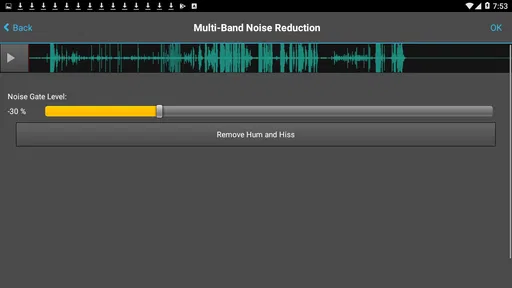
If the sound becomes metallic, harsh, or unnaturally quiet, I step back to the cleanest version and apply less processing. Audio cleanup is a trade-off: reducing one unwanted element can also reduce the detail that makes speech or music intelligible. I prefer a little background noise to a voice that sounds damaged and tiring to hear.
When saving seems unreliable, I test with a short file first. I close the project, reopen the saved result, and confirm that it plays correctly before returning to the longer recording. If the short test works, the issue may relate to the size or complexity of the original project. If it fails too, I restart the app and device, check available storage, and repeat the test without changing several variables at once.
I would also avoid assuming that an interrupted operation means the original is lost. That is exactly why I keep a separate source copy and save stages under different names. A careful file routine is more dependable than relying on one live project, particularly when the recording matters for work, study, or a personal archive.
When the app is not the real cause
Some disappointing results begin before WavePad is involved. A phone microphone can capture handling noise, wind, room reflections, or clipped speech. Editing can reduce the impact, but it cannot turn a badly overloaded recording into a clean studio take. If the same distortion remains in the untouched file, I treat it as a recording problem first.
Playback equipment can also mislead you. Earbuds, a phone speaker, and a car system emphasize different parts of a recording. I check important work on more than one listening setup, but I do not chase every difference. The goal is a clear result across ordinary devices, not a file that sounds perfect only through one pair of headphones.
File handling outside the editor creates another source of confusion. A clip may be saved successfully but placed somewhere I do not expect, or it may have a name that makes it look like the original. I solve this with simple, descriptive filenames and a quick test playback after saving. That habit answers the practical question many users have after editing: “Where did my finished audio go?”
There is also a limit to what a phone editor should be asked to do. A short voice memo, podcast excerpt, notification sound, or class recording is a sensible project. A complicated multitrack production with extensive automation and precise mixing is more comfortable on desktop software. WavePad gives mobile users substantial control, but a touchscreen remains a compromise for detailed, repeated work.
Who will appreciate it, and who should choose something simpler
I think this app suits people who want more than trimming but do not always have access to a computer. Students can clean up a recorded explanation before submitting it. Freelancers can shorten a spoken sample while away from the desk. Musicians can prepare a quick excerpt, and families can cut unwanted sections from a personal recording. The common thread is practical editing rather than casual playback.
A realistic everyday example is a meeting note recorded on a phone. I would keep the original, remove the long silence before the conversation begins, cut an accidental pocket-noise section, adjust only a noticeably quiet passage, and listen to the finished copy before sending it to a colleague. That workflow uses the app’s strengths without pretending that it can repair every microphone problem in the room.
I would recommend a simpler alternative if your only goal is recording a quick memo and sharing it immediately. A dedicated recorder can be faster because it presents fewer decisions. I would also favor desktop software for long-form production, detailed mixing, or projects where precise control is central. On the other hand, a basic mobile cutter may feel limiting if you want to inspect, refine, and process selected parts of a recording rather than merely shorten it.
The audience rating is Everyone, which fits the app’s general-purpose audio role. It has been available since May 23, 2013, and its reach is reflected in more than 10 million installs, along with an average rating of 4.0 from roughly 41 thousand ratings and about 2.5 thousand written reviews. Those figures suggest an established app with broad use, but they do not remove the need to decide whether its editing depth matches your habits.
For me, the biggest trade-off is control versus immediacy. WavePad offers a more serious editing approach than the basic tools built into many phones, yet that means I spend more time selecting, checking, and saving versions. That is a fair exchange when the audio matters. It is unnecessary overhead when I only need a fast, disposable cut.
My practical verdict after using it as a mobile editor
I came away seeing WavePad Audio Editor as a useful pocket workshop rather than a replacement for every desktop audio program. Its strongest quality is flexibility: I can approach a recording in stages, work on a selected section, and keep refining the result instead of accepting whatever the phone’s default recorder provides.
The app rewards a careful workflow. Keep the original, make short tests, confirm selections, listen after each major change, and check the exported file outside the editor. Those habits solve more problems than aggressive processing or repeated restarts. They also make it easier to tell whether a poor result comes from the source recording, the edit, the device, or the final playback system.
There is some learning friction, and the touchscreen is not ideal for every precise task. Optional purchases also mean that users should pay attention before choosing anything beyond the free experience. Still, I would recommend trying it if you regularly need to trim voice recordings, prepare music excerpts, remove obvious unwanted sections, or perform more thoughtful edits while away from a computer.
My honest recommendation is simple: choose it when mobile control matters more than instant simplicity. If you want a quick recorder, it may feel like too much. If you want a capable Android audio editor that encourages deliberate, recoverable work, it is a worthwhile free starting point, especially for users on Android 6.0 or later who are prepared to learn the workflow instead of expecting one tap to solve every recording problem.
WavePad Audio Editor Frequently Asked Questions
Can WavePad Audio Editor open and edit files from other apps?
WavePad is designed to work with audio files, and its support for commonly used formats can make it useful for editing recordings created elsewhere. You can bring a compatible file into the app, make changes such as trimming or applying effects, and save the result. Available formats and file-sharing options may vary by platform, so check compatibility with your usual workflow before downloading.
Can I use WavePad to make a ringtone or edit a short music clip?
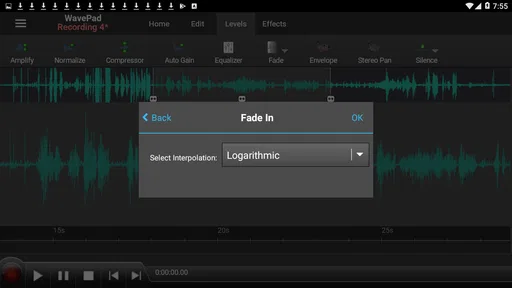
Yes. WavePad’s cutting, trimming, volume, fade, and effects tools can help shape a short section of audio for a ringtone or music clip. You can select the portion you want to keep and adjust it in the editor. Whether the finished file can be saved in the format you need depends on the platform and available export options.
Is WavePad Audio Editor suitable for beginners?
WavePad can be approachable for straightforward tasks such as trimming a clip, adjusting its volume, or adding a fade, while also offering tools for more involved editing. Its range of options may take time to explore if you have never used an audio editor before. If you mainly need simple changes, you can focus on the basic editing tools and learn the additional features as your projects require them.
What devices and operating systems can I use WavePad Audio Editor on?
WavePad Audio Editor is available for Android and iOS, so it can be used on a compatible phone or tablet. On Android, the app requires version 6.0 or later. Before downloading, check that your device meets the operating-system requirement and that the app is available for your particular device through its app store.
What is WavePad Audio Editor used for?
WavePad Audio Editor is a mobile audio-editing application for recording, trimming, cutting, copying, pasting, and enhancing sound files. During testing, it proved useful for quick edits such as removing unwanted sections, adjusting volume, adding fades, and applying effects. It can suit voice recordings, podcasts, music clips, ringtones, and other everyday audio projects, although advanced studio production may require more specialized software.
Pros
- Supports many audio formats
- including WAV
- MP3
- FLAC
- OGG
- and AIFF.
- Includes noise reduction
- amplification
- compression
- and other useful audio tools.
- Offers multitrack editing for combining voice recordings
- music
- and sound effects.
- Built-in sound effects and royalty-free music simplify quick audio projects.
- Works well for trimming and editing recordings directly on mobile devices.
Cons
- Some advanced features require an in-app purchase or subscription.
- The mobile interface can feel cramped when editing detailed waveforms.
- Multitrack projects may become difficult to manage on smaller phone screens.
- Export and processing times can increase with long or high-quality recordings.
- Beginners may need time to understand the app’s many editing controls.