Volume Control Home
- 524.00
- 4.4
- Installs
- 500.00K
- Price
- Free

Screenshots


Analysis by Reviewed
I like volume tools that solve a small problem without turning audio control into a project. Volume Control Home is built around that idea: it puts sound adjustments closer to the home screen and aims to push media playback beyond the usual maximum. After spending time with it, I see it as a focused Android utility rather than a complete audio suite. It is useful when the standard volume buttons feel too slow or limited, but it is not a replacement for a music player, equalizer, or dedicated hearing device.
The app comes from Utility Apps Home and sits in the Music & Audio category. It is free to use, carries an Everyone age rating, and has reached more than one hundred thousand installs. Its average score is 4.3 from nearly one thousand ratings, with just over one hundred written reviews. Those figures suggest that its simple purpose connects with a substantial group of users, while also reminding me that a volume booster needs to be judged carefully: louder is not always better, and the result depends heavily on the phone, headphones, speaker, and source audio.
How the current version feels in everyday use
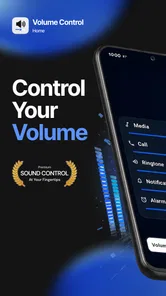
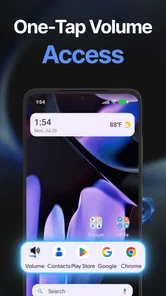
The central appeal is convenience. Instead of reaching for physical buttons every time I want to change playback loudness, I can use a control designed to live on the home screen. That makes sense in ordinary situations: listening to a podcast while cooking, adjusting music when the phone is across the room, or changing the level quickly before a video starts. The store summary presents the app as a way to control every sound from the home screen, and that describes its practical role better than calling it a full audio workstation.
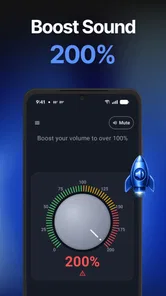
The separate idea of boosting media beyond the normal limit is useful, but it needs restraint. On some phones, the regular maximum is comfortable but not quite enough in a noisy room. A higher setting can make speech easier to follow or help a quiet recording feel more present. I would not treat the extra range as a setting to leave permanently enabled. It is better viewed as an occasional reserve, especially with earbuds or compact speakers that can sound harsh when pushed.
What I appreciate most is the app’s narrow focus. There is no need to open a streaming service just to change volume, and I do not have to search through system menus when I want a quick adjustment. That matters for people who use their phone as a small bedside radio, a kitchen speaker, or a casual media player. The usefulness is less obvious for someone who already has easy access to hardware controls and never needs more loudness than the phone normally provides.
A realistic example is a late afternoon commute. I might begin with a podcast at a normal level, step onto a busy street, and need more volume for a few minutes. A home-screen control can be faster than opening settings or repeatedly pressing a side button. Once I reach a quieter place, I can bring the level back down. That last step is important: I would make reducing the level part of the routine rather than assuming the boosted setting is harmless.
A practical way to set it up
I would start by placing the control where my thumb can reach it without covering other frequently used shortcuts. The best position is not necessarily the most visible one; it is the spot that can be reached while holding the phone naturally. I would then test it with the exact content I normally hear, because a quiet spoken recording and a heavily mastered song react very differently to extra volume.
More From Our News Desk

 Gmail
GmailGmail in a Busy Inbox: Who Benefits Most?
From first account to crowded workday, Gmail earns its place through dependable search and flexible sorting—but its best fit depends on how much inbox maintenance you can tolerate.

 Prime Video
Switching to Prime Video: What Changes in Your Viewing Routine
Prime Video can make a compelling second home for streaming, but switching means learning a different catalog, rental layer, and route from browsing to playback.

 Universal TV Remote Control
Universal TV Remote Control Works Best as a Reliable Backup
A phone remote earns its place through quick setup and reliable habits. Here is how to get more from Universal TV Remote Control—and where its limits show.

 Weather - By Xiaomi
Weather by Xiaomi Review: Clear at a Glance, Less Clear Up Close
Xiaomi’s weather app makes everyday forecasts quick to scan, but its calm surface can leave useful details and recovery paths harder to find than they should be.

 X
XX Under Pressure: Can It Recover When Posting Goes Wrong?
A resilience-focused review of X, examining setup, mistaken posts, interruptions, weak connections, and the gaps that matter when recovery needs to be dependable.

 Clash of Clans
Clash of Clans Is Won Between the Battles
Its raids are quick; its community is a long-term project of coordination, teaching, rivalry, and shared responsibility—with all the friction that entails.
Latest News



My first test would use a short podcast segment at a moderate level. I would raise the volume gradually, listen for speech becoming clearer, and stop as soon as the voice is comfortable. After that, I would test music separately at a lower starting point. This two-step approach avoids the common mistake of judging the tool only with one kind of audio and then applying the same setting everywhere.
Another useful habit is to check the volume after switching from headphones to the built-in speaker. The same control position can feel dramatically different across output devices. A level that seems acceptable through a small speaker may be uncomfortably strong through in-ear headphones. The app makes adjustment easier, but it does not remove the need for listening judgment.
What the latest release tells me
The current release is version 1.5.12, and the app was released on July 13, 2026. I would describe this as a product that has moved beyond the idea of a one-off volume slider and toward a more convenient home-screen utility. The version number and continued presence in the store indicate an established iteration rather than an unfinished first experiment, although I would still evaluate the actual control behavior on my own device before depending on it daily.
That distinction matters because volume handling is closely tied to Android and the phone manufacturer. A feature can feel smooth on one handset and less useful on another because of speaker hardware, audio processing, or the way the operating system manages media streams. I would not assume that the current release creates identical results across every device. The strongest evidence available from using it is its role as a fast control layer, not a promise of a universal loudness increase.
For existing users, the update path should be understood in practical terms. A newer version can make the app feel more polished or keep it working with newer system environments, but I would not install an update expecting a completely different audio system. The basic reason to keep it is convenience: if the home-screen control has become part of your routine, staying current is sensible. If you only want a louder speaker, an update alone cannot overcome the physical limits of the phone.
I also think it is wise to retest familiar settings after any app or system update. Play the same short clip at a comfortable level, compare it with your previous routine, and make sure the control behaves as expected before using it with headphones. This is not a criticism unique to this app; it is simply a sensible check whenever software sits between the user and a device’s audio output.
Where it differs from ordinary alternatives
The usual alternative is the phone’s physical volume rocker. That option is dependable and requires no extra interface, so it remains better for someone who wants the fewest moving parts. Volume Control Home becomes more attractive when the phone is mounted, resting on a desk, or positioned somewhere that makes the side buttons awkward to reach. Its advantage is access, not necessarily superior sound quality.
Another alternative is a system settings panel. Settings can expose more audio controls, but they often take several taps and may separate media, calls, alarms, and notifications into different areas. The appeal here is that the app brings the relevant adjustment nearer to everyday use. If I need advanced audio shaping, channel balance, or effects, I would look elsewhere; if I need a quick media change, this focused approach is more appropriate.
Equalizer apps are also different. An equalizer changes the balance between bass, midrange, and treble, while a volume utility mainly changes level. A dull recording may not become clearer simply because it is louder. In fact, increasing volume can make distortion more noticeable. I would choose an equalizer for tonal problems and this app for access and occasional extra headroom.
External speakers and headphones remain the better answer when the real issue is weak hardware. No software control can turn a tiny phone speaker into a room-filling audio system without trade-offs. If I regularly need loud playback outdoors, I would invest in a suitable speaker rather than relying on maximum software amplification. The app is best for small gaps in convenience or loudness, not for replacing equipment.
Small details that affect the experience
One non-obvious trade-off is that a home-screen control can make volume changes easier to perform but also easier to make accidentally. If the phone is in a pocket, on a crowded desk, or being handled while multitasking, a quick tap in the wrong place could alter playback unexpectedly. I would place the control away from shortcuts I use constantly and avoid treating it as something that can be operated without looking.
A second insight is that spoken audio benefits from a different strategy than music. For a podcast, the goal is usually intelligibility, so a modest increase may be enough. For music, pushing the level can expose clipping or make bright instruments tiring. I would use the app selectively by content type rather than choosing one permanent setting. That simple distinction makes the tool feel more useful and reduces the temptation to chase maximum loudness.
A third practical point is that boosting can hide the real cause of a quiet experience. The problem may be a low-level recording, a blocked speaker grille, a poor Bluetooth connection, or headphones that do not seal well. I would check those basics before increasing the level. If a podcast is consistently quiet while music is normal, the source may be responsible. Treating every audio problem as a volume problem can lead to an uncomfortable result without improving clarity.
There is also a useful workflow for shared spaces. If I am playing a short instructional video in a kitchen or workshop, I can use the control to make speech easier to catch, then return to a normal level when the video ends. I would avoid leaving boosted playback active while switching to another app, because the next piece of content may be mastered differently. The convenience is strongest when paired with deliberate resets.
Who should use it and who should skip it
I would recommend trying Volume Control Home if you frequently adjust media from a home-screen position, find hardware buttons inconvenient, or occasionally need more presence from quiet spoken content. It is also a reasonable choice for people who want a straightforward free utility instead of a larger audio package filled with controls they will never touch.
I would be more cautious if you mainly use sensitive in-ear headphones, have already experienced distortion at high levels, or expect the app to improve the quality of poor recordings. In those cases, a lower volume, better headphones, a different source file, or an equalizer may solve the real problem more effectively. Anyone seeking professional audio control should also look for a tool designed around mixing or sound shaping rather than quick home-screen adjustment.
The Everyone rating makes the app broadly approachable, but that does not mean every listening habit is equally safe. Younger users may be tempted to treat the extra range as a challenge, so I would keep the focus on comfortable listening rather than maximum output. The free price removes the financial barrier to testing it, but it does not remove the need to protect hearing or equipment.
Questions I would ask before installing
Does it replace the phone’s normal volume controls? I would not think of it that way. The physical buttons and system controls remain the familiar foundation, while this app offers another route that is more convenient from the home screen. Its value depends on whether that extra access fits the way you hold and use your device.
Will it make every audio source louder? I would not promise that. Results can vary with the phone, output device, and recording itself. A quiet file may remain quiet in character even when its level rises, and hardware limitations still matter. I would test it with the content and headphones I actually use instead of assuming the store summary translates into the same result everywhere.
Is it suitable for calls and alarms? My interest in this app is media control, and I would keep expectations centered there. Calls, alarms, notifications, and media can behave as separate sound categories on Android. Before depending on it for an important alert, I would verify the behavior on my own phone rather than assuming a media-focused adjustment changes every sound.
Can I leave the boosted level enabled? I would avoid that habit. Different apps begin playback at different loudness levels, and a setting that is comfortable for a quiet voice may be excessive for music or a video with strong mastering. I would use the extra range temporarily, then return to a moderate level when finished.
Is the free version enough to try? Yes, the app is free, so the sensible approach is to test it with a few everyday scenarios: a podcast in a noisy room, music through headphones, and playback from the phone speaker. If it only makes sound harsher or does not improve access, there is little reason to keep it. If the home-screen control saves time several times a day, its narrow purpose may justify its place.
What I would watch going forward
For future releases, I would pay attention to how consistently the control behaves across Android devices and output types. The minimum operating system is Android 9, which gives the app a broad compatibility range, but broad compatibility does not guarantee identical audio behavior. I would also watch for improvements that make it clearer which kind of sound is being adjusted, because confusion between media and other audio streams is one of the easiest ways for a simple utility to become frustrating.
I would also like to see the product continue refining the balance between quick access and safe use. A clear indication of the active level, an easy way to return to normal output, or more obvious separation between ordinary adjustment and extra boost would make the workflow more forgiving. I am not treating those as confirmed features; they are the areas I would consider most valuable as the app evolves.
My current view is positive but measured. Volume Control Home does one job that many phones make slightly inconvenient: it brings media volume adjustment closer to the home screen and offers additional headroom when normal output is not enough. Its strongest benefit is not raw loudness; it is the combination of quick access and a focused interface. Use the boost as a short-term tool, not as a permanent replacement for good audio hardware or comfortable listening.
With that expectation, I can see myself recommending it to a friend who constantly reaches for the volume buttons or struggles to hear spoken content in busy places. I would not recommend it to someone searching for an equalizer, studio controls, or a guaranteed solution for weak speakers. The app is free, current version 1.5.12, and aimed at everyone, but its real success depends on using it thoughtfully. For the right everyday problem, that modest focus is exactly what makes it worthwhile.
Volume Control Home Frequently Asked Questions
Is Volume Control Home free, and what devices is it intended for?
Volume Control Home is a free Android app in the Music & Audio category, intended for devices running Android 9 or later. Its Everyone content rating makes it suitable for a broad audience. Before downloading, check that your phone meets the minimum Android requirement; compatibility and the way controls appear can still vary between devices and Android versions.
Can Volume Control Home boost media volume beyond the normal maximum?
The app’s summary describes boosting media volume past 100%, which may be useful when the standard level feels too low. Actual loudness depends on your phone, connected audio equipment, and the media being played, so the result may differ between setups. Increase volume cautiously, particularly when using headphones, to avoid uncomfortable or potentially harmful sound levels.
What is Volume Control Home, and what does it do?
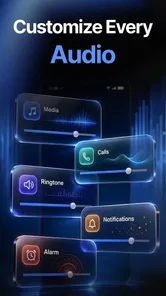
Volume Control Home is an Android utility designed to make managing your device’s sound levels more convenient. Instead of repeatedly opening system settings or using physical buttons, it provides quicker access to volume controls from the home screen or notification area, depending on the version and device. It can be useful for adjusting media, ringtone, alarm, notification, and call volumes when you need more direct control.
Can Volume Control Home control different volume channels separately?
The app is intended to provide access to the main Android volume categories rather than treating every sound as one single level. In supported versions, you may be able to adjust media, ringtone, notifications, alarms, and call audio independently. However, the exact controls can vary according to your Android version, manufacturer interface, and permission restrictions, so some devices may display fewer options than others.
Does Volume Control Home require special permissions to work?
Volume Control Home may request permissions or system access needed to display controls, create shortcuts, or operate through a notification or floating interface. These requirements can differ between Android versions and phone brands. Before accepting anything, review the permission descriptions carefully. The app should not need access to personal files or contacts simply to adjust sound, so avoid granting unrelated permissions unless you understand why they are requested.
Pros
- Quick access to volume controls from the home screen.
- Useful for devices with inconvenient or faulty volume buttons.
- Simple interface that is easy to understand and use.
- Can help reduce wear on physical volume keys.
- Handy for adjusting sound without opening system settings.
Cons
- May require accessibility or overlay permissions to work properly.
- Floating controls can cover content or feel intrusive.
- Some features may vary by Android version or device brand.
- Could add another persistent notification or background service.
- Limited usefulness on devices with easily accessible volume buttons.