Volume Booster-Tool Center
- 245.00
- 4.5
- Installs
- 100.00K
- Price
- Free

Screenshots
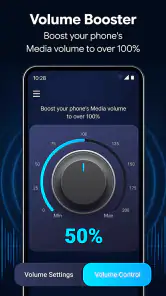
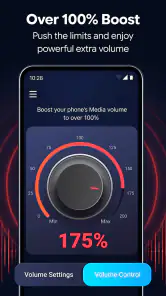
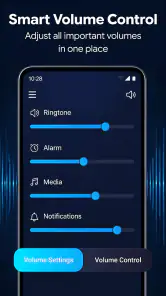
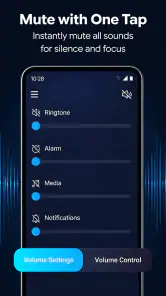
Analysis by Reviewed
I approached Volume Booster-Tool Center as a practical tools app rather than expecting a full audio production suite. Its purpose is straightforward: bring sound controls and useful audio utilities into one place, with a focus on making volume adjustments easier to reach. After spending time with it, I see the main appeal in convenience. It is aimed at people who want quicker control over everyday listening, not users looking for detailed mixing, recording, or studio-grade processing.
The app comes from TAMAPS and is available free of charge. It is listed for Everyone, which matches the simple, general-purpose idea behind it. The current release is version 1.0 and works with Android 8.0 or later. That combination makes it accessible to many older devices, although anyone using a newer phone should still keep expectations realistic: compatibility does not automatically mean that every handset will behave identically with audio controls.
What to consider before choosing a volume tool
When I decide whether a volume utility is worth keeping, I look beyond the promise of making sound louder. The first question is whether it solves a real inconvenience faster than the phone's built-in volume buttons. The second is whether it gives me useful control without turning a simple adjustment into a complicated routine. The third is whether the result remains comfortable and predictable across headphones, speakers, videos, music, and notifications.
That last point matters because Android audio is divided into different streams. Media, calls, alarms, and notifications do not always respond in the same way. A tool can be useful for one situation and less helpful in another. I therefore judge this app by how well it supports everyday sound management, rather than assuming that the word “booster” guarantees a dramatic improvement in every audio source.
The app has attracted an average rating of 4.5 from around 5.4 thousand ratings, with 245 written reviews and over 100 thousand installs. Those figures suggest that the concept has found an audience, but they should not replace personal testing. Audio output depends heavily on the phone's speaker hardware, connected accessories, Android version, and the source material itself. A higher control setting cannot create detail that was never present in the original recording.
My practical decision rule is simple: choose it if your main frustration is reaching or managing sound settings quickly. Be more cautious if you need equalizer bands, audio profiles, recording tools, or exact control over several independent outputs. In those cases, a dedicated equalizer, the manufacturer's audio panel, or the settings already included with your headphones may be a better match.
How I used it in ordinary situations
A realistic example is watching a video in a room with background noise. The phone's regular volume buttons may already be familiar, but opening a dedicated sound utility can make the adjustment feel more deliberate, especially when I am switching between a quiet podcast and a louder clip. I found the app most useful as a quick control center: open it when sound needs attention, make the adjustment, and return to the activity instead of searching through several system menus.
Another useful situation is moving between wired headphones, a Bluetooth speaker, and the phone's own speaker. Each output can feel different even when the on-screen volume level looks similar. I would use the app as part of a short transition routine: connect the new device, start playback at a moderate level, adjust carefully, and only then raise it if necessary. This avoids the unpleasant surprise of starting a track at the level used by a quieter accessory.
There is also a small but important habit I recommend: lower the volume before disconnecting headphones or changing output devices. A booster-style tool can make it tempting to push the level upward, but the next device may be more sensitive. Starting low is safer and usually faster than correcting an overly loud playback session.
Where the app feels most useful
The strongest part of the experience is its narrow focus. Instead of treating sound as one hidden setting buried in Android, the app presents itself as a place to manage audio-related controls more directly. That can be valuable for someone who frequently adjusts media volume, shares a phone with family members, or finds the standard controls awkward to reach.
I also like the idea of using it as a temporary helper rather than a permanent replacement for Android's own controls. For example, I might open it when a video is unusually quiet, make a modest adjustment, and close it afterward. This mindset keeps the app useful without making every listening session dependent on an extra layer.
The best result comes from treating extra volume as a small adjustment, not a promise of unlimited loudness. Speakers have physical limits, and pushing beyond a comfortable level can introduce distortion or make speech tiring to follow. If a recording is badly mixed or a speaker is already struggling, more volume may make the weakness more obvious rather than fixing it.
One non-obvious advantage is that a central tool can encourage more consistent listening habits. Instead of repeatedly tapping buttons without checking what changed, I can pause, identify whether the problem is media level or the connected device, and then adjust with intention. That is especially useful when troubleshooting: if the sound remains weak after a careful change, the problem may be the source app, the accessory, or the phone's hardware rather than the volume setting.
Limits that should shape your expectations
The first limitation is that this is not a substitute for better hardware. A small phone speaker cannot reproduce the bass, separation, or clarity of a good external speaker simply because an app changes its volume behavior. If your real goal is richer sound, a better pair of headphones or a dedicated speaker will usually make a larger difference than software alone.
The second limitation is that “volume booster” can mean different things on different phones. Android manufacturers customize their audio systems, and some devices impose their own safety limits or processing rules. An app may provide convenient controls while still being unable to override every system restriction. I would not choose it expecting identical behavior across all Android models.
The third issue is comfort. Louder is not always clearer. For spoken content, a modest increase can help when the room is noisy, but excessive amplification can emphasize harsh consonants and background hiss. For music, clipping or fatigue may become more noticeable. I prefer making small changes and judging the actual result with familiar content instead of relying on the slider position.
Because the release is version 1.0, I would also approach it as an early, focused utility. That is not automatically negative; a simpler first release can be easier to understand. Still, people who need a mature audio workflow with extensive customization may find a manufacturer tool or established specialist app more suitable. The decision depends on whether convenience matters more to you than depth.
Comparing it with the usual alternatives
The most obvious alternative is Android's built-in volume panel. It costs nothing extra and is already integrated with the phone, so it remains the best choice for people who only change sound occasionally. Built-in controls also have the advantage of being tied closely to the device's own audio behavior. If the system panel already gives you everything you need, adding another tool may not improve your routine.
Where this app can win is accessibility and concentration. A dedicated place for sound tools may be easier to use than navigating the system panel, particularly when I want to make an adjustment while handling another task. The trade-off is that I am introducing another app into a process Android already supports. If opening it feels slower than pressing a button, the advantage disappears.
A second alternative is a phone manufacturer's audio utility. These tools may be better integrated with the device and can sometimes offer sound profiles or enhancements designed for that specific hardware. They are the stronger option when I want the phone's built-in processing to work with its own speakers and supported accessories. This app is more appealing when my priority is a straightforward, separate control point rather than brand-specific audio tuning.
A third category is the dedicated equalizer or audio-effects app. That route makes sense for listeners who want to shape bass, treble, vocals, or the overall character of music. It can be more powerful, but it also requires more experimentation and may not be appropriate for someone who only wants easier volume management. I would not install an equalizer just to solve an occasional difficulty finding the right sound level.
Finally, some headphones and Bluetooth speakers include their own controls or companion applications. Those are often preferable when the problem is specific to one accessory. A speaker that sounds quiet because of its own settings should be adjusted at the speaker level when possible. A general volume tool can complement that process, but it should not be expected to replace controls built into the accessory.
Who should use it, and who should skip it
I would recommend trying this app if you regularly move between audio sources, want a more direct way to manage sound, or find the standard Android controls inconvenient. It is also a reasonable option for someone who wants a free utility and is willing to judge the result on their own phone instead of expecting a universal loudness increase.
I would skip it if your main need is professional audio work, detailed equalization, multitrack recording, or precise mixing. It is also not the right answer for a damaged speaker, a faulty headphone connection, or a recording that is poorly mastered. Those problems need a different solution, and raising volume can hide the cause temporarily while making the listening experience worse.
Parents and shared-device users should keep the Everyone rating in perspective. The app is presented as suitable for a general audience, but responsible listening habits still matter. I would set a comfortable level before handing the phone to someone else, especially when headphones are connected. An age classification describes suitability; it does not remove the need to manage loudness sensibly.
What switching to it is really like
The cost of trying the app is low because it is free, but the real cost is attention. I have to decide whether it is faster than the controls I already use, and I need to remember which adjustment was made through the app and which came from Android or an accessory. That distinction becomes important when sound later seems too loud or too quiet.
My suggested workflow is to test it with three familiar sources: spoken audio, music, and a video. Start at a comfortable level, make only a small change, and then switch output devices. This reveals whether the tool improves your routine or merely adds another control surface. It also helps separate genuine usefulness from the excitement of seeing a larger setting.
If the app does not make everyday adjustments easier after that trial, uninstalling it is a sensible decision. The built-in controls will remain the simpler option. If it does help, keep the workflow modest: use it for access and convenience, avoid chasing extreme levels, and check the output whenever headphones or speakers change.
My recommendation
My final view is positive but measured. Volume Booster-Tool Center is worth trying for Android users who want a focused way to manage sound and who understand that software cannot overcome every hardware limit. Its free price, broad compatibility beginning with Android 8.0, and straightforward tools make the barrier to testing small. The strong average rating and growing install base also indicate that many people find the idea useful.
I would recommend it most strongly as a convenience layer, not as a miracle audio enhancer. Use it when the phone's normal controls feel inconvenient, when you move between accessories, or when a small volume adjustment makes speech easier to hear. Choose a system audio tool, an accessory companion app, or a dedicated equalizer instead when you need deeper processing or hardware-specific control.
For me, the deciding question is whether it saves time without encouraging excessive loudness. If the answer is yes, this compact tools app earns a place on the phone. If all you want is occasional volume changes, Android already handles that well. That makes the app a useful specialist convenience, but not an essential installation for every listener.
Pros
- Boosts quiet audio quickly with simple slider controls.
- Works with music
- videos
- podcasts
- and many games.
- Includes extra tools for adjusting device sound settings.
- Lightweight design uses little storage and system resources.
- Useful for improving volume on older or low-output devices.
Cons
- Excessive amplification may cause speaker distortion or damage.
- Results vary depending on the phone model and Android version.
- Some features may require intrusive permissions to function.
- Boosting volume can reduce audio quality and increase background noise.
- May not work reliably with every media player or Bluetooth device.

- Category
- Tools
- Version
- 1.0











