Volume Booster – Audio Center
- 90.00
- 4.6
- Installs
- 50.00K
- Price
- Free

Screenshots
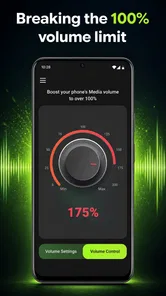
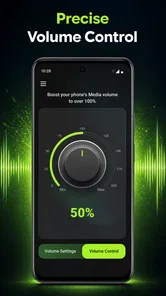
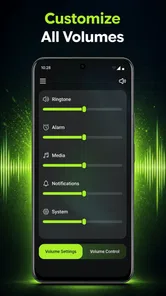
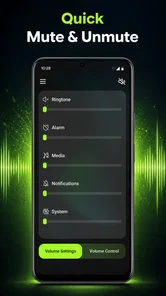
Analysis by Reviewed
I tested Volume Booster – Audio Center as a small, focused sound tool rather than treating it like a full audio studio. Its purpose is easy to understand: help me raise media volume and manage phone sounds from one place. That narrow goal is useful, especially when the standard volume buttons feel too slow or inconvenient, but it also sets a clear limit. This is not an app I would choose for detailed equalizer work, audio editing, or a complete accessibility suite.
What stood out most during use was how much the experience depends on the phone itself. An app can make volume control feel more direct, but it cannot replace a device’s speaker quality, repair a weak recording, or guarantee comfortable listening at every level. I found the best value in quick, everyday adjustments: watching a video, listening to spoken content, or trying to make a quiet media source easier to hear without repeatedly opening system menus.
The app is free, aimed at everyone, and developed by AinulMardhiyah. It belongs to the tools category and uses a straightforward version-one approach. That simplicity can help people who want one obvious job done, although users expecting a deep set of controls may find the experience intentionally limited.
How the interface supports clearer, easier sound control
I find that a clear, direct interface matters most when I’m adjusting sound in the middle of another task: I want to make a small change, hear the result, and get back to what I was doing. A focused layout can reduce that interruption, though careful listening still matters more than chasing the highest setting. From there, it’s worth considering how those quick adjustments fit into everyday routines.
Readability and navigation
For a volume utility, the first test is whether I can understand what to do without studying a manual. Volume Booster – Audio Center benefits from having a focused purpose. I do not have to work through a music library, configure complicated audio profiles, or learn a large collection of technical controls before reaching the main task. That makes it more approachable for someone who is not comfortable with audio terminology.
The short store description, “Volume Booster,” also matches the basic expectation I had when opening it. The app is not presented as a recording tool or a professional mixing environment, so I judged it mainly on directness. In practical use, a focused layout is valuable for people who need to adjust sound quickly and do not want several unrelated features competing for attention.
That said, simple does not automatically mean accessible to everyone. A user with reduced vision may still need sufficiently large controls, strong contrast, and clear visual feedback from the phone’s own display. I cannot treat the app as a substitute for the operating system’s accessibility settings. My advice is to pair it with the device’s text-size, display, and screen-reader options when those are needed. The app’s role is sound control; the phone’s accessibility layer remains important for reading and navigation.
More From Our News Desk

 Gmail
GmailGmail in a Busy Inbox: Who Benefits Most?
From first account to crowded workday, Gmail earns its place through dependable search and flexible sorting—but its best fit depends on how much inbox maintenance you can tolerate.

 Prime Video
Switching to Prime Video: What Changes in Your Viewing Routine
Prime Video can make a compelling second home for streaming, but switching means learning a different catalog, rental layer, and route from browsing to playback.

 Universal TV Remote Control
Universal TV Remote Control Works Best as a Reliable Backup
A phone remote earns its place through quick setup and reliable habits. Here is how to get more from Universal TV Remote Control—and where its limits show.

 Weather - By Xiaomi
Weather by Xiaomi Review: Clear at a Glance, Less Clear Up Close
Xiaomi’s weather app makes everyday forecasts quick to scan, but its calm surface can leave useful details and recovery paths harder to find than they should be.

 X
XX Under Pressure: Can It Recover When Posting Goes Wrong?
A resilience-focused review of X, examining setup, mistaken posts, interruptions, weak connections, and the gaps that matter when recovery needs to be dependable.

 Clash of Clans
Clash of Clans Is Won Between the Battles
Its raids are quick; its community is a long-term project of coordination, teaching, rivalry, and shared responsibility—with all the friction that entails.
Latest News



I also found that the clearest workflow is to make a small adjustment and then test the result immediately with the actual media I am using. Spoken dialogue, music, games, and notification sounds do not feel equally loud, so a setting that works for one may be excessive for another. This is a useful habit with any booster: adjust gradually instead of moving straight to the highest available level.
Motor and sensory considerations
Volume control can be a motor-access issue as much as an audio issue. Repeatedly pressing a narrow physical button may be uncomfortable for someone with limited hand strength, tremor, joint pain, or difficulty making precise movements. A dedicated on-screen control can offer a different route, because tapping or sliding may be easier than locating and pressing the side of the phone.
The trade-off is that a touch interface still demands accurate contact. If the controls are close together, a person with tremor or reduced dexterity may accidentally change the level too far. I would therefore use deliberate, slower movements and check the result through the media itself. The app can make the task more convenient, but it does not remove the need for touch precision altogether.
For people with partial hearing, a louder signal is not always a clearer signal. Increasing volume may expose distortion, harshness, or background noise along with the speech or music. I would be especially careful with podcasts, phone-recorded videos, and dialogue-heavy clips. If the source is muffled, a booster may make the muffling louder rather than solve the real problem.
There is also a sensory trade-off for users who are sensitive to sudden or intense sound. A high setting can be startling when headphones are connected or when playback changes from a quiet section to a loud one. My safer routine is to begin at a modest level, play a familiar sample, and raise it only as needed. I would never hand the phone to a child with the booster already set high, even though the app carries an Everyone content rating.
One practical insight is to use the app for short, deliberate adjustments instead of leaving maximum amplification active all day. That approach reduces surprises when switching between media types and makes it easier to notice when the phone’s speaker is struggling. It also encourages me to treat louder sound as a temporary aid, not as a replacement for comfortable listening habits.
Situational access in everyday use
The strongest use case I found is a quiet media source in a noisy or inconvenient setting. Imagine sitting in a kitchen while water is running, trying to follow a short instructional video with one hand occupied. Reaching for the phone’s side buttons may be awkward, and opening the system sound panel can interrupt the task. A dedicated volume tool can be useful when I need a quick change and want to return to the content immediately.
It can also help someone who shares a room and needs a little more volume from a spoken clip without connecting another device. In that situation, I would first position the phone so its speaker is not blocked, then make a modest adjustment. Physical placement often matters more than people expect. A phone lying face down, partly covered by fabric, or placed far away may remain difficult to hear even after amplification.
For users who rely on audio prompts while cooking, commuting, or working with their hands, reducing the number of steps can make a meaningful difference. The app is most helpful when the need is immediate and temporary. It is less compelling when I am already comfortable using the phone’s built-in volume controls or when I need separate settings for different sound types.
Another useful workflow is checking the volume before connecting headphones or a portable speaker. I would lower the level first, connect the listening device, and then raise it gradually. This is not a special feature claim; it is simply a safer way to use any volume-adjustment tool. It matters because a level that seems acceptable through the phone speaker may be uncomfortable through headphones.
The app may also suit older adults who find the standard control path confusing, provided the phone’s display settings and touch response are already comfortable. I would show the person one repeatable routine rather than explaining every possible sound setting: open the tool, adjust in small steps, listen, and return to the previous level afterward. A simple routine is often more useful than a long technical explanation.
Where the usual alternatives are better
The built-in Android volume controls remain the most dependable alternative for basic changes. They are already part of the phone, familiar to the operating system, and generally connected to the device’s own sound behavior. If I only need occasional volume adjustments, installing a separate tool may add little value.
Hardware buttons can also be better in situations where I cannot look at the screen. They are useful while the phone is in a pocket or when I am walking and do not want to navigate a display. The app becomes more attractive when tactile buttons are difficult to reach, uncomfortable to press, or too easy to trigger accidentally.
Dedicated equalizer apps are preferable when the problem is not loudness but sound balance. Someone trying to make speech clearer, reduce bass, or shape music may need frequency controls rather than a simple boost. A physical speaker, headphones with their own controls, or a better-positioned phone can likewise produce a cleaner improvement than pushing the current speaker harder.
This comparison helped me place the app correctly. I would recommend it as a convenience layer for media volume, not as a universal fix for every hearing or sound-quality problem. That distinction prevents disappointment and encourages safer decisions about when amplification is appropriate.
Remaining barriers and practical cautions
The biggest barrier is that louder does not always mean better. Phone speakers have physical limits, and extra gain can make audio unpleasant or distorted. If a recording is badly mixed, the app cannot restore missing detail. If a person has difficulty hearing certain frequencies, volume alone may not provide the clarity they need.
Another barrier is context switching. Media, calls, alarms, notifications, and connected audio devices may not behave identically. I would not assume that one adjustment will produce the same result everywhere. After changing the level, I would test the specific sound that matters and then check the phone again before moving to another activity.
People with strong sensory sensitivities should use particular care around sudden playback. I would avoid experimenting in a quiet room with headphones already on. Start with the phone speaker at a low level, confirm the result, and only then connect other listening equipment. This small routine is more important than chasing the loudest possible setting.
There is also a social barrier: a louder phone may disturb people nearby. In a shared office, classroom, waiting room, or bedroom, headphones or captions may be a better solution. The app is not the right choice when the real need is private listening. Likewise, if captions, transcripts, or visual alerts provide better access, those options may be more effective than increasing sound.
I would skip this app if I wanted advanced audio customization, a carefully tuned hearing profile, or a replacement for professional hearing support. I would also skip it if my phone already provides comfortable, easy-to-reach volume controls. Its value is strongest when access to media sound is inconvenient, not when the device’s audio system needs a complete redesign.
What the current release means for expectations
The current release is version one, so I approached it as a focused starting point rather than a mature audio platform. That does not make it unusable; it simply makes realistic expectations important. I looked for a direct way to manage sound and judged the app on whether it reduced friction during ordinary listening.
Its public reception is encouraging: the app holds a 4.6 average from around one thousand two hundred ratings, with roughly ninety written reviews and over fifty thousand installs. Those figures suggest genuine interest, but they do not guarantee that every phone, speaker, or accessibility setup will behave identically. Sound hardware varies too much for a rating alone to predict personal results.
The minimum operating-system requirement is Android 8.0, which gives the app a reasonably broad audience among users with older phones. Before relying on it for an important routine, I would still install it on the actual device and test media, headphones, and the phone’s normal controls. That short trial is more informative than assuming compatibility from the operating-system requirement alone.
The app is free, which lowers the risk of trying it as a convenience tool. I would still avoid treating “free” as a reason to accept uncomfortable audio or a confusing workflow. The right test is simple: can I make the sound easier to use, with small adjustments, without creating a new problem?
An inclusive verdict for different listeners
After using it, I see Volume Booster – Audio Center as a practical option for people who want a more direct way to raise media sound and manage phone audio. Its focused purpose can support users who find physical buttons awkward, who need quick adjustments during hands-busy tasks, or who occasionally encounter media that plays too quietly.
Its inclusive value comes from offering another route to a familiar task, not from replacing every other accessibility method. A person with low vision may still need display or screen-reader support. A person with limited dexterity may appreciate on-screen control but still need larger touch targets or slower interaction. A person with hearing difficulty may benefit from a modest increase, while another may need captions, better headphones, equalization, or professional advice instead.
My recommendation is to use it as a careful, situation-specific aid rather than a permanent maximum-volume solution. Start low, test the actual content, keep headphones in mind, and remember that speaker placement and source quality can matter as much as the app’s adjustment. If that matches your needs, the free, focused design is worth trying. If you need detailed sound shaping or a complete accessibility workflow, the phone’s built-in tools or a more specialized audio solution will likely serve you better.
Overall, I would recommend it to a friend who wants a simple volume utility and understands its boundaries. It is most successful when it removes a small daily obstacle without pretending to solve every audio-access challenge. For that specific purpose, AinulMardhiyah has delivered a straightforward tool that can make media listening more manageable in the right circumstances.
Volume Booster – Audio Center Frequently Asked Questions
Is Volume Booster – Audio Center available for Android and iOS?
Volume Booster – Audio Center is an audio tool for managing phone sounds, and its store summary describes boosting media volume. Before downloading, check that you are viewing the version for your device and that your operating system meets its requirements. The app’s listed minimum operating-system version is 8.0, so check your device settings if you are unsure which version it runs.
Which devices and operating systems can run Volume Booster – Audio Center?
The app is listed with a minimum operating-system version of 8.0. Before installing, compare that requirement with the software version shown in your device’s settings, and make sure you are opening the app page for the correct platform. The experience can also vary between phone models because audio controls and speaker limits differ. A compatible operating system does not guarantee identical sound behavior on every device.
What is Volume Booster – Audio Center, and what does it do?
Volume Booster – Audio Center is an audio-enhancement app designed to make music, videos, podcasts, games, calls, and other media sound louder or more noticeable. Depending on the device and Android or iOS version, it may provide separate controls for media volume, notification sounds, alarms, or system audio. Its actual effect can vary because some phones already limit maximum output to protect the speaker and hearing.
Does Volume Booster – Audio Center work with headphones, Bluetooth speakers, and the phone speaker?
The app may work with several output types, including the built-in speaker, wired headphones, wireless earbuds, and Bluetooth speakers, but compatibility is not identical on every device. Bluetooth hardware, operating-system restrictions, manufacturer sound settings, and the media player itself can affect the result. We recommend testing the app at a moderate level with each accessory rather than assuming the same boost will work everywhere.
Can using Volume Booster – Audio Center damage my hearing or device speakers?
Increasing sound beyond the manufacturer’s recommended level can create risks. Prolonged exposure to loud audio may contribute to hearing discomfort or hearing loss, while excessive amplification can cause distortion, buzzing, or stress to small phone and headphone speakers. Start with the lowest useful setting, avoid using maximum boost for long periods, and reduce the volume immediately if the sound becomes harsh, distorted, or physically uncomfortable.
Pros
- Boosts quiet audio from videos
- music
- and podcasts.
- Simple controls make volume adjustments quick and accessible.
- Useful for improving sound through small or weak device speakers.
- Works well for casual listening without complicated audio settings.
- Can help compensate for inconsistent volume across different media files.
Cons
- Excessive amplification may cause distortion or harsh sound.
- Results depend on the phone
- speaker
- and connected headphones.
- May drain battery slightly while running audio processing features.
- Some features may be limited by ads or in-app purchases.
- High volume levels can damage hearing or connected audio equipment.