TV Cast - Roku Remote & All
- 140.00
- 3.8
- Installs
- 100.00K
- Price
- Free

Screenshots
Analysis by Reviewed
I tried TV Cast - Roku Remote & All as a practical way to move photos and videos from a phone to a television, and my first impression was that it aims to solve two familiar problems in one place: getting personal media onto a larger screen and keeping a remote control close at hand. It is a free tools app from FlyMobile, rated for Everyone, with a 3.8 average from around 718 ratings and more than 100K installs. That gives it a useful amount of real-world exposure, although the rating also suggests that the experience will depend heavily on the television, network, and the kind of casting you expect.
The app is most interesting when I treat it as a repeatable living-room utility rather than a complete replacement for every streaming service. It can be useful when family photos are sitting on a phone, when a locally saved video is easier to access on mobile than through a television app, or when I want a remote nearby without searching between sofa cushions. At the same time, it is not the right answer for every casting situation. If all I need is content from an app that already has a reliable built-in cast button, the official option may be simpler.
Starting with a dependable casting routine
My preferred way to use this app begins before I press the cast button. I make sure the phone and television are connected to the same home network, then open the app with the television already awake. That small order matters. A casting tool has to discover a compatible screen before it can send anything, and troubleshooting is much easier when the devices are already active rather than when one of them is sleeping or switching inputs.
Once the television appears, I choose a photo or video from the phone and start with something short. A single image is a good first test because it quickly shows whether the connection works without making me wait through a long transfer or playback attempt. After that, I move to a short video and check whether the controls behave as expected. This two-step habit separates connection problems from media-specific problems, which saves time when a video does not play even though the television is visible.
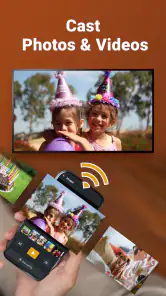
The app’s core appeal is straightforward: I can use my phone as the starting point for personal content and send it to the larger display. That is especially convenient for photographs, because browsing a phone gallery is often faster than trying to locate the same images through a television interface. For a group of people sitting together, the phone also becomes a natural selection tool. I can find the next picture while the current one is on screen instead of handing a remote around the room.
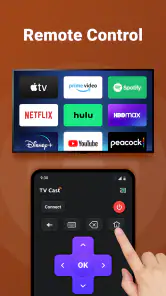
The remote side changes the rhythm slightly. I do not see it as a reason to abandon a physical remote completely, but it is handy when the original controller is misplaced, out of reach, or being used by someone else. A phone-based remote is also useful when I am already holding the phone to choose media. The main trade-off is obvious: the phone must remain available, charged, and responsive. A physical remote is less distracting during a long viewing session.
For an everyday example, imagine returning from a family event with photographs on one phone. I would connect the phone and television, test the connection with one picture, then show the selected images in small groups rather than attempting to build a complicated presentation. If a video is next, I would stop the photo session first and start the video separately. This keeps the session predictable and makes it easier to tell whether a problem comes from the file, the network, or the television.
What I check before blaming the app
The first check is network consistency. If the phone is using one connection while the television is isolated on another, discovery may fail even when both devices have internet access. I also check whether the television is on the expected input and whether another casting session is still active. These are mundane details, but they are responsible for many “the app does nothing” moments.
I also avoid testing with the largest or longest video first. A successful photo connection proves that the basic path is working, but it does not guarantee that every video format will behave in the same way. When a particular clip fails, I try another clip rather than repeatedly reconnecting the television. That is a more useful diagnostic habit than assuming the entire app is broken.
Another practical point is to keep the phone unlocked during the initial setup. Mobile operating systems may restrict background activity, and the television needs a clear chance to establish the session. After the connection is stable, I can experiment with locking the phone or leaving the app, but I would not make that the first test. A repeatable starting routine is more valuable than a collection of random fixes.
Settings and choices worth checking
The current version is 1.30.9, and I would spend a few minutes looking through the available controls before relying on the app for a social gathering. The important question is not simply whether a setting exists, but whether it changes the way I intend to use the app. A remote-focused session, a photo session, and a video session have different priorities, so I do not assume that one default arrangement suits all three.
For photos, I pay attention to how the app handles selection and movement between images. A phone gallery can encourage quick tapping, but the television experience benefits from a slower rhythm. I select a small group, check the first image on the larger screen, and only then continue. This avoids the awkward situation where several people are waiting while I discover that the wrong album or orientation was selected.
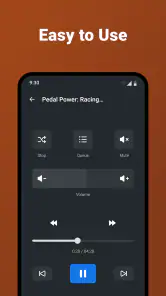
For video, I check the playback controls before settling in. The useful controls are the ones that reduce interruptions: pausing, resuming, and returning to the television view without losing track of what I was watching. I do not expect a phone-based casting utility to replace every control offered by a dedicated television player. Instead, I use it for direct access to media that is already on the phone and keep expectations modest.
The remote function deserves its own setup pass. I look for the controls I use most often and keep the phone oriented so I can reach them without repeatedly switching between the remote and media screens. This is a small workflow improvement, but it matters. The value of a universal remote is reduced if I spend more time searching through the interface than I would spend finding the original controller.
There is also a financial detail worth noticing. The app is free to install, while in-app purchases are listed from $4.99 to $19.99 per item. I would use the free experience first and only consider a purchase after confirming that the app works with my television and fits my routine. That is particularly important for a casting tool because compatibility is more important than an attractive feature list. Paying before testing the basic connection would be the wrong order.
The age rating of Everyone makes the app easy to consider for a shared household, but that does not remove the need for sensible device habits. A family may use one phone to select personal photographs, so I would stay aware of which gallery or folder is being opened before casting. The app is convenient precisely because it can expose phone content to a room; that convenience deserves a quick check before displaying anything private.
Small habits that make sessions smoother
I keep the television and phone in their normal home locations when testing. Moving one device to a different room can introduce a network condition that does not represent everyday use. If the app works beside the television but struggles from another room, that tells me the real limitation may be wireless coverage rather than the casting controls.
I also use a short “reset ladder” instead of restarting everything immediately. First I stop the current cast, then return to the device list, then close and reopen the app if discovery still looks wrong. Only after those steps would I restart the television or phone. This order preserves context and makes it easier to identify which action solved the problem.
For frequent users, the best setting is often the one that reduces decision-making. I keep the same phone as the casting device during a viewing session, avoid switching between several media sources at once, and finish one task before starting another. That sounds simple, but it prevents the common confusion of not knowing whether the television is responding to a photo command, a video command, or a remote command.
Faster patterns for regular use
After testing the basic workflow, I found that speed comes less from tapping quickly and more from preparing the session. If I know I will show photographs, I gather the relevant images in one easy-to-find place before connecting. If I know I will play a local video, I identify it first rather than searching while everyone is waiting. The app then becomes the final step in a prepared routine instead of the place where I make every decision.
One useful pattern is to separate selection from control. I choose the media first, confirm that it appears on the television, and then use the remote controls only when needed. Mixing both jobs continuously can make the interface feel busier than it needs to be. Separating them also helps when another person wants to choose the next item while I keep control of playback.
Another pattern is to use a “known good” item as a checkpoint. I keep one ordinary photo and one short video that I know are suitable for testing. If the television is not discovered, I investigate the connection. If the photo works but the video does not, I investigate that file or playback situation. This is more efficient than using a new, unusually large, or unusual-format file every time I troubleshoot.
The phone’s role also affects the experience. If it is nearly out of battery, receiving constant notifications, or being used for several other tasks, the session becomes less dependable. I prefer to start with enough battery and keep the phone available. That is not a special requirement of this app alone, but it is especially relevant here because the phone is both the media library and the remote.
For a group, I would establish one person as the session operator. Everyone else can suggest photos or videos, but one device should remain connected and in control. This avoids several people attempting to start different casts and then wondering why the television changed unexpectedly. The app works best when its flexibility is organized rather than shared chaotically.
Compared with the usual alternatives, the main advantage is convenience for phone-based media and a combined remote role. Official casting tools built into a television platform can be preferable when I am sending content from a supported streaming app, because they are already part of that app’s normal playback flow. A television’s physical remote is also usually better for extended navigation. I reach for this app when I want a bridge between my phone’s personal content and the television, not when I want to replace every other control method.
When the shortcut is not really a shortcut
A universal remote sounds faster, but it can become slower if the phone has locked, the app has been closed, or the television has lost its connection. I therefore use the phone remote for short interventions: changing a basic control, pausing media, or handling a moment when the original remote is unavailable. For a long evening of menu navigation, the dedicated remote remains more comfortable.
Casting personal videos can also expose a quality trade-off. The large screen makes flaws in a recording more visible, and the result may depend on how the television handles the file. I would not assume that a video that looks fine on a phone will look identical when cast. For important events, I test the actual clip in advance and keep an alternative way to show it.
The app is also less appealing if my entire media life already happens inside television-native services. In that case, opening the relevant service directly on the television may involve fewer steps and fewer connection variables. The strongest case for this app is the content that is easiest to reach on the phone but awkward to locate on the television.
Advanced limits and realistic expectations
The biggest limitation is that a casting app sits between several systems. The phone, home network, television software, and media file all influence the result. A smooth experience on one television does not guarantee identical behavior on another. I would judge the app after testing it in the room and with the files I actually plan to use, rather than relying on the idea of a universal solution.
Network reliability is another boundary. A weak or crowded wireless connection can cause discovery delays, pauses, or an unstable remote session. Moving closer to the television may help, but it is not a universal cure. If the connection remains unreliable while other devices also struggle, the app is probably revealing a home-network issue rather than creating one.
There is a difference between casting and mirroring, and I would not treat them as interchangeable. Sending a selected photo or video is a focused task. Showing everything happening on the phone is a broader task with different privacy and performance concerns. I use the app for deliberate media selection and remote control, not as an assumption that every phone screen will automatically appear on the television.
Privacy is part of the advanced workflow. Before a group session, I check the selected album and avoid browsing through unrelated personal content while the television is connected. I also stop the cast when finished instead of leaving the last image or video available indefinitely. These habits are not glamorous, but they are important when a phone contains work material, private photographs, or messages that should not appear on a shared screen.
The purchase range from $4.99 to $19.99 per item also changes how I evaluate the app. I would not pay simply because I want a cleaner remote or a more convenient session. I would first ask whether the free version handles my television, my network, and my main media types. If it does not, a paid upgrade is unlikely to solve a fundamental compatibility issue. If it does, then the purchase decision becomes a question of how often I use the extra convenience.
FlyMobile’s app has reached a moderate audience, with more than 100K installs and around 140 written reviews alongside its rating. I read that as a sign that it is established enough to try, but not as proof that every setup will be trouble-free. The rating of 3.8 feels consistent with a tool whose usefulness can vary according to hardware and expectations. I would recommend testing it in advance of an important presentation, holiday gathering, or family event.
Who should use it and who should skip it
I think it suits people who regularly keep photographs or videos on a phone and want a practical route to the television. It is also a sensible backup for households that occasionally misplace the physical remote. Families may appreciate the quick access to personal media, provided one person manages the connected phone and checks what is being displayed.
I would be more cautious if someone expects a flawless replacement for a television’s native interface, a dedicated remote, and every official casting method at once. Heavy television navigators may prefer the physical controller. People who only watch content through services already installed on the television may find this app unnecessary. It is also not a good choice to test for the first time immediately before an important event.
My most useful advice is to build a small routine: connect on the usual network, test with one photo, test with one short video, then begin the real session. Keep one phone in charge, stop the cast when finished, and use the free version long enough to understand compatibility before considering an in-app purchase. Those steps address the practical problems that a short store summary cannot explain.
My verdict after making it part of a routine
I see TV Cast - Roku Remote & All as a useful bridge between a phone and a television, especially for personal photos, locally stored videos, and occasional remote control. Its strongest quality is not that it eliminates every other option; it is that it brings two common tasks together when the phone is already the device I am using. That can make a casual living-room session much easier.
Its weaknesses are equally practical. Discovery depends on the home setup, playback may vary by file and television, and the phone is still a phone that can lock, lose battery, or become distracting. The remote is convenient for short tasks but does not automatically feel better than a physical controller for long navigation. I would also treat the paid items as optional until the free experience proves reliable in my own room.
For me, the deciding question is simple: do I often have media on my phone that I want to show on a television? If the answer is yes, this free tools app is worth trying, particularly when I approach it with a prepared workflow rather than expecting one tap to solve every connection issue. If my viewing already happens entirely through official television apps, I would stay with those native tools and keep this as a backup.
Overall, I recommend it to practical users who want a phone-led casting routine and an emergency remote in the same app. I would not call it a universal replacement for the television’s own controls, but I do find it valuable in the situations it targets. With version 1.30.9, an Everyone rating, and a free entry point, TV Cast - Roku Remote & All is easy to test; the real measure is whether it becomes dependable on your network with your own photos and videos.
Pros
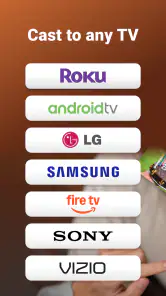
- Works with most Roku TVs and streaming players.
- Simple interface makes basic remote functions easy to find.
- Supports casting photos and videos from a compatible phone.
- Useful keyboard input can speed up searches and logins.
- A convenient backup when the physical Roku remote is missing.
Cons
- Requires both devices to use the same Wi-Fi network.
- Some advanced features may require a paid upgrade.
- Ad-supported screens can make the free version feel cluttered.
- Casting performance depends on phone
- network
- and media compatibility.
- May not connect reliably when the Roku device is in standby.

- Category
- Tools
- Version
- 1.30.9











