TapPDF
- 13.00
- 4.6
- Installs
- 100.00K
- Price
- Free
Screenshots
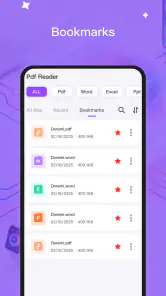
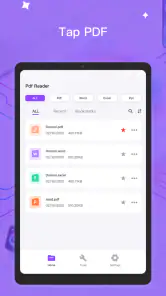
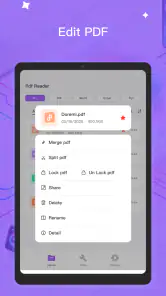
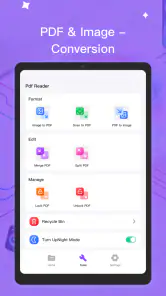
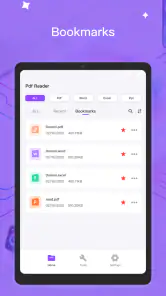
Analysis by Reviewed
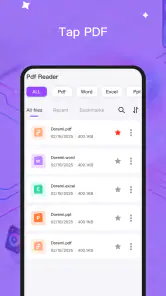
I often judge a PDF tool by what happens outside a quiet desk: opening a document on a weak connection, making a quick correction from a phone, or trying to recover after an interrupted task. That is the lens I used with TapPDF, a free tools app from Mr Khidma that combines PDF reading and editing in one mobile-focused experience. Its simple store summary does not tell the whole story, because the real question is whether it reduces friction when a document appears at the wrong time.
The app has attracted a 4.6 average from around 1.2 thousand ratings and has passed 100 thousand installs, which gives it a useful level of public testing without making it feel like an established office suite. It is rated for Everyone, runs on Android 7.0 or later, and the current release is version 1.0.4. I would describe it as a practical utility for people who need to handle PDFs occasionally, rather than as a complete replacement for a desktop document workflow.
How connectivity changes the PDF experience
The first thing to understand is that a mobile PDF app can be affected by connectivity even when reading itself feels straightforward. Documents may arrive through email, messaging, cloud storage, or a web browser before they ever reach the reader. That means the quality of the experience depends not only on the editing screen, but also on how easily you can get the right file into the app and continue working when the network becomes unreliable.
With TapPDF, I found it helpful to separate document access from document work. If the file is already available on the phone, the immediate reading task is much less exposed to a weak signal. If I am still waiting for an attachment, opening a shared file, or moving a document between services, the network becomes the bottleneck before the app has much chance to help.
The practical rule is simple: prepare the document before you need to edit it. When I know a form, receipt, application, or reference file will matter later, I open it while the connection is stable and make sure the correct copy is on the device. This avoids confusing a connectivity problem with an editing problem and makes the app feel considerably more dependable during travel or rushed errands.
Where the app fits in a normal day
A realistic example is receiving a PDF invoice while standing outside a shop. I may need to read the amount, check a page, and make a small change before forwarding it. A desktop editor would offer a larger workspace, but it is not always available. TapPDF is more appealing in that moment because it keeps the task centered on the phone rather than forcing me to wait until I return to a computer.
Another useful situation is reviewing a document during a commute. A phone screen is not ideal for long contracts, but it is perfectly reasonable for checking a short notice, looking for a specific line, or confirming that a page is present. I would not choose this setup for detailed proofreading across dozens of pages, yet it works well when the goal is quick verification rather than deep editing.
The app also makes sense for students, freelancers, renters, and small-business owners who deal with PDFs in bursts. These users often do not need a large document-management system. They need to open a file, understand what is inside, perform a modest edit, and move on. That focused workflow is where TapPDF feels most relevant.
Reading on a small screen without losing the thread
Reading a PDF on a phone is always a compromise. Zooming helps with small text, but it also means losing sight of the surrounding page. I found that TapPDF is best used with a deliberate rhythm: first scan the page at a comfortable scale, then zoom only for the exact section that needs attention. Constantly pinching in and out makes even a short document feel tiring.
For documents with dense tables or carefully aligned forms, the phone format becomes more limiting. A larger display gives a better sense of spacing and makes it easier to compare fields. TapPDF is more convincing for viewing ordinary pages and handling focused changes than for inspecting complex layouts where a single misplaced element can matter.
One useful habit is to review the entire document after editing rather than trusting the page you changed. A mobile workflow encourages quick taps, and quick taps can make it easy to overlook a later page or miss an unexpected visual change. A final pass is especially important before sharing a document with someone else.
What mobile editing is genuinely good at
The strongest case for this app is convenience. A phone is usually nearby, and that matters when the requested change is small but time-sensitive. I can imagine using it to adjust a document before sending it to a landlord, check a form before submission, or review a PDF that has just arrived in a group chat.
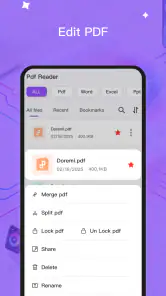
That convenience has a boundary. Editing on a touchscreen is less precise than working with a mouse and keyboard, particularly when the document contains multiple elements close together. If the job involves extensive rewriting, detailed formatting, or repeated revisions, a desktop editor remains the better choice. TapPDF should be treated as a mobile tool for targeted work, not as proof that every document task belongs on a phone.
The trade-off is similar with long reading sessions. The app can be useful for checking pages in short intervals, but a dedicated tablet, laptop, or larger monitor is kinder to your eyes for substantial reading. Choosing it wisely means matching the tool to the size and complexity of the job.
When the connection fails at the wrong moment
Connectivity problems are most frustrating when they occur between steps. A file may be accessible one moment and unavailable the next, or a handoff to another app may stall just as the task seems complete. I avoid treating a successful preview as proof that the whole workflow is safe. The document should be opened, checked, and handled in a way that leaves me confident about where the working copy is.
When something goes wrong, I find a simple recovery sequence more useful than repeated tapping. I stop the action, return to the document list or file source, and check whether the original file is still available. Then I reopen the document and confirm which version I am viewing before making another change. This prevents a common mobile mistake: editing an older duplicate because several similarly named files are present.
File naming becomes surprisingly important here. For a document that will pass through several stages, I use a clear name that identifies its purpose and status. A name such as “application-review” is more useful than a series of vague copies. This is not a special feature of TapPDF, but it is an important part of using a mobile PDF editor safely, especially when network access is inconsistent.
I also recommend checking the final page after any recovery attempt. If the app or file source has been interrupted, the safest assumption is that the last action deserves another look. That does not mean the app has failed; it means mobile workflows involve more handoffs than desktop work, and each handoff creates a chance for confusion.
Keeping data use under control
PDFs vary enormously in size. A short text document is one thing; a scanned packet full of images is another. When connectivity matters, I try not to repeatedly reopen a large file from its online source just to inspect a single page. Preparing the document once, then working from the available copy, is a more sensible routine than refreshing the same file several times.
This approach also helps when using mobile data. I prefer to download or receive large documents over a trusted Wi-Fi connection when possible, then reserve cellular data for the small actions that cannot wait. The benefit is not only lower data use. Fewer transfers mean fewer opportunities for an incomplete file or a failed handoff to interrupt the task.
People who regularly handle scanned PDFs should be particularly careful. Image-heavy files can take longer to move and may be less comfortable to inspect on a phone. Before starting an urgent edit, I check whether the file opens properly and whether the pages I need are readable. That quick test is more valuable than discovering halfway through a submission that the document is incomplete or difficult to navigate.
There is also a privacy angle to mobile convenience. A phone may be used in public places, on shared networks, or around other people. I avoid opening sensitive documents casually in crowded settings, and I do not pass a file through unnecessary apps merely to make the workflow feel quicker. TapPDF is useful as a direct tool, but sensible handling of the surrounding file sources still matters.
How it compares with familiar alternatives
The usual alternative is a desktop PDF editor. That option wins for precision, long sessions, complex formatting, and side-by-side comparison. It is also easier to manage several windows and supporting files on a larger screen. TapPDF wins when the phone is the device already in hand and the task cannot justify waiting for a computer.
Another alternative is using a browser-based PDF service. A browser can be convenient when a document is already online, but it makes the network central to the workflow and may involve more steps between opening, editing, and retrieving the result. TapPDF is more attractive when I want a dedicated mobile place to read or edit rather than repeatedly switching browser tabs.
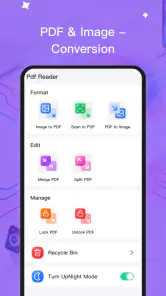
Some people rely on separate apps for reading and editing. That can work, but moving a document between tools adds another opportunity for duplicate files, confusing versions, or interrupted transfers. TapPDF’s combined reader-and-editor approach is useful precisely because it reduces that movement. The compromise is that a focused specialist app may offer deeper controls for one particular task.
For occasional PDF work, I would choose TapPDF over building an elaborate collection of tools. For professional document production, legal review, or layout-sensitive publishing, I would still use a larger-screen solution. The app’s value is not that it wins every comparison; it is that it makes modest PDF jobs more reachable when a computer is inconvenient.
Who should use it and who should look elsewhere
I think TapPDF is a good fit for someone who receives PDFs regularly but edits them only when needed. It should appeal to users who want a free option for everyday document handling and prefer a direct mobile workflow. The Everyone age rating also makes it approachable for a broad audience, including families and students who need a straightforward utility rather than a specialized professional package.
I would be more cautious about recommending it to anyone whose work depends on exact typography, complex forms, extensive annotations, or a large archive that must be managed with strict consistency. Those users need to evaluate the app against a more powerful document suite and may be better served by a desktop-centered setup.
It is also not the right answer for someone who expects a PDF app to solve every connectivity issue. If the document lives behind an unreliable online source, the app cannot remove that dependency. The best experience comes when I treat TapPDF as the place to work on an accessible file, not as a substitute for a stable file source or a complete cloud-storage system.
Small habits that make the workflow safer
Before editing, open the document and identify the exact copy you intend to change. This matters when a messaging app, browser, and file manager have each created their own version.
For a large or image-heavy PDF, prepare it while connected to reliable Wi-Fi if that is practical. It reduces the chance that a mobile-data interruption will be mistaken for an app problem.
After making a change, review the edited page and then scan the rest of the document before sharing it. A quick final check catches mistakes that are easy to miss on a small screen.
Use descriptive filenames for important stages. This is especially helpful after a failed transfer, because it makes it easier to distinguish the original from the working copy.
These habits reveal the app’s real strength: it supports a short, focused chain of actions. Find the file, read it, make the necessary change, check the result, and send it on. The more a task expands beyond that chain, the more the limitations of mobile editing begin to show.
My connectivity verdict
After using TapPDF, I see it as a sensible free utility for people who want PDF reading and editing close at hand. Its rating of 4.6 and more than 100 thousand installs suggest that many users find the basic idea useful, while the current version 1.0.4 shows that the app is still a relatively focused tool rather than a mature office ecosystem. I like it most for quick document checks, small edits, and situations where waiting for a computer would be unnecessarily inconvenient.
Connectivity shapes the experience more than the app’s compact purpose might suggest. A stable connection helps you obtain the document, but careful file preparation determines whether the rest of the workflow feels calm or frustrating. TapPDF is at its best when the file is already available and the task is limited. It is less convincing when the job depends on repeated online transfers, precise layout control, or long editing sessions.
My recommendation is therefore practical rather than absolute: install it if you often need to handle PDFs from a phone and want a free reader-editor in one place. Keep a larger-screen alternative for complex work, and build in a final review before sharing anything important. Used within those boundaries, TapPDF can turn an inconvenient mobile document task into a manageable one without pretending that a phone replaces a full desktop office.
Pros
- Quickly opens and reads PDF files on mobile devices.
- Simple interface makes navigation easy for first-time users.
- Useful zoom controls improve readability on smaller screens.
- Supports convenient page-by-page document browsing.
- Lightweight design helps conserve storage space and resources.
Cons
- Advanced PDF editing tools may be unavailable or limited.
- Large documents can take longer to load on older devices.
- Some features may require in-app purchases or advertising.
- Annotation and markup options may not match dedicated PDF apps.
- Compatibility with complex or password-protected PDFs can vary.
- Category
- Tools
- Version
- 1.0.4











