Smart Printer: Mobile Print
- 1.94K
- 4.1
- Installs
- 1.00M
- Price
- Free

Screenshots

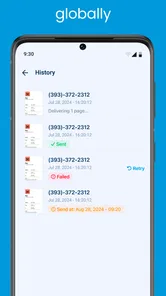
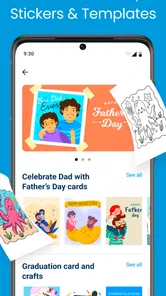
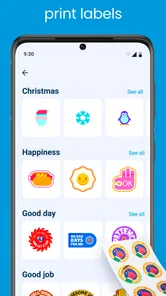
Analysis by Reviewed
Printing from a phone sounds simple until the moment you actually need it. A document arrives in a message, a boarding pass is saved in a browser, or a photo needs to be on paper before leaving home, and suddenly the printer feels much less convenient than it did on the desk. Smart Printer: Mobile Print is built for that recurring problem: connecting a mobile device to a compatible printer without making the user hunt through several unrelated tools.
I reviewed it as a practical Tools app rather than as something exciting to explore. That is the right way to judge it. Its value comes from shortening the path between a file on your phone and a printed page. Astraler presents it as a free app, with optional in-app purchases ranging from $1.99 to $99.99 per item. It is available for Everyone, and its current version is 4.1.3 for devices running Android 8.0 or later.
The app has attracted over a million installs, with an average rating of 4.1 from around fifty-seven thousand ratings and about two thousand reviews. Those figures suggest that it is solving a common need for many people, but they do not remove the most important question: will it work smoothly with your particular printer and your particular phone? My experience is that the answer depends less on the app’s appearance than on the condition of the local network and the printer model.
Getting from a file to a first print
The first useful setup is deliberately straightforward. I would begin with the printer powered on, connected to the same Wi-Fi network as the phone, and ready rather than sitting in an error state. That preparation matters more than it may seem. A mobile printing utility can only make the connection easier; it cannot repair a printer that is offline, connected to another network, out of paper, or waiting for a cartridge-related warning.
Smart Printer: Mobile Print is designed to support more than a thousand Wi-Fi printer models, which gives it a wider target than an app tied to one manufacturer. That is especially helpful in homes where the printer brand is different from the phone brand. Instead of installing a separate companion app for every possible device, I can use one general-purpose tool as the first place to look.
The practical test is not whether the app opens quickly. It is whether it finds the intended printer and gives me a sensible route to choose content. I would keep the first job uncomplicated: a short document or a single image. Starting with a large batch makes it harder to tell whether a problem comes from the file, the connection, the printer queue, or the selected paper settings.
One useful habit is to check the printer’s network status before blaming the app. Phones often move between home Wi-Fi, mobile data, guest networks, and workplace networks. Two devices can appear to be online while still being isolated from each other. If the printer does not appear, I would first return the phone and printer to the same trusted Wi-Fi connection, then reopen the app and try again. This simple check can save more time than repeatedly tapping a scan button.
More From Our News Desk

 Weather - By Xiaomi
Weather by Xiaomi Review: Clear at a Glance, Less Clear Up Close
Xiaomi’s weather app makes everyday forecasts quick to scan, but its calm surface can leave useful details and recovery paths harder to find than they should be.

 X
XX Under Pressure: Can It Recover When Posting Goes Wrong?
A resilience-focused review of X, examining setup, mistaken posts, interruptions, weak connections, and the gaps that matter when recovery needs to be dependable.

 Clash of Clans
Clash of Clans Is Won Between the Battles
Its raids are quick; its community is a long-term project of coordination, teaching, rivalry, and shared responsibility—with all the friction that entails.

 Android Auto
Android Auto Makes the Case for Quieter Car Software
The car interface is no longer judged by how much it can do, but by how quietly it helps. Android Auto shows what drivers now expect—and what still gets in the way.

 MobiOffice: Word, Sheets, PDF
MobiOffice: Transforming Mobile Productivity with Seamless Integration
MobiOffice: Word, Sheets, PDF is redefining mobile productivity with a surprising blend of functionality and innovation.

 EA SPORTS FC Soccer Mobile 26
EA SPORTS FC™ Mobile Soccer: Redefining Mobile Sports Gaming
Dive into EA SPORTS FC™ Mobile Soccer, where immersive gameplay and strategic depth transform mobile sports gaming.
Latest News


The app is most attractive for people who print occasionally and do not want to remember which manufacturer’s application belongs to an older printer. It can also be useful in a shared household, where several people use different phones but rely on one Wi-Fi printer. A general tool reduces the need to explain a different printing routine to every family member.
There is a trade-off, though. A manufacturer’s own app may offer deeper controls for its printers, including maintenance functions or brand-specific settings. Smart Printer: Mobile Print makes more sense when the main goal is ordinary mobile printing across compatible Wi-Fi hardware. If you regularly need advanced device management, the official companion app may still be the better choice.
What I would prepare before sending anything
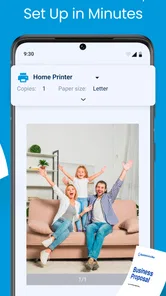
Before printing an important document, I would check the preview carefully and confirm the page range, orientation, and number of copies available in the print flow. Mobile screens make it easy to overlook a blank page, a cropped image, or a document that is formatted differently from the way it looked in the original app.
I would also avoid treating a successful printer discovery as proof that every job will behave identically. A text document, a photograph, and a file received through a messaging app can follow different preparation paths. The safest workflow is to open the source file first, confirm that it displays correctly, and only then send it to the printer through the mobile printing app.
For photos, the main decision is not simply whether the image prints. It is whether the paper and layout match the purpose. A snapshot for a scrapbook, a school project, and a quick reference image do not need the same treatment. The app can remove the connection hurdle, but I still need to make the content fit the physical result I want.
Where the app saves time in ordinary life
The clearest everyday scenario is a document needed at the last minute. Imagine receiving a form by email while preparing to leave for an appointment. With a printer already connected at home, I can open the file on the phone, send it through the printing utility, and collect the pages without first transferring the attachment to a computer. That is a small task, but it removes several unnecessary steps.
Another useful case is travel. A phone is excellent for storing tickets and reservations, yet some situations still call for paper. Printing directly from the device avoids searching for a laptop, signing into a desktop account, or moving a file through cloud storage simply to reach the printer. I would still keep the digital copy, but having a paper backup can be reassuring when time or battery life is limited.
Families may find the app helpful for school forms, activity schedules, permission slips, and reference material. The person who receives a file is often not the person sitting at the computer near the printer. A mobile-first route matches how these documents actually arrive. It is also convenient for printing a child’s drawing or a simple image without opening a full desktop editing program.
For home offices, the advantage is less about replacing a computer and more about handling interruptions. If I am already working from a phone and need one page, moving to another device can take longer than the printing itself. The app is useful when the job is small, the printer is nearby, and the file is already ready to use.
There is a less obvious use for shared spaces. A guest may need to print something from a phone without installing a brand-specific utility or learning the printer’s desktop workflow. In that situation, a broad model-support approach can be more approachable than asking which exact manufacturer application is required. The limitation is that the guest still needs access to the correct Wi-Fi network, and many public or managed networks intentionally prevent local device discovery.
I would not rely on it as the only option for a high-stakes, multi-page print run. If the document is legally important, time-sensitive, or difficult to replace, I would send a small test page first. That is not a criticism unique to this app; wireless printing has too many variables to justify blind confidence. Smart Printer: Mobile Print reduces the number of steps, but it does not turn a home printer into a guaranteed production system.
Small workflow choices that make a difference
One of the most useful habits is to separate connection troubleshooting from document troubleshooting. First determine whether the app can see the printer. Then determine whether the file is suitable for printing. Trying to solve both problems at once creates confusion, particularly when a file opens in a third-party viewer or contains unusual formatting.
A second tip is to print the smallest meaningful test when using a printer for the first time. A single page can reveal whether the selected device is correct, whether the paper feeds properly, and whether the result matches the preview. This is faster and less wasteful than discovering a problem after sending a long document.
A third trade-off concerns convenience versus control. The more general the printing tool, the more valuable it becomes for mixed-brand households, but users who depend on specialized printer settings may prefer the manufacturer’s software. I see Smart Printer: Mobile Print as a strong first-choice utility for access, not necessarily a complete replacement for every official printer ecosystem.
Another practical point is to think about where the file comes from. If it is stored in a cloud service, inside an email, or in a messaging conversation, the smoothest route may involve opening it in the app that already understands that file type before sending it onward. A printing app is not a universal document editor. Preparing the file first usually produces a more predictable result than expecting the print tool to correct layout problems.
What can still feel inconvenient
The largest source of friction is compatibility in the real world. Supporting a broad range of Wi-Fi printer models is useful, but model support does not mean every printer behaves the same way. Older hardware, unusual network configurations, and printers connected through a different access point can make discovery inconsistent. When that happens, the app may appear less reliable even though the underlying issue is the network path.
Wireless printing also depends on the printer being awake and available. Some devices enter a deep sleep state, lose their network connection, or show as ready while still processing an earlier job. I would check the printer’s own panel and queue before repeatedly resending a document. Duplicate pages are an easy consequence of assuming the first request failed when it is merely delayed.
The free entry point is welcome, but the presence of in-app purchases means users should pay attention to what they are selecting inside the app. The listed purchase range runs from $1.99 to $99.99 per item. I would be particularly careful if another person, such as a child or a guest, is using the phone. A free download does not automatically mean every optional part of the experience is free.
The Everyone age rating makes the app suitable for a broad audience, but that does not make it equally suitable for every printing need. Someone who only prints from a computer may gain little from installing it. Likewise, a user with a printer that requires proprietary maintenance tools may need the official software alongside this app rather than instead of it.
Privacy and network comfort are also worth considering in a practical way. Printing from a phone means choosing files on a personal device and sending them across the local connection to the printer. For ordinary household documents, that may be perfectly acceptable. For sensitive workplace or financial material, I would follow the organization’s rules and use an approved printing method rather than assuming a general utility is appropriate.
Who should use it, and who should choose another route?
I would recommend Smart Printer: Mobile Print to someone who owns a Wi-Fi printer, frequently receives files on a phone, and wants a simpler alternative to moving everything through a computer. It is especially appealing for mixed-device homes, occasional printers, students, families, and anyone who values saving a few setup steps each time.
I would be more cautious about recommending it to a person who needs industrial consistency, detailed printer administration, or specialist finishing controls. In those cases, a computer workflow or the printer maker’s own application may offer better visibility and more dependable access to device-specific functions.
The app also deserves a realistic test before becoming part of an important routine. Install it, connect it to the intended Wi-Fi printer, and try a modest document. If that process is stable, it can become a convenient shortcut. If discovery repeatedly fails on the home network, no attractive interface will compensate for the lost time; fixing the network or using the official printer utility would be the wiser move.
After using it, my view is that the app succeeds by focusing on an ordinary but irritating gap: the file is already on the phone, while the printer is somewhere else in the room. Astraler’s tool can close that gap without forcing every user to begin at a desktop. Its broad printer target and free starting point make it easy to try, while the optional purchases and wireless dependencies mean I would use it with sensible checks rather than blind trust.
For me, the deciding benefit is not a long list of printing controls. It is the time saved when a quick page needs to move from a phone to paper. If your main goal is reliable everyday access to a compatible Wi-Fi printer, this is worth trying; if you need deep brand-specific control, keep the official alternative close at hand. That balance makes it a useful Tools app, provided the printer and network are prepared for the same simple workflow.
Smart Printer: Mobile Print Frequently Asked Questions
Who develops Smart Printer: Mobile Print, and what kind of app is it?
Smart Printer: Mobile Print is a Tools app developed by Astraler. Its focus is helping people connect a mobile device to a wireless printer and send print jobs without relying on a computer. If you want a straightforward mobile printing utility, its advertised support for more than a thousand Wi-Fi printer models may be useful, though your particular printer still needs to be compatible.
Can I print from my phone without using a computer?
Yes. Smart Printer: Mobile Print is designed to let you select supported files on a smartphone or tablet and send them to a connected printer. The intended process is to connect your mobile device and printer over Wi-Fi, then choose the file and available print options in the app. What you can do may depend on the printer model, the file type, and the mobile device you use.
Does Smart Printer: Mobile Print work with a printer that is not on Wi-Fi?
Smart Printer: Mobile Print is intended to connect to wireless printers, and its description highlights Wi-Fi printing. A printer that relies only on a USB connection may not be discoverable by a phone or tablet through the app. Before downloading, check whether your printer supports Wi-Fi or another mobile-printing connection method, and consider the printer’s own setup instructions.
What is Smart Printer: Mobile Print, and what can it do?
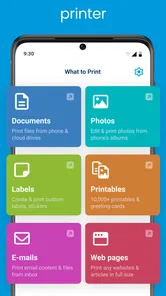
Smart Printer: Mobile Print is designed to let you print documents, photos, PDFs, and other supported files directly from a smartphone or tablet. After connecting your mobile device and printer to the same wireless network, the app can help you select files, adjust basic print settings, choose pages, and send jobs without needing a computer. Available features may vary depending on your printer model and device. It is a Tools app developed by Astraler, with support advertised for more than a thousand Wi-Fi printer models.
Which printers and mobile devices are compatible with Smart Printer: Mobile Print?
Compatibility depends on the printer manufacturer, connection method, and operating system version. The app generally works best with wireless printers that support mobile printing, but not every model is guaranteed to be recognized. Before downloading, check whether your printer supports Wi-Fi or a compatible printing protocol, and confirm that your Android or iOS device meets the app’s current requirements listed on its store page. The Android version requires Android 8.0 or later; compatibility can still vary between devices and printer models.
Pros
- Prints directly from Android and iOS devices
- Supports photos
- documents
- PDFs
- and common file formats
- Simple setup for compatible wireless printers
- Useful preview helps avoid printing the wrong pages
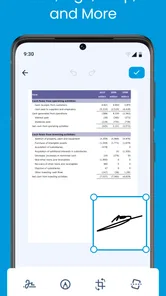
- Can scan and share documents from supported devices
Cons
- Printer compatibility may vary by brand and model
- Some features may require in-app purchases or subscriptions
- Wireless printing depends on a stable network connection
- Ad-supported screens can make navigation feel less smooth
- Advanced printer settings may be limited compared with official apps