Safe Cleaner - Antivirus
- 73.00
- 4.3
- Installs
- 100.00K
- Price
- Free

Screenshots




Analysis by Reviewed
I approached Safe Cleaner - Antivirus as a practical tools app rather than a magic button for fixing every phone problem. Its purpose is easy to understand: help me look for risks, inspect storage, and remove unwanted files through a small set of straightforward cleaning utilities. That makes it appealing when my phone feels cluttered and I want a guided starting point instead of digging through several system menus.
The app is free, aimed at Everyone, and comes from kaeyyqq aoops. It has reached over 100 thousand installs and holds a 4.3 average from around 2.4 thousand ratings, which suggests that many people find the basic idea useful. I tested it with a decision in mind: would I keep it as a regular maintenance tool, or would I return to the built-in Android options and more specialized security apps?
What I would check before choosing a cleaner
My first criterion is clarity. A cleaner can be technically capable and still be frustrating if it presents a long list of files without explaining what they are. With this app, I would begin by looking at the scan results rather than immediately accepting every suggested deletion. That habit matters because a “junk” category can contain temporary material I do not need, but it may also include files I would prefer to review manually.
The second criterion is control. Cleaning is not simply about removing as much as possible. I want to know whether the result is a cache item, a leftover installer, a duplicate-looking file, or something connected to an application I still use. Safe Cleaner - Antivirus works best for me when I treat its suggestions as a shortlist for inspection, not as an instruction to erase everything in one tap.
The third criterion is purpose. Storage browsing, risk scanning, and junk removal solve related but different problems. A phone with low space needs a file-management workflow. A phone behaving strangely may need a security check. A phone that is merely untidy may benefit from deleting temporary material. Keeping these goals separate prevents unrealistic expectations and makes the app easier to judge.
There is also a practical question about compatibility. The app supports Android 7.0 and later, so it can be relevant to older devices that may not offer the same modern storage tools as newer phones. The current version is 1.0.4, which is useful context when deciding whether to rely on it for routine maintenance or simply try it as a lightweight helper first.
A useful first session instead of a rushed cleanup
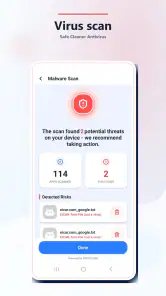
My recommended first session is deliberately cautious. I would run the risk scan, read the categories, then open the storage view before removing anything. This gives me a picture of what is actually taking up space. If the same large folders or downloads appear repeatedly, I can decide whether the problem is temporary clutter or a habit that needs changing, such as keeping offline videos or old installation files.
One non-obvious advantage of this order is that it separates diagnosis from action. Many people open a cleaner only after seeing a warning about low storage, then delete whatever is highlighted. A slower pass can reveal that the biggest issue is not junk at all. It may be personal media, downloads, or application data that needs to be moved or managed through the original app instead.
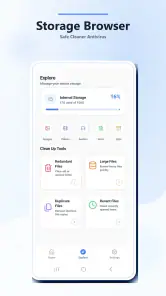
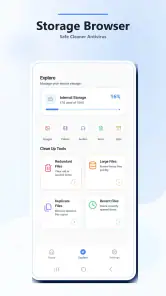
I would also use the storage browser as a decision aid before a long trip. If I need room for photos or offline maps, checking the largest areas first is more sensible than repeatedly running a generic cleaning scan. The app is potentially helpful here because it brings browsing and cleaning into one place, but I would still protect anything important before making broad changes.
Where the simple design works in its favor
The strongest part of this app is its approachable scope. I do not need to learn a complicated dashboard to understand the central tasks. Someone who is not comfortable with Android’s storage settings can start with a scan, inspect what is found, and make a more informed choice. That is a better experience than presenting technical labels without context.
I also like the combination of risk checking and storage work. In everyday use, these concerns often arrive together. A phone may feel slow because it is full, while an unfamiliar file or suspicious behavior makes the owner wonder whether there is a security issue. Having both checks available in one tool reduces the need to jump between unrelated utilities.
The free price makes experimentation easy. I can install it, see whether its presentation makes sense on my device, and decide whether the workflow fits me without committing money first. That is particularly useful for a family member who wants occasional help with storage but would not enjoy configuring several separate applications.
Its age rating also makes the app broadly approachable. I would still explain the deletion choices to a less experienced user rather than handing over complete control, but the general positioning is suitable for ordinary household use. The important distinction is that an Everyone rating does not turn automatic cleanup into a risk-free activity; careful review remains the better habit.
Everyday situations where I would reach for it
Imagine I am preparing for a weekend away and my phone reports that storage is nearly full. Instead of opening each application separately, I would use the storage browser to identify the largest areas, then run the junk scan to look for removable leftovers. I would handle personal photos and downloads separately, because those are valuable files rather than clutter simply because they occupy space.
Another realistic situation is helping someone whose phone has accumulated years of downloaded documents, screenshots, and abandoned files. The app can provide a starting point for sorting, especially if that person finds the standard settings menus confusing. I would sit with them during the first cleanup, explain each category, and leave them with a repeatable routine: inspect, confirm, then delete.
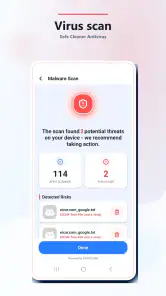
For a security concern, I would use the risk scan as an initial check rather than a final verdict. If an unfamiliar application or unusual behavior remains worrying, I would investigate the source, review Android’s own security controls, and consider a dedicated security product. A cleaner is most useful here as one layer of checking, not as a replacement for judgment.
A third use is periodic housekeeping after a burst of activity. Installing and removing several apps, downloading files for work, or using media-heavy services can leave behind material worth reviewing. Running a scan after that event is more purposeful than cleaning on a rigid schedule without knowing whether anything has changed.
Three habits that make the app more useful
First, I would create a mental distinction between “safe to remove” and “not needed by me.” Those are not always identical. A temporary file may be safe to remove, while a downloaded document may be unnecessary today but important next week. Before confirming a large cleanup, I would open the storage view and check whether the highlighted space belongs to something I intentionally saved.
Second, I would use the app before a storage emergency, not only during one. When the phone is already full, rushed decisions are more likely. A calm inspection every so often can show which categories grow fastest and help me change the underlying habit. This is more valuable than expecting a single scan to keep storage healthy forever.
Third, I would compare the app’s findings with the original application whenever the result looks surprising. If a large amount is associated with a messaging, photo, or streaming app, the safest management option may be inside that app itself. Deleting from a general cleaner can be convenient, but the original application usually offers better context about what the files do.
How it compares with the alternatives I already have
The most obvious alternative is Android’s built-in storage management. That option has a major advantage: it is already part of the phone and is closely connected to system settings. If my only goal is to see available space, uninstall unused apps, or manage ordinary storage categories, the built-in tools may be enough and may feel more trustworthy because they are familiar.
Safe Cleaner - Antivirus becomes more attractive when I want a single, more approachable place to combine scanning, browsing, and cleanup. Its value is not that it makes Android’s own controls irrelevant. Its value is the guided workflow for someone who wants a simpler route through several maintenance tasks.
A dedicated antivirus product is a different comparison. If my priority is ongoing security protection, threat alerts, or a broader security suite, I would look at a specialist security application instead. This cleaner can be part of a cautious routine, but I would not choose a general cleaning tool solely because its name includes antivirus. The right choice depends on whether storage organization or security coverage is the main concern.
There are also file managers, which are better for people who want detailed control. A file manager can be preferable when I need to move folders, rename documents, inspect locations carefully, or organize personal content. Safe Cleaner - Antivirus is more suitable when I want help identifying maintenance targets, not when I am planning a complete filing system.
Finally, some users prefer specialized duplicate-photo or media-cleaning tools. Those can fit better when the problem is a large camera library and I need visual comparison before deletion. I would choose this app for a broader first pass, then use a more focused option if personal media is clearly the real source of the storage problem.
Limitations I would take seriously
The biggest limitation is the risk of overconfidence. The word “cleaner” can encourage the belief that every suggested item should disappear. I would not use any cleaning result blindly, and I would be especially careful with categories I do not recognize. The app’s simplicity helps beginners start, but beginners may also need the most guidance before confirming a broad deletion.
Another limitation is that cleaning does not fix every cause of a slow phone. A full storage area can contribute to frustration, but performance can also be affected by demanding applications, aging hardware, network problems, or system issues. If the phone remains unstable after a careful cleanup, I would stop repeating scans and investigate the actual symptom.
There is also a trade-off between convenience and detail. A guided tool can save time, while a built-in setting or file manager may show more precise context. Users who want complete control over every folder may find a cleaner too general. Conversely, users who want a single tap with no review may be disappointed that responsible cleanup still requires attention.
What switching to it really involves
Trying the app is a low-cost decision because it is free, but the real cost is attention. I would need to learn how its categories are presented, decide which suggestions match my own habits, and avoid assuming that a larger cleaning result is automatically better. That short learning period is worthwhile only if the combined workflow feels easier than the tools already on my phone.
I would not replace the built-in Android controls completely. They remain useful as a second viewpoint, especially when I need to uninstall an application, inspect system storage, or confirm how much space is genuinely available. Keeping both approaches available also makes it easier to spot an unexpected result before deleting something important.
For a shared device, I would establish a simple rule: one person performs the scan, but the owner approves personal files. This avoids a common mistake in household cleanups, where someone removes downloads or media that belong to another user. The app can support the process, but it cannot know the personal value of every file.
For an older phone running Android 7.0 or later, I would test the basic workflow with a small cleanup first. Older devices may be the ones that benefit most from storage organization, yet they are also the devices where I would be cautious about adding another utility and expecting it to solve every performance issue. A gradual trial is more sensible than a sweeping cleanup on the first day.
Who should use it, and who should skip it
I think this app is a good fit for Android users who want a friendly starting point for storage checks and occasional risk scans. It is particularly suitable for people who find system settings too scattered, families helping less technical users, and owners of older phones who need a clearer way to review accumulated clutter.
I would also recommend it to someone who wants a repeatable inspection routine rather than a specialized media organizer. The combination of storage browsing and cleanup gives the process a useful order: find what is large, understand what it is, and then decide what can go.
I would skip it if I already feel comfortable with Android’s built-in storage tools and rarely need anything beyond basic file management. I would also choose a dedicated security solution if continuous protection is my main requirement, or a focused photo and duplicate manager if personal media is the central storage problem.
People who expect a single button to make an old phone feel new should lower their expectations. This is a maintenance aid, not a hardware upgrade. Its results depend on what is actually occupying the device and on whether I make sensible decisions about the scan results.
My recommendation after using the full workflow
My recommendation is cautious but positive: try Safe Cleaner - Antivirus if you want a free, uncomplicated way to bring risk checking and storage housekeeping together. I would keep it as a practical inspection tool, especially when helping someone who needs a clearer alternative to scattered system menus.
I would use it with a review-first mindset. Scan, browse, identify the source of the space usage, and delete only what I understand. That approach protects the app’s main strength—simplicity—without turning simplicity into careless automation.
In the end, the decision comes down to the kind of help you want. If you need a guided first pass through clutter, this app has a sensible role. If you need detailed file organization, continuous security coverage, or specialist photo cleanup, another category will serve you better. For everyday Android maintenance, though, Safe Cleaner - Antivirus is worth trying, provided you remain the final judge of what leaves your phone.
Pros
- Quick scans help identify common threats and unwanted files.
- Junk-file cleanup can free up useful storage space.
- Simple interface is easy for less experienced users.
- Privacy tools provide a convenient way to review app permissions.
- Useful battery and performance checks are grouped in one app.
Cons
- Some features may be limited or locked behind premium access.
- Frequent notifications can feel intrusive during regular use.
- Cleaner results may include files that need careful manual review.
- Background protection can affect battery life on older devices.
- Performance claims may vary depending on your phone and Android version.

- Category
- Tools
- Version
- 1.0.4











