Photo Video Maker with Music
- 40.00
- 3.0
- Installs
- 10.00M
- Price
- Free

Screenshots

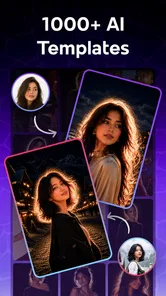

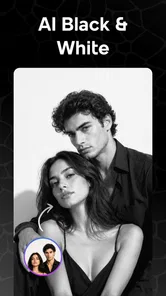

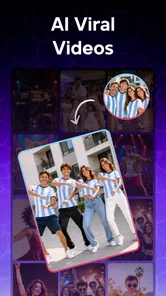
Analysis by Reviewed
I see Photo Video Maker with Music as a convenient tool for turning a handful of pictures into a shareable video, rather than a replacement for a full editing suite. Its appeal is the simple idea: combine photos, music and visual effects without having to learn a complicated timeline. That makes it approachable for casual projects, but it also sets expectations. If you want careful control over every cut, sound level and layer, a more advanced editor will probably suit you better.
Start with the shape of the story
A useful way to make a photo montage feel intentional is to sort pictures by the role they play, not just by when they were taken. I’d separate scene-setters, action shots and small details, then mix them so the viewer gets a sense of place as well as a record of events. This works especially well for a weekend trip: a street or landscape can establish the setting, while food, signs or candid moments give the sequence texture between the obvious highlights.
Before choosing music, I’d also decide whether the video is meant to be watched with sound. A family chat clip may be opened in a noisy room or viewed with the phone muted, so the visual order should still make sense on its own. Music can set a mood, but it should not be the only thing holding the sequence together. If the photos need explanation, a more deliberate editor with title or caption tools may be the better fit.
Where it fits in a video-editing routine
This is a free video editing app from Think It Tech, listed in the Video Players & Editors category. Its focus is photo-based videos and slideshows, so I’d consider it for a birthday montage, a quick recap of a day out, or a short clip made from pictures for family and friends. It is rated for Everyone and has passed ten million installs, which suggests broad reach, though popularity alone does not tell you whether its workflow will match yours.
The app’s main strength is its clear purpose. Instead of opening a blank project and building a video from scratch, you can approach the task as a sequence of images that needs movement, music and a finished look. That is a useful starting point when you have photos ready but do not want to spend an evening learning editing terminology. The best reason to try it is that it lowers the effort of making a simple slideshow feel like a video.
That distinction matters. A slideshow maker can be a better fit than a general-purpose editor when your source material is mostly still images. You are not necessarily looking for elaborate compositing; you want the pictures to play in a sensible order and the result to feel more considered than a static album. For that job, a focused app can help you get to a shareable draft without navigating tools you may never use.
A practical workflow for everyday projects
For a family gathering, I’d start by choosing the strongest photos before opening the editor. Grouping them into a beginning, middle and ending makes the finished piece easier to follow: an establishing picture, the main moments, then a warm closing image. This small bit of preparation is especially helpful in a photo-video workflow, where a long run of similar pictures can make even a short montage feel repetitive.
More From Our News Desk

 Gmail
GmailGmail in a Busy Inbox: Who Benefits Most?
From first account to crowded workday, Gmail earns its place through dependable search and flexible sorting—but its best fit depends on how much inbox maintenance you can tolerate.

 Prime Video
Switching to Prime Video: What Changes in Your Viewing Routine
Prime Video can make a compelling second home for streaming, but switching means learning a different catalog, rental layer, and route from browsing to playback.

 Universal TV Remote Control
Universal TV Remote Control Works Best as a Reliable Backup
A phone remote earns its place through quick setup and reliable habits. Here is how to get more from Universal TV Remote Control—and where its limits show.

 Weather - By Xiaomi
Weather by Xiaomi Review: Clear at a Glance, Less Clear Up Close
Xiaomi’s weather app makes everyday forecasts quick to scan, but its calm surface can leave useful details and recovery paths harder to find than they should be.

 X
XX Under Pressure: Can It Recover When Posting Goes Wrong?
A resilience-focused review of X, examining setup, mistaken posts, interruptions, weak connections, and the gaps that matter when recovery needs to be dependable.

 Clash of Clans
Clash of Clans Is Won Between the Battles
Its raids are quick; its community is a long-term project of coordination, teaching, rivalry, and shared responsibility—with all the friction that entails.
Latest News



Music and effects can add mood, but they work best when they support the photos instead of competing with them. I’d use one consistent visual treatment and avoid changing effects on every image. A restrained approach often looks more personal and is easier to watch, particularly on a phone screen. If the montage is meant for a group chat, a clear sequence and a comfortable pace will usually matter more than a collection of flashy transitions.
One useful trade-off to keep in mind is that photos do not all carry the same visual weight. A close-up portrait, a wide landscape and a dim indoor shot can feel jarring when placed back to back. Before adding effects, I’d arrange images so that changes in subject and framing feel intentional. The editor can help present the material, but choosing a coherent set of pictures remains the part that makes a slideshow feel genuinely tailored.
Another practical tip is to make a short test version before investing time in a longer project. A small draft lets you judge whether the music suits the pictures and whether the visual treatment feels right. It also helps reveal whether your chosen photos look good together as a sequence. For a casual maker, catching that mismatch early is more valuable than polishing every image before seeing the overall result.
What the app does well—and where patience helps
The photo-first approach is the clearest advantage. In a conventional mobile video editor, the timeline and layers can be useful, but they may feel like unnecessary work when all you want is a slideshow. Here, the intended result is easier to picture from the outset: a series of still images shaped into a small video. That makes it a reasonable option for people who edit only now and then and would rather spend their time selecting memories than learning a complex interface.
The limitations follow from that same focus. If your project depends on precise timing, detailed audio mixing, multiple video tracks or tightly controlled cuts, you may find a slideshow-oriented workflow restrictive. A dedicated timeline editor is a better choice when you need to synchronize dialogue, trim several clips to the beat, or make a polished piece with layered footage. I would not choose this app for a project where those details are central.
It is also worth treating effects as finishing touches, not a substitute for editing decisions. A filter cannot make unrelated photos feel like a coherent story, and a music bed cannot rescue a sequence that runs too long. The more images you include, the more important it becomes to remove near-duplicates and keep only pictures that add something. That editing discipline is a quiet but important part of getting a good result from any slideshow maker.
There is a cost consideration, too. The app is free to install, with in-app purchases ranging from $5.99 to $239.99 per item. I’d explore the basic experience first and decide whether its tools fit your routine before spending money. The upper end of that range is a substantial commitment for someone who only wants to make one occasional montage, so it makes sense to compare the value against the frequency and complexity of the projects you expect to create.
When another kind of editor makes more sense
Photo Video Maker with Music sits between the simplest option—sharing an album or a sequence of images—and a conventional clip editor. An album is quicker if viewers only need to browse the pictures, while a timeline editor gives you more control when the story depends on recorded footage, narration or precise rhythm. This app’s useful middle ground is the short, finished presentation: enough structure to feel like a video, without asking you to manage a full production.
That middle ground is not ideal for every occasion. If you are documenting a school performance, interview or recipe, the important material is likely to be moving footage and clear audio; arranging stills around a music track would not solve the main editing problem. For a memorial, birthday or holiday recap built from photos, the balance changes: sequencing and atmosphere matter more than complex cutting. I’d choose the tool based on the source material and the job the final video needs to do, rather than on the broad label of “video editor.”
A practical test is to ask whether the project needs its own pacing. If the pictures can simply appear one after another and the music supplies the mood, a slideshow workflow is a sensible starting point. If you already know that a particular image must appear for a precise moment, or that spoken words need to remain audible under music, you will likely appreciate the control of a timeline-based alternative. This distinction can save time before you even begin assembling a project.
Who is likely to enjoy it
I’d recommend giving it a look if you regularly want to turn phone photos into small personal videos and do not need professional-level control. It may suit someone preparing a quick recap for relatives, a simple visual greeting, or a collection of travel pictures to share after returning home. The key is having modest expectations: this is a practical route from still images to a video, not necessarily the best place to build a multi-layer production.
It is less suitable for creators who already think in terms of frame-by-frame timing or who need extensive control of sound and footage. Those users are likely to be more comfortable in a general video editor, even if it takes longer to learn. Likewise, if you mainly want to trim and arrange recorded video clips, a slideshow-centered app may not be the most natural tool for the job.
For an everyday example, imagine getting home from a day out with dozens of near-identical photos and wanting to send a short recap to relatives. I’d first remove duplicates and blurry shots, then pick a few images that show the place, the people and one or two small moments that make the day feel personal. A concise selection is easier to follow than trying to include everything. If the result works as a sequence before effects are added, the app’s photo-first approach is doing the useful part of the job.
Its audience rating averages 3.0 from around 6,200 ratings, with about 40 written reviews. I read that as a reason to keep expectations measured rather than as a verdict on every person’s experience: people looking for a quick slideshow and people expecting a fully featured editor may judge the same app very differently. It has more than ten million installs, but I would still base the decision on your own project needs and willingness to work within a focused tool.
Details worth knowing before you start
The current version is 1.1.32, and the app requires Android 7.0 or later. If you are choosing an editor for a device you plan to use, checking that requirement first can save a frustrating install attempt. The app is free to begin with, but the available in-app purchases mean that “free” should not be taken to mean every possible tool or option will necessarily be included at no cost.
For a smoother first project, I’d decide where the finished video will be watched before assembling it. A montage for a phone screen can tolerate a different choice of images and framing than one intended for a larger display. Keep the most important subject near the center of each photo, avoid adding too many similar frames, and use a simple visual style. These choices reduce the chance that decoration will distract from the people or places the video is meant to celebrate.
If you are making something for a specific occasion, work backward from the feeling you want the ending to leave. A final group photo, a quiet landscape or a candid moment can give the sequence a natural stopping point. This is more effective than simply using every image you have. In a photo-based editor, thoughtful selection is often the difference between a brief, enjoyable memory and a long sequence that viewers are likely to skip.
My verdict on Photo Video Maker with Music
Photo Video Maker with Music makes the most sense as a low-friction way to turn photos into a small, music-backed video. I like the clarity of that purpose: it is aimed at people who want a presentable slideshow without taking on the complexity of a full desktop-style editing workflow. For a casual recap or personal montage, that focus can be exactly what you need.
My recommendation is specific: try it if your projects begin with pictures and end with something simple to share. Start with a small batch of images, keep effects consistent, and judge the result before committing to a longer edit or an in-app purchase. If you need precise control over clips, audio and layers, choose a more comprehensive editor instead. For occasional photo montages, though, this app is a sensible place to begin.
Photo Video Maker with Music Frequently Asked Questions
What can I create with Photo Video Maker with Music?
Photo Video Maker with Music is designed to turn selected photos into a slideshow-style video. Depending on the app version, you may be able to arrange images, choose transitions or visual effects, add background music, and adjust the video’s timing or aspect ratio. Available tools can vary between releases, so check the app’s current feature list and screenshots before downloading if you need a specific editing option.
How do I add music to a photo video?
Typically, you select photos for a new project, arrange them in the desired order, and then choose an audio track using the app’s music or sound controls. The available choices may include built-in tracks or audio stored on your device, but this depends on the version and its permissions. Make sure you have the right to use any imported music, especially if you plan to share the finished video publicly.
Is Photo Video Maker with Music free to use?
The app may be available to download without an upfront purchase, but free access does not always mean every feature is free. Some versions of photo and video maker apps include advertisements, optional in-app purchases, watermarks, or limits on effects and export settings. Review the store listing and any purchase details before starting a project so you know whether the tools you want require payment.
Can I save and share the videos I make?
The app is intended to help create a video from photos, and versions commonly provide an option to save or share the result. Export formats, resolution, processing time, and destination options may differ by device and app release. Before creating a long project, try a short sample and confirm that the finished video saves correctly, looks acceptable, and can be shared through your preferred service.
What permissions or privacy considerations should I know about?
To build a slideshow, the app needs access to the photos you choose, and it may request audio or storage access for importing music and saving exports. Permission names and handling can vary by operating system and version. Grant only the access needed for your project, check the app’s privacy information in the store listing, and avoid selecting sensitive media if you are unsure how project files are handled.
Pros
- Combines photos and video clips in a single project.
- Music helps set the mood for slideshows and short videos.
- Useful for creating shareable personal videos and greetings.
- Simple editing tools can suit users without video-editing experience.
- A practical option for quick projects made directly on a phone.
Cons
- Available features may vary by device or app version.
- Export quality and resolution options may be limited.
- Some editing tools or assets may require in-app purchases.
- Projects with many photos or clips can take longer to process.
- Check the app’s permissions and privacy terms before importing personal media.