Movirea
- 30.00
- 4.7
- Installs
- 50.00K
- Price
- Free

Screenshots

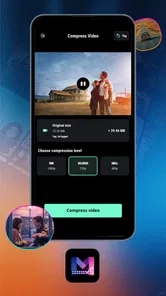
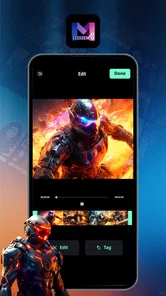
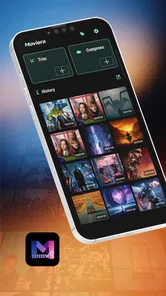
Analysis by Reviewed
I judge a video editor not only by whether it can shorten a clip, but by how much effort it asks of someone who is tired, working on a small screen, or trying to finish a quick edit between other tasks. Movirea is a video editing app from Nexus Tech Apps, and its appeal is straightforward: it is intended for editing, trimming, and exporting video without asking users to approach the job like a professional production. That modest scope can be a strength, especially for people who want a practical edit rather than a complicated creative suite.
In the category of video players and editors, I see it as a tool for basic, purposeful changes. It is free, rated for Everyone, and has a 4.7 average from around 2.3K ratings, with 50K+ installs. Those figures suggest meaningful interest, but they cannot tell you whether its controls will suit your hands, vision, or working environment. My more useful takeaway is to think of it as a candidate for everyday trimming and exports—not as a substitute for a full desktop timeline or a specialist accessibility tool.
Finding your way through a simple editing task
I find the easiest way to judge a focused editor is to follow one small job from choosing a clip through checking the finished file. That reveals whether the steps make sense when you are concentrating on the video rather than exploring menus. I’d also pay attention to what happens when you pause or revise a cut, since that can make the difference between a calm, repeatable routine and a frustrating one.
A focused job can make navigation easier
The app’s stated focus gives a new user a clear starting point: bring a video into an editing workflow, trim it, and export the result. That is easier to reason about than an editor that presents a crowded collection of effects, tracks, and production tools before you have made a single change. If all you need is to remove the lead-in to a clip or cut away its ending, a narrow task is often easier to learn and repeat.
I would approach a first edit with one specific goal rather than exploring every control at once. Choose a copy of a clip you can afford to change, identify the part you want to keep, and check the result before exporting. This deliberate sequence reduces the chance of making a rushed cut and gives you a chance to learn how the editing view responds on your device. It is also a useful way to discover whether the interface makes the current selection and the next action easy for you to distinguish.
That last point matters more than it may seem. In video editing, a small misunderstanding about where a trim begins or ends can remove the moment you meant to preserve. I recommend watching the proposed result through before treating an edit as finished, especially when the important action happens near a cut. A clip that looks tidy in a preview can still feel abrupt in context, so checking both the start and finish is a better habit than trusting a quick glance.
Good for decisions, not necessarily deep rearranging
Movirea makes most sense when the problem is “this clip is too long” rather than “I need to build a complete story from many sources.” A focused trimming workflow can spare a casual user the learning curve of a multi-track editor. On the other hand, people who need detailed control over several clips, layers, titles, or a carefully timed sequence should compare it with an editor whose workflow is explicitly built around that kind of project.
More From Our News Desk

 Gmail
GmailGmail in a Busy Inbox: Who Benefits Most?
From first account to crowded workday, Gmail earns its place through dependable search and flexible sorting—but its best fit depends on how much inbox maintenance you can tolerate.

 Prime Video
Switching to Prime Video: What Changes in Your Viewing Routine
Prime Video can make a compelling second home for streaming, but switching means learning a different catalog, rental layer, and route from browsing to playback.

 Universal TV Remote Control
Universal TV Remote Control Works Best as a Reliable Backup
A phone remote earns its place through quick setup and reliable habits. Here is how to get more from Universal TV Remote Control—and where its limits show.

 Weather - By Xiaomi
Weather by Xiaomi Review: Clear at a Glance, Less Clear Up Close
Xiaomi’s weather app makes everyday forecasts quick to scan, but its calm surface can leave useful details and recovery paths harder to find than they should be.

 X
XX Under Pressure: Can It Recover When Posting Goes Wrong?
A resilience-focused review of X, examining setup, mistaken posts, interruptions, weak connections, and the gaps that matter when recovery needs to be dependable.

 Clash of Clans
Clash of Clans Is Won Between the Battles
Its raids are quick; its community is a long-term project of coordination, teaching, rivalry, and shared responsibility—with all the friction that entails.
Latest News



There is a practical distinction between a tool being simple and a tool being easy for every person. A compact interface may reduce visual clutter, yet it may also leave less room for large controls or detailed feedback. Since people’s preferences and devices differ, I would not assume that a short feature list automatically means effortless navigation. Try a small edit first and see whether you can identify the active clip, understand the trim you are making, and find your way back if you change your mind.
Use the version as context, not a promise
The current release is version 1.0.5, and the app was released on May 9, 2026. For a newer editor, I would keep expectations measured: it may suit the core task well while its workflow and polish continue to develop. That is not a claim that anything is missing; it is a reason to test the particular steps you rely on before moving an important project into a new app.
It is also sensible to check the exported file immediately. Play it from the beginning, inspect the cut, and confirm that the result is the version you intended to keep. This small verification step is useful with any editor, but especially when you are still learning how a new app handles trimming and export. It prevents a simple edit from turning into a frustrating search for the original clip or a repeat of the whole process.
Working with different abilities and situations
Access needs vary with the person and the moment, so I’d assess the whole task in the conditions where I expect to use it. A stable phone, a quiet place, and familiar display settings can help, but they do not replace controls that feel clear and comfortable. I’ll look at how those considerations affect different users, and where another kind of editor may be a better fit.
Motor comfort and the precision of a trim
Trimming video often depends on small, deliberate movements. That can be awkward for someone with tremor, limited dexterity, or discomfort from repeated tapping, and a phone held in one hand makes precision harder still. I would do this kind of edit with the device supported on a stable surface, use both hands if that is more comfortable, and avoid trying to set a delicate cut while walking or balancing the phone.
A helpful workflow is to make a broad cut first, preview it, and then refine only if the result needs it. This avoids repeatedly dragging or adjusting controls without a clear target. If the interface does not let you make a cut confidently, that is a genuine reason to choose another editor—particularly one whose controls you can operate more comfortably. I would not keep fighting a tool simply because its basic purpose sounds convenient.
People who find touch controls difficult may also prefer to edit at a time when they can concentrate and hold the device securely. The same advice applies if you have hand pain or fatigue: prepare the clip and decide what you want removed before opening the editor, so the session has fewer unnecessary actions. These are workflow adjustments rather than special capabilities of the app, but they can make a simple task more manageable.
Visual and sensory comfort
Video editing places visual demands on users: you have to distinguish the section being kept from the section being removed and judge whether the resulting motion and timing feel right. Anyone sensitive to busy screens, rapid movement, or prolonged viewing may find it easier to work in short sessions, pause between previews, and use a familiar clip rather than repeatedly replaying an intense scene.
I would not infer accessibility support from the app’s simple purpose. If you rely on a screen reader, enlarged text, strong contrast, voice control, or other device-level settings, test the complete path you need: opening a video, changing the trim, reviewing it, and exporting. A control that is easy to spot visually may not be equally clear through assistive technology, and a feature that works in one screen may not behave consistently throughout a workflow.
For users with low vision, the most useful trial is not merely opening the app and scanning its first screen. Try the actual editing task at the text size and display settings you normally use. Pay attention to whether labels remain understandable, whether the trim area is distinguishable, and whether confirmation steps are easy to notice. If any of those become guesswork, a different editor with controls that better match your needs is the safer choice.
Editing in everyday contexts
A realistic use case is recording a short message for family or capturing a moment at an event, then removing the few seconds before the action begins. You can make the decision while the moment is fresh, trim the clip, and export a shorter version that is easier to share. Another sensible use is cutting a long pause from a demonstration or personal recording before sending it to someone who needs the key point quickly.
For that kind of task, I would make the edit somewhere quiet enough to review the sound and picture, rather than in a noisy queue or under time pressure. If you are in a low-bandwidth situation or need to preserve the original, keep the source intact until you have checked the exported copy. That is a general file-safety habit, not a special feature claim: it gives you a fallback if the cut is wrong or the result is not suitable.
Context also affects who benefits. A casual user editing a single clip on a phone may value a direct route to a finished file. A creator working to a deadline, someone coordinating several video sources, or a person who needs precise captions and detailed presentation controls may be better served by a broader editor. The right choice depends less on which app has the longest feature list and more on whether its actual controls fit the job and the person doing it.
Where the boundaries are
The clearest limitation is the narrowness of the app’s stated purpose. Editing, trimming, and exporting cover a useful slice of video work, but they do not by themselves establish that an editor can handle every need around a finished video. If your project depends on detailed assembly, complex sound work, accessibility-focused captions, or fine-grained creative adjustments, do not assume those workflows are available just because the app can edit video.
There is also a trade-off between a lightweight task and a highly guided one. A focused editor can reduce the number of decisions, but a person who needs explicit step-by-step prompts may still want more support than a basic editing flow provides. Conversely, an experienced editor may find a simpler approach too limiting. In either case, a quick trial using a nonessential clip is more informative than choosing based on a rating alone.
The app’s Everyone content rating makes it suitable in age-rating terms for a broad audience, but that is different from saying its interface is equally accessible to everyone. Parents, teachers, and people supporting a user with specific access needs should sit alongside them for the first edit and observe where they hesitate. That is a practical way to judge whether the workflow is understandable without mistaking a general content rating for an accessibility guarantee.
Who I would recommend it to
I would consider Movirea if you want a free, direct option for shortening clips and exporting a cleaner version, and you are comfortable learning a mobile editing workflow by trying it. Its 30 reviews add another signal of user feedback, while the average rating and install count show that it has attracted an audience; neither should replace checking whether the controls work for you. Nexus Tech Apps is the developer, and the best way to judge this particular release is to test the exact kind of clip you expect to edit.
I would look elsewhere if you routinely produce polished, multi-part videos, need a carefully accessible interface, or cannot comfortably make precise selections on a touchscreen. A more comprehensive editor may take longer to learn but give you a better fit for layered projects. If your main requirement is simply removing unwanted seconds, though, that extra complexity may be unnecessary. The useful question is not whether one app is universally better, but whether its editing steps are clear and comfortable for your own routine.
A practical, inclusive verdict
My overall view is that Movirea is worth trying for uncomplicated trimming, especially when the goal is a shorter clip rather than a full production. Its focused purpose is easy to understand, and a first-time user can make the experience more manageable by working on a copy, editing while the device is supported, and checking the export before sharing it. Those habits also help people who need extra time or a calmer setting to complete the task.
At the same time, I would not recommend it on the assumption that a simple editor is automatically accessible or suitable for every project. Test its controls with your own display settings and input needs, and move on if trimming feels imprecise or confusing. For a quick, everyday cut, it is a reasonable place to start; for access requirements or complex editing, choosing a tool that demonstrably fits your workflow matters more than keeping the app simple.
Movirea Frequently Asked Questions
What is Movirea, and what can I use it for?
Movirea is the name of an app, but its features and purpose can vary depending on the specific product and version listed in an app store. Before downloading, check the store description, screenshots, developer information, and recent user reviews to confirm what it offers. These details can help you decide whether it suits your needs and avoid installing an unrelated app with a similar name.
Is Movirea available for Android and iOS?
Availability can differ by platform, region, and app version, so do not assume that Movirea is offered for both Android and iOS. Look it up in Google Play or Apple’s App Store using the exact name, then verify the developer and app details before installing. If it does not appear in your region’s official store, avoid unofficial download sites, which may distribute modified or unsafe files.
Is Movirea free, or does it include paid features?
The cost of Movirea depends on the version and the terms shown in its official store listing. Some apps are free to install but may offer subscriptions, in-app purchases, advertising, or paid upgrades. Review the pricing section and any subscription details before confirming a purchase, including billing frequency and cancellation instructions. This is especially important if a free trial requires payment information.
What permissions or personal information might Movirea require?
The permissions Movirea requests depend on its functions and the device you use. Check the app’s permission prompts and privacy information to understand whether it accesses items such as photos, location, contacts, or notifications, and why. Grant only permissions that make sense for the features you plan to use. If the listing does not clearly explain data collection or handling, consider waiting until you can verify the developer’s privacy policy.
How can I download Movirea safely and check whether it will work on my device?
Use the official Google Play or Apple App Store listing, and confirm the app name and developer before tapping install. Check the minimum operating-system requirements, update date, ratings, and recent reviews to assess compatibility and current reliability. After installation, keep the app and your device updated, and avoid sharing sensitive information until you understand how the app works and what data it may collect.
Pros
- Simple interface makes browsing movie and TV listings straightforward.
- Useful for discovering titles you may not have heard of.
- Convenient access to entertainment information from a mobile device.
- Search tools help narrow down titles quickly.
- A handy option for checking what to watch while on the go.
Cons
- Title availability and details may vary by region.
- Some listings may be incomplete or out of date.
- Streaming options can depend on third-party services.
- May require an internet connection for current information.
- The app’s usefulness depends on the accuracy of its catalog.