Mobizen Recorder for Samsung
- 27.81K
- 3.8
- Installs
- 10.00M
- Price
- Free

Screenshots


Analysis by Reviewed
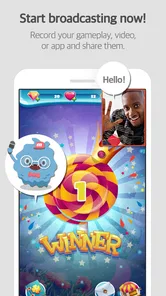
Mobizen Recorder for Samsung is the kind of app I would reach for when I need to capture something happening on my phone and want more control than a basic screenshot provides. It sits in the video players and editors category, but its appeal is broader than playback: I can record the screen, make a GIF, draw over what is visible, and perform simple edits without moving immediately to a separate app. That all-in-one approach is convenient, although the experience depends heavily on how well the phone, Android version, storage, and recording settings cooperate.
Developed by MOBIZEN, the app is free to install and is rated for Everyone. It has built a large audience, with over ten million installs, around a 3.8 average from roughly a million ratings, and about twenty-eight thousand written reviews. Those figures suggest a familiar tool rather than a niche utility, but they also hint at a product used across many different Samsung devices and software configurations. In my experience, that matters: a recorder can work smoothly on one phone while needing a little troubleshooting on another.
Where the real friction appears before recording
The first surprise is that “tap record” is not always the beginning of the process. A screen recorder has to capture moving images, system audio or microphone input when available, and sometimes touch activity, while the phone is also running the app being recorded. If the target app is demanding, the recording may feel less smooth than the live screen, or the phone may become warmer and slower. I treat the first short recording as a test rather than assuming the final result will be perfect.
Another common sticking point is confusing the recording controls with the editing controls. Mobizen Recorder is useful because these tasks live close together, but they are not the same workflow. Recording creates the source video; trimming, drawing, or turning a moment into a GIF happens afterward. If I am preparing a tutorial, I record a clean take first and add emphasis later instead of trying to draw while also explaining the action.
People also get caught by the difference between screen content and protected content. Some apps, video services, banking screens, and other sensitive displays may restrict capture for security or copyright reasons. If the recording shows a blank area, a black frame, or omits part of the screen, repeatedly changing Mobizen settings is unlikely to solve it. That is an important boundary: the recorder cannot reliably capture content that the operating system or another app deliberately blocks.
Storage is another practical issue that is easy to overlook. A long recording, especially one containing detailed motion, can consume considerably more space than a still image. Before recording a lesson, game session, or troubleshooting demonstration, I check available storage and close unrelated tasks. This simple habit prevents the most frustrating outcome: discovering that the important section stopped because the phone ran out of room.
Notifications can also spoil an otherwise good clip. A message banner, incoming call, or floating control may appear over the recording. For private demonstrations, I prepare the phone first and remove anything that could expose personal information. This is not just about presentation quality; a screen recording can include account names, messages, map locations, or other details that were not intended for sharing.
More From Our News Desk

 Gmail
GmailGmail in a Busy Inbox: Who Benefits Most?
From first account to crowded workday, Gmail earns its place through dependable search and flexible sorting—but its best fit depends on how much inbox maintenance you can tolerate.

 Prime Video
Switching to Prime Video: What Changes in Your Viewing Routine
Prime Video can make a compelling second home for streaming, but switching means learning a different catalog, rental layer, and route from browsing to playback.

 Universal TV Remote Control
Universal TV Remote Control Works Best as a Reliable Backup
A phone remote earns its place through quick setup and reliable habits. Here is how to get more from Universal TV Remote Control—and where its limits show.

 Weather - By Xiaomi
Weather by Xiaomi Review: Clear at a Glance, Less Clear Up Close
Xiaomi’s weather app makes everyday forecasts quick to scan, but its calm surface can leave useful details and recovery paths harder to find than they should be.

 X
XX Under Pressure: Can It Recover When Posting Goes Wrong?
A resilience-focused review of X, examining setup, mistaken posts, interruptions, weak connections, and the gaps that matter when recovery needs to be dependable.

 Clash of Clans
Clash of Clans Is Won Between the Battles
Its raids are quick; its community is a long-term project of coordination, teaching, rivalry, and shared responsibility—with all the friction that entails.
Latest News



What I check before pressing the button
I begin with a short checklist. The target screen is opened, unnecessary apps are closed, the battery is reasonably charged, and the phone has enough free storage. I then decide whether the recording needs microphone narration, internal sound, or no audio at all. Making that choice before starting is much easier than trying to repair an unclear audio track afterward.
For a tutorial, I keep the phone orientation consistent from the first frame to the last. Rotating halfway through can make the final clip awkward and may complicate editing. I also pause for a moment before performing the first action. That small lead-in gives me room to trim the start cleanly and prevents the video from feeling like it begins in the middle of a gesture.
The app runs on Android four point four and later, and the current version is 3.10.0.32. On a compatible Samsung phone, I still check that the operating system is behaving normally and that the app is updated through the usual store process. Compatibility on paper does not guarantee identical results across every device, because Samsung models differ in performance, display behavior, audio handling, and available storage.
If the floating recorder control is distracting, I avoid leaving it over the area I plan to demonstrate. A control placed near a button can hide the exact action I want viewers to see. I prefer to move it away before recording, then bring it back only when I need to stop. For a clean instructional clip, the less interface clutter on screen, the easier it is for another person to follow.
Recovering a failed or incomplete workflow
When a recording does not appear as expected, I first separate the problem into three questions: did the recording start, was a file created, and does the file play correctly? These are different failures. If there is no file, I check storage and whether the recording process actually began. If there is a file but it will not play, I try opening it from the device’s normal media area and avoid immediately deleting it. If it plays but lacks sound, I revisit the audio choice for the next test rather than assuming the entire video is unusable.
A short test clip is the most useful recovery tool. I record a few seconds of the same type of screen, stop, and play it back. This quickly tells me whether the issue is connected to the target app, the phone’s current state, or my expectations about what audio should be captured. It also avoids wasting time on a long recording made under the wrong conditions.
If the phone becomes sluggish, I stop the recording and let the device settle before trying again. Recording and editing are both tasks that benefit from a calm device, particularly when the source material is long. I do not keep launching and stopping the recorder repeatedly, because that can create several confusing test files and make it harder to identify which result was successful.
For an important project, I use a two-pass workflow. The first pass is purely functional: capture the complete sequence without worrying about perfection. The second pass is editorial: remove the dead time, keep the useful explanation, and add drawing only where it clarifies a button or gesture. This is one of the app’s strongest practical advantages. I can turn a raw phone demonstration into something understandable without immediately opening a full desktop editor.
The drawing option is especially useful when the viewer might miss a small control. I use it sparingly, because marking every movement makes the video noisy. A circle or brief line placed over the relevant area is usually more helpful than constant annotation. For a support clip, this can be faster than recording the same action several times while verbally repeating the location of each button.
The GIF workflow is best reserved for short, visual moments. A compact demonstration of a swipe, menu opening, or animation can be easier to share as a GIF than as a full video. I would not use that format for spoken instructions or a long sequence, because it removes the advantages of normal video and can become cumbersome to view. The choice between video and GIF should follow the purpose of the clip, not simply the availability of the feature.
When Mobizen is not the cause
It is tempting to blame the recorder whenever a capture looks wrong, but the source app may be responsible. A game can reduce its own frame rate under load, a streaming service can block capture, and an app with rapidly changing screens can produce a result that looks different from what the eye saw. Testing the recorder on a simple home screen or settings page helps isolate the cause without guessing.
Audio problems deserve the same caution. If narration is missing, the microphone may have been unavailable to the recording session, another app may have been using it, or the chosen audio approach may not match the target content. I test with a short spoken sentence and a simple screen action. That tells me whether the microphone side works before I spend time recording a full explanation.
Some problems are caused by the phone rather than the application. Low storage, an overloaded device, aggressive background management, a pending system update, or a temporary audio conflict can all affect capture. My general fix is deliberately conservative: save anything important, close unnecessary apps, restart the phone if it is behaving unusually, and make another short test. I avoid changing several settings at once, because then I cannot tell which change helped.
Privacy is another reason to pause before sharing a file. A recording can reveal notifications, contact names, search history, or account details even when the main subject is harmless. I review the finished clip from beginning to end, not just the section I intended to show. The built-in editing tools are useful for removing obvious dead time, but I still inspect the final result carefully before sending it to someone else.
How it compares with the usual alternatives
Samsung’s own built-in screen recording tools can be the better choice when I need a quick capture with minimal setup. They are closer to the system and may feel more immediate for a one-off clip. Mobizen Recorder becomes more attractive when I want recording, GIF creation, drawing, and basic editing in one place. The trade-off is that an all-in-one interface can feel busier than a simple system shortcut.
A dedicated video editor is usually stronger for a polished project involving multiple clips, detailed audio work, transitions, or extensive captions. Mobizen is not the tool I would choose for a full production workflow. Its advantage is speed and proximity to the original screen action: capture the phone, make a few useful corrections, and share the result without building a large editing project.
A computer-based recorder remains preferable for long presentations, high-control tutorials, or work that needs precise post-production. A phone recorder is more convenient when the thing being explained exists on the phone itself. For example, if I am helping a relative change a setting, I can record the exact Samsung interface, mark the button, trim the pauses, and send a compact explanation. That is faster than recreating the same lesson on another device.
The free price makes experimenting easy, although in-app purchases range from ninety-nine cents to forty-three dollars and ninety-nine cents per item. I would start with the free experience and decide only afterward whether any paid option is genuinely useful for my workflow. A purchase should not be the first troubleshooting step, and it cannot overcome blocked content, missing storage, or a phone that is already struggling under load.
Who should use it, and who should skip it
I think Mobizen Recorder is a good fit for students making quick demonstrations, support workers showing a phone procedure, creators producing short app tutorials, and anyone who wants a GIF from a screen interaction. It is also helpful for recording a problem before contacting support, because a short visual example can explain a bug more clearly than a paragraph of text.
I would skip it if I only need an occasional basic recording and Samsung’s system tool already does exactly what I need. I would also choose a more advanced editor for professional videos, complex sound mixing, or projects requiring detailed control over many clips. People who regularly capture protected streaming content should not install it expecting the recorder to bypass those restrictions.
My most reliable routine is simple: prepare the screen, check storage and privacy, make a short test, record the complete action, then edit only after playback confirms that the source is usable. That order prevents a common mistake—spending time decorating a file that never captured the important audio or screen section.
After using it as a practical screen-capture tool, I see Mobizen Recorder as a flexible middle ground. It offers more than a bare recorder without demanding the complexity of a full editor. The app is free, widely used, and maintained by MOBIZEN, but its usefulness still depends on realistic expectations about device performance, protected content, audio behavior, and storage.
My recommendation is positive for Samsung users who want an approachable way to record, annotate, trim, or convert short screen moments into GIFs. I would install it for everyday demonstrations and troubleshooting clips, while keeping the built-in recorder in mind for the fastest possible capture. If you follow the test-first workflow and understand when the phone or source app is the real obstacle, Mobizen Recorder becomes a genuinely handy companion rather than just another icon on the screen.
Mobizen Recorder for Samsung Frequently Asked Questions
Is Mobizen Recorder for Samsung compatible with my Android version?
Mobizen Recorder for Samsung requires Android 4.4 or later. If your phone runs an older version, it will not meet that minimum requirement. Android version is only one part of compatibility, however: Samsung models and software can handle screen capture differently. After installing the app, make a brief test recording and check that the controls and features you plan to use work properly on your device.
How much storage space should I have before recording?
Screen recordings use storage on your device, and longer or higher-quality videos can take up more room than short clips. Before recording a long session, check that your phone has enough free space and consider reviewing or moving older recordings if storage is tight. A short test clip is also a practical way to see how the app saves recordings on your device.
Can I use Mobizen Recorder for Samsung to create GIFs as well as videos?
Yes. Mobizen combines screen recording with GIF creation, editing, and drawing tools, so it can be useful when you want to turn a screen moment into a shorter visual clip instead of keeping only a full video. The options available can vary with the installed version and device, so explore the app’s recording and editing screens to see which tools suit your workflow.
Does Mobizen Recorder for Samsung work on every Samsung phone?
Mobizen Recorder for Samsung is designed for Android devices, but compatibility can vary across Samsung models and Android versions. The app requires Android 4.4 or later, and device permissions or manufacturer restrictions can affect how screen capture works. Check that your phone meets the minimum system requirement and try a short test recording after installation to make sure the features you need work as expected.
What can I do with recordings after capturing my screen?
Mobizen brings screen recording together with tools for editing and drawing, and it can also create GIFs. This makes it useful for more than simply saving a video: you can prepare a clip, add visual emphasis, or turn a moment into a GIF from within the app. The available options can depend on the installed version and device, so explore the recording and editing screens before relying on a particular workflow.
Pros
- Optimized for Samsung devices with reliable recording performance.
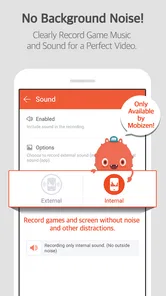
- Supports internal audio capture on compatible Android versions.
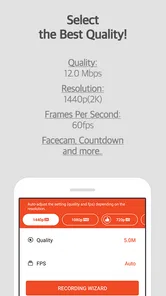
- Facecam overlay helps create engaging tutorials and gameplay videos.
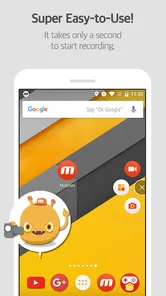
- Simple floating controls make recording easy to start and stop.
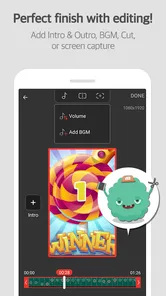
- Offers basic editing tools for trimming and polishing recordings.
Cons
- Some features require a premium subscription or in-app purchases.
- Recording quality and audio options vary by Samsung model.
- Watermarks may appear on videos when using the free version.
- Long recordings can consume significant storage space and battery.
- Occasional ads and upgrade prompts may interrupt the user experience.