Cellular Tower - Signal Finder
- 345.00
- 4.4
- Installs
- 500.00K
- Price
- Free
Screenshots
Analysis by Reviewed
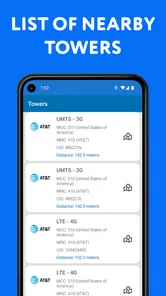
I first approached Cellular Tower - Signal Finder as a practical Maps & Navigation app rather than a tool that could magically repair a weak connection. That distinction matters. Its purpose is to help me understand cellular coverage by showing signal-strength information and nearby tower-related details, making it easier to investigate why a phone struggles in a particular place. The developer is Go Dreams, and the app is free to install, with optional in-app purchases ranging from $2.99 to $39.99 per item.
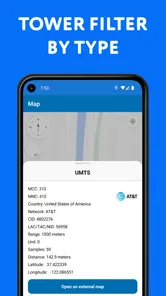
After spending time with it, I see the strongest value in diagnosis. When mobile data becomes unreliable, I do not always need another speed test or a general map. I need a clearer picture of whether the problem is distance from a tower, a poor position inside a building, or a broader coverage issue. This app is aimed at that question. It supports cellular information for 3G, 4G, 5G, and LTE networks, so it is relevant to people comparing different connection conditions rather than simply checking whether a phone is online.
How the app presents cellular information
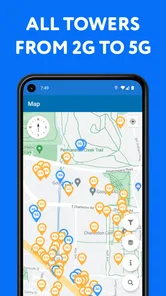
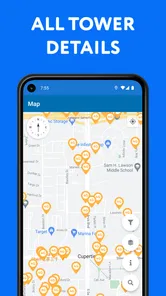
The first thing I noticed is that a signal-finder app succeeds or fails on readability. Technical network information can quickly become confusing when it is presented as a wall of abbreviations, changing values, and map symbols. Cellular Tower - Signal Finder is most useful when I treat it as a visual investigation tool: I look at the current signal situation, connect it with my location, and then compare what happens as I move. That approach is more helpful than staring at one number and assuming it tells the whole story.
The map-based context is especially important for people who find raw network terminology difficult. A person may not know the difference between signal strength and connection type, but they can understand that one area appears closer to a tower or that the phone behaves differently after moving outdoors. In my view, this makes the app more approachable than a purely technical network-information screen. It gives the information a place in the real world.
Navigation also depends on attention. If I am checking coverage while walking, driving, or trying to find a better place to make a call, I should not be reading every detail at once. The safer workflow is to check before moving, identify a likely stronger location, and then put the phone away. This is not an app I would recommend operating continuously while driving. Its usefulness comes from short checks, not from demanding constant visual focus.
For readers with reduced vision, the practical question is whether the screen remains comfortable enough to inspect. Maps and signal indicators can become difficult when symbols are small, colors are close together, or information changes frequently. I found that the app is easier to use when I enlarge the phone’s system text or display settings where supported, hold the device close, and avoid judging a connection from color alone. The most reliable habit is to combine the visual map with the phone’s actual ability to load a page, send a message, or complete a call.
The most useful reading strategy is to combine the map with real-world behavior instead of treating a single signal value as a final answer. A strong-looking signal does not automatically mean fast internet, and a weaker reading does not always mean that every service will fail. Network congestion, building materials, the phone’s modem, and the carrier’s available bands can all affect the result. The app helps me investigate; it does not replace judgment.
More From Our News Desk

 Weather - By Xiaomi
Weather by Xiaomi Review: Clear at a Glance, Less Clear Up Close
Xiaomi’s weather app makes everyday forecasts quick to scan, but its calm surface can leave useful details and recovery paths harder to find than they should be.

 X
XX Under Pressure: Can It Recover When Posting Goes Wrong?
A resilience-focused review of X, examining setup, mistaken posts, interruptions, weak connections, and the gaps that matter when recovery needs to be dependable.

 Clash of Clans
Clash of Clans Is Won Between the Battles
Its raids are quick; its community is a long-term project of coordination, teaching, rivalry, and shared responsibility—with all the friction that entails.

 Android Auto
Android Auto Makes the Case for Quieter Car Software
The car interface is no longer judged by how much it can do, but by how quietly it helps. Android Auto shows what drivers now expect—and what still gets in the way.

 MobiOffice: Word, Sheets, PDF
MobiOffice: Transforming Mobile Productivity with Seamless Integration
MobiOffice: Word, Sheets, PDF is redefining mobile productivity with a surprising blend of functionality and innovation.

 EA SPORTS FC Soccer Mobile 26
EA SPORTS FC™ Mobile Soccer: Redefining Mobile Sports Gaming
Dive into EA SPORTS FC™ Mobile Soccer, where immersive gameplay and strategic depth transform mobile sports gaming.
Latest News


Making the information easier to use
I recommend opening the app when I have time to explore rather than waiting until an urgent call is already failing. In a calm setting, I can learn what the main indicators mean and notice how the map responds to my position. That preparation reduces the cognitive load later, especially for users who are not comfortable with technical interfaces or who need more time to interpret changing information.
A useful personal workflow is to check the same location more than once. For example, I might compare a room near a window, a hallway, and an outdoor spot. If the readings and real performance improve together, I have learned something actionable about the building. If the map looks promising but calls still fail, I know the issue may involve the carrier or the phone rather than simply the nearest tower.
This kind of comparison is also helpful for people who experience fatigue, anxiety, or information overload. Instead of trying to understand every technical label, I can define one question at a time: “Where can I make a stable call?” or “Is mobile data better near the entrance?” A focused question makes the app less demanding and produces a clearer answer.
Using it with different abilities and situations
I find signal-finding tools most useful when I treat them as a way to ask better questions, not as a fix for poor reception. In this section, I’ll look at how different users can adapt a coverage check to their own priorities, from finding a dependable place to call to comparing mobile data indoors and outside. A small, deliberate test often tells me more than watching a changing indicator.
Motor comfort and one-handed use
Signal checking often happens in awkward places: outside an office, beside a road, in a large building, or while carrying bags. That makes motor comfort important. I prefer to stop, hold the phone securely, and complete the main check before walking again. If I need to pan around a map or inspect several details, using both hands is more comfortable and reduces accidental taps.
People with limited dexterity may find frequent map movement or small controls tiring. A good workaround is to decide in advance what information matters. Rather than repeatedly zooming and dragging, I can first check the current area, then move to one comparison point, and stop. This turns a potentially fiddly session into a small number of deliberate actions.
For users who rely on an alternative input method, the experience will depend heavily on how the phone’s own accessibility tools interact with the app. I would not assume that every map element or changing signal indicator is equally easy to reach through switch access, voice control, or a screen reader. The responsible approach is to test the specific workflow that matters: opening the map, reading the key result, and returning to the main view. If those steps are not exposed clearly to the device’s accessibility service, another network-information app with a simpler text-first interface may be a better choice.
That limitation does not make the app unusable for everyone with motor difficulties. It simply means the best experience comes from short sessions and a stable setup. A phone stand, a larger display, or checking from a seated position can make a meaningful difference. I would also avoid relying on the app while moving through an unfamiliar area, because the need to manipulate a map can compete with safe navigation.
Visual, hearing, and sensory considerations
Because cellular information is primarily visual, people with low vision should consider whether the map and indicators can be interpreted comfortably on their device. System magnification can help with individual areas, but magnifying a map may also reduce the amount visible at one time. I find that this trade-off is manageable when I use the map only to establish broad context and then verify the result through an actual call or data task.
Color should not be the only basis for a decision. Signal maps commonly use color to communicate strength, but users with color-vision differences may not distinguish every shade. I would look for accompanying labels, values, or changes in real performance rather than assuming that a green-looking area is automatically excellent. If the app’s visual distinction is not clear on a particular screen, the phone’s own network indicators and a simple test message provide useful confirmation.
For deaf or hard-of-hearing users, a signal-finder can still be relevant because its central purpose is visual. However, a visual signal result does not guarantee that voice communication will work well. A person who depends on text messaging or internet calling should test those services directly, since data performance and voice reliability can differ. The app can help choose a place to test, but the final decision should be based on the communication method the user actually needs.
Some users are sensitive to motion, rapid updates, bright colors, or crowded screens. I would use the app in a quiet environment, reduce general display stimulation where possible, and avoid prolonged browsing when a quick comparison is enough. The app is more comfortable when I treat it as a utility for a specific task, not something to watch continuously.
Everyday situations where it earns its place
One realistic example is working from a temporary location. I arrive at a rented apartment and discover that the Wi-Fi is unreliable. Before settling at a desk, I check the cellular situation in several parts of the room and near the outside wall. If mobile data improves in one spot, I can place the phone there for a hotspot or move my work area. That does not guarantee a stable workday, but it gives me evidence instead of guessing.
Another use is planning a call from a rural property, campsite, or large event venue. I can inspect the surrounding cellular environment before choosing where to stand. This is particularly useful when a group needs one practical location for a call or message. The benefit is not that the app creates coverage; it helps me find a more informed starting point.
It can also help when comparing a phone’s behavior in different parts of a home. If one room consistently performs poorly, I can test whether moving a few meters changes the result. That may reveal an indoor obstruction or a positioning issue. If the entire property performs badly, the more sensible next step is to contact the carrier, consider a supported network alternative, or investigate a properly installed signal solution rather than expecting the app itself to boost the radio signal.
For travelers, the app may be useful during short stops when a connection is unexpectedly weak. I can check the local situation and decide whether to continue trying mobile data or wait for a known Wi-Fi connection. Still, I would not rely on it as my only travel-safety tool. Maps, emergency communication, and offline information should be prepared separately because a signal-finder cannot guarantee connectivity.
What it does not solve
The wording around a cellular signal booster can create the wrong expectation if read too literally. This is an app for finding and understanding signal conditions, not a replacement for carrier infrastructure or a physical repeater. Installing it will not make a distant tower transmit more strongly, remove a building’s walls, or bypass congestion. That distinction is the most important thing to understand before downloading it.
It is also not a complete substitute for a speed-test app. A speed test answers how quickly data moves at a particular moment, while a tower and signal tool helps explain the radio environment around you. I would use this app when I want location and coverage context, and a speed test when I need a direct measurement of download or upload performance. For serious troubleshooting, the two kinds of information complement each other.
Likewise, it may not be the right choice for someone who only wants a simple “good or bad” icon. The inclusion of 3G, 4G, 5G, and LTE information is valuable for users who want detail, but it can feel excessive for a person who rarely changes location or never investigates network problems. In that case, the phone’s built-in status display may be quicker and less demanding.
Privacy, permissions, and practical caution
Location-aware network tools naturally need to connect their readings with where the phone is being used. I pay attention to the permissions requested during setup and grant only what is necessary for the function I intend to use. I also remember that a map showing tower-related information can reveal patterns about places I visit, so I avoid treating any location tool casually on a shared device.
The app is rated for Everyone, which makes it broadly approachable for families and general users. Even so, younger users should be shown how to interpret the results and reminded not to walk into unsafe areas while chasing a stronger reading. A signal map is never more important than road awareness, personal safety, or an urgent communication plan.
The current version is 2.2.0 and it runs on Android 8.0 or later. That gives it a reasonably broad device range, although the quality of the experience will still depend on the phone’s hardware, operating system behavior, carrier, and available network technologies. A newer phone may report more useful network details than an older handset, so two people can install the same app and see different practical value.
Value, audience, and the final decision
With a 4.4 average from around 22 thousand ratings and more than 500 thousand installs, Cellular Tower - Signal Finder has attracted a substantial audience for a focused utility. I would read that popularity as evidence that the problem is common, not as a promise that every phone, carrier, and building will produce the same results. The app is free to start, while the optional purchases can matter to anyone who wants to keep costs tightly controlled.
I recommend it to people who regularly move between weak-coverage areas, troubleshoot mobile data, work from temporary locations, or want more context than the phone’s small signal icon provides. It is also a sensible tool for technically curious users who enjoy comparing locations and learning how their carrier behaves around a home, workplace, or travel route.
I would skip it if I expect an instant signal repair, need a fully text-based accessibility experience, or want only a basic speed result with no map investigation. In those cases, contacting the carrier, using the phone’s built-in network information, or choosing a simpler diagnostic app may be more effective. Users who need dependable emergency communication should prepare offline alternatives instead of relying on any live cellular analysis tool.
My inclusive verdict is positive but measured. The app can turn a vague complaint—“my phone barely works here”—into a more useful investigation, and its map-centered approach gives everyday users a way to connect network behavior with physical surroundings. Its accessibility depends on the phone, the user’s visual and motor needs, and how comfortably technical information can be interpreted. If I use it in short, deliberate sessions and verify important results with the communication service I actually need, it becomes a practical companion for understanding cellular coverage rather than an overpromised cure for it.
Cellular Tower - Signal Finder Frequently Asked Questions
Does Cellular Tower - Signal Finder support 3G, 4G, and 5G networks?
Cellular Tower - Signal Finder is presented as a tool for exploring cellular signal strength and network information across 3G, 4G, 5G, and LTE connections. What it can show depends on your phone, the network your carrier provides, and the data available in your location. It can help you inspect the connection you have, but it does not enable network types that your device or carrier does not support.
Can I use Cellular Tower - Signal Finder to compare coverage in different locations?
The app can be useful when you want to compare signal conditions as you move between places. Its location-related information and readings may help you spot areas where reception seems stronger or weaker, which can be helpful when troubleshooting or choosing where to make a call. Keep in mind that readings are estimates and can change with movement, local conditions, and your device.
Does Cellular Tower - Signal Finder work without an internet connection?
Some basic readings may remain available offline, but features that depend on online maps, tower databases, carrier data, or crowdsourced information can be limited without internet access. If you want to view map-based information or current online details, connect to mobile data or Wi-Fi. The app’s usefulness offline will depend on which information is already available on your phone and what you are trying to check.
Is Cellular Tower - Signal Finder free to download, and are there in-app purchases?
Cellular Tower - Signal Finder is free to download, so you can install it and explore its core purpose without paying upfront. The app also offers in-app purchases, which may unlock paid options or additional features. Before buying anything, review the purchase details shown in the app and make sure the offered feature is useful for the way you plan to use the signal and tower information.
Which phones and operating systems can run Cellular Tower - Signal Finder?
The app is available for Android devices running version 8.0 or later. Compatibility can still depend on the individual phone, since manufacturers and operating-system versions handle location and cellular network readings differently. If your device meets the minimum requirement, you can install the app, but some displayed information or features may vary with your phone’s hardware and the network services available in your area.
Pros
- Shows nearby cell towers and signal coverage on a map.
- Helps identify areas with stronger mobile reception.
- Useful for comparing signal quality between locations.
- Provides network information for troubleshooting connectivity.
- Simple interface makes basic signal checks easy.]
Cons
- Results depend on available crowdsourced and location data.
- Tower positions may be incomplete or occasionally inaccurate.
- Background location access can affect battery life.
- Some features may require an internet connection.
- Advanced network details can vary by device and carrier.