All PDF: Reader, Editor
- 20.00
- 3.4
- Installs
- 100.00K
- Price
- Free
Screenshots
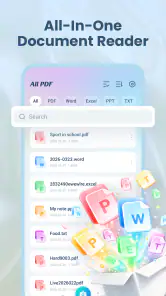
Analysis by Reviewed
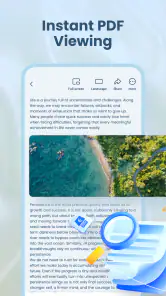
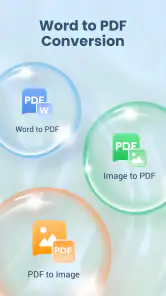
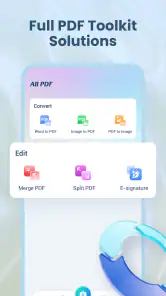
All PDF: Reader, Editor is the kind of Tools app I would reach for when I need to open a document quickly and do not want to sort through several separate PDF utilities. Developed by Shkor, it combines PDF viewing with document conversion in one free package. That sounds simple, but the practical value depends on where and how you use it: at home with a reliable connection, on a commute, or in a situation where a document has to be handled immediately.
I spent time looking at it as an everyday document tool rather than treating the “All PDF” label as a promise that it replaces every office application. Its strongest appeal is convenience. You get a focused way to deal with PDF files, and the app is available to users on Android 8.0 and later. The current release is version 1.0.3, while its Everyone age rating makes it approachable for a broad audience.
My overall impression is positive but measured. This is a useful option for people who regularly receive PDFs and occasionally need to convert documents, especially when they prefer a lightweight mobile workflow. It is less convincing as a complete document-management system or as a replacement for a full desktop editor. The difference becomes especially clear when connectivity, file size, and recovery from interruptions enter the picture.
How connectivity changes the experience
When the network matters more than the document
A PDF viewer is often judged by how quickly it opens a file, but on a phone the real starting point is frequently somewhere else: a message attachment, a cloud folder, an email, or a download page. That means the surrounding connection can shape the first impression of All PDF: Reader, Editor even before the document is inside the app.
If the file is already stored on your device, opening it is a more direct task. If it still has to be fetched, a weak connection can make the whole process feel slower than the viewer itself. This is an important distinction because users sometimes blame the PDF app for delays caused by the source service or the mobile network. I recommend downloading important documents before you are in a hurry, then opening the local copy rather than relying on a last-minute attachment load.
The conversion side deserves the same caution. A viewer mainly needs to display an existing file, while conversion involves processing the document into another form. Depending on the source and destination, that can be more demanding than simply reading. I would avoid beginning a conversion while moving between unstable networks or while switching repeatedly between apps. The safest workflow is to wait until the source file is fully available, open it in All PDF, and let the operation finish without interrupting it.
This also affects travel and workplace use. Imagine receiving a form just before a meeting. You open it on your phone, discover that the layout is difficult to read in the original context, and want a converted copy for another task. The app can be useful here because viewing and conversion are brought together, but the result depends on having the source file ready and enough time for the process. It is not the tool I would choose if I had no margin for a failed transfer or a repeated attempt.
Reading on a small screen
Mobile reading is not simply desktop reading reduced in size. On a phone, I pay more attention to whether a PDF remains usable when I am standing, walking between rooms, or checking one page while handling something else. A dedicated PDF tool has an advantage over opening a document in a general file manager: the purpose is clearer, and I can stay focused on the document instead of navigating unrelated files.
All PDF: Reader, Editor makes the most sense for short checks, reference material, forms, receipts, instructions, and documents that need a quick review. I would use it to confirm a date, check a page number, or inspect an attachment before deciding whether it needs further work. For long reports, academic papers, or contracts that demand detailed comparison, a larger screen is still more comfortable. The phone is convenient, but convenience should not be confused with ideal reading ergonomics.
One practical habit helps: keep the original file untouched and treat a converted copy as a separate working version. This matters on mobile because it is easy to overwrite, rename, or share the wrong document when several files look similar. I would give converted files a clear name immediately, including the document purpose rather than relying on an automatic filename. That small step makes the app more useful in real situations where documents accumulate quickly.
Another useful trade-off is speed versus inspection. If I only need to read a page, I do not start a conversion just because the option is available. Conversion creates an additional step and may alter how the document behaves or appears. I reserve it for a specific need, such as moving content into a format that another app handles more comfortably. That keeps the workflow simpler and reduces unnecessary processing.
What happens when something goes wrong
The most important recovery skill with any mobile document tool is knowing what to preserve before trying again. If a file fails to open or a conversion does not produce the expected result, I would first return to the original source instead of repeatedly working from an incomplete copy. A fresh local copy can remove confusion caused by a partially downloaded attachment or an interrupted handoff between apps.
Connectivity failures are particularly frustrating because they can look like file problems. A document may appear unavailable when the real issue is that the attachment has not finished downloading. In that situation, I would check whether the file exists completely in the device’s file area, then reopen it through All PDF. If the app was interrupted during conversion, I would close the failed result, retain the original, and start again only after the source is accessible and stable.
There is also a human failure mode: opening the wrong version. This is common when a document has been sent through several channels. Before converting, I would compare the filename and visible content with the message or folder where it came from. After conversion, I would open the output and inspect several pages rather than assuming that a successful completion means the document is perfect. A file can exist and still need a visual check.
This is where I see a limitation in the app’s positioning. A combined reader and converter is convenient, but it does not automatically solve document auditing. If your work involves legally important forms, complex layouts, embedded elements, or precise formatting, I would use All PDF for an initial check and then verify the final file in the software that will actually receive or print it. The app is a practical bridge, not a guarantee that every conversion is publication-ready.
Using it without wasting mobile data
PDF files vary widely in size. A text-only document can be easy to handle, while a scan full of images may consume more storage and take longer to transfer. I would avoid opening several large attachments over mobile data simply to decide which one matters. When possible, I first identify the needed file in the source app, download only that document, and then move it into the PDF workflow.
For people with limited data plans, the most sensible approach is to separate acquisition from reading. Download documents when connected to a trusted Wi-Fi network, then review them later from the device. This editorial choice does not assume that every function in All PDF works without a connection; it simply reduces the amount of network activity surrounding the app and gives you more control over when files are transferred.
Storage deserves attention too. Keeping every original and every converted copy can quietly fill a phone. I would periodically remove duplicate outputs after confirming which version is needed, while retaining originals that may be required later. A simple folder structure—such as “to review,” “converted,” and “finished”—can make All PDF feel much more capable because the surrounding file workflow is less chaotic.
Privacy is another reason to think before converting or sharing. A PDF may contain an address, an identification number, a work document, or a signed form. I would not send a sensitive file through multiple apps without a clear reason. First inspect it, then create only the version you need, and finally share that specific copy. The app’s convenience should encourage fewer unnecessary transfers, not more.
Who will appreciate it most
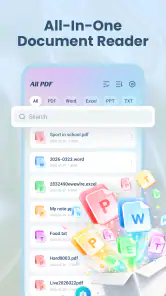
I think All PDF: Reader, Editor suits students checking course material, workers reviewing attachments, families handling forms, and anyone who wants a single mobile destination for PDFs and conversion tasks. It is particularly handy for people who do not want to install a separate reader and a separate conversion utility for occasional use.
It is also a reasonable choice for users on older supported phones. The minimum operating-system requirement of Android 8.0 keeps the app within reach of devices that are not running the newest software. That does not tell me how every individual phone will perform with a large or image-heavy file, so I would judge performance using the documents you actually handle rather than assuming that all PDFs will behave identically.
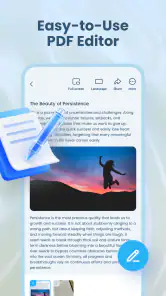
On the other hand, I would skip it if your main need is collaborative editing, advanced annotation, document signing, optical character recognition, or a carefully controlled business workflow. The confirmed focus is PDF viewing and document conversion, so I would not choose it expecting a complete office suite. For those tasks, a specialized editor or a desktop application may be the better fit.
How it compares with familiar alternatives
The usual alternative is the PDF viewer already included with a phone, browser, file manager, or cloud-storage app. Those options can be perfectly adequate when all you need is a one-time glance. All PDF becomes more interesting when conversion is part of the same routine. Instead of opening a document in one place and then searching for another tool, you can begin with a PDF-focused app and keep the workflow more compact.
The trade-off is that a general cloud or office app may connect more naturally to the files you already store there, while All PDF is more centered on the document itself. If your day is built around shared folders, simultaneous editing, comments, or team permissions, the broader platform may remain more useful. If your day is built around receiving a PDF, reading it, and occasionally creating a converted copy, the focused approach is easier to understand.
Dedicated desktop converters can still be preferable for batches, exact formatting, or large professional documents. I would use All PDF for quick mobile decisions and routine personal work, then move to a computer when the document becomes too important or complex to trust to a small-screen process. That division of labor feels more realistic than expecting one free mobile app to cover every document scenario.
What the current reception suggests
The app has passed the early curiosity stage, with over one hundred thousand installs, but its average rating is 3.4 from around six hundred ratings. I read that as a reason to set practical expectations rather than as an automatic warning. People are clearly trying it, yet the experience is not universally smooth enough to earn a stronger consensus.
That mixed reception fits the nature of this category. PDF handling is highly dependent on the files people use, the phones they own, and the sources from which documents arrive. A simple text document may feel effortless, while a complicated scan can expose limitations quickly. I would judge the app after testing it with a few representative files, not just one easy attachment.
The free price lowers the risk of trying it, and the Everyone rating makes it suitable for general household use. Still, free does not mean frictionless. The best way to get value from it is to use a deliberate workflow: obtain the correct file, keep the original, convert only for a clear purpose, inspect the result, and clean up duplicates afterward.
My connectivity verdict
After looking at the app through the lens of connectivity, I see All PDF: Reader, Editor as a useful mobile utility whose success depends partly on preparation. It can simplify the moment when I need to read a PDF and make a converted version, but it cannot remove the delays caused by downloading, unstable access, large files, or an unsuitable source document.
My recommendation is straightforward: try it if you want a free, focused PDF tool for ordinary personal and mobile work, especially when you value having viewing and conversion in one place. Keep important originals, avoid beginning sensitive tasks during unreliable connectivity, and inspect every converted result before sharing it. Those habits make the app more dependable than casual, repeated tapping.
I would recommend a different option for intensive editing, team collaboration, batch processing, or documents where layout accuracy is critical. For everyone else, the app offers a sensible middle ground between a basic built-in viewer and a much heavier office suite. Shkor’s tool is not something I would treat as a complete document ecosystem, but it is a practical companion when a PDF needs attention now and the phone is the device already in my hand.
Pros
- Opens PDFs quickly
- even when switching between several documents.
- Supports text search for finding specific words or sections efficiently.
- Offers useful page navigation with thumbnails and document previews.
- Works well for reading on phones and tablets in portrait or landscape mode.
- Provides a practical interface with tools grouped in an accessible toolbar.
Cons
- Some advanced editing tools may require a paid upgrade or subscription.
- Large or image-heavy PDFs can take longer to load on older devices.
- The interface may feel crowded when many editing options are displayed.
- OCR accuracy can vary with handwritten text or low-quality scanned pages.
- Some exported files may need additional checking for formatting consistency.
- Category
- Tools
- Version
- 1.0.3











