AI Mirror: Screen Mirroring TV
- 406.00
- 3.2
- Installs
- 10.00M
- Price
- Free

Screenshots
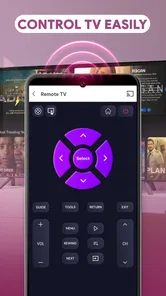
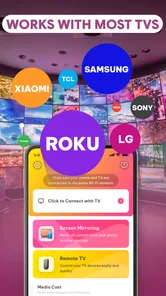
Analysis by Reviewed
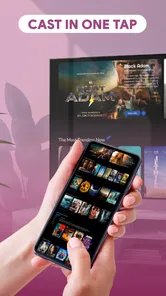
I approached AI Mirror: Screen Mirroring TV as a first-time user would: install it, look for the quickest route from a phone screen to a television, and see whether the process feels understandable without technical knowledge. It is a free app from Insumos XP in the video players and editors category, built around casting videos and photos and mirroring a mobile display on a larger screen.
The basic promise is easy to understand, but the real value depends on what you want to show. If your goal is to put a saved video or a photo slideshow on the TV, a casting tool can feel pleasantly simple. If you want every tap and notification on your phone duplicated instantly, screen mirroring is a different experience with different trade-offs. That distinction matters more than the short label “AI Mirror,” because it shapes whether the app feels useful or frustrating.
What to expect before you begin
AI Mirror: Screen Mirroring TV is not presented as a full video-editing suite or a media library. I would think of it as a bridge between a phone and a bigger display. The practical jobs are showing personal photos, playing videos on a television, or sharing the mobile screen when a group needs to see what is happening on the handset.
The app is free and carries an Everyone content rating, so it is positioned for ordinary household use rather than a specialist audience. Its current version is 1.0.2, and it runs on Android 8.0 or later. Those details make it accessible to many existing phones, although compatibility in real use still depends on the television, receiver, and network arrangement involved.
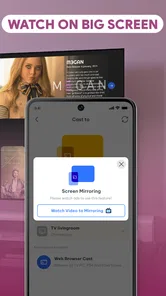
In my view, the most important expectation to set is that “cast” and “mirror” are not interchangeable. Casting usually means sending selected video or photo content to the television while the phone remains available for other tasks. Mirroring means reproducing the phone’s visible screen. The first approach is generally better for watching; the second is more flexible for demonstrations, browsing, or showing an app that has no separate cast button.
The app has attracted over ten million installs, while its average rating is 2.9 from around seven thousand ratings. I would read that combination carefully rather than treating either number as a final verdict. It suggests the app is widely tried, but the modest average also tells me that connection reliability and device-specific behavior deserve attention before I rely on it for an important presentation or family event.
That is where my recommendation becomes conditional. For a casual living-room session, it is worth trying because there is no purchase barrier. For a work presentation, a classroom demonstration, or a paid event, I would test the exact phone-and-TV combination well in advance and keep a cable or another established method nearby.
More From Our News Desk

 Gmail
GmailGmail in a Busy Inbox: Who Benefits Most?
From first account to crowded workday, Gmail earns its place through dependable search and flexible sorting—but its best fit depends on how much inbox maintenance you can tolerate.

 Prime Video
Switching to Prime Video: What Changes in Your Viewing Routine
Prime Video can make a compelling second home for streaming, but switching means learning a different catalog, rental layer, and route from browsing to playback.

 Universal TV Remote Control
Universal TV Remote Control Works Best as a Reliable Backup
A phone remote earns its place through quick setup and reliable habits. Here is how to get more from Universal TV Remote Control—and where its limits show.

 Weather - By Xiaomi
Weather by Xiaomi Review: Clear at a Glance, Less Clear Up Close
Xiaomi’s weather app makes everyday forecasts quick to scan, but its calm surface can leave useful details and recovery paths harder to find than they should be.

 X
XX Under Pressure: Can It Recover When Posting Goes Wrong?
A resilience-focused review of X, examining setup, mistaken posts, interruptions, weak connections, and the gaps that matter when recovery needs to be dependable.

 Clash of Clans
Clash of Clans Is Won Between the Battles
Its raids are quick; its community is a long-term project of coordination, teaching, rivalry, and shared responsibility—with all the friction that entails.
Latest News



The simplest first setup
After installing the app, I would begin with the television already on and ready to receive a connection. I would also keep the phone and TV on the same local network when possible, because discovery is much easier when both devices can see one another through the same home connection. If the TV does not appear, I would not immediately assume the app is broken; I would first check that both devices are connected in the way the television expects.
The first useful habit is to avoid opening several unrelated apps while setting up. Start with one short video or a small group of photos that you know are stored locally. This removes unnecessary variables. If the first test is a large online video, a cloud photo collection, or a demanding game, it becomes difficult to tell whether the problem comes from the connection, the source app, or the mirroring process.
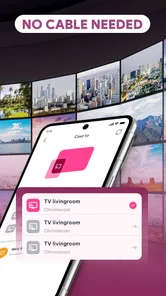
I would then look for the app’s device-selection screen and give it a moment to find available receivers. On a busy home network, discovery may not feel instant. If the television is listed, selecting it should be the natural next step. If it is not listed, restarting the app and checking the TV’s input or receiving mode is more sensible than repeatedly tapping the same scan control.
A useful first-time workflow is to test casting before full mirroring. Choose one photo, send it to the larger screen, and watch for a stable result. This gives you a quick answer to the most important question: can this phone and television communicate successfully? Once that works, screen mirroring is easier to evaluate because the basic connection has already been proven.
Your first meaningful success
For most people, the best first success is not merely seeing a connection message. It is displaying something that another person can actually enjoy. I would choose a clear landscape photo or a short locally stored video, start the session, and leave the phone still for a few seconds. That small test checks discovery, image delivery, and the television’s ability to maintain the session without the distraction of a complicated source.
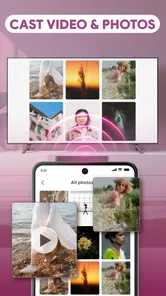
When showing photos, I would prepare the sequence before connecting. Put the images you want to share in an easy-to-find album or keep them together in the phone’s gallery. This is a small but important improvement: the app can handle the screen connection, but it cannot make an unorganized photo collection feel organized. Preparing the content first makes the experience look much more deliberate.
For a family scenario, imagine returning from a day out with several pictures on your phone. Instead of passing the handset around, I would connect to the TV, display the first image, and move through the selected pictures while staying near the phone. The benefit is social rather than technical: everyone looks at one larger image, and the phone remains the control point. If the connection becomes unstable, I would stop the session rather than repeatedly switching between photos, since rapid changes can make a weak setup feel worse.
For video, I would begin with content that is already available on the phone. This is a practical diagnostic step that many new users skip. If a locally stored clip plays cleanly but an online source struggles, the mirroring connection may be fine and the bottleneck may be the internet stream. Separating those two situations saves time and prevents an unfair judgment of the app.
Full screen mirroring has a different first test. I would open a simple screen, such as the phone’s photo gallery, and confirm that movement on the handset appears on the TV. Only after that would I try a more demanding activity. Mirroring has to transmit what changes on the phone, so fast scrolling, games, and high-motion video can expose delays that are not obvious during a still-image test.
Where first-time users commonly get confused
The most common confusion is expecting the television to behave like a second independent phone. With mirroring, the phone remains the source and usually needs to stay active. If the handset locks, changes orientation, or receives an interruption, the image on the TV may change as well. That is not the same workflow as sending a single video to a receiver and then using the phone for something else.
Another point worth understanding is that a larger screen does not automatically improve every type of content. A portrait photo may appear with unused space on the sides, while a landscape video may fit much more naturally. I would not interpret those borders as a connection failure. They are often simply the result of different screen shapes. Choosing content that matches the TV’s shape makes the result look better without changing any setting.
Latency is also easy to misread. A small delay between touching the phone and seeing the result on the TV may be acceptable for photos or a calm demonstration. It becomes distracting for games, musical performance, or anything that requires precise timing. This is one reason I would recommend casting a finished video when possible rather than mirroring a video that is already playing on the phone.
Sound can create a second layer of uncertainty. When the picture appears but audio behaves unexpectedly, I would check the television’s selected audio output and the source content before rebuilding the entire connection. Different kinds of casting and mirroring can handle sound differently, and the result may also depend on the TV itself. A short test with a video containing clear speech is more useful than guessing from a silent photo.
Notifications deserve practical attention too. Screen mirroring can expose whatever appears on the phone, including incoming messages or private reminders. Before sharing the screen with a room full of people, I would enable an appropriate quiet mode or temporarily close sensitive apps. This is not a reason to avoid mirroring; it is a reason to remember that the TV is showing the phone, not a carefully edited presentation.
I would also avoid assuming that every television with a large display is automatically ready to receive content. The app’s success depends on the receiving side being available and recognized. If the TV does not show up, check its network status, receiving settings, and active input. Those checks are more productive than reinstalling immediately, especially when the phone can still browse the internet normally.
Small workflow improvements that make a difference
One non-obvious improvement is to treat the first connection as a saved routine rather than a one-off experiment. Keep the TV on the input that normally receives the signal, prepare a dedicated photo album for sharing, and test one item before inviting everyone to watch. This turns a potentially awkward setup into a repeatable household habit.
A second improvement is to separate “content control” from “screen control.” If you are showing a film clip or a photo collection, casting the chosen material is usually the cleaner option. If you are explaining how to use a mobile app, mirroring is more appropriate because the audience needs to see each step. Choosing the mode based on the audience’s need reduces delay, clutter, and accidental exposure of unrelated phone activity.
A third trade-off involves phone battery and attention. A mirrored session keeps the phone central, so I would begin with a comfortable battery level and avoid treating the handset as something I can put away. For a long viewing session, a direct TV app, a built-in casting function, or a cable may be more convenient if those options are available to you. AI Mirror: Screen Mirroring TV is most convincing when the phone is naturally part of the activity.
There is also a useful troubleshooting order. First, confirm that the receiver is visible. Second, test one photo. Third, test a local video. Fourth, try mirroring. This sequence moves from the least demanding task to the most revealing one. If the photo fails, there is little value in testing a game. If the photo works but mirroring feels delayed, you have learned something specific rather than simply labeling the entire app unreliable.
How it compares with familiar alternatives
Compared with a television’s built-in casting option, this app can be appealing when you want one place to handle both selected media and a broader phone-screen view. The advantage is convenience for people who do not want to search through different controls for different tasks. The drawback is that a built-in method may feel more integrated with that particular TV, especially for supported video services.
Compared with a physical cable, wireless mirroring is less tidy and more dependent on the local setup. A cable generally offers a direct path and can be the safer choice when timing matters. The wireless approach wins when you want to move around the room or share photos without connecting hardware, but I would not choose it blindly for a high-stakes presentation.
Compared with dedicated streaming hardware, AI Mirror: Screen Mirroring TV is easier to try because it is free and does not require buying another device. Dedicated hardware may provide a more polished long-term experience for frequent streaming, while this app makes more sense for occasional sharing from a phone. The right choice depends on whether you need a household media system or a quick bridge for personal content.
The app is also different from a conventional mobile video player. A player focuses on watching content on the handset; this tool focuses on moving the experience to a larger display. That makes it useful for a specific purpose, but it does not replace the organization, playback controls, or device integration that a dedicated media player may offer.
Who should try it, and who should skip it
I would recommend trying it if you regularly show phone photos to family, need to demonstrate a mobile app to a small group, or want a free way to test wireless display sharing before buying extra equipment. It is especially approachable for someone who has never configured a casting tool and wants to start with a single photo rather than a complicated media library.
I would be more cautious if you need perfect timing, guaranteed stability, or privacy during a professional session. Gamers, performers, and presenters should test carefully and keep another connection method available. People who mainly want to watch supported online services may also prefer the television’s own app or its native casting controls, since those methods can avoid mirroring the entire phone.
The rating of 2.9 is a meaningful warning to set expectations, but not an automatic reason to dismiss the app. Wireless display tools are unusually sensitive to combinations of phones, TVs, networks, and source content. A successful personal test on your own equipment tells you more than popularity alone. I would judge it by the exact task I need it to perform, not by the promise of universal compatibility.
The next step after your first session
Once the basic connection works, I would decide whether AI Mirror: Screen Mirroring TV belongs in my regular routine. If photo sharing is the main use, create a simple album before the next gathering. If demonstrations are the goal, rehearse the screen sequence and close anything private. If video playback is the priority, compare a locally stored clip with an online one so you know where any interruption originates.
I would also keep the app updated when a newer version becomes available, while remembering that an update cannot change the physical limits of a weak network or an incompatible receiver. The current release, 1.0.2, is an appropriate starting point, but the most reliable experience still comes from a prepared phone, a ready television, and content chosen for the display.
My final view is balanced: this is a worthwhile free experiment for casual wireless sharing, but it is not something I would trust without testing for an important event. Its strongest quality is the direct path from a personal phone to a communal screen, especially for photos and simple demonstrations. Its weakest point is the uncertainty that comes with wireless mirroring and mixed device setups.
If your first meaningful goal is simply to show one photo or a short local video on the TV, I think the app is worth installing and evaluating calmly. Start small, distinguish casting from mirroring, protect private notifications, and use the result to decide whether it fits your devices. The best way to use AI Mirror: Screen Mirroring TV is to match the connection mode to the content, rather than expecting one mode to handle every screen-sharing job equally well.
AI Mirror: Screen Mirroring TV Frequently Asked Questions
Which devices and operating systems can I use AI Mirror: Screen Mirroring TV on?
AI Mirror: Screen Mirroring TV is a Video Players & Editors app from Insumos XP, with a minimum operating-system requirement of version 8.0. Its store summary describes casting to a TV and mirroring a screen to display videos and photos on a larger screen. Before downloading, check that your phone meets the operating-system requirement and that your television or receiving device supports a compatible mirroring or casting method.
What is AI Mirror: Screen Mirroring TV, and what can I use it for?
AI Mirror: Screen Mirroring TV is designed to display content from your Android or iOS device on a compatible television or larger screen. It can be useful for viewing photos and videos, presenting documents, browsing content, or sharing your phone screen with other people. Its usefulness depends on whether your TV and mobile device support the same connection method, such as Wi-Fi casting or a compatible receiver.
How do I connect AI Mirror: Screen Mirroring TV to my television?
In most cases, you need to connect your phone and television to the same Wi-Fi network, open the application, and select the TV or receiving device shown in the available-device list. The television may also need screen mirroring, casting, or a dedicated receiver enabled. If the TV does not appear, check network permissions, restart both devices, and confirm that the television supports the required mirroring technology.
Does AI Mirror: Screen Mirroring TV work with every smart TV?
No application can guarantee compatibility with every television model. AI Mirror: Screen Mirroring TV generally works best with modern smart TVs and receivers that support common casting or screen-mirroring standards. Compatibility may vary according to the TV brand, operating system, phone model, router configuration, and regional software restrictions. Before downloading, it is sensible to verify that your television supports the connection protocol used by the app.
Why might the mirrored screen lag, disconnect, or show reduced quality?
Screen mirroring relies heavily on the quality of your wireless network. A weak signal, network congestion, distance from the router, or an older television can cause delays, stuttering, disconnections, or lower image quality. For better results, keep both devices on the same stable Wi-Fi network, reduce other network activity, move closer to the router, close unnecessary background apps, and avoid expecting flawless performance from demanding video or gaming content.
Pros
- Simple setup for compatible TVs and streaming devices.
- Mirrors photos
- videos
- presentations
- and apps from your phone.
- Useful for sharing content with family or colleagues on a larger screen.
- Supports wireless casting without requiring HDMI or other cables.
- Convenient for viewing mobile media during meetings or entertainment.
Cons
- Performance depends heavily on Wi-Fi strength and network stability.
- Some features may require a premium subscription or in-app purchases.
- Mirroring can introduce noticeable delay during games or interactive apps.
- Compatibility varies between TV brands
- devices
- and operating systems.
- Ads or connection prompts may interrupt the free user experience.