Yale Access
- 1.03K
- 4.6
- Installs
- 500.00K
- Price
- Free

Screenshots

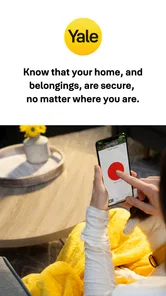
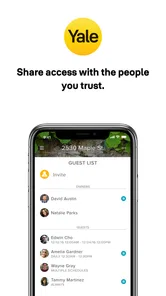

Analysis by Reviewed
If you are looking at Yale Access because you want to manage a Yale smart lock from your phone, the app makes a sensible first impression. I found its purpose easy to understand: it brings access control into a mobile app instead of leaving everything to a traditional key. That sounds simple, but the real value appears in the small moments when I want to check access, use my phone at the door, or manage who can enter without passing around a physical key.
Yale Access is a free lifestyle app from August Home, Inc., designed for Yale Access devices. It is available for Everyone, and the current version is 26.15.0 for devices running Android 8.0 or later. The app has reached over 500 thousand installs, with an average rating of 4.6 from around 3.2 thousand ratings and about 1 thousand written reviews. Those figures suggest a well-established app, although they do not remove the need to check whether your particular Yale hardware is supported before relying on it at home.
What using Yale Access feels like
The best way to understand this app is to think of it as the control panel for a Yale Access setup, rather than as a general smart-home dashboard. Its usefulness depends heavily on having a compatible Yale device already installed. If you do, the phone becomes a practical companion for everyday entry and access management. If you do not own Yale hardware, installing the app alone will not give you a useful smart-lock experience.
That distinction matters for first-time users. Many lifestyle apps provide value immediately after installation, while this one reaches its purpose only when it is connected to the right lock or access device. I would therefore start by identifying the exact Yale product in your home and checking its setup instructions before spending time exploring the app. This avoids the most common disappointment: expecting the application to work as a standalone digital key.
Once connected, the experience is centered on a clear question: what do I need to do with my Yale device right now? In my view, that focus is a strength. A lock-control app should not bury the important action beneath unrelated content. The practical benefit is most obvious when I am carrying groceries, arriving home in bad weather, or trying to help someone enter without physically handing over a key.
There is also a useful change in how I think about access. A physical key is easy to understand, but it is difficult to share, replace, or manage at a distance. A connected Yale setup can make access more deliberate: I can use the app for my own entry and treat other access arrangements as something to organize rather than improvise. That does not make the app a substitute for every traditional backup, but it can reduce the daily dependence on one small piece of metal.
Who will get the most from it
I would recommend Yale Access most strongly to people who already use compatible Yale access hardware and want a phone-based way to interact with it. It can be especially useful in a family home, a shared property, or any situation where access changes over time. Someone moving into a home with a Yale device may also appreciate having a single place to begin learning how that setup works.
More From Our News Desk

Weather by Xiaomi Review: Clear at a Glance, Less Clear Up Close

X Under Pressure: Can It Recover When Posting Goes Wrong?

Clash of Clans Is Won Between the Battles

Android Auto Makes the Case for Quieter Car Software

MobiOffice: Transforming Mobile Productivity with Seamless Integration

EA SPORTS FC™ Mobile Soccer: Redefining Mobile Sports Gaming
The app is less compelling for someone who only wants a basic lock and has no interest in connected access. A conventional key is still simpler when you do not need remote management or phone-based control. I would also hesitate to recommend making any smart-lock app your only plan before you have tested the device repeatedly in your own routine. The app may be convenient, but entry is important enough that I prefer having a sensible backup arrangement.
Another trade-off is hardware dependence. Yale Access is specific to Yale Access devices, so it is not the right choice if your main goal is to combine locks from several unrelated brands in one neutral application. A broader smart-home platform may be a better fit for a mixed collection of devices, while Yale Access makes more sense when your priority is staying close to the Yale ecosystem.
Getting through the first setup
For a smoother start, I would prepare before opening the app. Have the Yale device nearby, make sure you know which door or entry point it controls, and keep any installation or pairing information that came with the hardware within reach. This sounds basic, but it prevents a lot of avoidable confusion when an app asks you to identify a device and you are not sure which one you are looking at.
After installing Yale Access, I would move through the setup slowly rather than tapping through every screen. The important goal is not simply to finish registration; it is to confirm that the app is connected to the correct physical device. If you manage more than one Yale entry point, use names that describe the actual location, such as front door or side entrance. Clear names become increasingly valuable once several devices appear in the same account.
A useful first-time habit is to stand close to the lock during pairing and initial testing. Even when the app is designed for convenient phone control, setup is the wrong moment to introduce unnecessary distance or uncertainty. I would also keep the door open while testing the first lock action. That gives you a safe way to observe what happens without risking a lockout or having to rush through the doorway.
Once the device appears, pause and inspect the controls instead of assuming that every button works in the same way. A lock-related action deserves more attention than an ordinary app tap. I like to identify the status shown for the device, locate the main control, and then check how the app communicates success or failure. Knowing where that feedback appears is more useful than merely knowing where the button is.
The first meaningful success
For me, the first real success is not completing the account setup. It is performing one controlled action with the door open and then confirming the physical result. That test connects the digital interface to the hardware, which is the part that matters. If the app indicates one state while the lock shows another, I would stop and resolve that mismatch before using the system normally.
After the first test, repeat the action from your usual approach to the door. This is one of the most practical checks a new user can make because a setup that works beside the lock may feel different when you arrive with your phone in a pocket or bag. I would not treat one successful tap as a complete evaluation. Try the app when you are standing naturally, with the screen visible, and with the door in its normal position.
That first successful action also teaches you what the app cannot replace. Yale Access can put control on your phone, but it does not remove the need for ordinary awareness. I still want to know whether the door is physically closed, whether the lock completed its movement, and whether another person is using the entrance. The application supports the routine; it does not make the surroundings irrelevant.
A small but valuable workflow is to test before an urgent occasion. If you plan to use phone-based access for a family member, visitor, or service appointment, verify your own setup first and make sure you understand the steps you expect that person to follow. The less familiar the user, the more important it is to keep the instructions simple and avoid discovering a problem when someone is already waiting outside.
Where first-time users can get confused
The biggest source of confusion is usually the difference between the app and the physical Yale device. Yale Access can present a control screen, but the actual result still depends on the lock being installed correctly and responding as expected. If something does not happen, I would not immediately assume the app is broken. I would check the device, the door position, and whether the app is showing the current state before trying the same command repeatedly.
Another easy mistake is treating a device name as proof that the correct lock has been selected. This is why meaningful labels matter. If two entries are given vague names, it becomes surprisingly easy to choose the wrong one when distracted. Naming each device by location during setup is a simple preventative step, and it becomes even more important for households with multiple access points.
Users can also become overconfident after a successful setup. A phone-based action may feel effortless, but I would still practice the complete arrival routine: take out the phone, open the app, identify the right device, perform the action, and verify the door. That sequence reveals whether the app fits your habits. If it feels awkward in a calm test, it will probably feel worse when your hands are full or you are in a hurry.
Notifications, phone settings, and general device behavior can also influence how reassuring the experience feels. I would pay attention to what the app actually confirms rather than relying on the sound of a tap or the assumption that a screen change always equals a completed physical action. For a lock, confirmation should come from the device itself and from the app’s visible status together.
There is a broader privacy and responsibility question too. A digital access system should be treated as part of home security, not just another convenience app. I would keep the phone protected, avoid casually leaving it unlocked around others, and think carefully before giving access to anyone. The right choice depends on your household, but the important point is that changing from keys to an app changes the way access is managed.
Making the app useful after setup
Once the first test is complete, the next step is to build a routine around the situations where Yale Access genuinely saves effort. I would begin with my own daily entry rather than immediately trying to organize every possible user or scenario. Use the app at normal arrival times, learn how quickly you can reach the correct control, and notice whether the device status is easy to interpret.
One realistic example is returning home with shopping bags. Instead of searching for a key, I can prepare the app before reaching the door, use the relevant Yale control, and then confirm the physical lock response. The useful insight is not simply that a phone can replace a key. It is that the best workflow reduces the number of decisions at the doorway: one clearly named device, one familiar action, and one quick confirmation.
A second use case is coordinating access for someone who needs to enter while I am occupied. In that situation, I would plan the arrangement in advance and explain the expected process rather than assuming the other person will understand the app immediately. This is where connected access can be more flexible than a spare key, but it also creates a communication responsibility. Convenience works best when everyone knows which door and which action are involved.
For homes with several people, I would establish a simple naming and testing convention. Every device should identify its location, and every regular user should know how to recognize the correct entry point. This may sound like housekeeping, but it prevents a common smart-home problem: a technically capable system becoming confusing because its labels do not match the way people talk about the house.
I would also keep a backup plan that suits the hardware and the household. The app can be central to your routine, but no phone-based system should be adopted without considering what happens if the phone is unavailable, the battery is empty, or the device does not respond as expected. The exact backup will depend on your Yale setup, so I would follow the hardware instructions and choose an option you can actually use calmly.
How it compares with ordinary alternatives
Compared with a standard key, Yale Access offers more flexibility but also more moving parts. A key does not need an app screen, a named device, or a phone routine. It is often the better choice for someone who values maximum simplicity and rarely needs to share or adjust access. Yale Access becomes more attractive when the convenience of carrying a phone, organizing entry, and interacting with a connected Yale device outweighs that added complexity.
Compared with a general smart-home platform, the app’s focused approach can be easier to understand if your main concern is Yale access. A broad platform may be preferable when you want lighting, cameras, thermostats, and locks managed together, especially across different brands. The trade-off is that a general platform may not feel as direct for a Yale-specific task. I would choose based on whether your priority is one dependable access ecosystem or a wider home-automation hub.
Compared with a keypad-only solution, a phone app can feel more personal and adaptable, but it may be less convenient for someone who does not want to use a smartphone at the door. This is an important exception for families, guests, or older relatives. If every regular user prefers physical controls, Yale Access may not be the best primary experience by itself. The strongest setup is the one that matches the people who actually use the door, not just the person who installs the system.
My recommendation for a first-time owner
I would approach Yale Access as a practical companion to compatible Yale hardware, not as a magic replacement for every part of home entry. Install it, connect the correct device, test the first action with the door open, and then repeat the workflow in normal conditions. Those steps give you meaningful confidence without turning setup into a technical project.
The app is a good fit if you want your Yale device within easy reach on your phone and you are willing to maintain a clear, careful access routine. It is less suitable if you want a completely hardware-independent solution, dislike phone-based controls, or expect a general smart-home app to manage equipment from many brands equally well. In my experience, knowing that boundary is more important than chasing every possible convenience.
With its free price, Everyone age rating, and support for Android 8.0 and later, Yale Access is approachable for the intended audience. The developer, August Home, Inc., has kept the product focused on Yale Access devices rather than turning it into an overloaded lifestyle platform. That focus is exactly why I can recommend it to the right user, while still advising people without compatible Yale hardware to look elsewhere first.
My final view is straightforward: if a Yale Access device is already part of your home, this app is worth trying because it can turn an occasional hardware task into a more manageable daily routine. Take the first setup slowly, verify every physical result, name devices clearly, and keep a backup plan. Done that way, the app feels less like a novelty and more like a useful layer between you and the door.
Yale Access Frequently Asked Questions
Is Yale Access free, and which phones can run it?
Yale Access is a free Lifestyle app from August Home, Inc. It is available for Android and iOS, with Android support beginning at version 8.0. Before downloading, make sure your phone’s operating system meets the requirement and that your Yale device is compatible. The app is intended to control Yale Access devices from a smartphone; its available functions depend on the connected hardware.
What is Yale Access, and what can I use it for?
Yale Access is a smart-home app designed to manage compatible Yale smart locks and related devices from an Android or iOS phone. After connecting your lock, you can lock or unlock the door, check its status, create virtual keys for trusted people, and review activity history. Available features depend on your Yale device, region, and compatible accessories.
Which Yale locks and devices are compatible with the Yale Access app?
Compatibility depends on the specific Yale smart lock, module, bridge, alarm product, and country where the device is sold. Some locks connect directly through Bluetooth, while remote access may require a Yale Connect Wi-Fi Bridge or another supported hub. Before downloading, check the official Yale Access compatibility list and confirm that your phone, lock model, and accessories are supported.
Can I control my Yale lock remotely when I am away from home?
Remote control is possible with supported Yale locks and a compatible internet bridge or hub connected to your home Wi-Fi. Without that additional connection, the app may only communicate with the lock when your phone is nearby through Bluetooth. Internet availability, power, device compatibility, and account configuration can all affect remote locking, unlocking, and status updates.
Can I share access with family members, guests, or service providers?
Yes, Yale Access generally allows the owner or administrator to invite other people and provide virtual keys with selected permissions or schedules. This can be useful for family, cleaners, guests, or short-term visitors, depending on the lock and app version. Invitees normally need the Yale Access app and an account, and access should be removed when it is no longer required.
Pros
- Unlock doors remotely and manage access from anywhere.
- Create temporary guest keys without sharing physical copies.
- Receive notifications when locks are used or accessed.
- Supports multiple Yale smart lock models and devices.
- Clean interface makes everyday lock management straightforward.
Cons
- Requires compatible Yale hardware to provide its main features.
- Remote control depends on a stable internet connection.
- Some features may require a paid subscription or additional services.
- Bluetooth pairing can occasionally be slow or unreliable.
- Battery-powered locks still need regular battery replacement.