WiFi Ping Tester
- 1.00
- 3.8
- Installs
- 10.00K
- Price
- Free

Screenshots
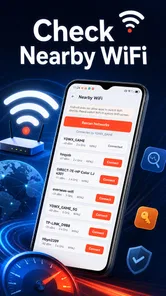
Analysis by Reviewed
I approached WiFi Ping Tester as a small utility for one practical question: is my connection behaving normally right now, and is the wireless signal itself part of the problem? The app comes from Online tech 4 and sits in the Tools category, with a straightforward purpose rather than a broad collection of networking features. In my experience, that narrow focus is its main appeal. It is easier to open a focused tester when a video call is stuttering or a download feels unusually slow than to dig through a larger network-analysis suite.
The app is free and aimed at Everyone, so it is accessible to casual users as well as people who already understand the difference between a wireless signal and internet responsiveness. Its current version is 1.0.6, and it requires Android 10 or later. That requirement is worth checking before trying to install it on an older phone, especially if you are keeping an aging device for travel or as a spare.
Its public reception is modest rather than conclusive: the app has a 3.7 average from around two dozen ratings, with a single written review and over ten thousand installs. I would read that as a sign that people are trying it, but not as enough feedback to treat every edge case as settled. My recommendation is therefore practical and cautious: use it as a quick diagnostic aid, not as the only evidence when you are disputing a broadband bill or troubleshooting a complicated home network.
What the tester is useful for in everyday situations
The most useful way to think about this app is as a snapshot tool. A ping test can show how quickly a connection responds to a network destination, while a Wi-Fi signal check can help indicate whether your phone is receiving a weak wireless signal. Those are related measurements, but they are not interchangeable. A strong signal does not guarantee a fast internet service, and a poor signal does not automatically prove that your provider is at fault.
I would open it before changing router settings, moving equipment, or blaming the mobile provider. First, I would run the test from the place where the problem actually happens. If a bedroom video call drops, testing beside the router may produce a reassuring result that says little about the bedroom. The more useful comparison is between the troublesome location and a second location in the same home, taken under similar conditions.
There is also value in using the app before and after a simple physical change. For example, I might test beside a closed cabinet, then move into the open without changing anything else. If the result improves, that gives me a sensible clue about placement. It does not prove that the cabinet is the only cause, but it helps me choose a low-cost next step before buying an extender.
Another realistic scenario is a shared apartment. When several people are streaming, gaming, or uploading files, a connection can feel slow even when the phone still shows a healthy Wi-Fi indicator. A ping result taken during the busy period and another taken when the network is quiet can help separate congestion from a weak signal. I would not treat either result as a complete diagnosis, but the timing comparison is more informative than checking the status icon once.
More From Our News Desk

 Gmail
GmailGmail in a Busy Inbox: Who Benefits Most?
From first account to crowded workday, Gmail earns its place through dependable search and flexible sorting—but its best fit depends on how much inbox maintenance you can tolerate.

 Prime Video
Switching to Prime Video: What Changes in Your Viewing Routine
Prime Video can make a compelling second home for streaming, but switching means learning a different catalog, rental layer, and route from browsing to playback.

 Universal TV Remote Control
Universal TV Remote Control Works Best as a Reliable Backup
A phone remote earns its place through quick setup and reliable habits. Here is how to get more from Universal TV Remote Control—and where its limits show.

 Weather - By Xiaomi
Weather by Xiaomi Review: Clear at a Glance, Less Clear Up Close
Xiaomi’s weather app makes everyday forecasts quick to scan, but its calm surface can leave useful details and recovery paths harder to find than they should be.

 X
XX Under Pressure: Can It Recover When Posting Goes Wrong?
A resilience-focused review of X, examining setup, mistaken posts, interruptions, weak connections, and the gaps that matter when recovery needs to be dependable.

 Clash of Clans
Clash of Clans Is Won Between the Battles
Its raids are quick; its community is a long-term project of coordination, teaching, rivalry, and shared responsibility—with all the friction that entails.
Latest News



Reading ping and signal information without jumping to conclusions
Ping is about responsiveness. It can help reveal that a connection is taking longer to respond, which matters during calls, remote work, cloud applications, and online games. It is not the same as download speed, and a good response time does not tell me how quickly a large file will transfer. If my only complaint is that a movie takes a long time to download, I would want a proper speed test as well.
Signal status is about the wireless link between the phone and the access point. Walking farther away can weaken that link, but walls, floors, appliances, neighboring networks, and the phone itself can also influence the result. This is why I prefer to record where I was standing and what was happening at the time. Without that context, one reading can encourage the wrong fix.
A useful habit is to repeat a test after waiting briefly, then compare the pattern rather than focusing on a single number. If readings change sharply from one moment to the next, congestion or interference may be involved. If they remain poor in one particular room but improve near the router, coverage becomes a more plausible explanation. The app can support that reasoning, but it cannot replace it.
The important distinction is between a clue and a diagnosis. WiFi Ping Tester can help me collect the clue quickly. It should not be used to declare that an internet provider, router, access point, or phone is definitely defective based on one screen.
A simple workflow that makes the results more meaningful
I would use the app in a repeatable sequence rather than opening it only when frustrated. First, I would close activities that could change the connection, such as a large upload or an active video stream. Then I would test from the problem location, note the time and situation, and repeat the check from a more favorable location. Finally, I would test again after making one change, such as moving closer to the router.
Changing one thing at a time is especially important. If I reboot the router, move the phone, stop every other device, and switch networks together, I will not know which action helped. A focused utility is most useful when I use it as part of a small experiment instead of treating it like a magic repair button.
For a household complaint, I would also test the same location with another phone if one is available. That can reveal whether the issue follows the room or follows the device. It is a practical trade-off: WiFi Ping Tester gives me a convenient reading on the phone I am holding, but the phone’s own wireless hardware and software may affect what I observe.
Trust, controls, and moments that deserve care
When I review a network utility, I pay attention not only to what it measures but also to how much control it gives the person using it. WiFi Ping Tester presents itself as a focused tool rather than a service that requires an account. That makes the basic interaction feel uncomplicated: open the app, perform a check, and interpret the result. I prefer that kind of direct workflow for occasional troubleshooting.
At the same time, I would not confuse a simple interface with a complete privacy assessment. The app’s purpose involves network-related information, and that is naturally sensitive in some situations. A reading taken at home can reveal something about the condition of a household connection at a particular moment. In a workplace, school, hotel, or shared building, network testing can also touch on rules about acceptable use.
My advice is to use it only on networks you are allowed to test. I would avoid experimenting on a company or public network unless the owner permits it. The fact that an app can check connectivity does not mean every network administrator wants diagnostic activity running on their infrastructure. This is less about the app being suspicious and more about respecting the setting in which any network tool is used.
I also recommend paying attention to the Android permission prompts shown on your own device before proceeding. Those prompts are the right place to review what the current installation is asking to access. I would not grant a permission casually just because the app is free or because the test seems useful. If a request feels unrelated to checking connectivity or wireless status, I would pause and decide whether the benefit is worth it.
That approach matters because privacy choices are not only about hidden technical behavior; they are also about visible user decisions. I want to know what I am allowing, whether I can decline it, and whether the app remains useful afterward. If a permission is optional, I would start with the smallest access needed for the task. If declining it prevents the central test from working, I would decide whether that trade-off suits my situation rather than accepting automatically.
Where the app fits among familiar alternatives
For a quick check, this app has an advantage over relying only on the Wi-Fi icon in Android. The icon compresses a complicated situation into a small visual signal, while a dedicated tester encourages me to look at responsiveness and signal status separately. That makes it more useful when I am trying to explain why a connection feels unreliable despite apparently acceptable bars.
It is less suitable than a full network-analysis application when I need a broader picture. Advanced tools may offer richer history, device discovery, route information, channel analysis, or detailed speed measurements. I would choose one of those when managing a home office, diagnosing several access points, or documenting a recurring problem for technical support.
It also does not replace the router’s own administration panel. Router software can show connected devices, configuration details, firmware options, and information about the local network that a phone utility may not expose. If the problem is an incorrect password, parental-control rule, firmware issue, or an overloaded router, I would move to the router’s controls rather than expecting this tester to fix it.
On the other hand, a full suite can be excessive for someone who simply wants to check whether the signal is poor in one corner of the home. The narrower design is easier to approach, particularly for a family member who does not want a dashboard filled with technical terms. I see the app as a first-pass instrument: more informative than a status icon, but deliberately less ambitious than a professional toolkit.
Practical limits and who should skip it
The biggest limitation is the amount of interpretation left to the user. A ping result can vary with the destination, network load, and moment of testing. A signal reading can change as the phone moves or as the wireless environment changes. Without a history view or a clear record of conditions, I have to create my own notes if I want to identify a pattern over time.
That is not a deal-breaker for occasional checks, but it becomes friction when a problem appears only at certain hours. Someone investigating a week of intermittent failures may prefer a tool that records results automatically or offers deeper diagnostics. I would also choose a more advanced alternative if I needed a formal report with repeatable technical evidence.
I would skip this app if my main goal is measuring broadband throughput. Ping and signal status can explain part of a slow experience, but they do not answer the whole speed question. I would also skip it as a primary solution when the issue clearly involves router configuration, multiple access points, wired connections, or a device that cannot run Android 10 or later.
For a beginner, the app is best used alongside a simple checklist. Test near the problem, test near the router, repeat at a different time, and change one thing at a time. If the results remain confusing, contacting the internet provider or asking someone with networking experience will be more useful than repeatedly pressing the test button.
My cautious verdict on the free utility
I like the idea behind WiFi Ping Tester because it addresses a common frustration with a small, understandable workflow. When my connection feels wrong, I want a quick way to look beyond the Wi-Fi icon, and this app is designed for exactly that moment. Its free price removes the need to make a financial commitment before deciding whether the basic checks are useful to me.
My confidence is measured rather than absolute. The 3.7 average and limited written feedback suggest that the app has a real user base, but they do not provide enough detail for me to promise a consistent experience on every phone or network. I would install it for personal troubleshooting, keep my expectations realistic, and avoid treating it as a complete network-monitoring system.
The app is a good fit for someone who wants to compare a weak room with a strong room, investigate occasional lag, or gather a little evidence before restarting equipment. It is also useful for explaining the difference between wireless coverage and internet responsiveness to someone who normally relies on the status icon. The most valuable results come from repeated, fair comparisons rather than one dramatic reading.
My final recommendation is simple: try it when you need a focused first check, but keep control of the process and your permissions. Use only networks you are authorized to test, review Android’s visible access requests, and remember that the app reports clues rather than causes. For everyday home troubleshooting, that balance makes WiFi Ping Tester worth considering; for detailed network engineering, a broader diagnostic tool remains the better choice.
WiFi Ping Tester Frequently Asked Questions
Is WiFi Ping Tester free, and what devices can run it?
WiFi Ping Tester is a free Android app in the Tools category, intended for checking network ping and Wi-Fi signal status. It requires Android 10 or later, so check your device’s operating system before downloading. The app is rated for Everyone, making its stated age classification suitable for a general audience.
What is WiFi Ping Tester used for?
WiFi Ping Tester is designed to check the responsiveness and stability of a Wi-Fi or internet connection. After entering a destination, such as a website or IP address, the app sends ping requests and displays details including response time, packet loss, and connection status. It can help identify delays, interruptions, or weak network performance.
Can WiFi Ping Tester measure my actual internet speed?
The app is primarily a latency and connectivity testing tool rather than a complete internet speed test. It can show how quickly a destination responds and whether packets are being lost, but it may not provide accurate download and upload speed measurements. For a full performance overview, you may need to use a dedicated speed-testing application as well.
Does WiFi Ping Tester work without mobile data?
Yes, WiFi Ping Tester can be useful while connected only to a Wi-Fi network, provided that the network has access to the destination you are testing. It can also help test local devices, such as a router or another computer, depending on the app’s supported options. Results may differ when testing local and internet addresses.
How should I understand the ping and packet-loss results?
A lower ping value generally means a faster response and is preferable for activities such as gaming, video calls, and remote work. Higher values indicate more delay, while packet loss means that some requests are not reaching their destination or returning successfully. Occasional loss may occur, but consistent loss usually suggests a network or router problem.
Pros
- Quickly checks whether your device can reach a Wi‑Fi network.
- Simple interface makes basic connectivity tests easy to understand.
- Useful for spotting unstable connections and intermittent packet loss.
- Helps compare signal performance in different rooms or locations.
- Lightweight tool that can be used without creating an account.
Cons
- Results can vary depending on network traffic and server distance.
- Ping tests do not measure full download or upload performance.
- Some advanced diagnostics may require technical networking knowledge.
- Background testing could increase battery use on longer monitoring sessions.
- The app cannot fix router
- ISP
- or Wi‑Fi interference problems.