Video Meeting - Meeting
- 5.00
- 4.2
- Installs
- 10.00K
- Price
- Free

Screenshots




Analysis by Reviewed
I approached Video Meeting - Meeting as a communication app for people who need a straightforward way to join online conversations, whether that means a quick one-to-one call or a team discussion. Its purpose is easy to understand, but the more useful question is whether it remains comfortable and practical for people with different abilities, devices, surroundings, and levels of technical confidence.
My overall impression is cautiously positive. The app is free, aimed at everyone, and developed by Innometrics Enterprise. It has reached over ten thousand installs and holds a 4.2 average from dozens of ratings, which suggests that early users are finding value in it while the product is still relatively young. I would not treat those figures as proof that it suits every meeting style, but they do make it worth considering if you want a focused alternative to more crowded meeting platforms.
How the app feels to read and navigate
I find that readable navigation is only part of a comfortable meeting; the way people prepare and share attention matters just as much. In this section, I’ll focus on small habits that make the app easier to approach over repeated calls, especially when participants have different levels of confidence with video meetings. Next, I’ll look at how physical comfort and surroundings can shape the experience.
A focused purpose helps reduce visual confusion
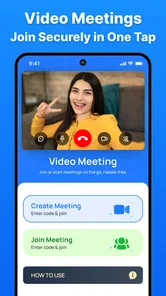
The strongest accessibility advantage here is the narrow purpose. Video Meeting - Meeting is not trying to be a social network, a document editor, a chat archive, and a project-management tool at the same time. When an app is built around joining and holding video conversations, there are fewer unrelated areas competing for attention. That matters to me because a clean task flow is often more useful than a long list of advanced options.
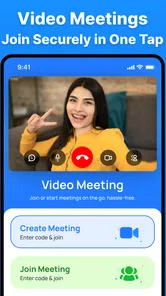
For a first-time user, the important mental model is simple: open the app, identify the meeting action, and move toward the conversation. That kind of limited scope can be helpful for older relatives, occasional callers, volunteers, or small teams that do not want to learn a large collaboration suite before speaking to one another.
I would still take a moment before an important call to look through the available controls. Familiarity matters more than speed when someone has reduced vision, memory difficulties, or anxiety about pressing the wrong button. A short practice call with a trusted person is a better preparation than discovering the interface while a group is waiting.
Text readability depends on the phone and the user
The app’s general communication design is easier to approach than a platform filled with nested menus, but readability is not determined by the app alone. Screen size, display scaling, brightness, contrast, and the user’s eyesight all change how comfortable the experience feels. Someone using a small phone may find labels and controls more demanding than someone using a larger display.
More From Our News Desk

 Gmail
GmailGmail in a Busy Inbox: Who Benefits Most?
From first account to crowded workday, Gmail earns its place through dependable search and flexible sorting—but its best fit depends on how much inbox maintenance you can tolerate.

 Prime Video
Switching to Prime Video: What Changes in Your Viewing Routine
Prime Video can make a compelling second home for streaming, but switching means learning a different catalog, rental layer, and route from browsing to playback.

 Universal TV Remote Control
Universal TV Remote Control Works Best as a Reliable Backup
A phone remote earns its place through quick setup and reliable habits. Here is how to get more from Universal TV Remote Control—and where its limits show.

 Weather - By Xiaomi
Weather by Xiaomi Review: Clear at a Glance, Less Clear Up Close
Xiaomi’s weather app makes everyday forecasts quick to scan, but its calm surface can leave useful details and recovery paths harder to find than they should be.

 X
XX Under Pressure: Can It Recover When Posting Goes Wrong?
A resilience-focused review of X, examining setup, mistaken posts, interruptions, weak connections, and the gaps that matter when recovery needs to be dependable.

 Clash of Clans
Clash of Clans Is Won Between the Battles
Its raids are quick; its community is a long-term project of coordination, teaching, rivalry, and shared responsibility—with all the friction that entails.
Latest News



If you are helping another person get started, set the phone’s text size and display zoom first, then check whether the meeting controls remain understandable. It is also sensible to keep the device in a stable orientation and avoid unnecessary notifications during the call. These small adjustments can make the difference between a calm conversation and a frustrating one without requiring extra software.
I would be careful about assuming that a simple interface automatically means a fully accessible interface. Simplicity reduces cognitive load, but it does not guarantee that every control is easy to identify with a screen reader, magnification, high-contrast settings, or alternative input. Users who depend on those tools should test the actual meeting flow on their device before relying on it for work or appointments.
Joining is easier when the organizer plans for the audience
The app is most approachable when the person arranging a call gives clear instructions in advance. A short message explaining when to open the app, what to expect, and whom to contact if something goes wrong can remove much of the uncertainty. This is particularly valuable for people who rarely use video calls or who need extra time to adjust their camera and microphone.
For a small team, I would create a repeatable routine: send the meeting details in plain language, ask participants to join a few minutes early, and begin with a quick audio check. That routine is not a special feature of the app, but it makes the app more inclusive because it shifts the burden away from the participant who may need assistance.
Communication controls should be treated as part of the interface
In a video meeting, navigation is not only about tapping buttons. It also involves knowing when to speak, how to signal a problem, and how to recover from a missed instruction. A facilitator can make Video Meeting - Meeting much easier to use by saying who is speaking, pausing after questions, and repeating important information verbally.
This is an overlooked trade-off. A meeting app may feel perfectly manageable for a confident host but difficult for a participant who cannot quickly locate a control or follow several people speaking at once. The app can support the connection, but the host’s habits determine whether that connection feels welcoming.
Motor, sensory, and situational considerations
I judge a meeting app in the conditions people actually use it: while holding a phone, coping with noise, or joining when tired. Here I’ll consider practical adjustments that reduce strain without assuming the app offers specialized accessibility tools. Those details lead into a closer look at how different bodies, senses, and settings can affect a call.
Touch interaction can be demanding during real conversations
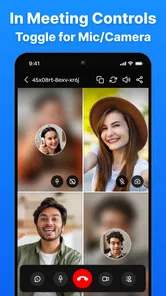
Video calls require more than starting a session. Participants may need to adjust audio, manage the camera, respond to interruptions, or leave the call while holding a phone in an awkward position. For someone with limited dexterity, tremors, joint pain, or fatigue, repeated small taps can be tiring and mistakes can be embarrassing.
My practical advice is to place the phone on a stand or another steady surface rather than holding it throughout a long conversation. A stable setup reduces accidental movement and leaves both hands available for other tasks. It also helps people who cannot maintain a firm grip or who need to change posture during the call.
Hosts should avoid assuming that silence means a participant is ready to speak. A person may be taking longer to reach a control, adjusting a device, or dealing with an input method that is slower than a standard touchscreen. Building in pauses is a simple way to make the meeting less dependent on quick motor responses.
Hearing access needs planning beyond the video window
Video communication can be useful for people who rely on visual cues, but a moving face is not automatically enough for every person with hearing loss. Lighting, camera angle, background movement, connection quality, and the speaker’s habit of looking away all affect how easy it is to follow speech visually.
For a group call, I would ask everyone to speak one at a time and identify themselves before making an important point. That makes the conversation easier to track and reduces the confusion caused by overlapping voices. If a participant needs written support, the group should agree in advance on another way to share key information rather than treating the video call as the only record.
I would not choose this app on the assumption that it replaces dedicated captioning, interpreting, or specialist communication tools. People who require those services should confirm that their usual support method works alongside the app on their particular device. The right choice may be a different platform with the communication assistance they already depend on.
Vision and lighting affect more than image quality
A camera conversation can be tiring for people with low vision, light sensitivity, migraines, or attention-related difficulties. Strong backlighting, a busy room, and constant movement behind the speaker make it harder to concentrate. These problems are often blamed on the app even though they begin in the physical setup.
I get better results by placing the light in front of the speaker, keeping the background calm, and positioning the phone at eye level. A participant who finds video tiring may prefer to keep the camera off when appropriate, although that depends on the expectations of the meeting. The important point is to agree on that expectation instead of making someone explain their needs in the middle of a call.
People with sensory sensitivities may also prefer shorter sessions with clear breaks. A meeting that has no time limit can be convenient, but unlimited duration is not automatically an accessibility benefit. Without an agreed stopping point, participants may feel pressure to remain on screen longer than is comfortable.
One-to-one calls and team meetings create different demands
The app’s support for individual conversations and team discussions makes it suitable for different situations, but those situations should not be judged by the same standard. A one-to-one call is easier to moderate. Two people can agree on pacing, repeat information, and notice when the other person is struggling.
A team meeting is more complicated. Several voices, changing attention, camera differences, and side conversations can create barriers even when every participant can technically join. I would use the app confidently for a small, well-organized group, but I would be more cautious with a large or highly formal meeting where detailed participation controls and structured collaboration are essential.
Everyday scenario: a remote appointment or family check-in
Imagine a family arranging a weekly call with a relative who is comfortable with a smartphone but does not use meeting software often. The organizer can send clear joining instructions, set the phone on a stand, improve the lighting, and begin with a simple audio check. During the conversation, everyone can take turns and repeat names before changing topics.
In that situation, the app’s focused communication role is an advantage. The relative does not need to learn a full workplace platform just to speak with family. The trade-off is that the family must provide the structure: reminders, patience, and a backup way to communicate if the call becomes difficult. That is a realistic strength and limitation, not a flaw that can be solved by a button.
Situational access matters when the network or environment changes
Video meetings are sensitive to circumstances. A person may be joining from a noisy room, a shared home, a workplace with interruptions, or a location where the internet is inconsistent. Someone with concentration difficulties may find background noise more disruptive than the host realizes, while a person with limited data may not want to keep video running for an extended discussion.
Before choosing the app for an important event, I would test it in the same place and with the same device the participant will use. A successful test at home does not guarantee an equally comfortable call from a busy office or a weak connection. This is especially important for users who cannot easily troubleshoot settings while also participating in the conversation.
A useful meeting plan includes a fallback: a phone call, a written update, or a rescheduled conversation. I see that as good inclusive practice rather than a criticism of this particular app. Video should improve access, not become the only doorway to essential information.
What the app is and is not suited to replace
Compared with familiar all-in-one meeting services, Video Meeting - Meeting appears more appealing when the goal is direct video communication without adding a large ecosystem of features to learn. That can benefit people who feel overwhelmed by workplace suites or who only need a simple conversation space.
The usual alternatives may be better for organizations that depend on established calendars, extensive moderation, shared documents, detailed chat history, formal captioning workflows, or broad administrative controls. Those tools can be heavier and less friendly for casual users, but their extra structure may be valuable for schools, healthcare teams, or large companies.
I would also avoid selecting this app solely because it is free. Free access is helpful for families, community groups, and small teams managing limited budgets, but the real question is whether the communication experience meets the group’s needs. If participants require a specialized accessibility workflow, an established alternative may be the more responsible choice even if it takes longer to learn.
Remaining barriers and practical compromises
The biggest barrier is not necessarily the basic act of joining a call; it is the uncertainty around how well the experience fits a particular person’s access needs. Users who rely on assistive technologies, specialized input, captions, or carefully controlled sensory environments should test the complete process rather than infer support from the app’s simple purpose.
There is also a social barrier. A participant may technically be able to join but still be excluded if the host speaks too quickly, changes topics without warning, or treats camera use as a measure of attention. I would judge the app together with the meeting culture around it. A considerate host can make a modest tool work well, while poor facilitation can make any platform exhausting.
The app’s relatively small early audience is another reason I would introduce it gradually. With a 4.2 average across its current ratings and a limited number of written reviews, I see encouraging interest but not the same level of long-term community feedback available for older communication products. That does not make it a bad choice; it simply means I would pilot it with a low-risk call before moving an essential workflow.
Its current version is 1.1.6, and it runs on Android devices using version 8.0 or later. That makes device compatibility an important first check for anyone supporting an older phone. A person may have the right meeting invitation and a suitable internet connection but still be blocked by an outdated operating system.
Because the app is rated for everyone and costs nothing to download, it is easy to consider for mixed-age groups. Even so, an age rating should not be confused with a promise that every child, older adult, or person with a disability will find the interface equally comfortable. The responsible approach is to let the actual participant try a short call and describe what feels difficult.
My inclusive verdict
I would recommend Video Meeting - Meeting to families, small teams, and casual groups that want a focused video communication app and are willing to organize the human side of the call. Its free access, straightforward purpose, and support for both individual and team conversations make it a sensible candidate for low-friction communication.
I would be more cautious for users whose access depends on confirmed captioning, advanced administration, specialist communication support, or a mature accessibility ecosystem. In those cases, a familiar alternative with proven tools for that specific need may be safer. I would also skip it for a large organization that expects a meeting app to double as a complete collaboration platform.
The most useful way to adopt it is to treat accessibility as a shared setup task. Test the app on the participant’s real device, improve lighting and sound, use a stable stand, agree on speaking turns, and prepare a fallback channel. The app can open the door to a conversation, but inclusive meeting habits decide whether everyone can comfortably walk through it.
For my own recommendation, I would start with a short one-to-one call or a small team meeting rather than making it the foundation of a critical event immediately. If participants can read the controls, hear or follow the conversation, manage the touch actions, and leave without confusion, it may be exactly the uncomplicated communication option they need. If those tests expose barriers, choosing a more specialized alternative is not overreacting; it is good judgment.
In short, this is a promising free communication app from Innometrics Enterprise for people who value a direct video meeting experience. I like its approachable scope, but I would pair it with thoughtful hosting and a real-world accessibility check. That balanced approach gives the app a fair chance while keeping the needs of every participant ahead of convenience.
Video Meeting - Meeting Frequently Asked Questions
What devices and operating systems can run Video Meeting - Meeting?
Video Meeting - Meeting is a communication app for mobile devices, and its minimum operating system requirement is version 8.0. Before downloading, check that your phone or tablet meets that requirement and has enough available storage for the installation. Keeping your operating system up to date can also help with compatibility and video-call performance.
Who develops Video Meeting - Meeting, and is it widely used?
Video Meeting - Meeting is developed by Innometrics Enterprise. It has more than 10,000 installs and an average rating of 4.2 from 48 ratings. Those figures offer a quick sense of its reach and user feedback, but they are not a guarantee that every call or device will provide the same experience. Consider whether its meeting features suit your needs.
What is Video Meeting - Meeting, and what can I use it for?
Video Meeting - Meeting is a communication app designed for joining or hosting online video conferences. It can be useful for remote work, online classes, group discussions, interviews, and keeping in touch with friends or family. Depending on the meeting setup, users may be able to communicate through video, voice, and text chat while participating from a phone or tablet.
Do I need to create an account before joining a meeting?
Whether registration is required usually depends on how the meeting organizer configured the session. In many cases, participants can join through an invitation link or meeting code, sometimes by entering only a display name. However, hosts may need to sign in or create an account to schedule meetings, manage participants, and access additional controls. Check the app’s current requirements before downloading.
Does Video Meeting - Meeting require a strong internet connection?
Yes. Video conferencing depends heavily on a stable internet connection, especially when the camera is enabled. Wi-Fi or a reliable 4G or 5G network generally provides the best experience. Weak connections may cause delayed audio, frozen video, dropped calls, or reduced image quality. If your connection is limited, turning off your camera can help preserve audio quality during the meeting.
Pros
- Simple interface makes it easy to start or join meetings.
- Supports video
- audio
- and text chat in one place.
- Useful for remote work
- online classes
- and group discussions.
- Meeting links make inviting participants quick and convenient.
- Works across mobile devices for flexible communication on the go.
Cons
- Call quality can drop on weak or unstable internet connections.
- Some advanced meeting tools may require a paid plan.
- Background noise can affect conversations without good microphones.
- Large meetings may feel less responsive on older devices.
- Privacy depends on using secure links and keeping meeting details private.