Vexa: AI Video & Photo Maker
- 9.00
- 3.7
- Installs
- 100.00K
- Price
- Free

Screenshots
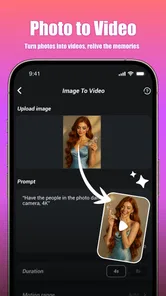
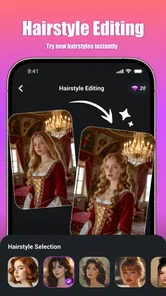
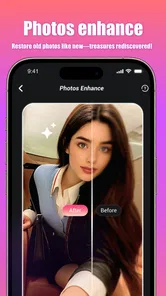
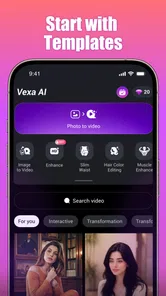
Analysis by Reviewed
Turning a still photo into something that feels alive is the main reason I would open Vexa: AI Video & Photo Maker. It is a free lifestyle app from Clicker Technology that focuses on adding cinematic movement and creative effects to images, rather than asking me to learn a full video editor. That makes it appealing when I want a quick visual for a social post, a memory from my camera roll, or a more expressive image to send to someone.
My first impression is that Vexa is aimed at people who want a result quickly, not at editors who enjoy adjusting every frame. The appeal is the short path from photo to animated clip. I choose an image, try the available creative treatment, and judge whether the movement matches the mood of the original. That simplicity is useful, but it also means the quality of the final result depends heavily on the source photo and on how much control the app gives me during the process.
How Vexa feels when a connection is part of the workflow
The most important practical point is that an AI video maker is not experienced like a basic gallery editor. The attractive part of the process is the transformation itself, and that kind of work can involve a wait while the app processes the image. In real use, I would treat a reliable connection as part of the experience, especially when I am trying several ideas rather than making one quick clip.
This changes how I use it. At home, I can start with a clear plan: select a portrait, choose a style, and wait for the result without worrying about interrupting the process. On a train or in a crowded public place, I would be more cautious. A weak connection can make an apparently simple edit feel uncertain, particularly if I have not yet seen whether the selected effect suits the photo.
I would not open Vexa expecting it to replace a complete offline editor. Its attraction is the AI transformation, so I prefer to begin a project when the network is dependable. That is not a criticism of the idea; it is simply the difference between making a conventional crop and asking an app to generate motion from a still image. For the smoothest experience, I would prepare the photo first and save the creative experiments for a stable connection.
There is also a useful creative consequence to this limitation. Because I do not want to repeat a long process unnecessarily, I become more selective about the images I submit. A well-composed photo with a clear subject usually gives the effect a better starting point than a dark, crowded, or blurry image. Vexa works best when I already know what the image is supposed to communicate.
Why the mobile setting matters
Vexa makes the most sense in the moments when a phone is already the source of the content. I can imagine using it after a birthday gathering, while choosing a travel photo, or when I want to turn a family snapshot into a short visual message. In those situations, I do not need a timeline, multiple tracks, or a detailed sound mix. I need a fast way to make one image feel less static.
More From Our News Desk

Weather by Xiaomi Review: Clear at a Glance, Less Clear Up Close

X Under Pressure: Can It Recover When Posting Goes Wrong?

Clash of Clans Is Won Between the Battles

Android Auto Makes the Case for Quieter Car Software

MobiOffice: Transforming Mobile Productivity with Seamless Integration

EA SPORTS FC™ Mobile Soccer: Redefining Mobile Sports Gaming
A realistic example would be a friend asking me to share a photo from a weekend trip. Instead of sending the unchanged picture, I could test a gentle cinematic treatment and create a small animated version that feels more personal. If the first attempt looks too dramatic, I would return to the original rather than trying to rescue an unsuitable effect. That original file is important because it gives me a safe starting point for another style.
The phone-first approach is also helpful for spontaneous work. I can notice a good image while scrolling through my gallery and decide immediately whether it deserves motion. The trade-off is that a small screen makes it harder to judge subtle artifacts. A face, hand, building edge, or background detail may look acceptable in a quick preview but less convincing when viewed larger. I would always inspect the result before sharing it.
Vexa is less suitable when my project needs several scenes, precise cuts, captions placed at exact moments, or a carefully controlled soundtrack. A traditional mobile video editor is a better choice for those jobs because it gives me direct control over the structure. Vexa is strongest as a focused creative step: animate one photo, assess the mood, and use the result where a short visual is enough.
Choosing photos that give the effect room to work
The best workflow begins before I launch the app. I would avoid starting with a photo that already has heavy blur, severe compression, or several equally important subjects. AI motion effects need a readable subject and enough visual separation between foreground and background. A portrait with a clear face, a landscape with a strong horizon, or an object photographed against a simple setting gives me a more sensible test.
I would also keep the original image untouched. My preferred method is to duplicate or remember the source before experimenting, then compare the generated result against it. This helps me decide whether the movement adds something or merely makes the picture busier. A dramatic effect can be entertaining, but it is not automatically better than a restrained one.
One less obvious tip is to judge the clip with its intended destination in mind. A result that looks lively in a phone preview may become distracting when placed beside text or used in a sequence of other images. If I am making a personal greeting, subtle motion may feel warmer. If I am creating a playful post, a stronger treatment may be appropriate. The app can provide the transformation, but I still have to make the editorial decision.
What happens when processing is interrupted
Connection problems are most frustrating when they appear after I have already chosen an image and an effect. A stalled or interrupted process can leave me unsure whether I should wait, retry, or begin again. My practical approach is to avoid tapping repeatedly. I would first check whether the app is still responding, then retry once with the same source image if necessary.
I would also keep the workflow simple during an unstable session. Instead of submitting several photos at once, I would work on one image and confirm that the result is usable before moving to the next. This reduces confusion and makes it easier to identify whether the issue came from the connection, the selected image, or the particular effect.
Recovery is easier when I separate creative decisions from technical ones. I would decide which photo and mood I want before starting the generation step. If the network drops, I do not have to rethink the entire project; I can simply return to that prepared choice later. This is a small habit, but it prevents a failed attempt from turning into a frustrating search through the gallery.
The same principle applies when the output is not visually convincing. I would not assume that repeating the exact request will fix it. Instead, I would try a different source image with a clearer subject or a less demanding composition. If the result still does not fit, I would switch to a conventional editor and create movement manually. That is one of the boundaries of an AI-focused app: convenience is valuable, but it does not guarantee that every photo will respond equally well.
Using data and battery thoughtfully
Because Vexa is built around turning images into animated content, I would avoid treating every photo in my gallery as an experiment. Repeated generation can use more time and connectivity than a normal crop or filter, so I would narrow my choices first. A small selection of strong photos is more efficient than sending dozens of weak candidates through the same process.
When I am using mobile data, I would be especially deliberate. I would wait for a dependable Wi-Fi connection when I plan to compare several effects, and I would reserve mobile use for a single result that matters. This is not only about conserving data; it also makes the experience less stressful because I am less likely to lose progress halfway through a creative idea.
I would also avoid judging the app solely by the speed of one attempt. Network conditions, image complexity, and the amount of processing involved can all affect how quickly a result appears. If I need something immediately for a time-sensitive message, a normal video editor with a ready-made motion effect may be the safer option. Vexa is more enjoyable when I can give the process a little room.
Privacy is another reason to be selective with personal images. I would think carefully before choosing sensitive photographs, especially when the app is being used for experimentation rather than for a meaningful final result. I would start with images that I am comfortable processing and sharing, then decide whether Vexa belongs in my regular workflow for more private material.
Cost, age guidance, and what the version tells me
Vexa can be installed free of charge, which makes it easy to test without committing money at the beginning. The app includes optional purchases ranging from $0.99 to $99.99 per item, so I would pay attention to any purchase screen and avoid assuming that every creative option is included at no cost. The free entry point is useful, but the overall value depends on how much of the experience I can use comfortably before paying.
The app is marked Mature 17+, so it is not something I would casually recommend to younger users. Parents should take that age guidance seriously rather than treating the simple photo-based interface as a sign that it is automatically suitable for children. For adults, the rating is a reminder to use normal care when creating and sharing visual material.
The current version is 1.0.1, which gives me a reason to keep expectations realistic. Early versions can feel focused and promising while still needing refinement in areas such as consistency, recovery, or the range of creative controls. I would update when appropriate and judge the app by the results it gives me on my own photos, not only by the appeal of its concept.
Its minimum requirement of Android 7.0 also makes it accessible to many older Android phones, although the actual comfort of AI processing will still depend on the device and connection. On a modest phone, I would leave extra time for the process and avoid running several demanding tasks at once. The app may open successfully, but that does not mean every phone will feel equally quick.
Who will enjoy it, and who should choose something else
I think Vexa is a good fit for someone who has a folder full of photos and wants to give a few of them more personality without learning professional editing. It is also appealing to social users who prefer making one striking visual rather than assembling a long video. If the goal is a cinematic touch, a playful transformation, or a short animated memory, the app has a clear purpose.
I would recommend it less enthusiastically to photographers who need exact control over motion, editors who work with multiple clips, or anyone who cannot tolerate waiting for a generated result. Those users may be happier with a standard editor that offers keyframes, layers, trimming, and predictable manual adjustments. Vexa trades that control for speed and experimentation.
The rating of 3.7 from around 1.4 thousand ratings suggests a mixed but meaningful public response rather than universal approval. I read that as a reason to approach the app with curiosity, not blind confidence. Its installed base of over 100 thousand shows that the idea has found an audience, while the modest average rating reminds me that the experience may vary considerably from one user and one image to another.
My final view on the connected experience
Vexa is most convincing when I use it as a quick creative laboratory on my phone. I choose a strong photo, make one focused experiment, inspect the result carefully, and keep the original available for comparison. That workflow respects the app’s strengths while avoiding the disappointment of expecting a full editing suite.
Connectivity shapes nearly every sensible decision around it. I would use a stable network for repeated experiments, avoid submitting private or unsuitable images casually, and keep a conventional editor available when I need immediate or highly controlled results. Those habits make the app feel more dependable because I am using it for the job it appears designed to do.
My recommendation is therefore positive but specific: try Vexa if you want to turn individual photos into expressive AI-assisted videos and you are comfortable with a connection-aware workflow. Skip it if your priority is offline certainty, detailed timeline editing, or complete control over every movement. For the right user, it is an easy way to make a still image feel fresh; for everyone else, a traditional editor may remain the more practical everyday tool.
Vexa: AI Video & Photo Maker Frequently Asked Questions
Who develops Vexa, and what should I know about its audience?
Vexa: AI Video & Photo Maker is a Lifestyle app developed by Clicker Technology. It is rated Mature 17+, so it may not be appropriate for younger users. The app focuses on turning photos into AI videos with cinematic motion and creative effects, making it relevant to people interested in expressive photo and video creation.
What is Vexa: AI Video & Photo Maker used for?
Vexa: AI Video & Photo Maker is designed for creating edited photos and short videos with the help of artificial intelligence. From the features available in the app, users can usually turn images into animated clips, apply creative visual effects, enhance portraits, and produce social-media-ready content without advanced editing experience. It is aimed at casual creators who want quick results rather than a full professional editing suite.
Is Vexa: AI Video & Photo Maker free to download and use?
The app can generally be downloaded at no initial cost, but some tools, templates, effects, export options, or AI generations may require in-app purchases or a subscription. In-app purchases range from $0.99 to $99.99 per item, so check the pricing shown in the app before buying. Before starting a trial, check the pricing page carefully, including renewal terms, because subscriptions may automatically renew unless canceled through your Google Play or Apple account settings.
Do I need an internet connection to use Vexa?
An internet connection is likely required for many of Vexa’s AI-powered features because photos and videos may need to be processed through online servers. Basic actions such as selecting files or reviewing previously exported content might work offline, but generation, cloud processing, template loading, and account-related functions may not. For the most reliable experience, use a stable Wi-Fi or mobile-data connection.
Is Vexa safe for uploading personal photos and videos?
Before uploading private images, users should review Vexa’s privacy policy and the permissions requested by the application. AI editing services may process media on remote servers, and the handling period, storage practices, and deletion options can differ between providers. Avoid uploading highly sensitive material unless you understand how it is processed, and only grant access to the photos, camera, or microphone features that you actually intend to use.
Pros
- Creates polished videos and images quickly with AI tools.
- Useful templates simplify content creation for social media.
- Supports creative experimentation without advanced editing skills.
- Can help generate ideas when you are short on inspiration.
- Convenient for making short-form visual content on mobile.
Cons
- Some advanced features may require a paid subscription.
- AI results can vary and may need several attempts to look right.
- Generated content may not always match your exact prompt.
- Export options and quality may depend on the selected plan.
- Using AI features can consume significant battery and mobile data.