USB Camera Pro
- 228.00
- 3.5
- Installs
- 100.00K
- Price
- $5.49
Screenshots
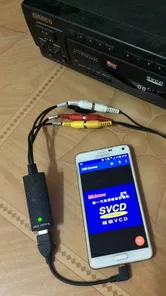
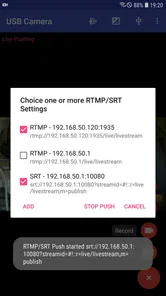
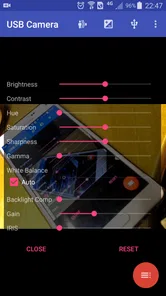
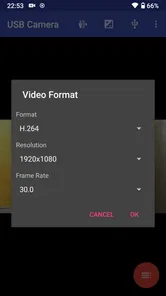
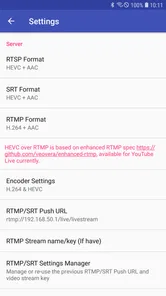
Analysis by Reviewed
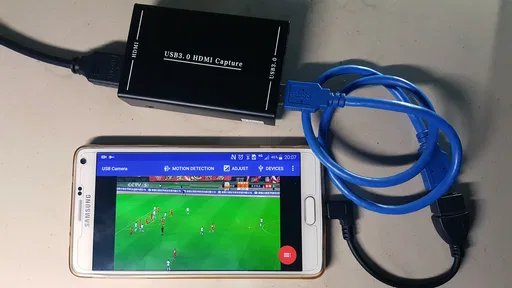
I see USB Camera Pro as a practical tool for a specific job, not a shortcut to turning a phone into a professional camera. Its real appeal is connecting compatible external camera hardware to a mobile device so you can view, record, or broadcast a video and audio feed. If you already own an EasyCap or UVC device and want to work with its input on a phone, that focus is useful. If you simply want better pictures from your phone’s built-in camera, I’d look elsewhere.
A purpose-built connection, not a general camera upgrade
The difference matters when choosing between this and a typical camera app. Most alternatives control the phone’s own lens; USB Camera Pro is meant to receive a feed from connected equipment. That makes it more relevant for a compact monitoring setup, a capture workflow, or a live video source than for everyday snapshots. ShenYao China is the developer, and the app sits in the video player and editor space rather than functioning as a broad photo-editing suite.
Before paying, I’d check the exact connection chain I plan to use: the camera or capture device, the phone’s port, and any adapter or power arrangement needed. USB compatibility is not a promise that every camera, cable, or accessory will work together. Testing the setup at home before taking it to an event is a simple way to avoid discovering a mismatch when you need the feed.
Where the workflow can be useful
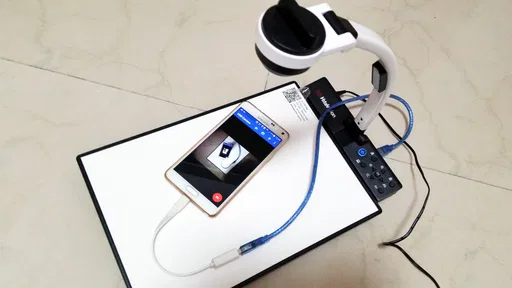
A realistic use is setting a phone beside a small tabletop project and using a connected camera as the view or recording source while your hands stay busy. The same idea can suit a hobby bench, a classroom demonstration, or a fixed view of a piece of equipment. In these situations, the advantage is not a magical image upgrade; it is being able to bring an external video source into a mobile workflow instead of relying on the phone’s built-in camera.
One useful habit is to do a short test recording before an important session. Check that the picture is framed as expected and that the audio path is usable, then review the clip rather than judging only from the live preview. For broadcasting, I’d also test the full route—from the attached device through the app to the destination—because a working camera connection alone does not guarantee a smooth stream.
Planning around cables, power, and continuity
For a stationary setup, I’d arrange the cable path before opening the app. A connector that is under tension or an adapter that shifts when the phone is touched can turn an otherwise sensible monitoring setup into a fussy one. Keeping the phone supported and leaving a little slack in the cable helps reduce accidental disconnects, especially when the camera is aimed at a small work area.
Power is another practical consideration. When an external device and phone are both part of the chain, the setup may need more attention than a phone-only recording. I’d check that the arrangement can stay powered for the length of the session, rather than assuming a quick test predicts how a longer demonstration will go. This is particularly useful for a classroom or workshop, where stopping midway to rearrange cables is disruptive.
More From Our News Desk

 Gmail
Gmail in a Busy Inbox: Who Benefits Most?
From first account to crowded workday, Gmail earns its place through dependable search and flexible sorting—but its best fit depends on how much inbox maintenance you can tolerate.

 Prime Video
Switching to Prime Video: What Changes in Your Viewing Routine
Prime Video can make a compelling second home for streaming, but switching means learning a different catalog, rental layer, and route from browsing to playback.
 Universal TV Remote Control
 Works Best as a Reliable Backup
A phone remote earns its place through quick setup and reliable habits. Here is how to get more from Universal TV Remote Control—and where its limits show.
 Weather - By Xiaomi
Weather by Xiaomi Review: Clear at a Glance, Less Clear Up Close
Xiaomi’s weather app makes everyday forecasts quick to scan, but its calm surface can leave useful details and recovery paths harder to find than they should be.

 X
X Under Pressure: Can It Recover When Posting Goes Wrong?
A resilience-focused review of X, examining setup, mistaken posts, interruptions, weak connections, and the gaps that matter when recovery needs to be dependable.

 Clash of Clans
 Is Won Between the Battles
Its raids are quick; its community is a long-term project of coordination, teaching, rivalry, and shared responsibility—with all the friction that entails.
Latest News



The trade-offs I would weigh
USB Camera Pro is priced at $5.49, so I would treat it as a specialized purchase rather than an automatic download. Its 3.6 average from around 1,400 ratings suggests a mixed reception, while more than 50,000 installs show that it has found a real audience. I would not read those figures as proof that it will work with a particular setup; compatibility and the quality of the connected hardware are central to the experience.
The app is rated for Everyone, but that does not make the setup effortless. External hardware adds cables and possible adapter or power needs, and a phone-based workflow may be less convenient than using a dedicated capture device or a computer when a long, dependable session matters. If you only need occasional video, your phone’s built-in camera app is simpler. If you need editing, a separate editor may suit you better; this app’s distinctive role is handling an external camera feed.
There is also a difference between seeing a usable picture and having a complete production workflow. If the goal is to capture a source and then trim, title, or assemble footage, I would plan to move the recording into an editor rather than expect this connection-focused app to replace one. For a quick record-and-review task, that extra step may be fine. For frequent publishing, it is worth deciding whether a phone, an external capture device, or a computer will make the whole process less cumbersome.
I’d also avoid assuming that any advanced controls or broadcast options will behave identically with every connected device. Start with the simplest configuration, confirm the live image and sound, and change one part of the setup at a time if something is wrong. That makes it easier to tell whether a problem comes from the app, the connection, or the source hardware.
A practical way to test compatibility
If I were trying it for a specific project, I would test in stages: first connect the intended camera or capture hardware, then check the picture, then check audio, and finally try the actual recording or broadcast route. This order narrows down the cause of trouble. If the picture is absent, there is little point troubleshooting the destination for a stream; if the picture works but the audio does not, I would focus on the audio source and connections before changing everything else at once.
I would also test with the same phone, cable, adapter, and source device I plan to use later. Swapping one item for a different one during a test can create false confidence, because the full chain is what matters. This is a modest bit of preparation, but it is more valuable here than browsing for camera filters: the app’s usefulness depends on the external input arriving in a form the phone can handle.
Who should choose it—and who should pass
This is most appealing to someone who already has a compatible external video source and a clear reason to bring that feed onto a mobile device. A hobbyist who wants a close view of a work surface, a teacher demonstrating a small object, or someone setting up a simple fixed camera view may find the phone-based approach convenient. The app’s narrow purpose is a strength for those users because it addresses a particular connection task instead of trying to be a full studio.
I would pass if my main goal were better everyday photos, social clips from the phone’s own lens, or editing finished footage in one place. I would also favor a computer or dedicated capture setup if a session must run for a long time with minimal interruption, or if several sources need to be managed. Those alternatives involve their own setup, but they can be a better fit when reliability and a broader production workflow matter more than portability.
Hey, tech enthusiasts! Today, let's dive into the world of mobile photography and explore an app that's been turning heads lately: USB Camera Pro. If you're someone who loves capturing moments with precision and clarity, this app might just be your new best friend. So, grab your favorite device, and let's see what this app has in store for us.
Transform Your Device into a High-Quality Camera
Picture this: you're at a stunning location, and all you have is your trusty smartphone. No worries! With USB Camera Pro, you can transform your device into a professional-grade camera. The app allows you to connect external USB cameras to your Android or iOS device, instantly enhancing your photography capabilities. It's like having a DSLR in your pocket—without the bulk!
Smooth User Experience
One of the first things you'll notice about USB Camera Pro is its smooth and intuitive interface. The app is designed with the user in mind, making it incredibly easy to navigate through various features. Whether you're a seasoned photographer or just starting, the learning curve is practically non-existent. The straightforward layout ensures you spend more time capturing those perfect shots and less time fiddling with settings.
Feature-Packed for Creativity
What sets USB Camera Pro apart from other photography apps is the range of features it offers. From manual focus and exposure controls to video recording and time-lapse options, this app is a playground for creativity. The ability to customize settings to suit your style is a game-changer. Plus, the app supports a variety of USB cameras, ensuring compatibility is never an issue.
Performance and Reliability
Nobody likes an app that crashes right when you're about to capture the perfect moment. Thankfully, USB Camera Pro is known for its reliability. The app runs smoothly without any hiccups, even when you're using high-resolution cameras. It's optimized to ensure that performance is top-notch, providing you with a seamless experience every time you use it.
Moreover, the developers frequently update the app, introducing new features and improvements. This commitment to enhancing user experience is something that keeps users coming back for more.
Final Thoughts
In a world where capturing and sharing moments is more important than ever, having a reliable and feature-rich app like USB Camera Pro is essential. It's perfect for anyone looking to take their mobile photography to the next level without breaking the bank on expensive equipment. So, if you're ready to unleash your inner photographer, give USB Camera Pro a try. Who knows? You might just discover a new passion for photography!
In conclusion, whether you're capturing breathtaking landscapes or intimate portraits, USB Camera Pro provides you with the tools to do it all. So, why wait? Download it today and start capturing memories like never before!
USB Camera Pro Frequently Asked Questions
What is USB Camera Pro and how does it work?
USB Camera Pro is a versatile application that allows users to connect a USB camera to their Android device. This can be particularly useful for those needing external camera functionality for various tasks, such as monitoring or video conferencing. The app supports a wide range of USB camera models and offers features like video recording, editing, and live streaming.
Is USB Camera Pro compatible with all Android devices?
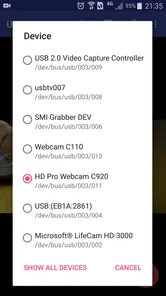
While USB Camera Pro is designed to work with most Android devices, compatibility can vary depending on the device’s hardware and operating system version. It's recommended to check the app’s requirements and ensure that your device supports USB OTG (On-The-Go) functionality, which is crucial for connecting external USB devices.
What are the main features of USB Camera Pro?
USB Camera Pro boasts a variety of features including high-quality video recording, still image capture, live streaming, and video editing tools. The app also supports multiple video formats and resolutions, providing users with flexibility in how they use their USB camera. Users can also adjust settings like exposure and focus directly from the app.
Is USB Camera Pro safe to use and does it protect user privacy?
USB Camera Pro prioritizes user safety and privacy. The app requires permissions to access the camera and storage, which are standard for its functionality. However, it does not collect personal data or share information without user consent. Users are advised to download the app from trusted sources like the Google Play Store to ensure its authenticity.
How much does USB Camera Pro cost and is it worth the investment?
USB Camera Pro is a paid application, typically offering a one-time purchase option rather than a subscription model, making it a cost-effective choice for frequent users. Considering its range of features and compatibility with various USB cameras, many users find it worth the investment for the enhanced functionality it provides to their Android devices.
Pros
- High-quality video streaming available
- Supports various USB cameras seamlessly
- User-friendly interface for easy navigation
- Low latency for real-time viewing
- Offers advanced camera controls
Cons
- Requires USB OTG support on devices
- Not all cameras are fully compatible
- May drain battery quickly
- Limited free features
- requires purchase
- Occasional app crashes reported